> For the complete documentation index, see [llms.txt](https://guide.nin.earth/llms.txt). Markdown versions of documentation pages are available by appending `.md` to page URLs; this page is available as [Markdown](https://guide.nin.earth/guidebook/markdown/how-do-i-use-vr-mode.md).

# How do I use VR mode?

You can enter VR mode and view your Monument & 3D Objects in the virtual world using your VR device.

<figure><img src="https://2902267430-files.gitbook.io/~/files/v0/b/gitbook-x-prod.appspot.com/o/spaces%2F5LAEHDS7jvCC6hgJFI2D%2Fuploads%2FQUoFDAD2UwXrGLIm2ZdC%2Fimage.png?alt=media&amp;token=0fc00f7d-da3a-47ac-921a-11830c2b967c" alt="" width="563"><figcaption></figcaption></figure>

<a href="/guidebook/markdown.md" class="button primary" data-icon="circle-up">Back to top</a>

{% hint style="success" %}

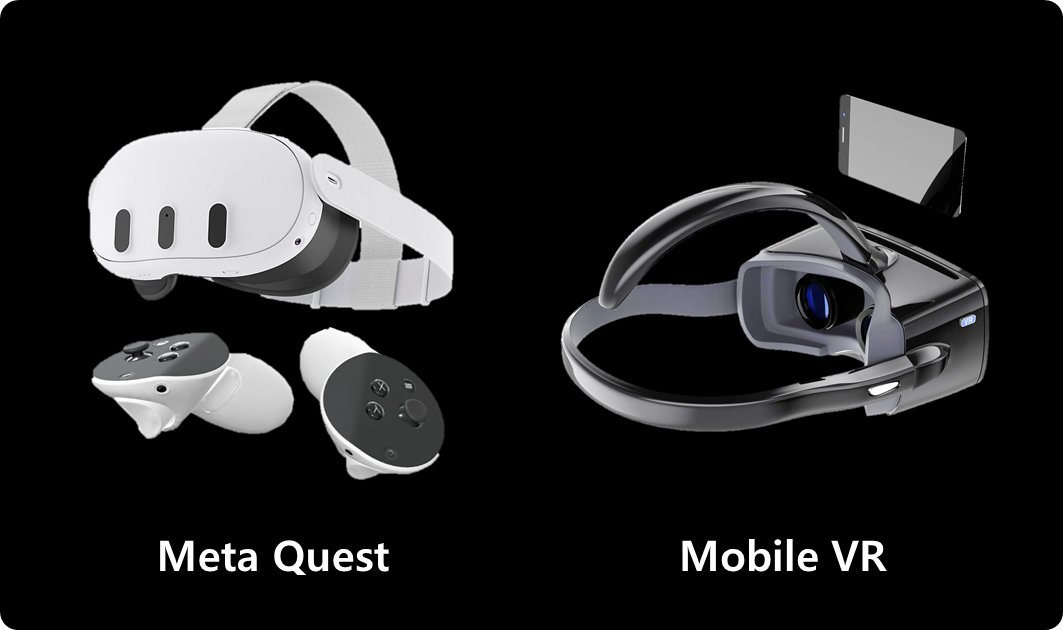
### **NOTE. supported Devices**

1. Meta Quest
2. Mobile VR headset
   {% endhint %}

<figure><img src="https://2902267430-files.gitbook.io/~/files/v0/b/gitbook-x-prod.appspot.com/o/spaces%2F5LAEHDS7jvCC6hgJFI2D%2Fuploads%2F8giWcP8fkFjFWAILQGQr%2Fimage.png?alt=media&amp;token=c6990ed8-f127-4314-8648-82b4dd16ba08" alt="" width="563"><figcaption></figcaption></figure>

### **Access VR mode**

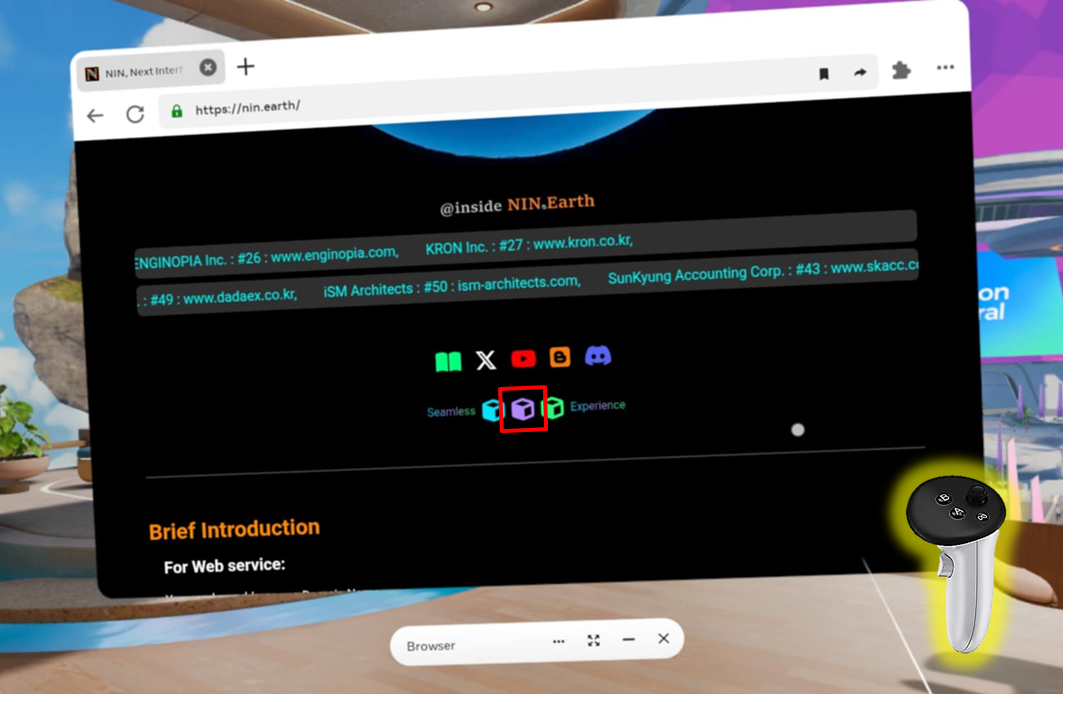
You can tap \[VR mode] Icon from the Main page, and the system will display your Monument & 3D Objects with the virtual-world environment on your VR device.

{% tabs %}
{% tab title="Meta quest 3" %}
{% stepper %}
{% step %}

#### <mark style="color:$primary;">Select</mark> VR mode Icon

<figure><img src="https://2902267430-files.gitbook.io/~/files/v0/b/gitbook-x-prod.appspot.com/o/spaces%2F5LAEHDS7jvCC6hgJFI2D%2Fuploads%2FCMnHTzeyEIt2EQCe6hrL%2Fimage.png?alt=media&amp;token=a8a24e96-b77e-4292-98d6-e10a7628cfc6" alt="" width="563"><figcaption></figcaption></figure>

Main page → Select \[VR mode] Icon
{% endstep %}

{% step %}

#### <mark style="color:$primary;">Search</mark> Domain Space(or Tile)

<figure><img src="https://2902267430-files.gitbook.io/~/files/v0/b/gitbook-x-prod.appspot.com/o/spaces%2F5LAEHDS7jvCC6hgJFI2D%2Fuploads%2F18D2aOkhjmaJJ5yXgUFt%2Fimage.png?alt=media&amp;token=bb214b73-3dd5-4c98-8e46-432e4a6b2e3d" alt="" width="563"><figcaption></figcaption></figure>

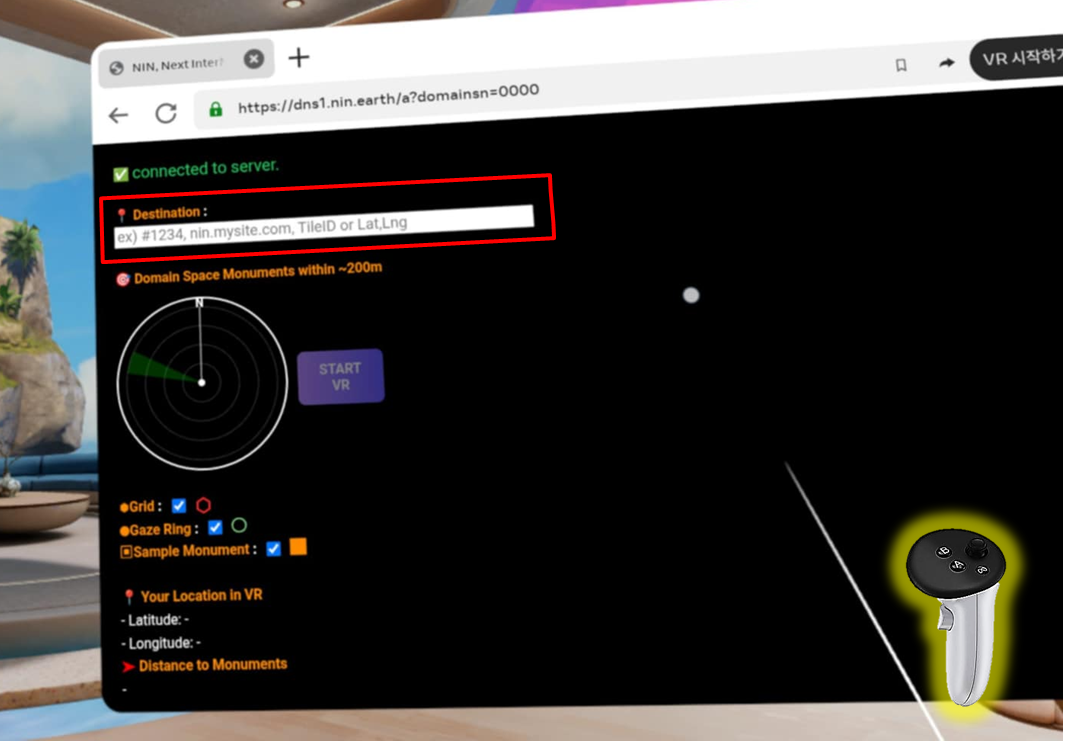
At the top search bar, find your desired location.

You can search by:

* Domain Space ID
* Tile ID
* Domain Name
* Latitude & Longitude

For more details >> [#how-do-i-find-the-tile-i-want](#how-do-i-find-the-tile-i-want "mention")

<figure><img src="https://2902267430-files.gitbook.io/~/files/v0/b/gitbook-x-prod.appspot.com/o/spaces%2F5LAEHDS7jvCC6hgJFI2D%2Fuploads%2FVSUmGXhNkAhm0uclybdf%2Fimage.png?alt=media&amp;token=1db87c40-7f9c-4396-8741-2d5375cb01b2" alt="" width="563"><figcaption></figcaption></figure>

When the status at the top shows “<mark style="color:$success;">connected to server</mark>”, enter your desired location. The status will change to “<mark style="color:$success;">Ready</mark>”, and the \[START VR] button will become active.
{% endstep %}

{% step %}

#### <mark style="color:$primary;">Select</mark> \[START VR]

<figure><img src="https://2902267430-files.gitbook.io/~/files/v0/b/gitbook-x-prod.appspot.com/o/spaces%2F5LAEHDS7jvCC6hgJFI2D%2Fuploads%2FR0UVKu6UPNQ8rLEDfqON%2Fimage.png?alt=media&amp;token=031c3af0-d72f-4d47-80cc-f3ded1d466ac" alt="" width="563"><figcaption></figcaption></figure>

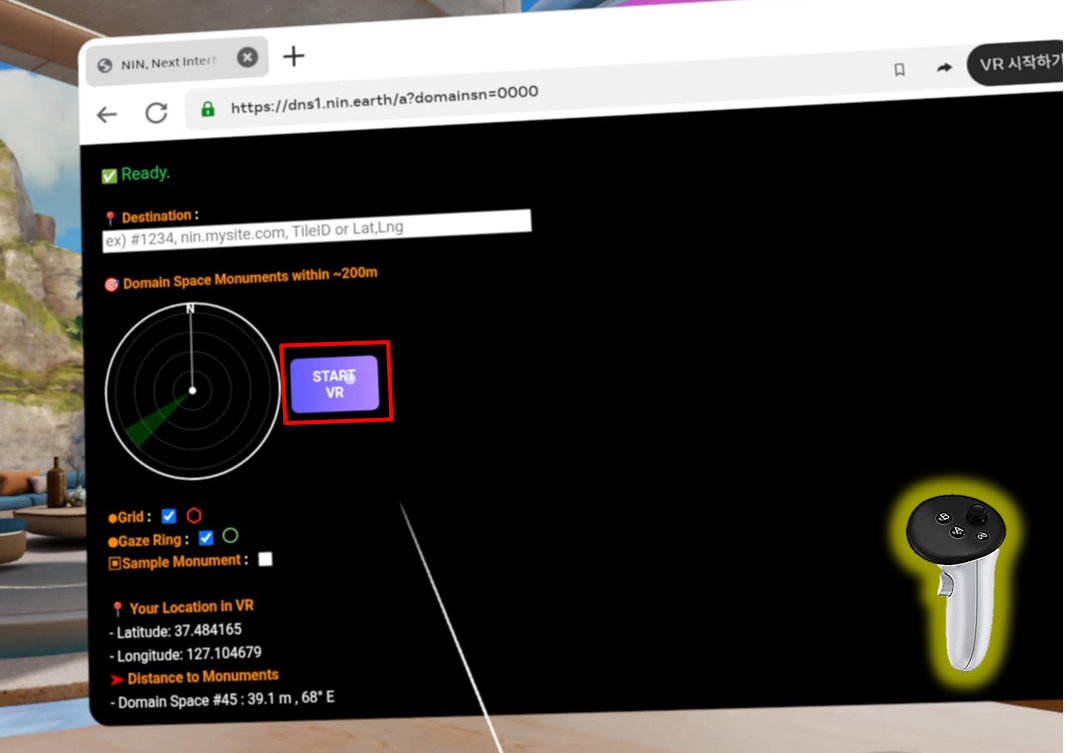
Select \[START VR] button to activate VR mode.
{% endstep %}
{% endstepper %}
{% endtab %}

{% tab title="Mobile VR" %}
{% stepper %}
{% step %}

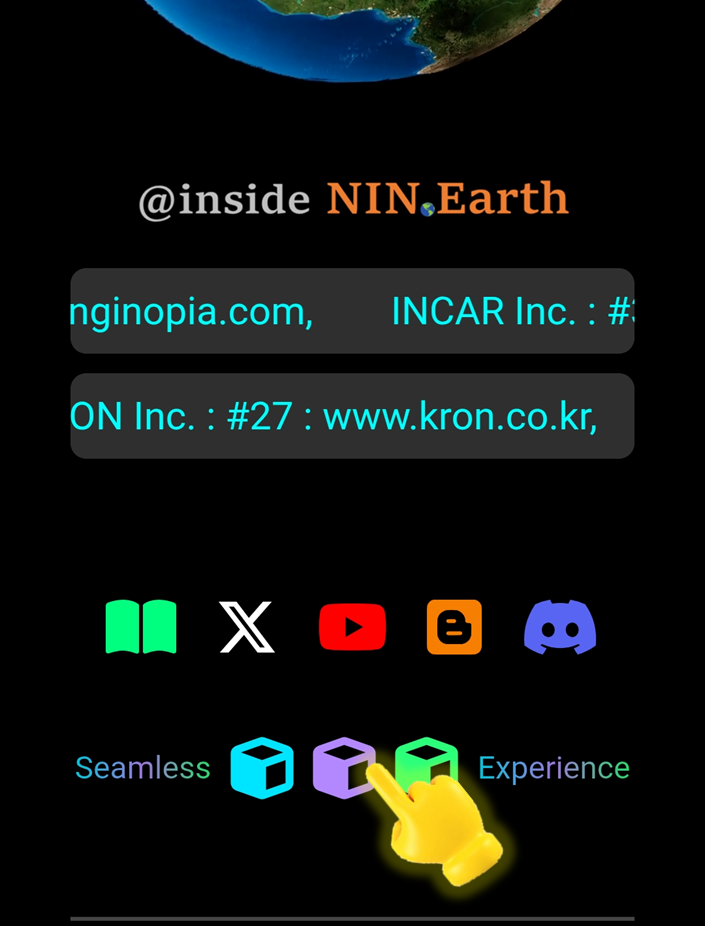
#### <mark style="color:$primary;">Tap</mark> VR mode Icon

<figure><img src="https://2902267430-files.gitbook.io/~/files/v0/b/gitbook-x-prod.appspot.com/o/spaces%2F5LAEHDS7jvCC6hgJFI2D%2Fuploads%2Fcg0WioztIgjv5calOPum%2Fimage.png?alt=media&amp;token=a8c062dc-4982-4893-98b3-e30bcb736e83" alt="" width="353"><figcaption></figcaption></figure>

Scroll down on the Main page → Tap \[VR mode] Icon
{% endstep %}

{% step %}

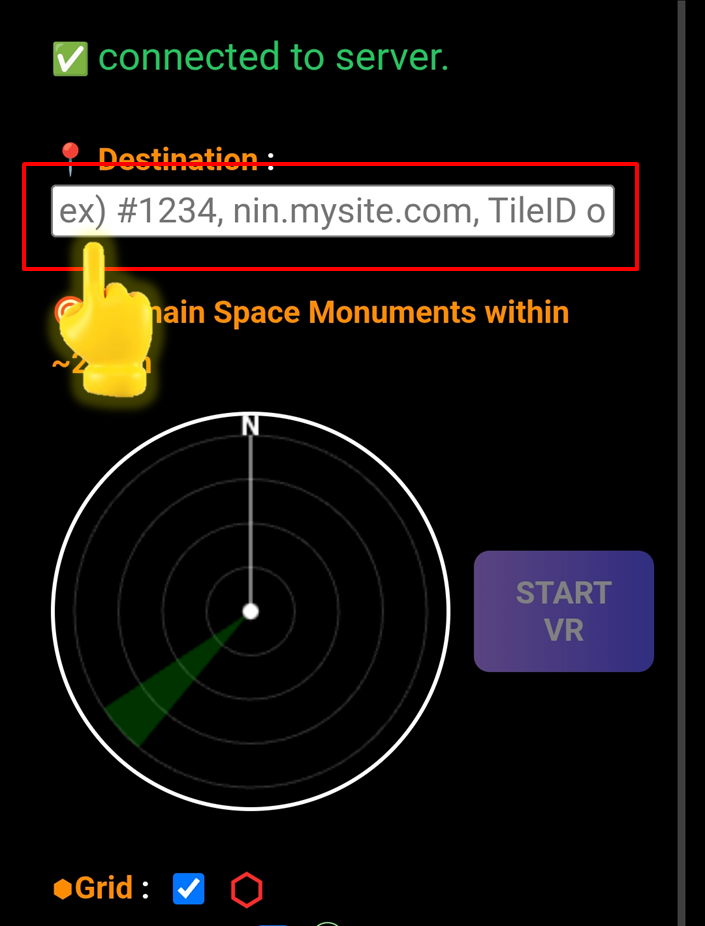
#### <mark style="color:$primary;">Search</mark> Domain Space(or Tile)

<figure><img src="https://2902267430-files.gitbook.io/~/files/v0/b/gitbook-x-prod.appspot.com/o/spaces%2F5LAEHDS7jvCC6hgJFI2D%2Fuploads%2FTT4Qkk3j9fTG2Eb2c5G6%2Fimage.png?alt=media&amp;token=bd6a2baa-db88-4384-91fc-3ac5d2917c25" alt="" width="353"><figcaption></figcaption></figure>

At the top search bar, find your desired location.

You can search by:

* Domain Space ID
* Tile ID
* Domain Name
* Latitude & Longitude

For more details >> [#how-do-i-find-the-tile-i-want](#how-do-i-find-the-tile-i-want "mention")

<figure><img src="https://2902267430-files.gitbook.io/~/files/v0/b/gitbook-x-prod.appspot.com/o/spaces%2F5LAEHDS7jvCC6hgJFI2D%2Fuploads%2FVSUmGXhNkAhm0uclybdf%2Fimage.png?alt=media&amp;token=1db87c40-7f9c-4396-8741-2d5375cb01b2" alt="" width="563"><figcaption></figcaption></figure>

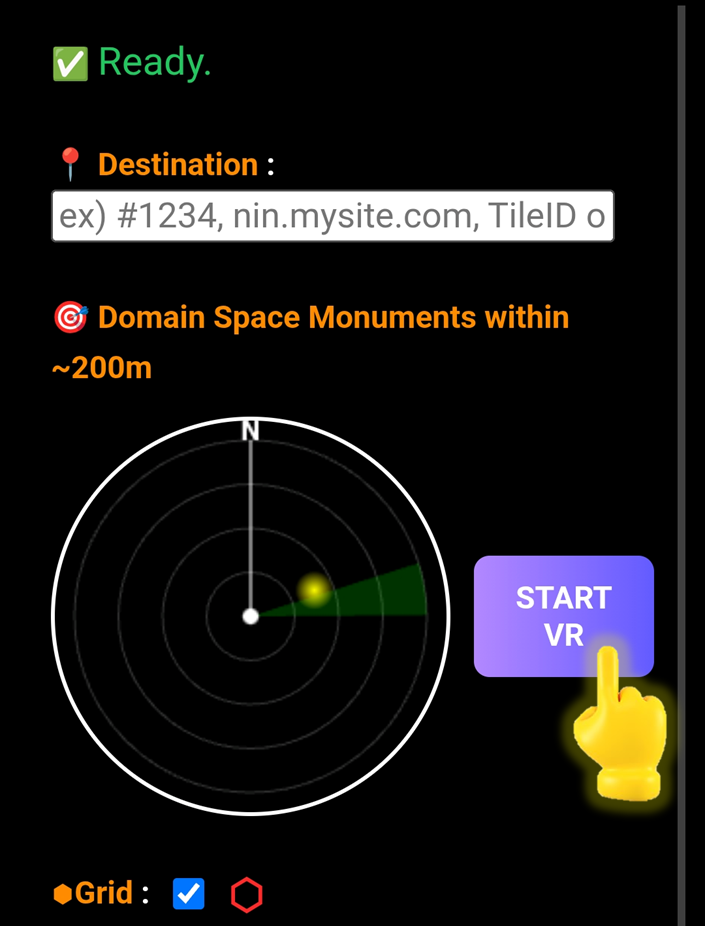
When the status at the top shows “<mark style="color:$success;">connected to server</mark>”, enter your desired location. The status will change to “<mark style="color:$success;">Ready</mark>”, and the \[START VR] button will become active.
{% endstep %}

{% step %}

#### <mark style="color:$primary;">Tap</mark> \[START VR]

<figure><img src="https://2902267430-files.gitbook.io/~/files/v0/b/gitbook-x-prod.appspot.com/o/spaces%2F5LAEHDS7jvCC6hgJFI2D%2Fuploads%2FIUl7pipFDY56T6e1qv2M%2Fimage.png?alt=media&amp;token=64d095f5-0010-4bb8-b91e-58f7a5f7e23a" alt="" width="353"><figcaption></figcaption></figure>

Tap \[START VR] button to activate VR mode.
{% endstep %}

{% step %}

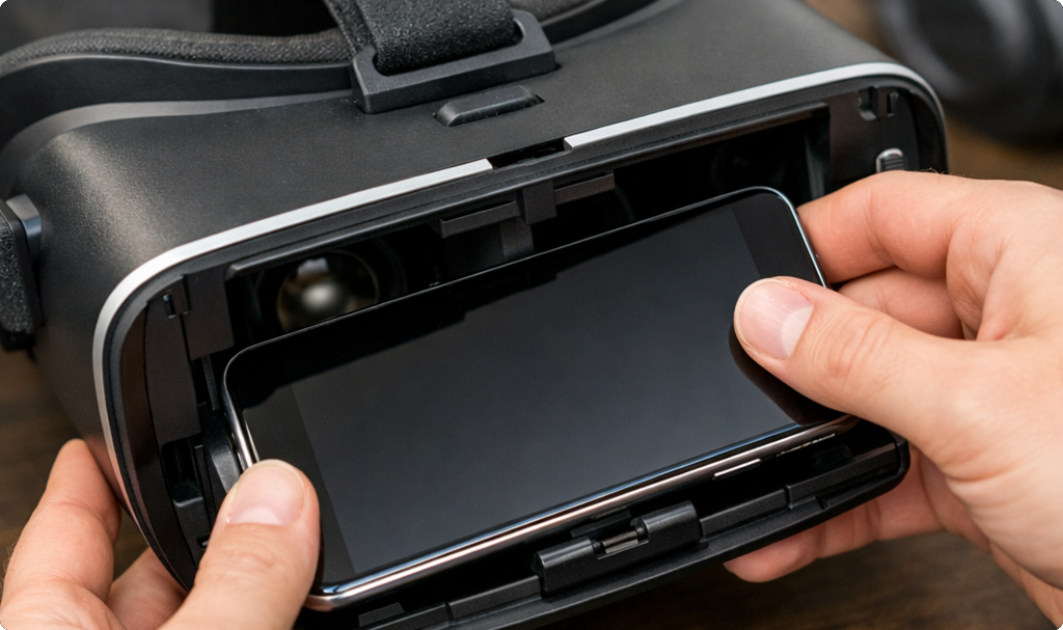
#### <mark style="color:$primary;">Insert</mark> Mobile into headset

<figure><img src="https://2902267430-files.gitbook.io/~/files/v0/b/gitbook-x-prod.appspot.com/o/spaces%2F5LAEHDS7jvCC6hgJFI2D%2Fuploads%2FOpFRN6N0qGmzCYvkkjj3%2Fimage.png?alt=media&amp;token=eb06ffa6-26f3-4ed9-9c85-1a5bfe30effe" alt="" width="563"><figcaption></figcaption></figure>

When you are using a Mobile VR headset, insert your mobile-phone into the headset and wear it like goggles to experience the virtual environment in immersive VR.
{% endstep %}
{% endstepper %}
{% endtab %}
{% endtabs %}