> For the complete documentation index, see [llms.txt](https://guide.nin.earth/llms.txt). Markdown versions of documentation pages are available by appending `.md` to page URLs; this page is available as [Markdown](https://guide.nin.earth/guidebook/markdown/how-do-i-use-my-domain-space.md).

# How do I Use my Domain Space?

A Domain Space is one or more tiles you own, each minted as an NFT that verifies your ownership on the blockchain.

This guide explains how to use & control Monument and 3D Objects within your Domain Space.

<figure><img src="https://2902267430-files.gitbook.io/~/files/v0/b/gitbook-x-prod.appspot.com/o/spaces%2F5LAEHDS7jvCC6hgJFI2D%2Fuploads%2FO3OfL3ZR8pvavqIJmDo1%2Fimage.png?alt=media&amp;token=fa0d6e6c-ae72-4205-8be3-947e51a1b061" alt="" width="563"><figcaption></figcaption></figure>

<a href="/guidebook/markdown.md" class="button primary" data-icon="circle-up">Back to top</a>

{% hint style="success" %}

### MENU (Using my Domain Space)

* [#relocate-marker](#relocate-marker "mention")
* [#add-monument-texture](#add-monument-texture "mention")
* [#connect-url](#connect-url "mention")
* [#connect-domain-name](#connect-domain-name "mention")
* [#control-3d-objects](#control-3d-objects "mention")
  {% endhint %}

{% hint style="warning" %}

### You must..

Connect your wallet to use the features of your Domain Space.
{% endhint %}

### **Relocate Marker**

Relocate the marker within your <mark style="color:$danger;">Domain Space Grid (red boundary)</mark> to set the exact AR / VR / 3D display position for your Monument.

{% tabs %}
{% tab title="PC" %}
{% stepper %}
{% step %}

#### <mark style="color:$primary;">Search</mark> Tiles & <mark style="color:$primary;">Connect</mark> Wallet

1. [How do I find the Tile I want?](/guidebook/markdown/how-do-i-find-the-tile-i-want.md)
2. [How do I connect my wallet?](/guidebook/markdown/how-do-i-connect-my-wallet.md)
   {% endstep %}

{% step %}

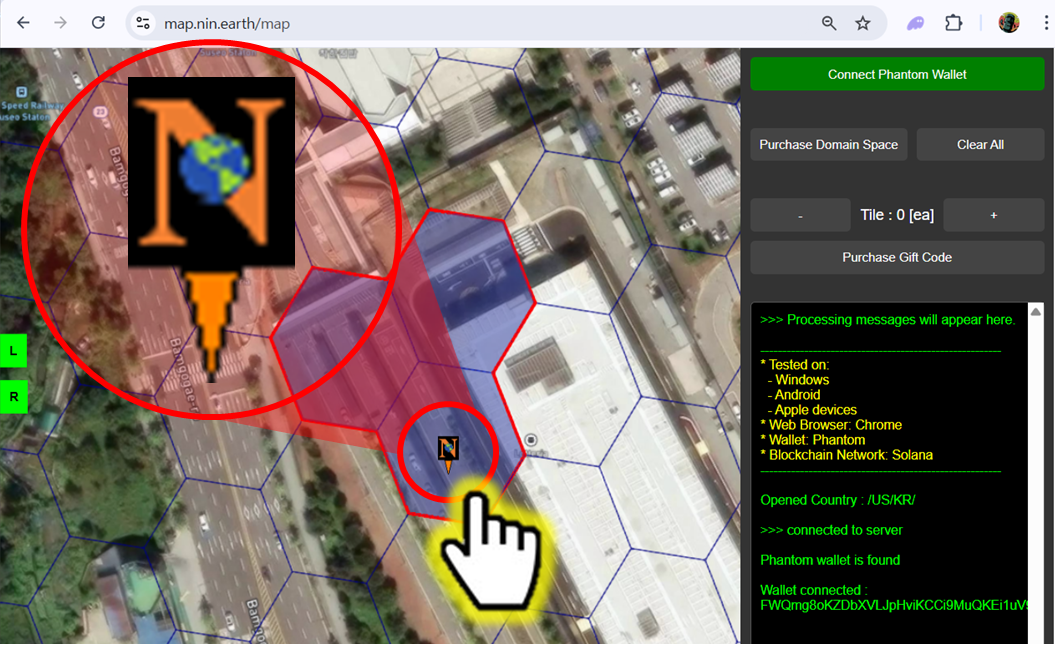
#### <mark style="color:$primary;">Click</mark> the Marker Icon

<figure><img src="https://2902267430-files.gitbook.io/~/files/v0/b/gitbook-x-prod.appspot.com/o/spaces%2F5LAEHDS7jvCC6hgJFI2D%2Fuploads%2FIdclxr7UnR0DuKOuC1Y9%2Fimage.png?alt=media&amp;token=e9a3e27f-1b4b-4b4c-bd5f-84e679024d50" alt="" width="563"><figcaption></figcaption></figure>
{% endstep %}

{% step %}

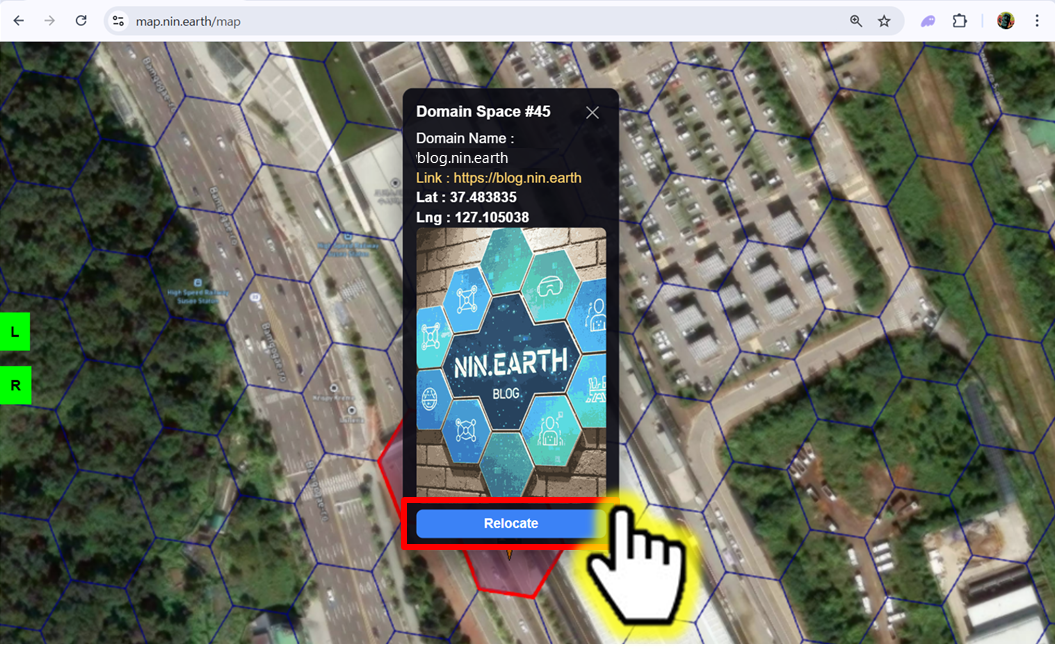
#### <mark style="color:$primary;">Click</mark> \[Relocate]

<figure><img src="https://2902267430-files.gitbook.io/~/files/v0/b/gitbook-x-prod.appspot.com/o/spaces%2F5LAEHDS7jvCC6hgJFI2D%2Fuploads%2FBAv4fqaGaFycH3dJ2CSm%2Fimage.png?alt=media&amp;token=9e42196c-9030-4077-9657-82417a9c6559" alt="" width="563"><figcaption></figcaption></figure>

When you click \[Relocate] button, the mouse cursor changes to a cross-shaped indicator.
{% endstep %}

{% step %}

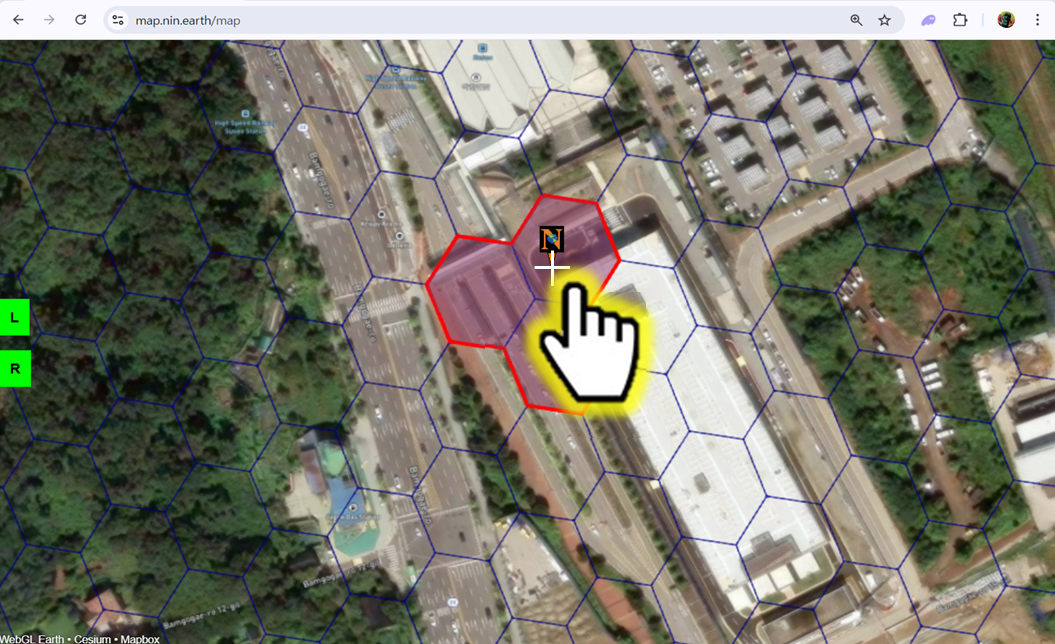
#### <mark style="color:$primary;">Click</mark> your desired position

<figure><img src="https://2902267430-files.gitbook.io/~/files/v0/b/gitbook-x-prod.appspot.com/o/spaces%2F5LAEHDS7jvCC6hgJFI2D%2Fuploads%2F6sG9ixonkYlHwXIxELnd%2Fimage.png?alt=media&amp;token=a27e03da-40ff-4993-a20c-997c92770b21" alt="" width="563"><figcaption></figcaption></figure>

The marker is automatically relocated.

{% hint style="success" %}

### NOTE.

1. The relocate position must be inside your <mark style="color:red;">Domain Space grid (red boundary)</mark>.   \
   ※ Clicking outside the grid will automatically cancel the action.
2. The Marker relocates to the center of the cross-shaped indicator.
   {% endhint %}
   {% endstep %}

{% step %}

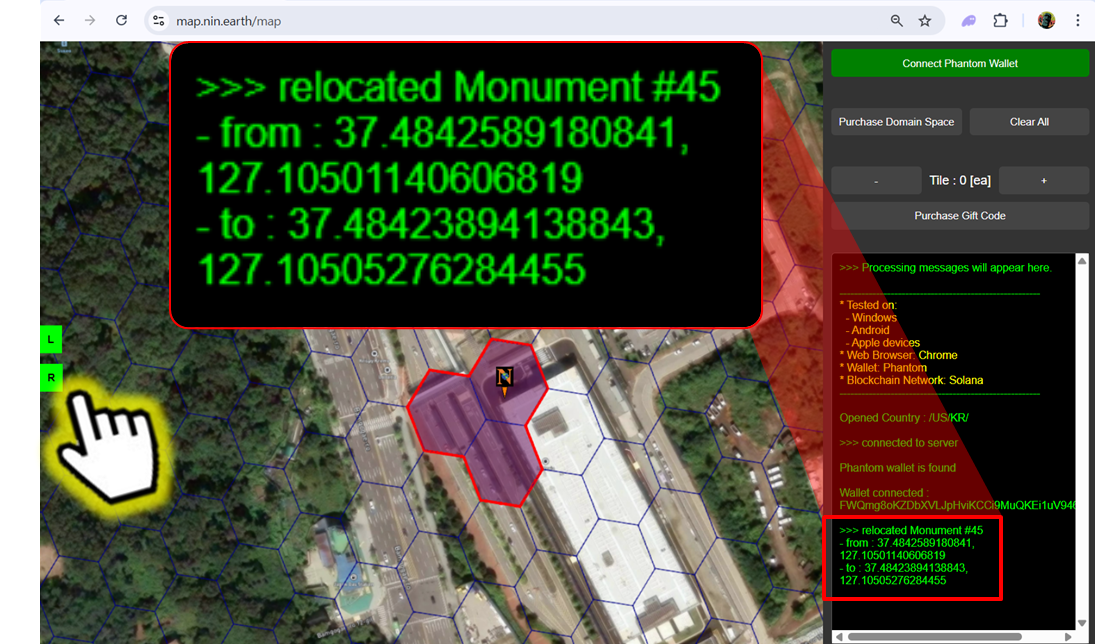
#### <mark style="color:$primary;">\*Check</mark> live updates

<figure><img src="https://2902267430-files.gitbook.io/~/files/v0/b/gitbook-x-prod.appspot.com/o/spaces%2F5LAEHDS7jvCC6hgJFI2D%2Fuploads%2FdXTMNneOKw6OXO5pj5Pi%2Fimage.png?alt=media&amp;token=3e4e8428-e99e-4815-b4de-26453139ed83" alt="" width="563"><figcaption></figcaption></figure>

When you click the <mark style="color:$success;">R Panel</mark>, you can check the relocation update in real time in the Info panel.
{% endstep %}
{% endstepper %}
{% endtab %}

{% tab title="Mobile" %}
{% stepper %}
{% step %}

#### <mark style="color:$primary;">Search</mark> Tiles & <mark style="color:$primary;">Connect</mark> Wallet

1. [How do I find the Tile I want?](/guidebook/markdown/how-do-i-find-the-tile-i-want.md)
2. [How do I connect my wallet?](/guidebook/markdown/how-do-i-connect-my-wallet.md)
   {% endstep %}

{% step %}

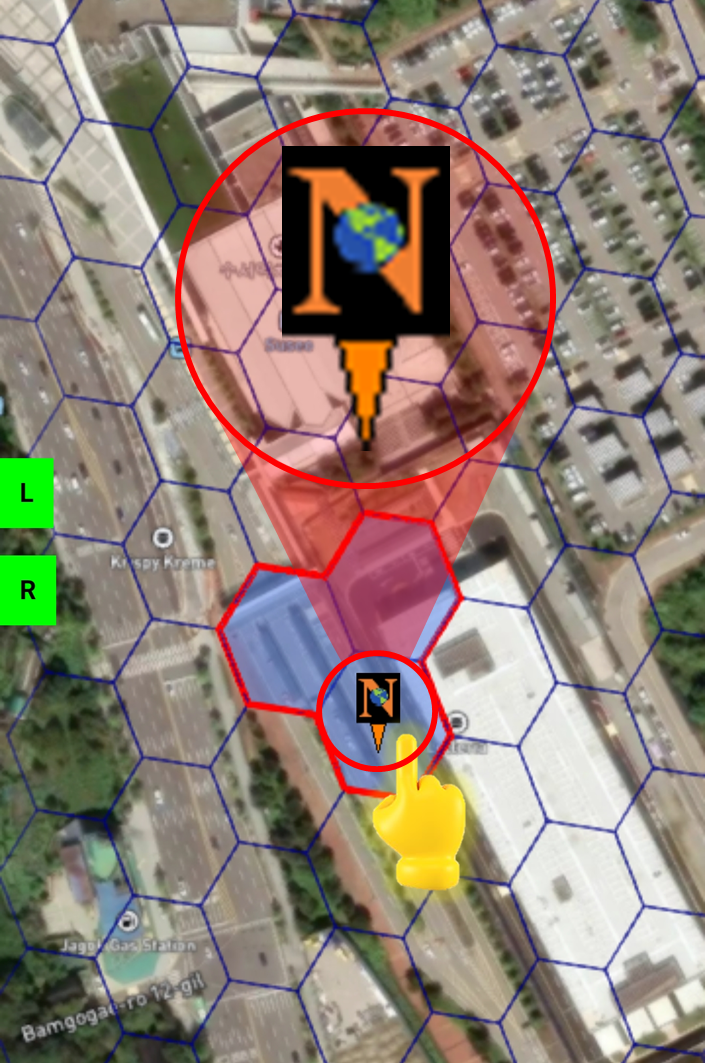
#### <mark style="color:$primary;">Tap</mark> the Marker Icon

<figure><img src="https://2902267430-files.gitbook.io/~/files/v0/b/gitbook-x-prod.appspot.com/o/spaces%2F5LAEHDS7jvCC6hgJFI2D%2Fuploads%2FYig0sh0Ai1ab1yWpjXHF%2Fimage.png?alt=media&amp;token=60f2e61a-4e60-4e91-9edc-683a91c6c024" alt="" width="353"><figcaption></figcaption></figure>
{% endstep %}

{% step %}

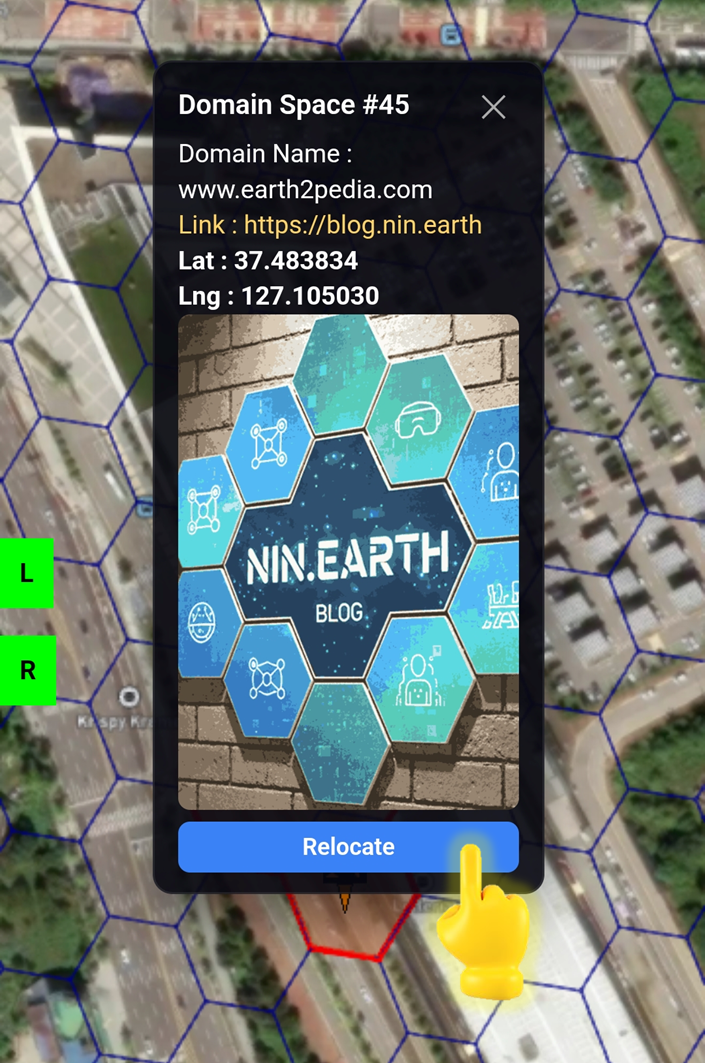
#### <mark style="color:$primary;">Tap</mark> \[Relocate]

<figure><img src="https://2902267430-files.gitbook.io/~/files/v0/b/gitbook-x-prod.appspot.com/o/spaces%2F5LAEHDS7jvCC6hgJFI2D%2Fuploads%2FshQgoAJxO1aukuoXzXiy%2Fimage.png?alt=media&amp;token=4a5cc746-5365-40b5-9a03-e4d404c276a0" alt="" width="353"><figcaption></figcaption></figure>
{% endstep %}

{% step %}

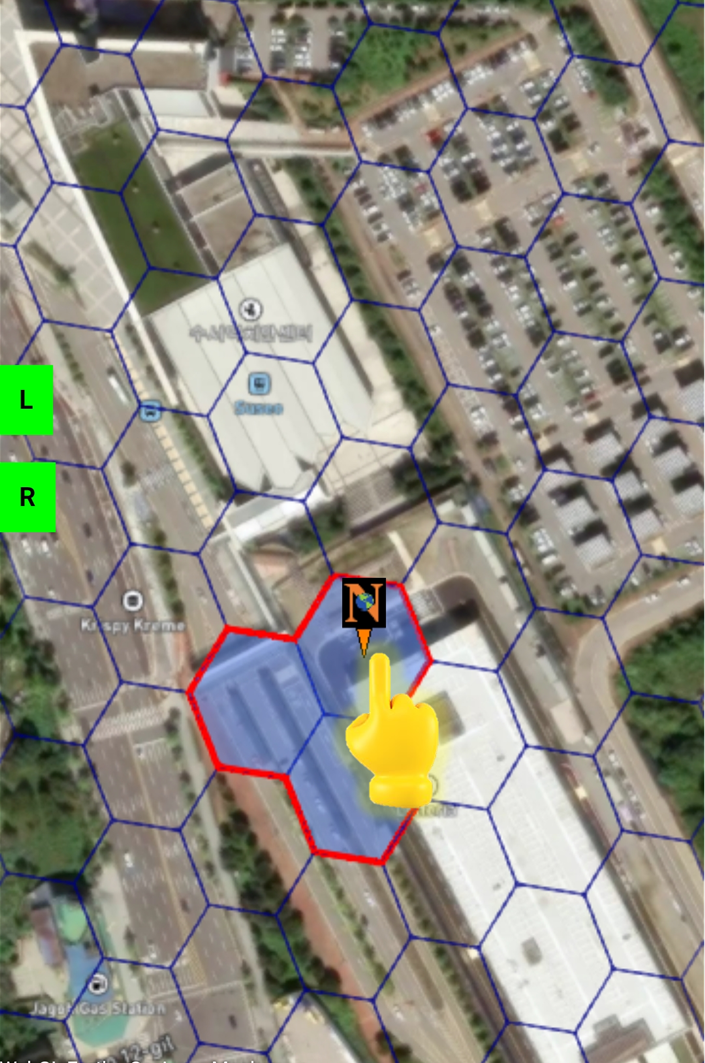
#### <mark style="color:$primary;">Tap</mark> your desired position

<figure><img src="https://2902267430-files.gitbook.io/~/files/v0/b/gitbook-x-prod.appspot.com/o/spaces%2F5LAEHDS7jvCC6hgJFI2D%2Fuploads%2FJTLWxBTzWWXo2TVq0p4g%2Fimage.png?alt=media&amp;token=d8c8991c-00f1-4c8a-b552-aa35e17f1009" alt="" width="353"><figcaption></figcaption></figure>

The marker is automatically relocated.

{% hint style="warning" %}

### NOTE

1. The relocate position must be inside your <mark style="color:red;">Domain Space grid (red boundary)</mark>.   \
   ※ Clicking outside the grid will automatically cancel the action.
2. On mobile, the cross-shaped indicator (available on PC) does not appear.\
   Instead, zoom in as much as needed and simply Tap the spot where you want the marker to move.
   {% endhint %}
   {% endstep %}

{% step %}

#### <mark style="color:$primary;">\*Check</mark> live updates

<figure><img src="https://2902267430-files.gitbook.io/~/files/v0/b/gitbook-x-prod.appspot.com/o/spaces%2F5LAEHDS7jvCC6hgJFI2D%2Fuploads%2FHL4ArqgNuCAKWfzj4wSm%2Fimage.png?alt=media&amp;token=30ff3cb7-c4dd-4d68-96d6-2fbc4d11efc0" alt="" width="358"><figcaption></figcaption></figure>

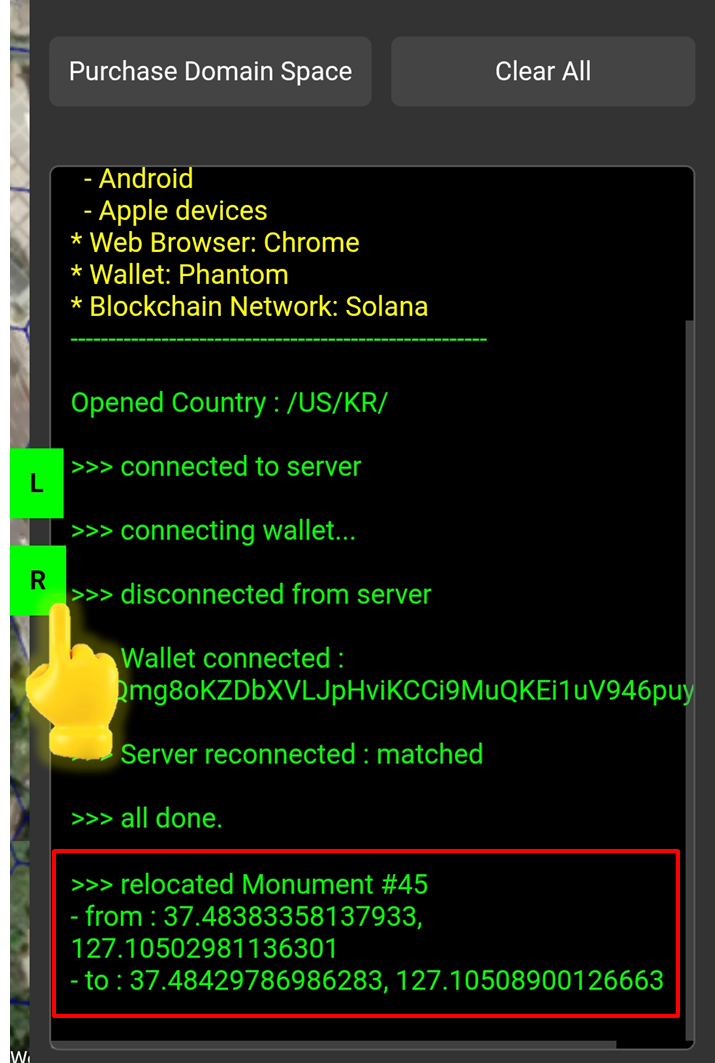
When you tap <mark style="color:$success;">R Panel</mark>, you can check the relocation update in real time in the Info panel.
{% endstep %}
{% endstepper %}
{% endtab %}
{% endtabs %}

### **Add Monument Texture**

Add a Texture(Image), Update or Clear the Texture on the Monument’s top cube, so it appears in AR / VR / 3D modes.

{% hint style="success" %}

### NOTE. Texture must;

1. PNG format
2. under 50 kB
3. 1:1.5 aspect ratio
   {% endhint %}

{% tabs %}
{% tab title="PC" %}
{% stepper %}
{% step %}

#### <mark style="color:$primary;">Search</mark> Tiles & <mark style="color:$primary;">Connect</mark> Wallet

1. [How do I find the Tile I want?](/guidebook/markdown/how-do-i-find-the-tile-i-want.md)
2. [How do I connect my wallet?](/guidebook/markdown/how-do-i-connect-my-wallet.md)
   {% endstep %}

{% step %}

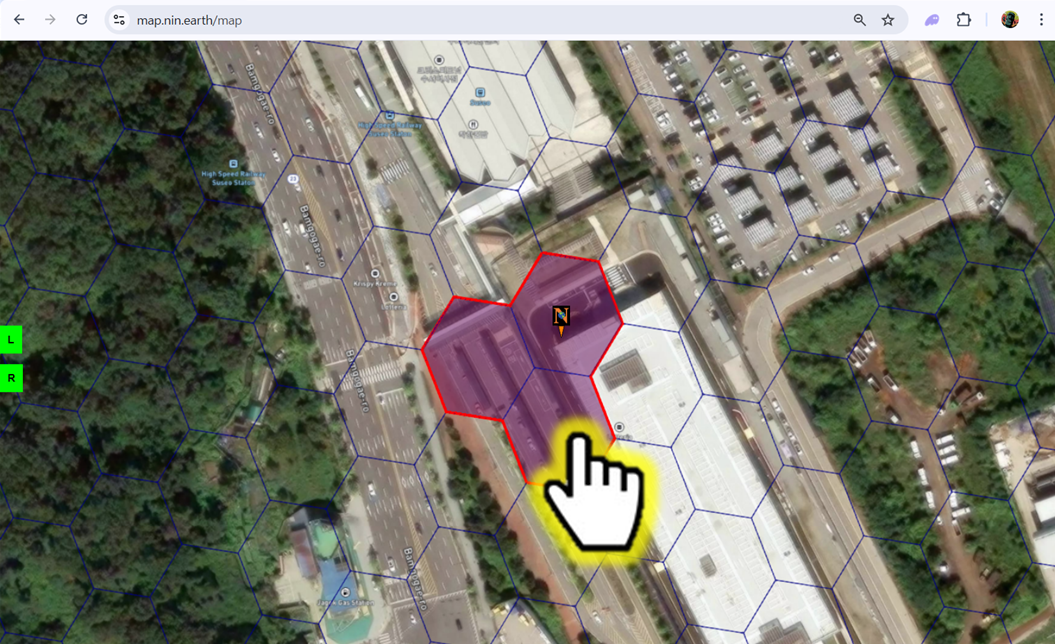
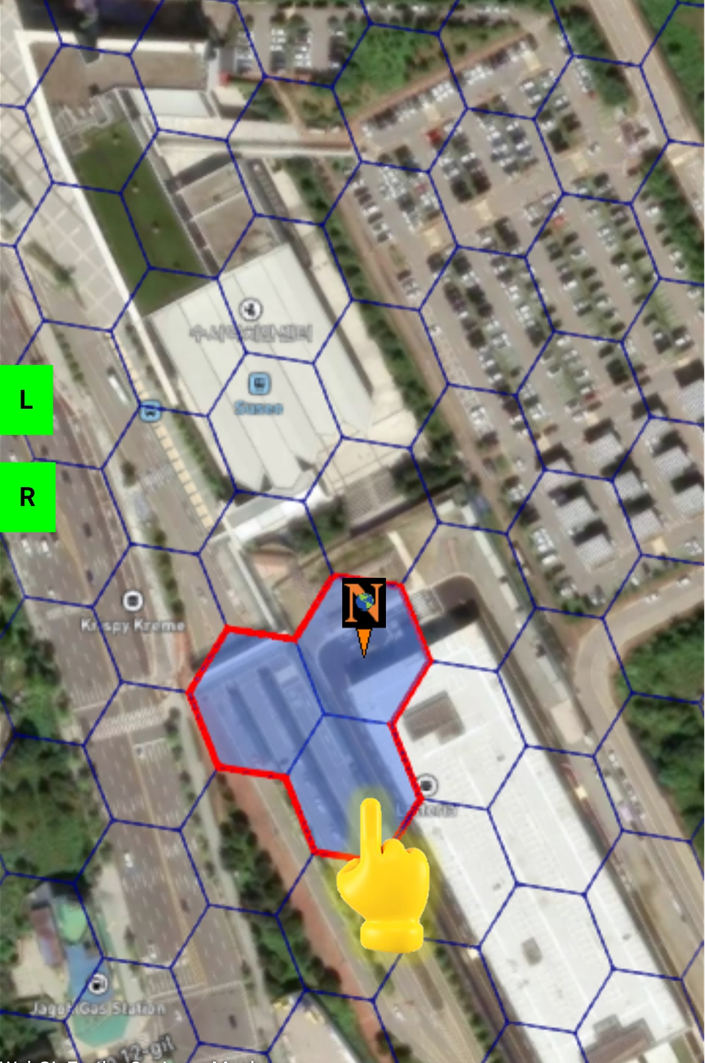
#### <mark style="color:$primary;">Click</mark> anywhere inside your Grid

<figure><img src="https://2902267430-files.gitbook.io/~/files/v0/b/gitbook-x-prod.appspot.com/o/spaces%2F5LAEHDS7jvCC6hgJFI2D%2Fuploads%2FyT0KrYm4BWMIl1PYpkct%2Fimage.png?alt=media&amp;token=e36ad6af-11a4-4de0-b346-76287ff1dd53" alt="" width="563"><figcaption></figcaption></figure>

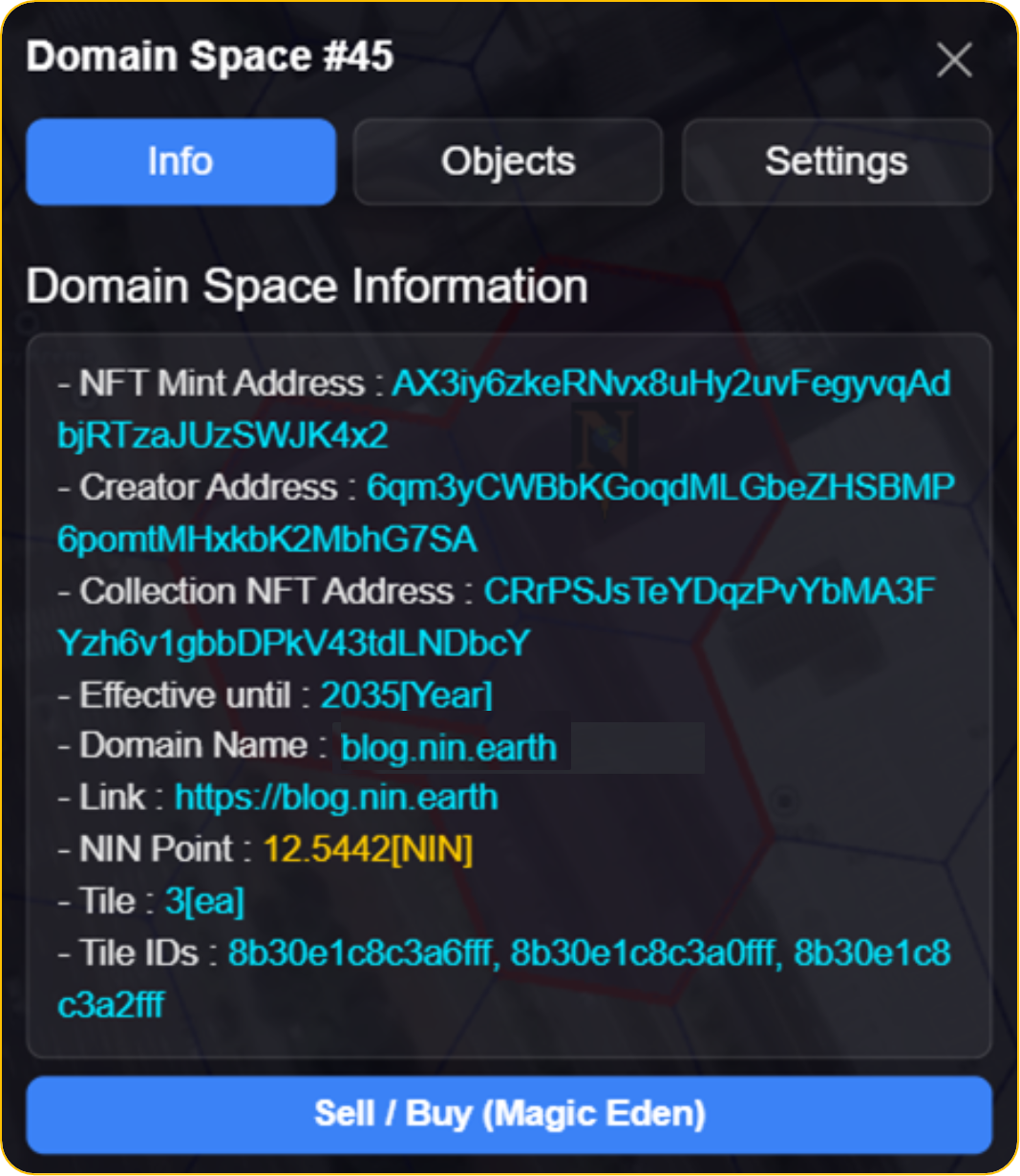
When you click anywhere inside your <mark style="color:$danger;">Domain Space Grid (red boundary)</mark>, pop-up will appear.

<figure><img src="https://2902267430-files.gitbook.io/~/files/v0/b/gitbook-x-prod.appspot.com/o/spaces%2F5LAEHDS7jvCC6hgJFI2D%2Fuploads%2FmufTsb7XcD4YBQCvWib7%2Fimage.png?alt=media&amp;token=50d78651-0989-4f29-9a0e-1fd225cfec7e" alt="" width="375"><figcaption></figcaption></figure>
{% endstep %}

{% step %}

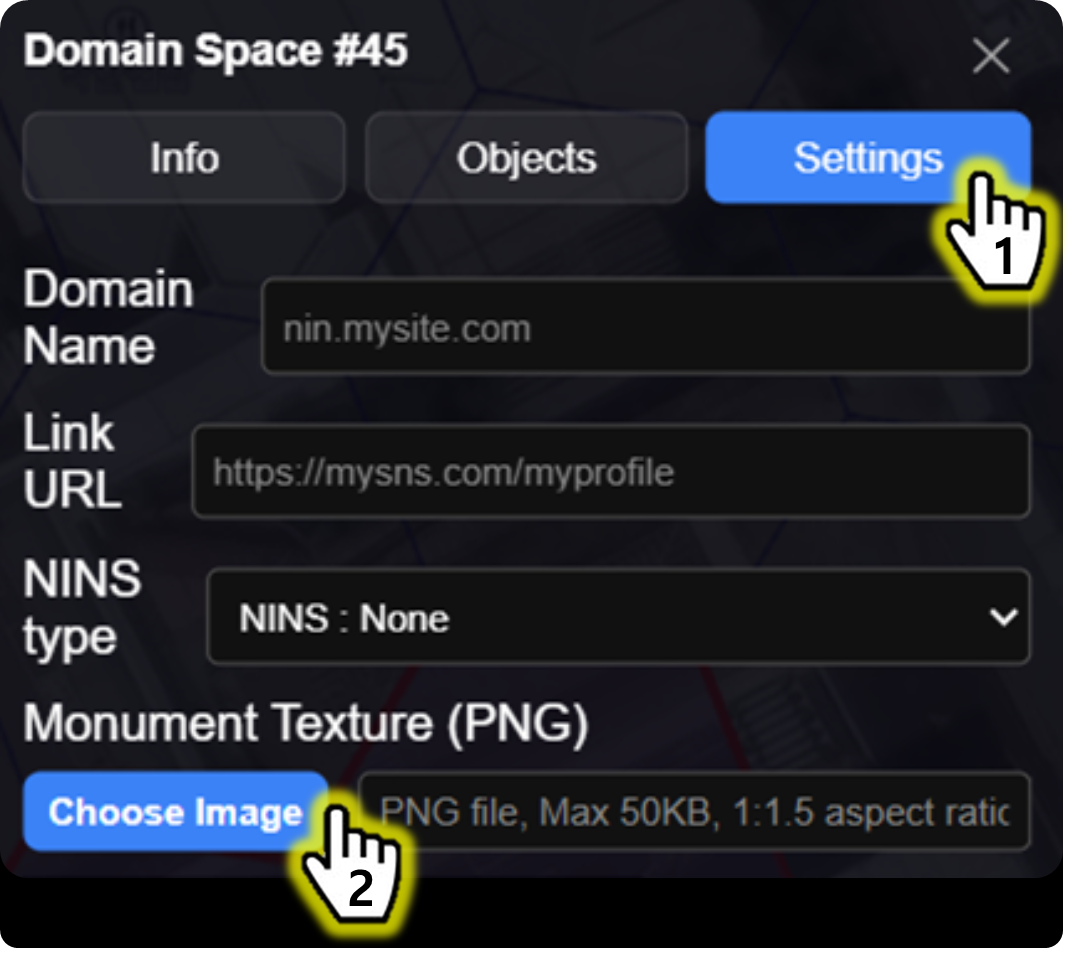
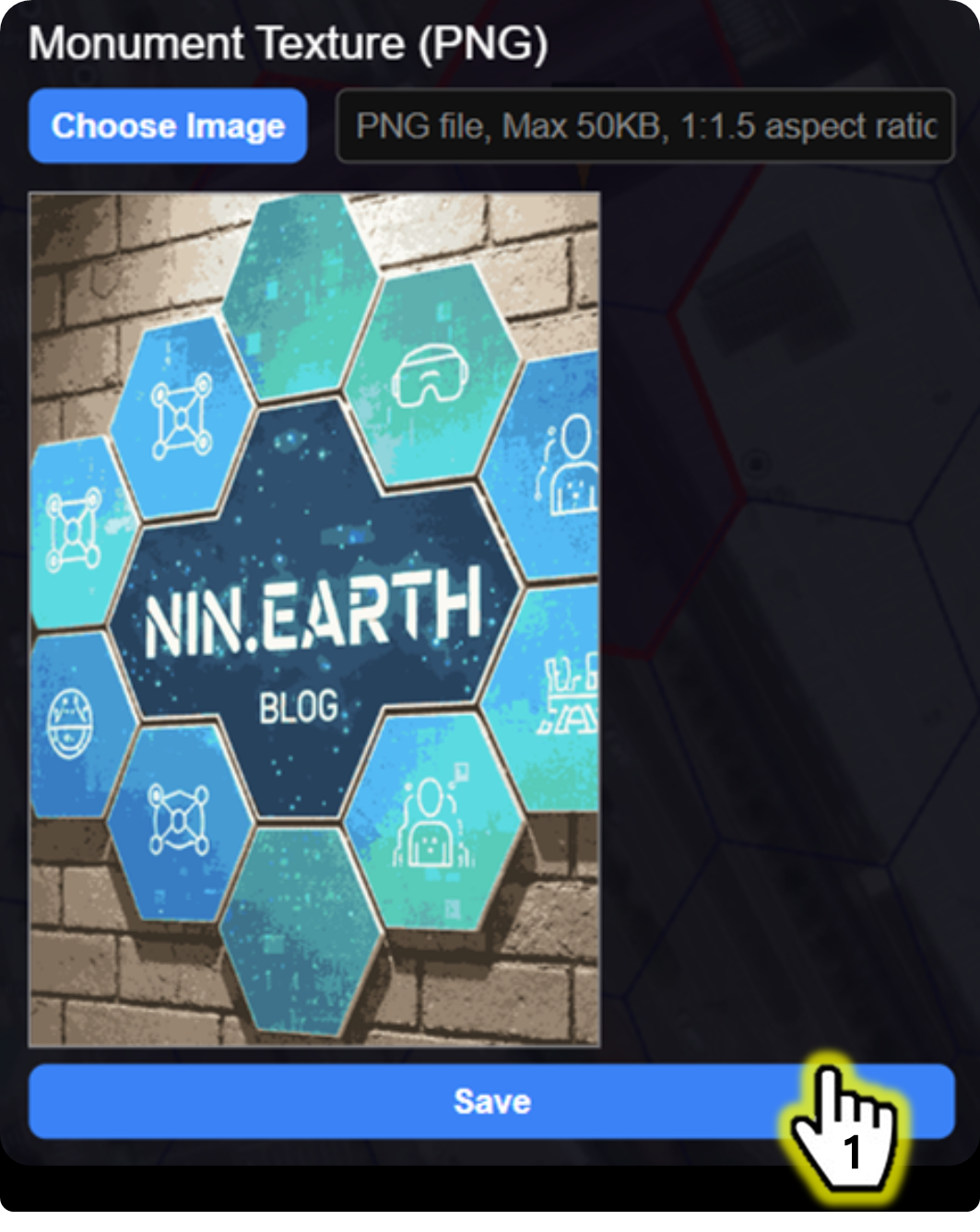
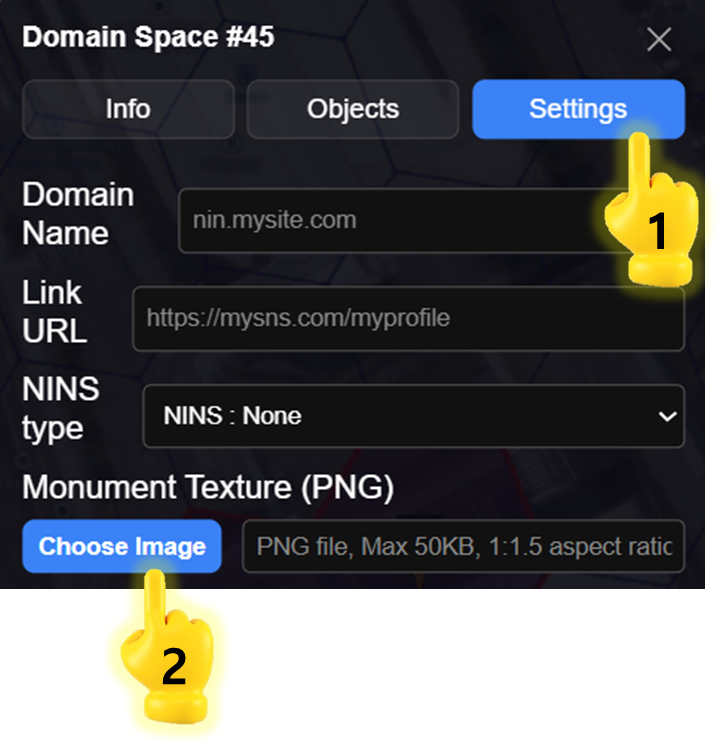
#### <mark style="color:$primary;">Click</mark> \[Settings] → \[choose image]

<figure><img src="https://2902267430-files.gitbook.io/~/files/v0/b/gitbook-x-prod.appspot.com/o/spaces%2F5LAEHDS7jvCC6hgJFI2D%2Fuploads%2FYXokvN8qrbw0EjwjIeqz%2Fimage.png?alt=media&amp;token=c4f84901-7f49-4c1d-819e-2024fafd7f37" alt="" width="375"><figcaption></figcaption></figure>

1. Click \[Settings] tab
2. Click \[choose image] button → open pop-up(file selection dialog)
   {% endstep %}

{% step %}

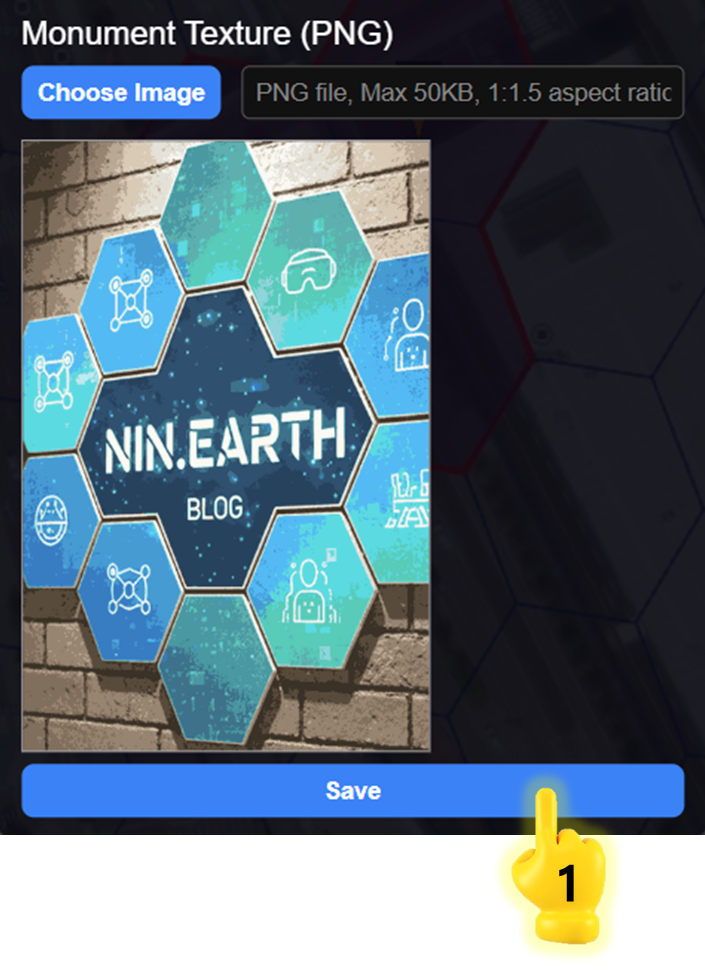
#### <mark style="color:$primary;">Upload</mark> image & <mark style="color:$primary;">Click</mark> \[save]

<figure><img src="https://2902267430-files.gitbook.io/~/files/v0/b/gitbook-x-prod.appspot.com/o/spaces%2F5LAEHDS7jvCC6hgJFI2D%2Fuploads%2FdEqV6BYWMQZ3MV57gY8k%2Fimage.png?alt=media&amp;token=1329e855-072a-46f1-bcce-94077794efbc" alt="" width="563"><figcaption></figcaption></figure>

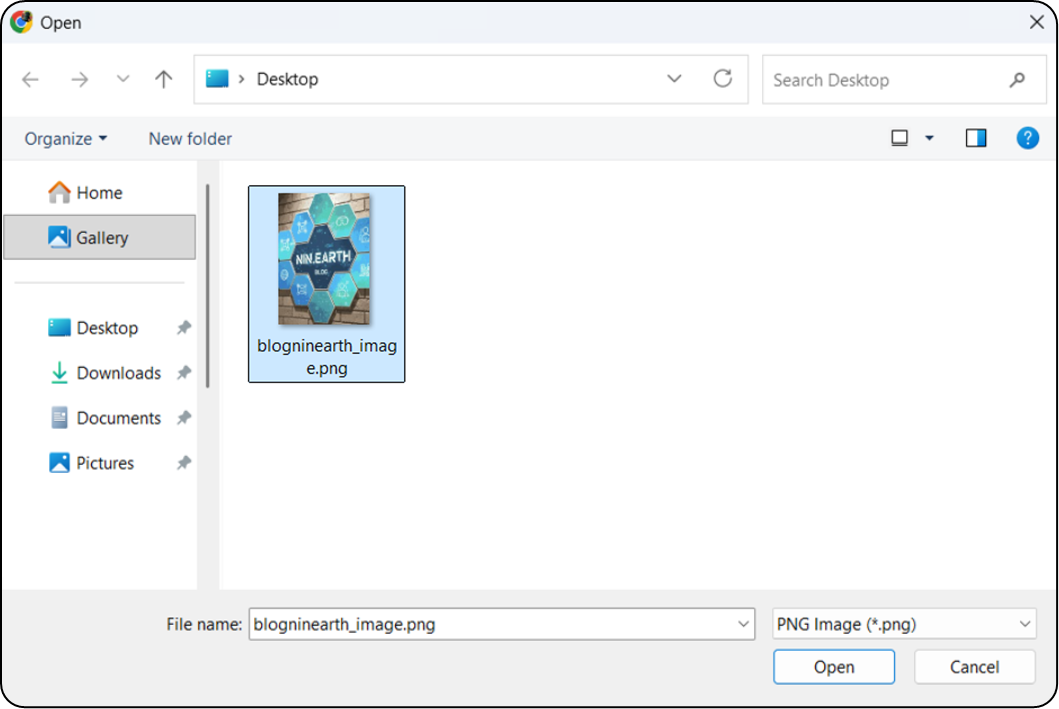
Select the image file you want & Click \[Open] (or double-click the image file).

<figure><img src="https://2902267430-files.gitbook.io/~/files/v0/b/gitbook-x-prod.appspot.com/o/spaces%2F5LAEHDS7jvCC6hgJFI2D%2Fuploads%2FPoo5m5sGfDzxM5Hz4UCe%2Fimage.png?alt=media&amp;token=a11f22f5-1f51-4b69-8902-71412648aece" alt="" width="375"><figcaption></figcaption></figure>

1. Click \[Save] button → open pop-up

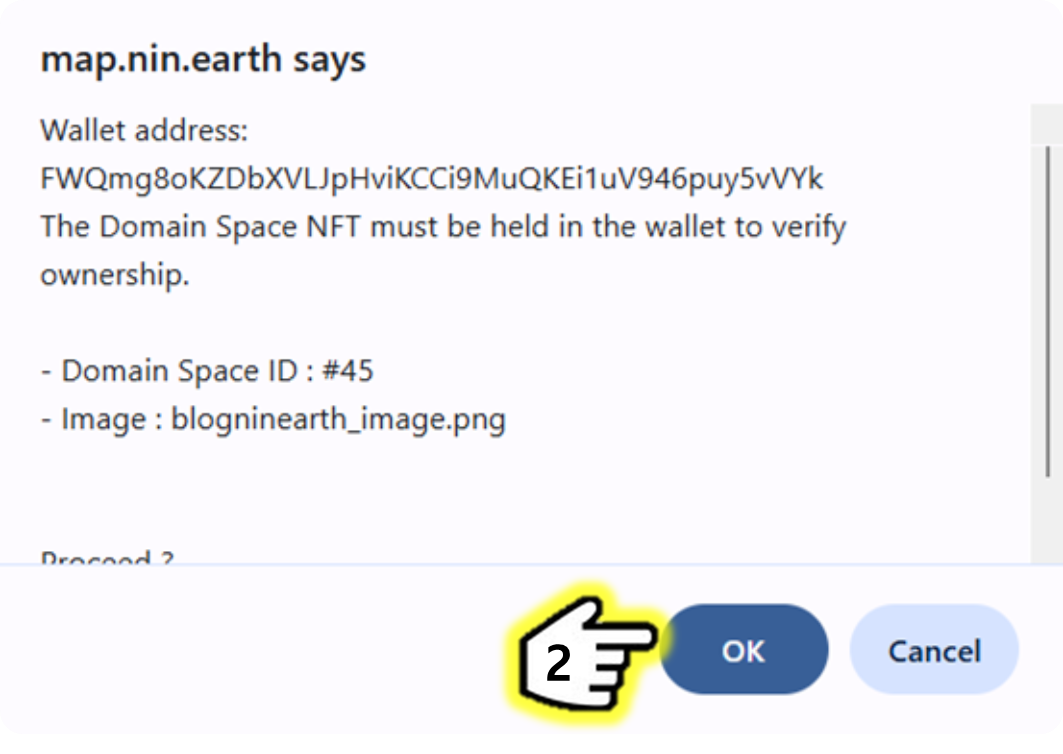
<figure><img src="https://2902267430-files.gitbook.io/~/files/v0/b/gitbook-x-prod.appspot.com/o/spaces%2F5LAEHDS7jvCC6hgJFI2D%2Fuploads%2FYSrztJnwwpRx4vKwi7QV%2Fimage.png?alt=media&amp;token=f586c076-8295-47bd-8a8a-ef81345eb308" alt="" width="563"><figcaption></figcaption></figure>

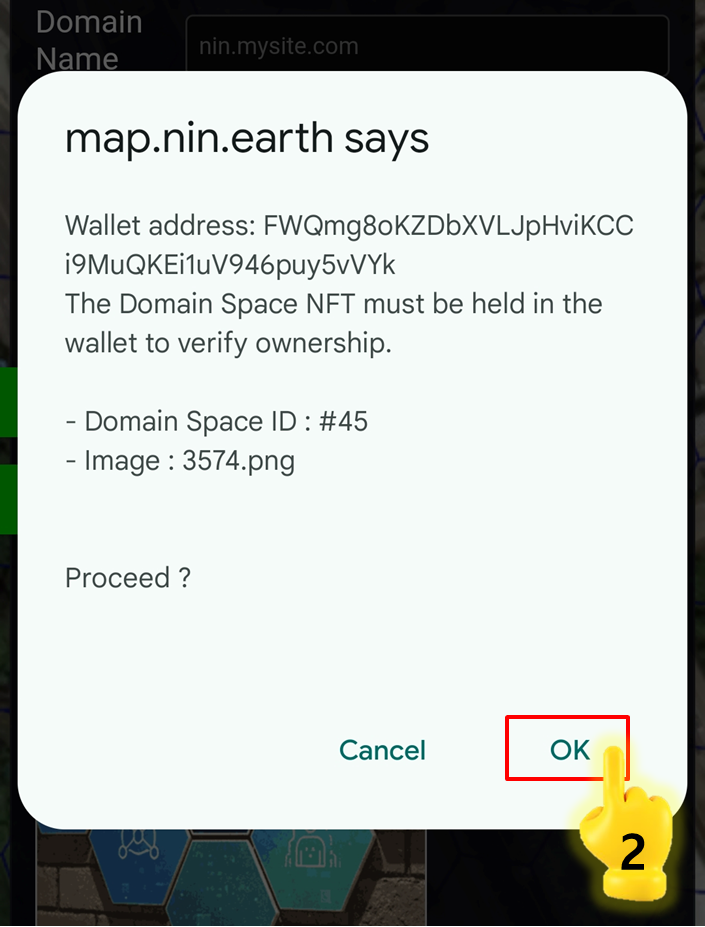
2. Click \[OK] → done.
   {% endstep %}

{% step %}

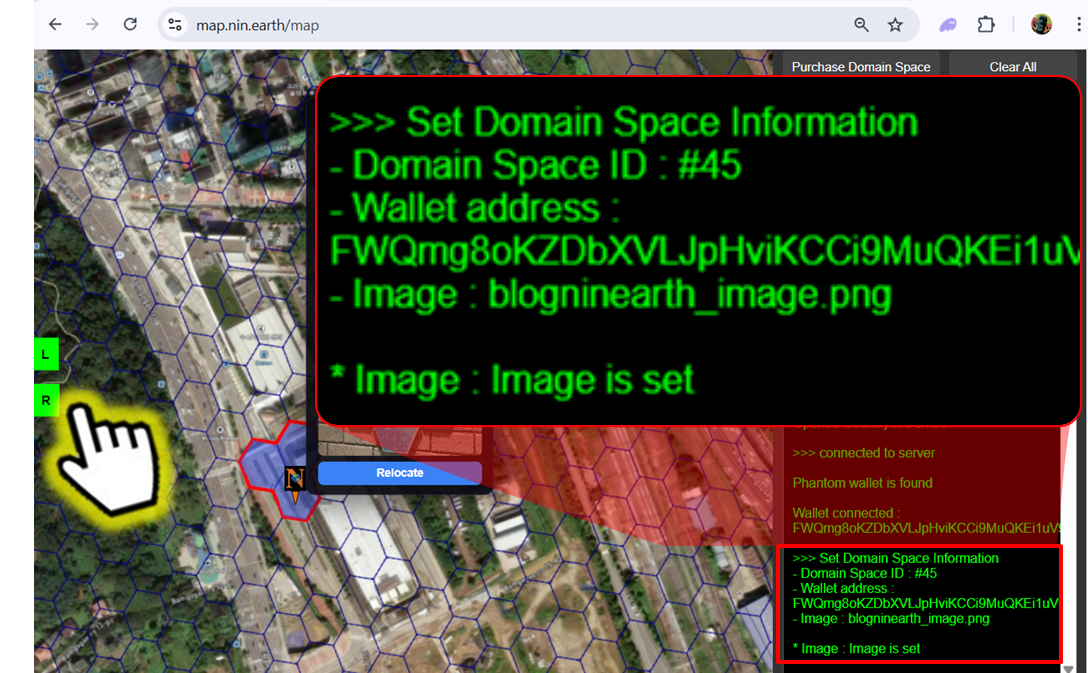
#### <mark style="color:$primary;">\*Check</mark> live updates

<figure><img src="https://2902267430-files.gitbook.io/~/files/v0/b/gitbook-x-prod.appspot.com/o/spaces%2F5LAEHDS7jvCC6hgJFI2D%2Fuploads%2FDsIicV99mZsbJH2SUfO8%2Fimage.png?alt=media&amp;token=8b2de34c-592b-45c6-9175-02a43e8acbe2" alt="" width="563"><figcaption></figcaption></figure>

When you click the <mark style="color:$success;">R Panel</mark>, you can check the relocation update in real time in the Info panel.

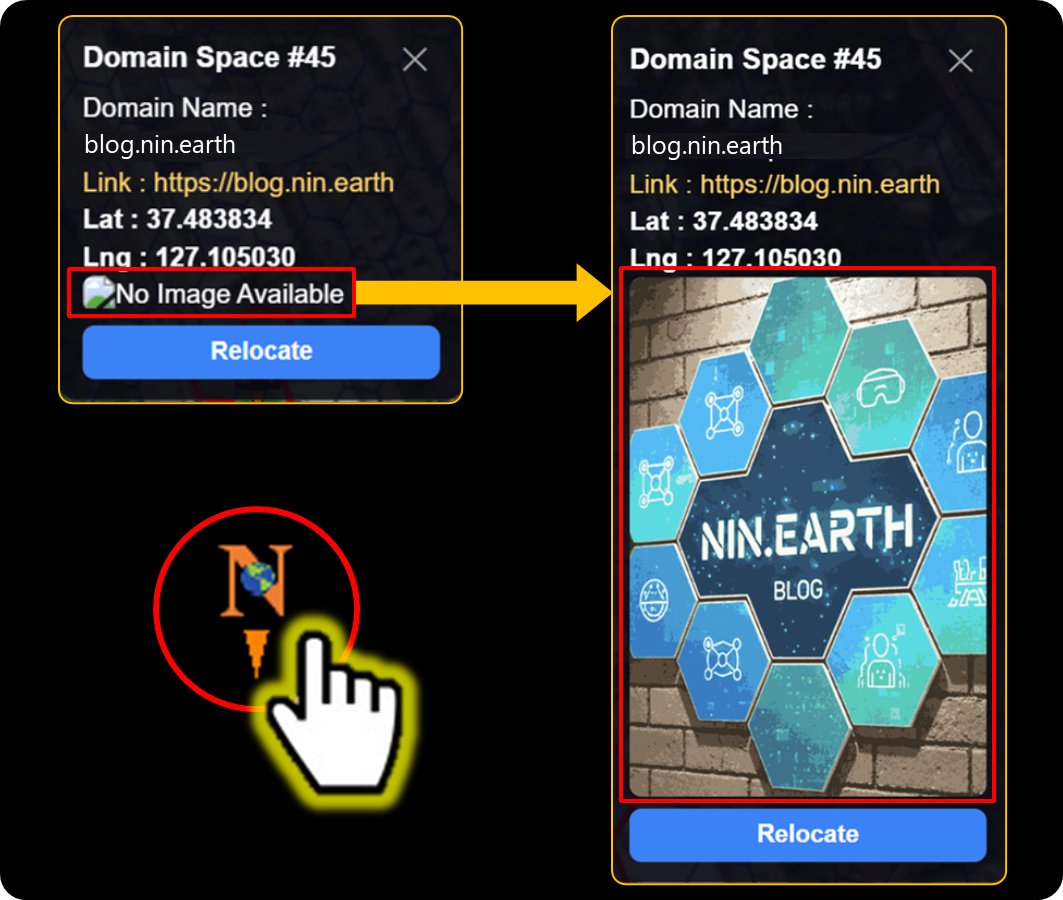
<figure><img src="https://2902267430-files.gitbook.io/~/files/v0/b/gitbook-x-prod.appspot.com/o/spaces%2F5LAEHDS7jvCC6hgJFI2D%2Fuploads%2FrLVHrjI0jHK7c4dIsZtS%2Fimage.png?alt=media&amp;token=fdce2f4a-ae56-4724-b319-c06ece7e2a4b" alt="" width="563"><figcaption></figcaption></figure>

When you click the Marker, you can confirm that the Texture (Image) has been applied.
{% endstep %}

{% step %}

#### <mark style="color:$primary;">\*Clear</mark> Texture

<figure><img src="https://2902267430-files.gitbook.io/~/files/v0/b/gitbook-x-prod.appspot.com/o/spaces%2F5LAEHDS7jvCC6hgJFI2D%2Fuploads%2FaPCXIHJZ75B0zLw4dIjX%2Fimage.png?alt=media&amp;token=b44172d0-73d7-408e-baa9-e28ac3d706fb" alt="" width="375"><figcaption></figcaption></figure>

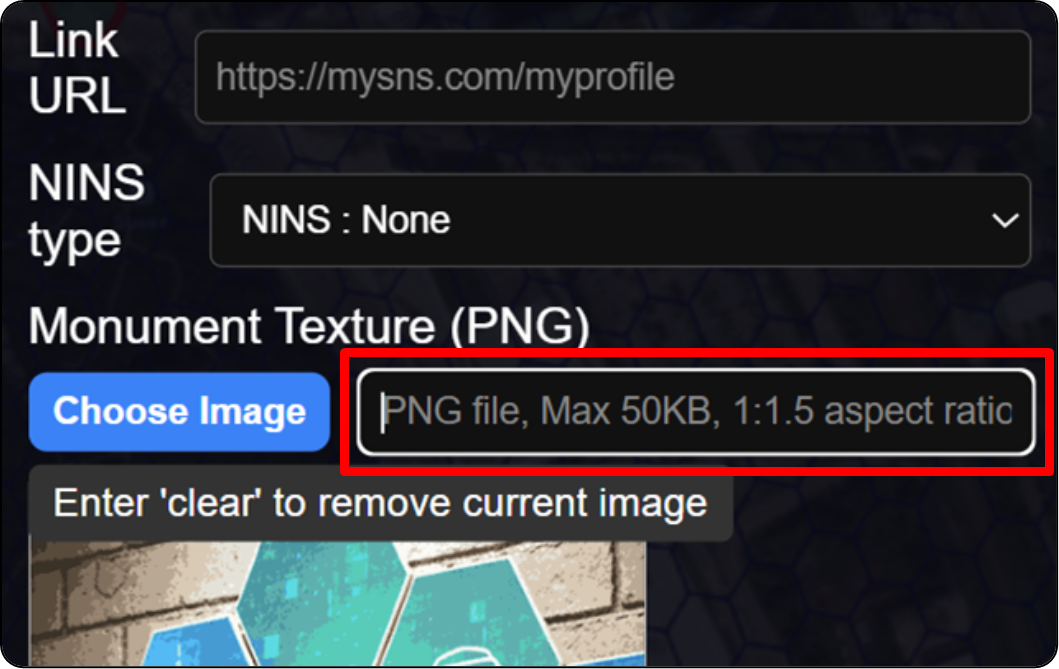
Go to the Settings tab & Type "clear" in the Monument Texture(PNG) field. When you enter "clear", the registered image is removed.

<figure><img src="https://2902267430-files.gitbook.io/~/files/v0/b/gitbook-x-prod.appspot.com/o/spaces%2F5LAEHDS7jvCC6hgJFI2D%2Fuploads%2FNsmyVSnBLxu5j09E8Y78%2Fimage.png?alt=media&amp;token=6212781e-b852-402a-95ce-cf08facf9d98" alt="" width="375"><figcaption></figcaption></figure>

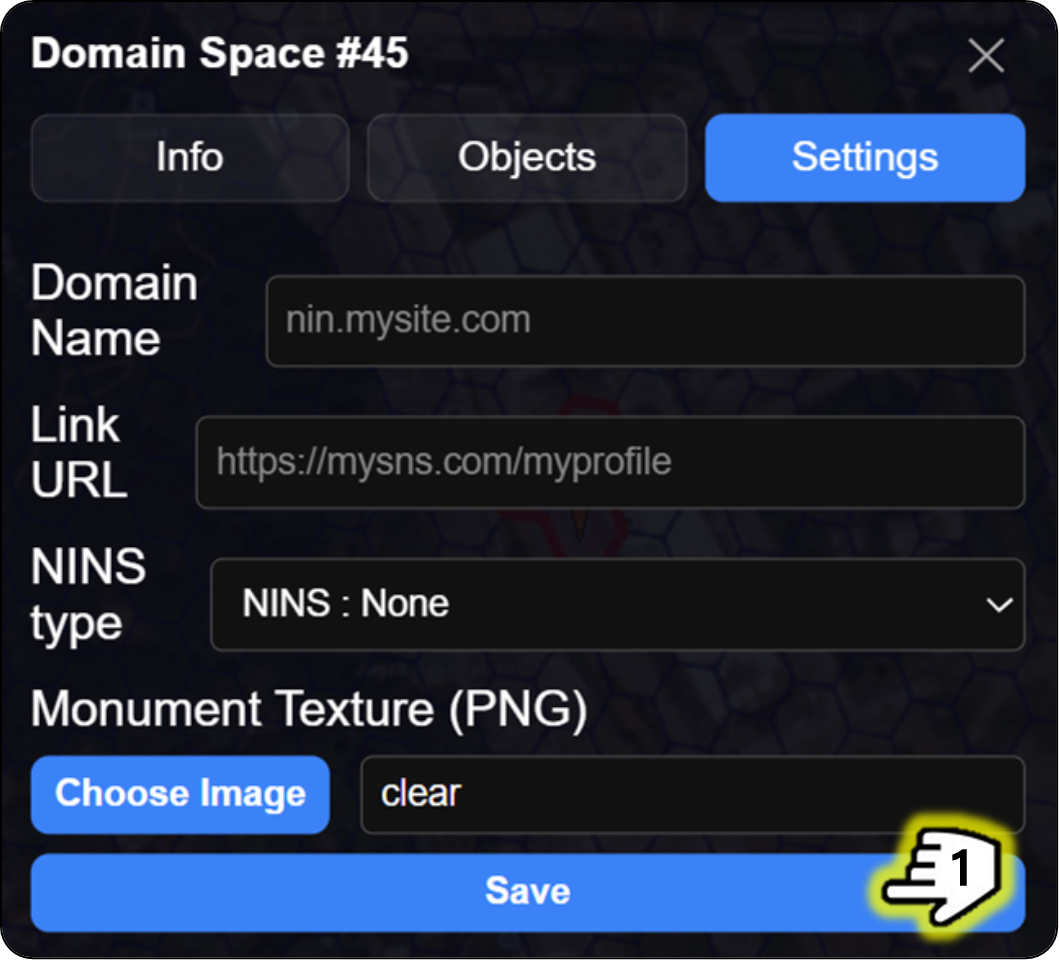
1. Click \[Save] button → open pop-up

<figure><img src="https://2902267430-files.gitbook.io/~/files/v0/b/gitbook-x-prod.appspot.com/o/spaces%2F5LAEHDS7jvCC6hgJFI2D%2Fuploads%2FTXNYPraMuYeqFHhAnFiM%2Fimage.png?alt=media&amp;token=a0d02f35-e08e-4307-a25f-324dada3da0e" alt="" width="563"><figcaption></figcaption></figure>

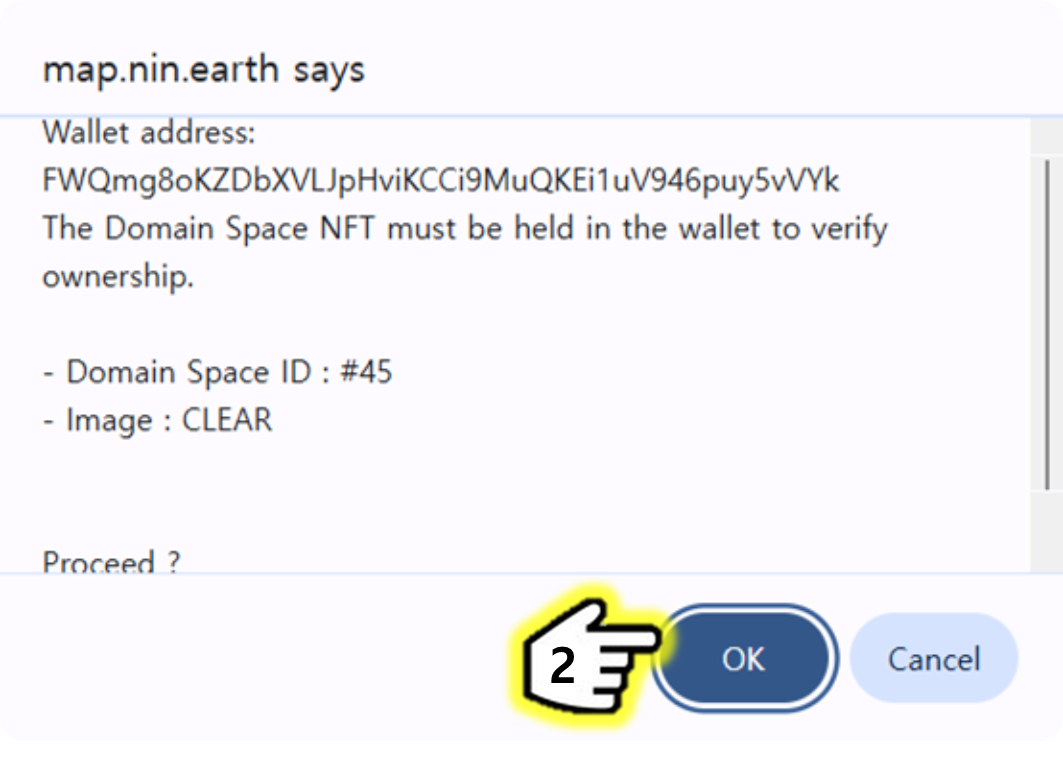
2. Click \[OK] → done.
   {% endstep %}
   {% endstepper %}
   {% endtab %}

{% tab title="Mobile" %}
{% stepper %}
{% step %}

#### <mark style="color:$primary;">Search</mark> Tiles & <mark style="color:$primary;">Connect</mark> Wallet

1. [How do I find the Tile I want?](/guidebook/markdown/how-do-i-find-the-tile-i-want.md)
2. [How do I connect my wallet?](/guidebook/markdown/how-do-i-connect-my-wallet.md)
   {% endstep %}

{% step %}

#### <mark style="color:$primary;">Tap</mark> anywhere inside your Grid

<figure><img src="https://2902267430-files.gitbook.io/~/files/v0/b/gitbook-x-prod.appspot.com/o/spaces%2F5LAEHDS7jvCC6hgJFI2D%2Fuploads%2FlMWhNed9a5rIqSmyuVIg%2Fimage.png?alt=media&amp;token=33b3a86f-fe4e-48e2-b0d8-be01ae388a25" alt="" width="353"><figcaption></figcaption></figure>

When you tap anywhere inside your <mark style="color:$danger;">Domain Space Grid (red boundary)</mark>, pop-up will appear.

<figure><img src="https://2902267430-files.gitbook.io/~/files/v0/b/gitbook-x-prod.appspot.com/o/spaces%2F5LAEHDS7jvCC6hgJFI2D%2Fuploads%2FmufTsb7XcD4YBQCvWib7%2Fimage.png?alt=media&amp;token=50d78651-0989-4f29-9a0e-1fd225cfec7e" alt="" width="375"><figcaption></figcaption></figure>
{% endstep %}

{% step %}

#### <mark style="color:$primary;">Tap</mark> \[Settings] → \[choose image]

<figure><img src="https://2902267430-files.gitbook.io/~/files/v0/b/gitbook-x-prod.appspot.com/o/spaces%2F5LAEHDS7jvCC6hgJFI2D%2Fuploads%2FlbHUN7UQelzfzcxhrpFh%2Fimage.png?alt=media&amp;token=04f8d159-550b-47ad-8a1e-94a5e6d3886e" alt="" width="362"><figcaption></figcaption></figure>

1. Tap \[Settings] tab
2. Tap \[choose image] button → open pop-up(file selection dialog)
   {% endstep %}

{% step %}

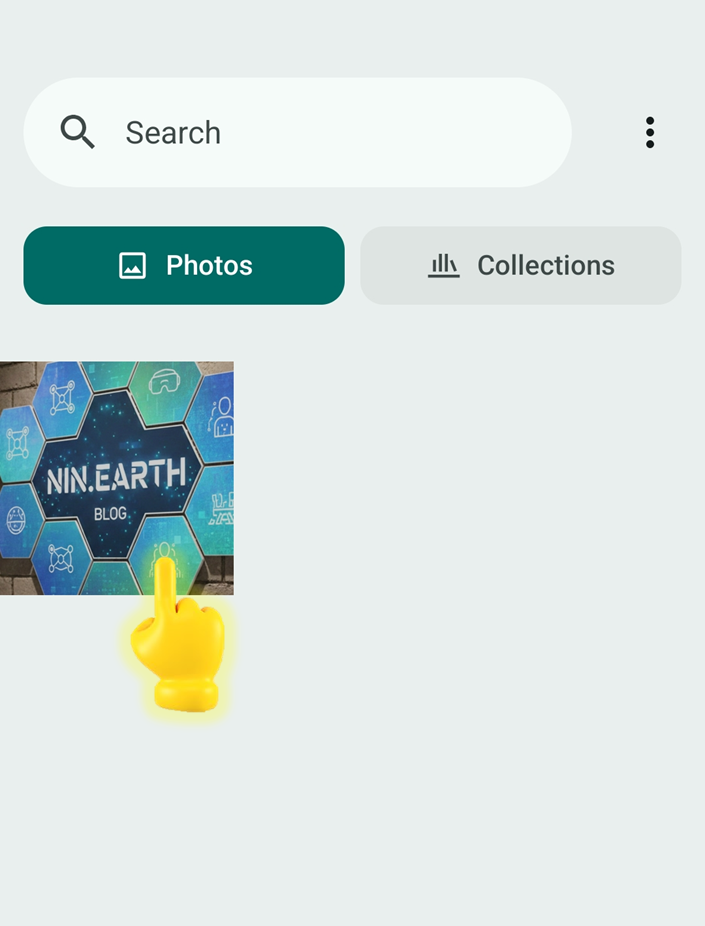
#### <mark style="color:$primary;">Upload</mark> image & <mark style="color:$primary;">Tap</mark> \[save]

<figure><img src="https://2902267430-files.gitbook.io/~/files/v0/b/gitbook-x-prod.appspot.com/o/spaces%2F5LAEHDS7jvCC6hgJFI2D%2Fuploads%2Fk55gZrRxsYT2eC4eK0kp%2Fimage.png?alt=media&amp;token=a62e97d7-f4a7-4d78-aee5-f543eff8fbc1" alt="" width="353"><figcaption></figcaption></figure>

Select the image file you want & Tap it.

<figure><img src="https://2902267430-files.gitbook.io/~/files/v0/b/gitbook-x-prod.appspot.com/o/spaces%2F5LAEHDS7jvCC6hgJFI2D%2Fuploads%2FImzNxEWvW3KoSPyubShB%2Fimage.png?alt=media&amp;token=bb5e2a28-95f0-4e3e-8f31-22d42fe031ae" alt="" width="353"><figcaption></figcaption></figure>

1. Tap \[Save] button → open pop-up

<figure><img src="https://2902267430-files.gitbook.io/~/files/v0/b/gitbook-x-prod.appspot.com/o/spaces%2F5LAEHDS7jvCC6hgJFI2D%2Fuploads%2Fug8MHkgDzNAriyO5ty6Q%2Fimage.png?alt=media&amp;token=d9b9cb4a-0f59-48e8-9781-865330cbd9b9" alt="" width="353"><figcaption></figcaption></figure>

2. Tap \[OK] → done.
   {% endstep %}

{% step %}

#### <mark style="color:$primary;">\*Check</mark> live updates

<figure><img src="https://2902267430-files.gitbook.io/~/files/v0/b/gitbook-x-prod.appspot.com/o/spaces%2F5LAEHDS7jvCC6hgJFI2D%2Fuploads%2FqhciORj1wlkxMiZJ0gDW%2Fimage.png?alt=media&amp;token=c008ee22-b110-41b6-9ec5-d14470fa4c74" alt="" width="355"><figcaption></figcaption></figure>

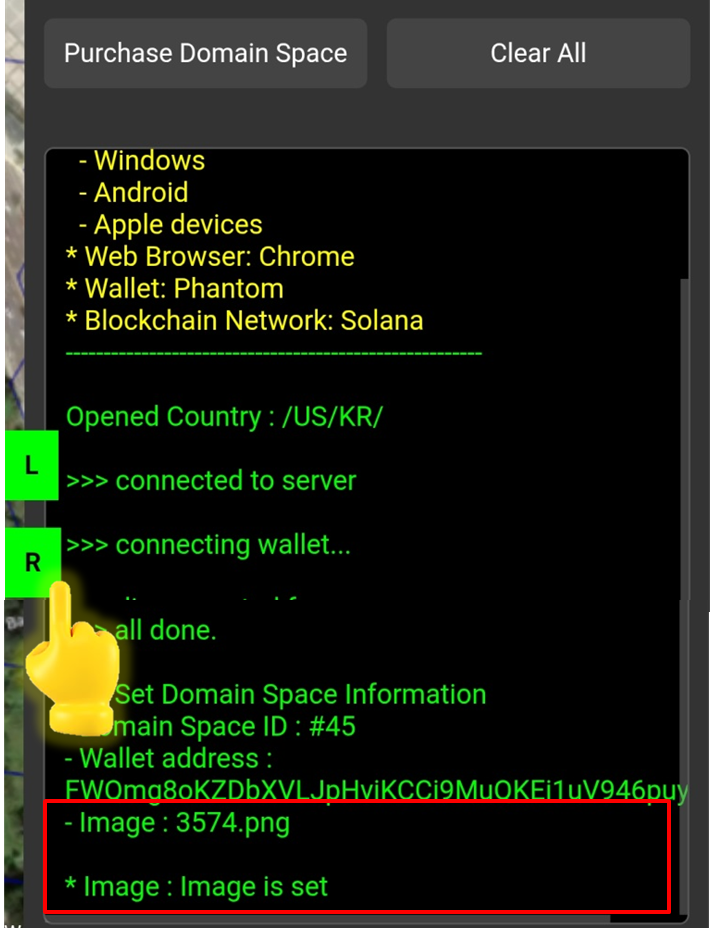
When you tap <mark style="color:$success;">R Panel</mark>, you can check the relocation update in real time in the Info panel.

<figure><img src="https://2902267430-files.gitbook.io/~/files/v0/b/gitbook-x-prod.appspot.com/o/spaces%2F5LAEHDS7jvCC6hgJFI2D%2Fuploads%2FL0LovDOu9DTrbu4aBNvx%2Fimage.png?alt=media&amp;token=8e4c0496-2182-4d19-8089-ec611b71e6c8" alt="" width="563"><figcaption></figcaption></figure>

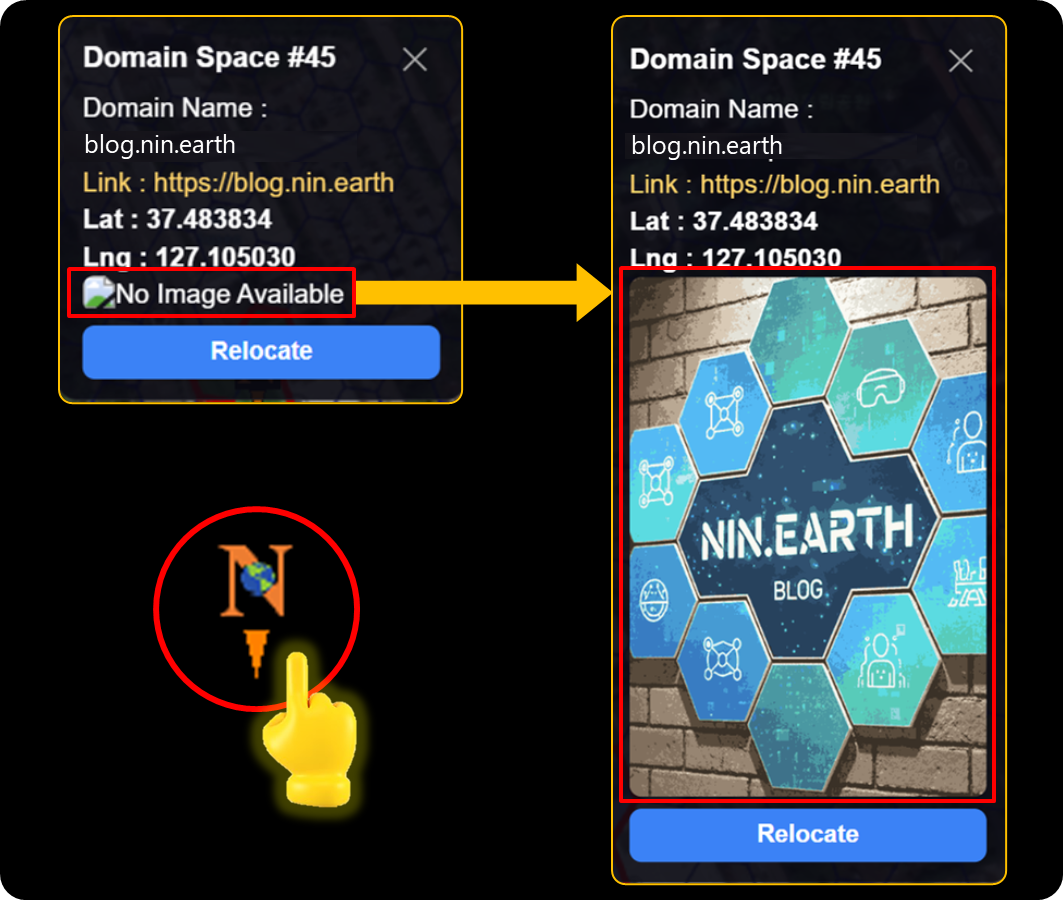
When you tap the Marker, you can confirm that the Texture (Image) has been applied.
{% endstep %}

{% step %}

#### <mark style="color:$primary;">\*Clear</mark> Texture

<figure><img src="https://2902267430-files.gitbook.io/~/files/v0/b/gitbook-x-prod.appspot.com/o/spaces%2F5LAEHDS7jvCC6hgJFI2D%2Fuploads%2FaPCXIHJZ75B0zLw4dIjX%2Fimage.png?alt=media&amp;token=b44172d0-73d7-408e-baa9-e28ac3d706fb" alt="" width="375"><figcaption></figcaption></figure>

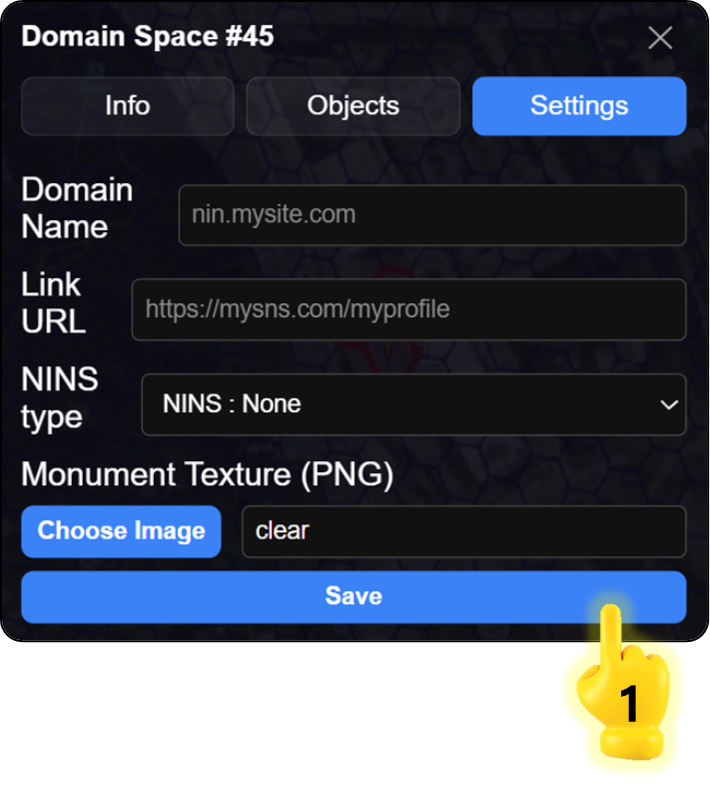
Go to the Settings tab & Type "clear" in the Monument Texture(PNG) field. When you enter "clear", the registered image is removed.

<figure><img src="https://2902267430-files.gitbook.io/~/files/v0/b/gitbook-x-prod.appspot.com/o/spaces%2F5LAEHDS7jvCC6hgJFI2D%2Fuploads%2FSHUrZelUAChBJrFb8tzH%2Fimage.png?alt=media&amp;token=d4e0584c-74ff-4e3f-852d-9f5b26e32347" alt="" width="355"><figcaption></figcaption></figure>

1. Tap \[Save] button → open pop-up

<figure><img src="https://2902267430-files.gitbook.io/~/files/v0/b/gitbook-x-prod.appspot.com/o/spaces%2F5LAEHDS7jvCC6hgJFI2D%2Fuploads%2FUkKpDXhYkp4S01lWVCNc%2Fimage.png?alt=media&amp;token=f6b31031-c4ed-446c-a4d6-cccc52c720f5" alt="" width="353"><figcaption></figcaption></figure>

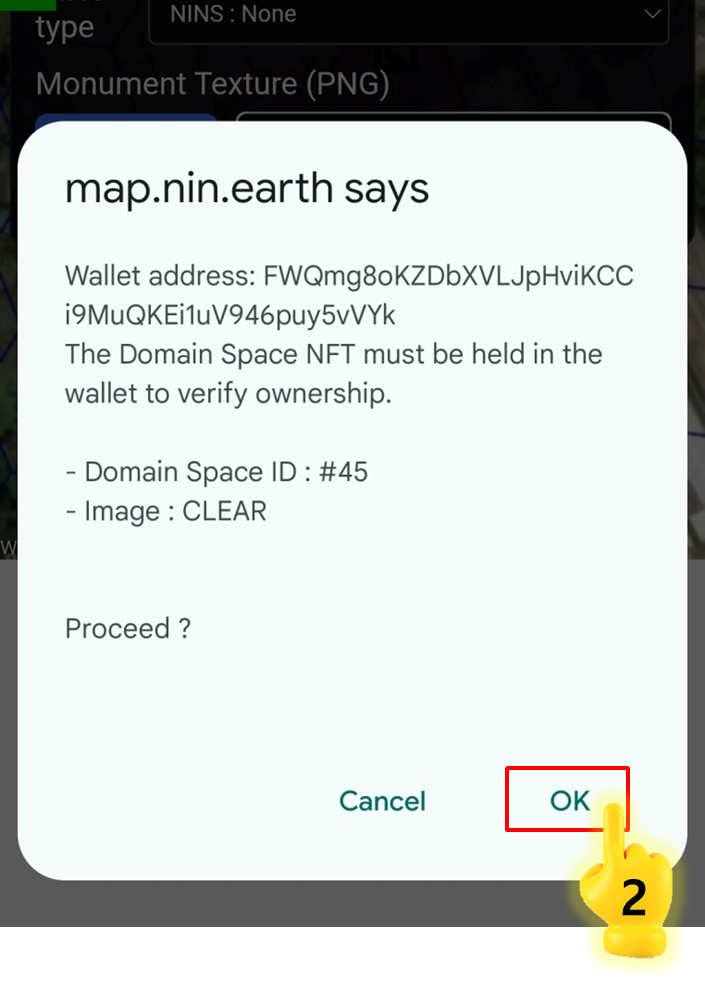
2. Tap \[OK] → done.
   {% endstep %}
   {% endstepper %}
   {% endtab %}
   {% endtabs %}

### **Connect URL**

Register 1 primary URL. Gazing at the Monument's top cube in AR mode, opens the linked web-page.

{% tabs %}
{% tab title="PC" %}
{% stepper %}
{% step %}

#### <mark style="color:$primary;">Search</mark> Tiles & <mark style="color:$primary;">Connect</mark> Wallet

1. [How do I find the Tile I want?](/guidebook/markdown/how-do-i-find-the-tile-i-want.md)
2. [How do I connect my wallet?](/guidebook/markdown/how-do-i-connect-my-wallet.md)
   {% endstep %}

{% step %}

#### <mark style="color:$primary;">Click</mark> anywhere inside your Grid

<figure><img src="https://2902267430-files.gitbook.io/~/files/v0/b/gitbook-x-prod.appspot.com/o/spaces%2F5LAEHDS7jvCC6hgJFI2D%2Fuploads%2FyT0KrYm4BWMIl1PYpkct%2Fimage.png?alt=media&amp;token=e36ad6af-11a4-4de0-b346-76287ff1dd53" alt="" width="563"><figcaption></figcaption></figure>

When you click anywhere inside your <mark style="color:$danger;">Domain Space Grid (red boundary)</mark>, pop-up will appear.

<figure><img src="https://2902267430-files.gitbook.io/~/files/v0/b/gitbook-x-prod.appspot.com/o/spaces%2F5LAEHDS7jvCC6hgJFI2D%2Fuploads%2FmufTsb7XcD4YBQCvWib7%2Fimage.png?alt=media&amp;token=50d78651-0989-4f29-9a0e-1fd225cfec7e" alt="" width="375"><figcaption></figcaption></figure>
{% endstep %}

{% step %}

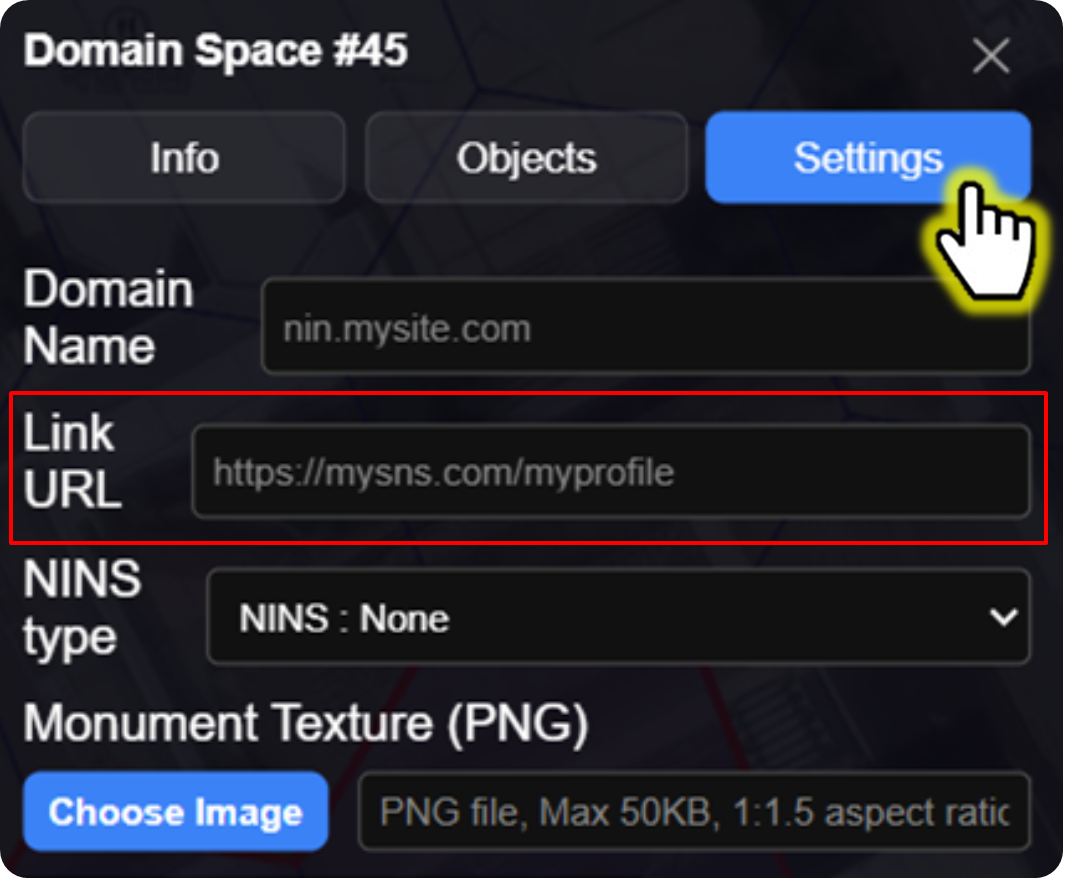
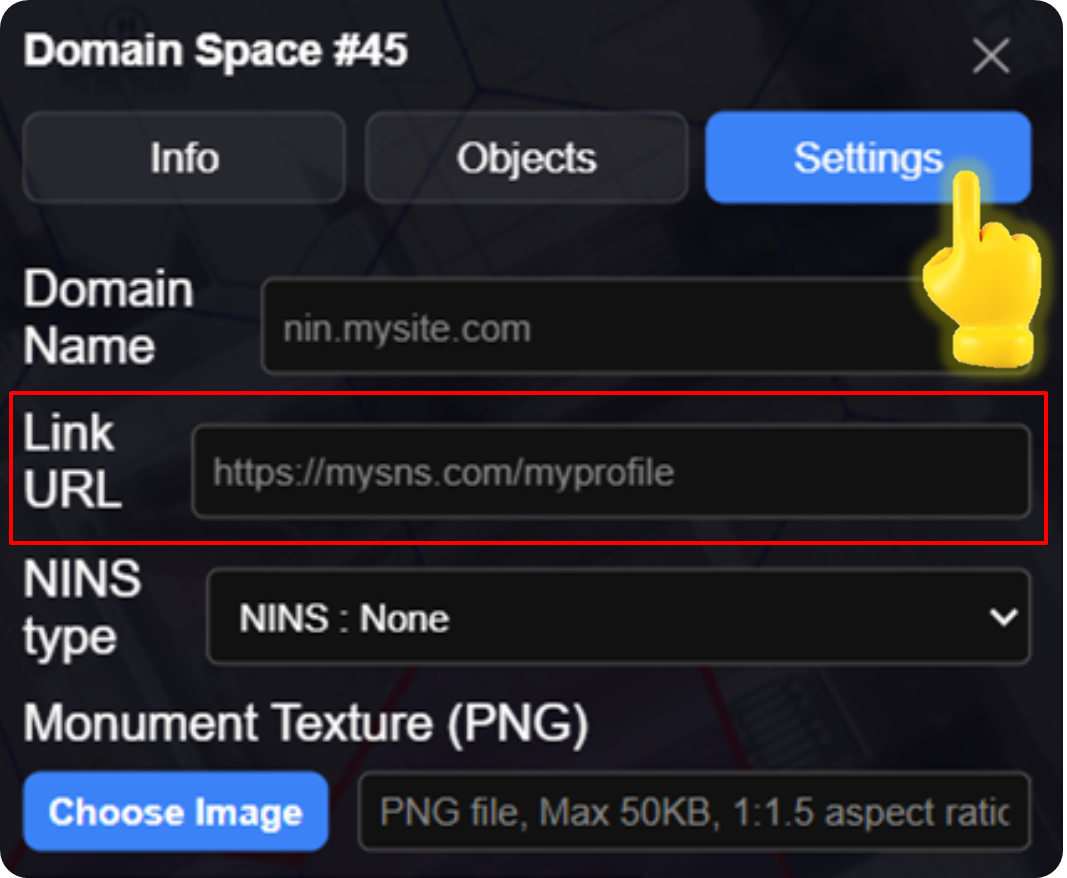
#### <mark style="color:$primary;">Click</mark> \[Settings] → Link URL

<figure><img src="https://2902267430-files.gitbook.io/~/files/v0/b/gitbook-x-prod.appspot.com/o/spaces%2F5LAEHDS7jvCC6hgJFI2D%2Fuploads%2FvdtyNkjHWV3RysdK8WFm%2Fimage.png?alt=media&amp;token=951626c8-e6da-4b34-a88c-63c7e2a3adc1" alt="" width="375"><figcaption></figcaption></figure>
{% endstep %}

{% step %}

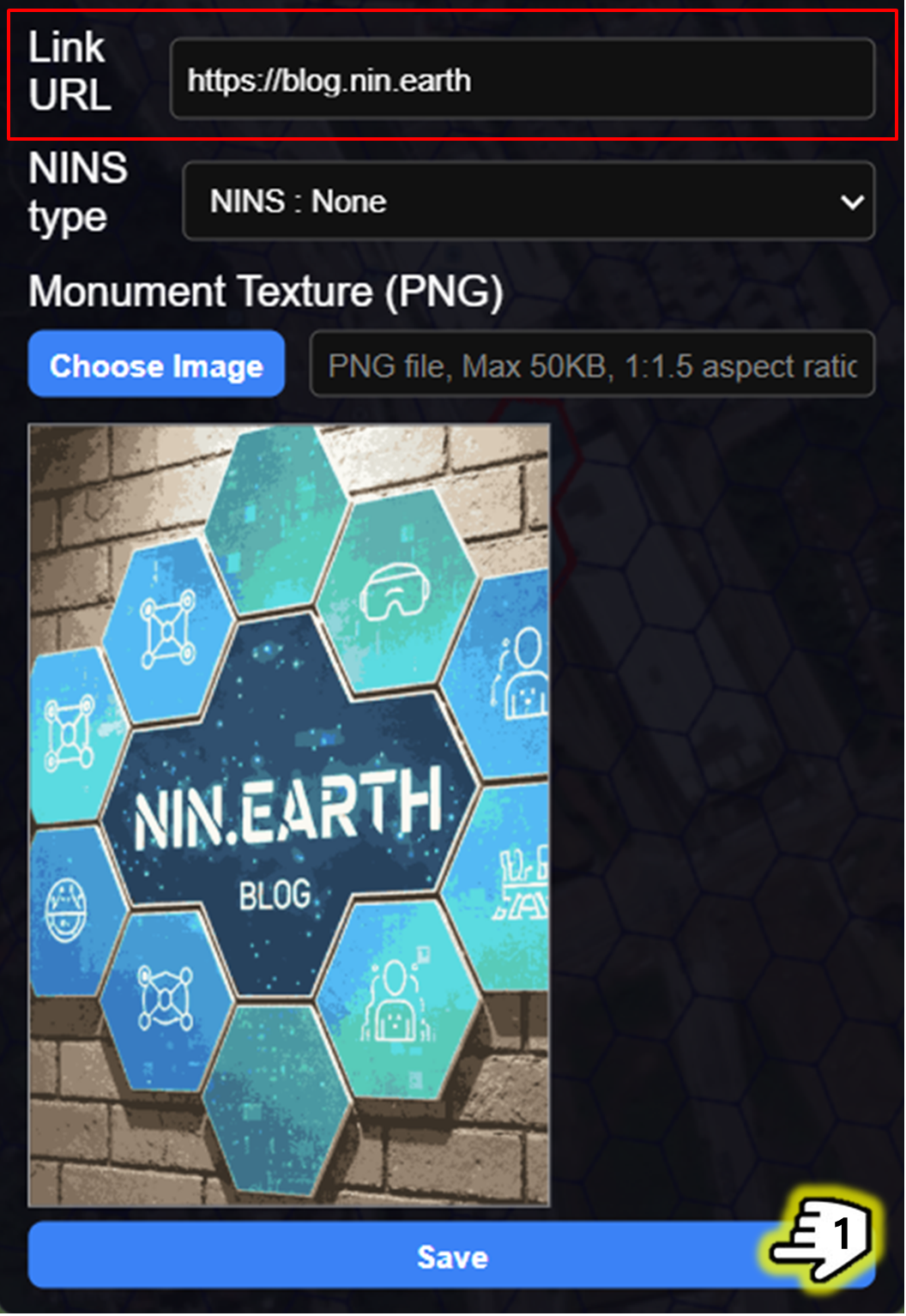
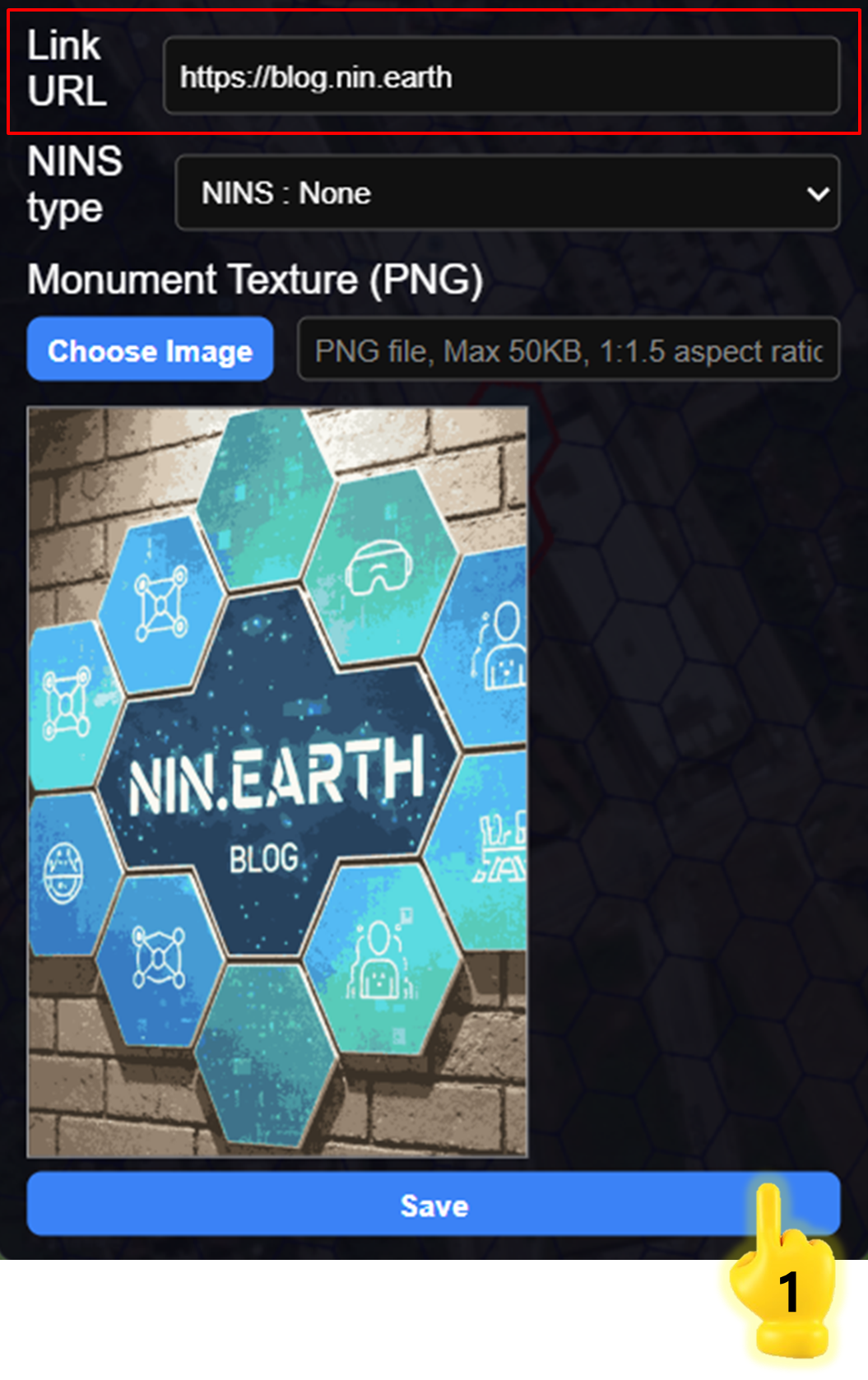
#### <mark style="color:$primary;">Enter</mark> URL & <mark style="color:$primary;">Click</mark> \[save]

<figure><img src="https://2902267430-files.gitbook.io/~/files/v0/b/gitbook-x-prod.appspot.com/o/spaces%2F5LAEHDS7jvCC6hgJFI2D%2Fuploads%2FqgAModIpVavyrHqC5QtQ%2Fimage.png?alt=media&amp;token=d5e660e9-ad0a-4679-87f2-0563a906b20b" alt="" width="375"><figcaption></figcaption></figure>

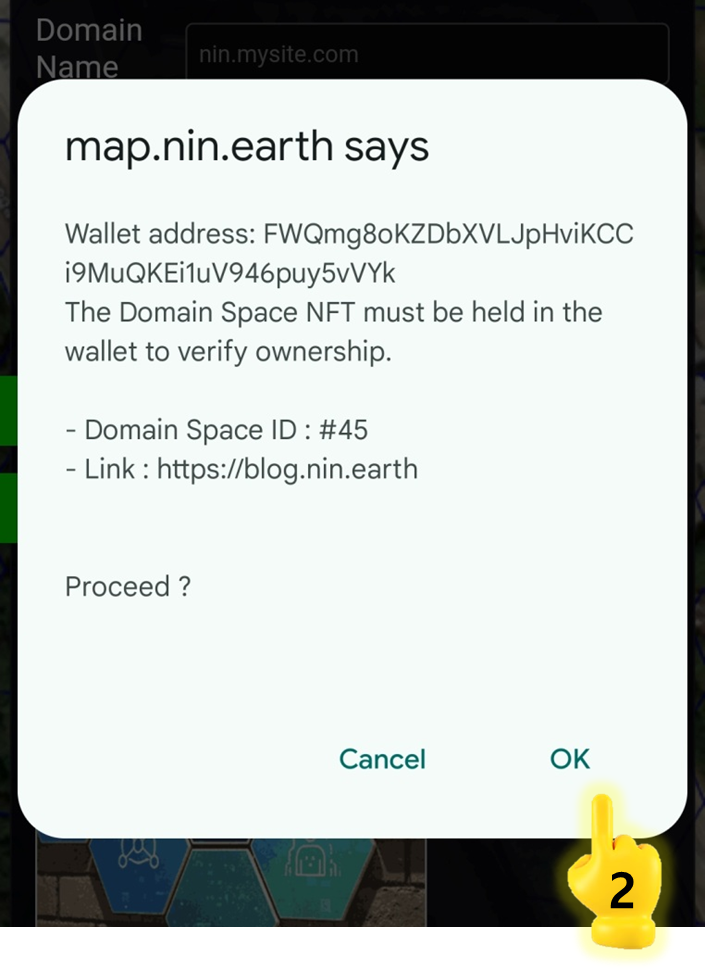
1. Enter URL and Click \[Save] button → open pop-up

<figure><img src="https://2902267430-files.gitbook.io/~/files/v0/b/gitbook-x-prod.appspot.com/o/spaces%2F5LAEHDS7jvCC6hgJFI2D%2Fuploads%2F7M9pfd7WkC7D7EvFCty1%2Fimage.png?alt=media&amp;token=cd6383c6-f383-4efa-8384-e6f37a5b6af7" alt="" width="563"><figcaption></figcaption></figure>

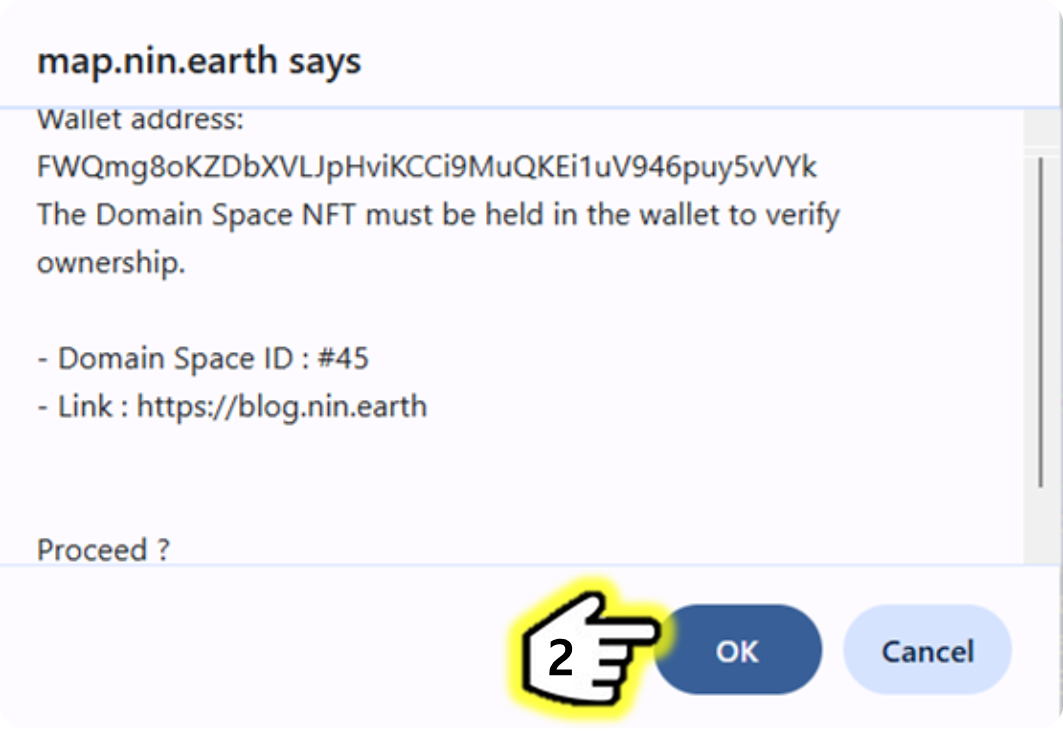
2. Click \[OK] → done.
   {% endstep %}

{% step %}

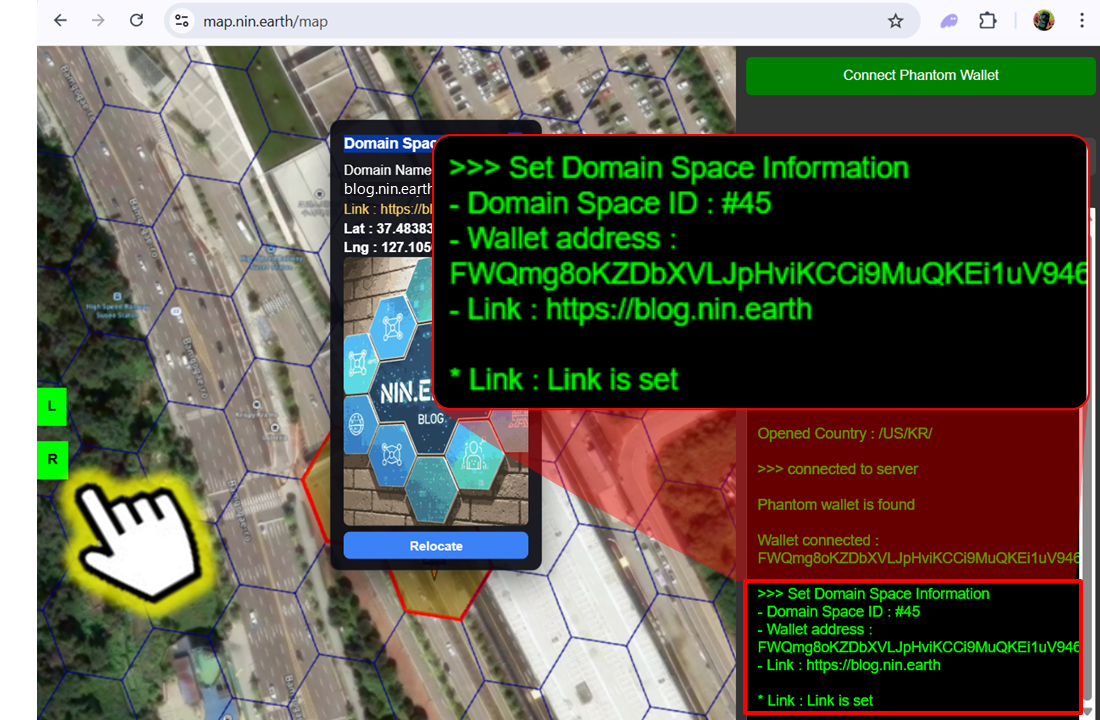
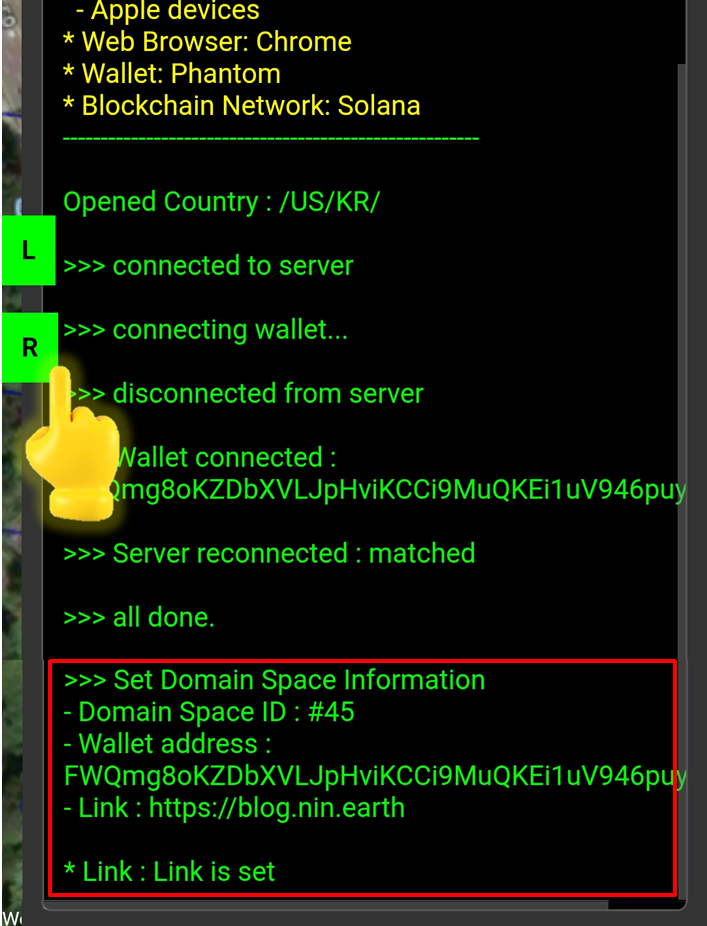
#### <mark style="color:$primary;">\*Check</mark> live updates

<figure><img src="https://2902267430-files.gitbook.io/~/files/v0/b/gitbook-x-prod.appspot.com/o/spaces%2F5LAEHDS7jvCC6hgJFI2D%2Fuploads%2F5QfvJ2RlVZF30DAfbul5%2Fimage.png?alt=media&amp;token=50cf4f80-403a-4dee-812e-b6be91c40d8e" alt="" width="563"><figcaption></figcaption></figure>

When you click the <mark style="color:$success;">R Panel</mark>, you can check the relocation update in real time in the Info panel.

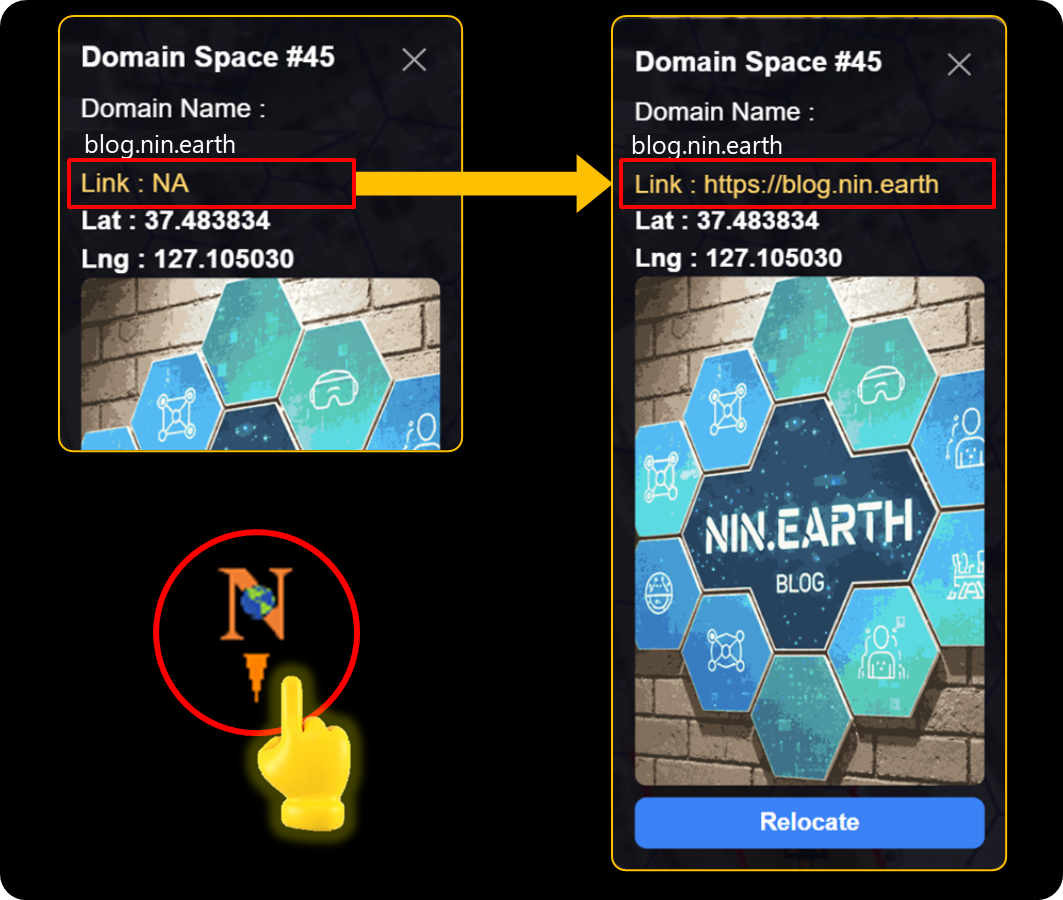
<figure><img src="https://2902267430-files.gitbook.io/~/files/v0/b/gitbook-x-prod.appspot.com/o/spaces%2F5LAEHDS7jvCC6hgJFI2D%2Fuploads%2FXxVvOtmVzxrq0j3xTufI%2Fimage.png?alt=media&amp;token=34029cb7-5f7a-4d2f-8ff6-3858decb6d5c" alt="" width="563"><figcaption></figcaption></figure>

When you click the Marker, you can confirm that the (URL) Link has been applied.
{% endstep %}

{% step %}

#### <mark style="color:$primary;">\*Clear</mark> URL

<figure><img src="https://2902267430-files.gitbook.io/~/files/v0/b/gitbook-x-prod.appspot.com/o/spaces%2F5LAEHDS7jvCC6hgJFI2D%2Fuploads%2FPx1VOTaDZGw9qwdLdlG1%2Fimage.png?alt=media&amp;token=881f5962-b0a4-4fb3-beec-1a699b4ef2db" alt="" width="375"><figcaption></figcaption></figure>

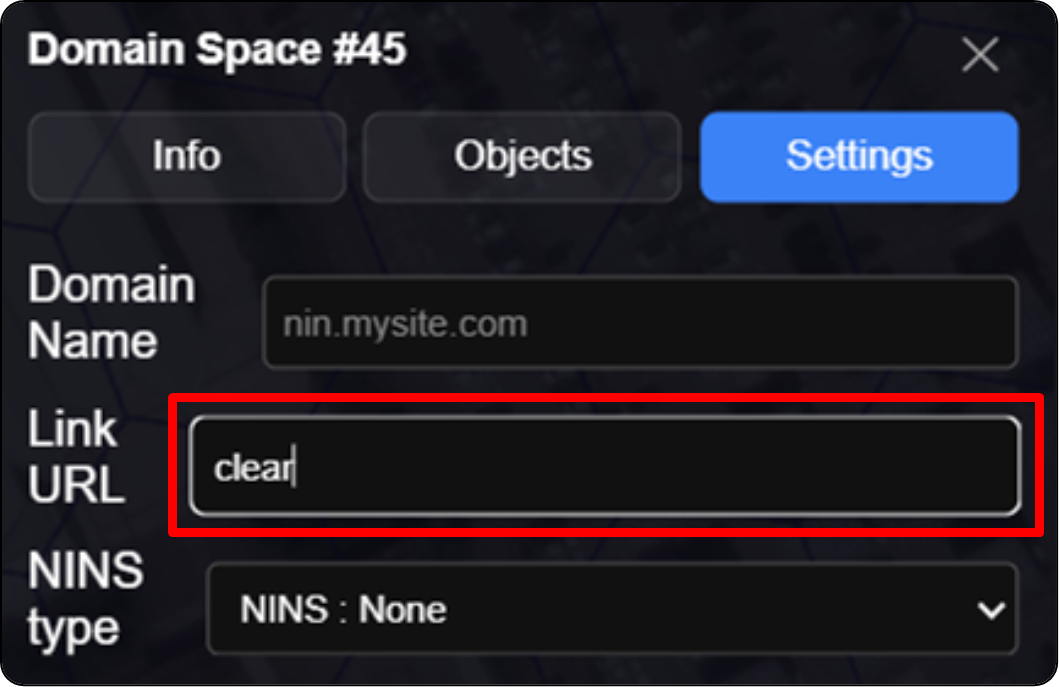
Go to the Settings tab & Type "clear" into the Link URL field.

<figure><img src="https://2902267430-files.gitbook.io/~/files/v0/b/gitbook-x-prod.appspot.com/o/spaces%2F5LAEHDS7jvCC6hgJFI2D%2Fuploads%2FGINkaWnKJ8itYVcpfPul%2Fimage.png?alt=media&amp;token=d06232ee-e706-429c-8f1c-ca0a27c3d123" alt="" width="375"><figcaption></figcaption></figure>

1. Click \[Save] button → open pop-up

<figure><img src="https://2902267430-files.gitbook.io/~/files/v0/b/gitbook-x-prod.appspot.com/o/spaces%2F5LAEHDS7jvCC6hgJFI2D%2Fuploads%2FZbqygnnImxd7rzLouYLB%2Fimage.png?alt=media&amp;token=a2c915a3-3990-45ba-9fdf-91d82496c31b" alt="" width="563"><figcaption></figcaption></figure>

2. Click \[OK] → done.
   {% endstep %}
   {% endstepper %}
   {% endtab %}

{% tab title="Mobile" %}
{% stepper %}
{% step %}

#### <mark style="color:$primary;">Search</mark> Tiles & <mark style="color:$primary;">Connect</mark> Wallet

1. [How do I find the Tile I want?](/guidebook/markdown/how-do-i-find-the-tile-i-want.md)
2. [How do I connect my wallet?](/guidebook/markdown/how-do-i-connect-my-wallet.md)
   {% endstep %}

{% step %}

#### <mark style="color:$primary;">Tap</mark> anywhere inside your Grid

<figure><img src="https://2902267430-files.gitbook.io/~/files/v0/b/gitbook-x-prod.appspot.com/o/spaces%2F5LAEHDS7jvCC6hgJFI2D%2Fuploads%2FlMWhNed9a5rIqSmyuVIg%2Fimage.png?alt=media&amp;token=33b3a86f-fe4e-48e2-b0d8-be01ae388a25" alt="" width="353"><figcaption></figcaption></figure>

When you tap anywhere inside your <mark style="color:$danger;">Domain Space Grid (red boundary)</mark>, pop-up will appear.

<figure><img src="https://2902267430-files.gitbook.io/~/files/v0/b/gitbook-x-prod.appspot.com/o/spaces%2F5LAEHDS7jvCC6hgJFI2D%2Fuploads%2FmufTsb7XcD4YBQCvWib7%2Fimage.png?alt=media&amp;token=50d78651-0989-4f29-9a0e-1fd225cfec7e" alt="" width="375"><figcaption></figcaption></figure>
{% endstep %}

{% step %}

#### <mark style="color:$primary;">Tap</mark> \[Settings] → Link URL

<figure><img src="https://2902267430-files.gitbook.io/~/files/v0/b/gitbook-x-prod.appspot.com/o/spaces%2F5LAEHDS7jvCC6hgJFI2D%2Fuploads%2FoQZ20HyEgBsCepDFlmKe%2Fimage.png?alt=media&amp;token=500d0f88-ba49-4beb-bb99-b4c5bec04e6e" alt="" width="375"><figcaption></figcaption></figure>
{% endstep %}

{% step %}

#### <mark style="color:$primary;">Enter</mark> URL & <mark style="color:$primary;">Tap</mark> \[save]

<figure><img src="https://2902267430-files.gitbook.io/~/files/v0/b/gitbook-x-prod.appspot.com/o/spaces%2F5LAEHDS7jvCC6hgJFI2D%2Fuploads%2F92h6suMIDPPsAxIXFYKr%2Fimage.png?alt=media&amp;token=4d453de6-5acf-4eb4-a3c3-d972fb421135" alt="" width="375"><figcaption></figcaption></figure>

1. Enter URL and Click \[Save] button → open pop-up

<figure><img src="https://2902267430-files.gitbook.io/~/files/v0/b/gitbook-x-prod.appspot.com/o/spaces%2F5LAEHDS7jvCC6hgJFI2D%2Fuploads%2Ff7qAnOFnxJvGRC0plMDZ%2Fimage.png?alt=media&amp;token=98683871-554a-4b51-8861-96769b0b8b8f" alt="" width="353"><figcaption></figcaption></figure>

2. Click \[OK] → done.
   {% endstep %}

{% step %}

#### <mark style="color:$primary;">\*Check</mark> live updates

<figure><img src="https://2902267430-files.gitbook.io/~/files/v0/b/gitbook-x-prod.appspot.com/o/spaces%2F5LAEHDS7jvCC6hgJFI2D%2Fuploads%2FVNfL8j4HbrbHxlrpnq1S%2Fimage.png?alt=media&amp;token=eb3661e7-265d-4e91-80be-c2439f27f5e1" alt="" width="354"><figcaption></figcaption></figure>

When you tap <mark style="color:$success;">R panel</mark>, you can check the relocation update in real time in the Info panel.

<figure><img src="https://2902267430-files.gitbook.io/~/files/v0/b/gitbook-x-prod.appspot.com/o/spaces%2F5LAEHDS7jvCC6hgJFI2D%2Fuploads%2FKwTXATOHsBBuKrVI9c0V%2Fimage.png?alt=media&amp;token=3255183a-630d-4640-afa9-433ee20bdb0c" alt="" width="563"><figcaption></figcaption></figure>

When you tap the Marker, you can confirm that the Link (URL) has been applied.
{% endstep %}

{% step %}

#### <mark style="color:$primary;">\*Clear</mark> URL

<figure><img src="https://2902267430-files.gitbook.io/~/files/v0/b/gitbook-x-prod.appspot.com/o/spaces%2F5LAEHDS7jvCC6hgJFI2D%2Fuploads%2FPx1VOTaDZGw9qwdLdlG1%2Fimage.png?alt=media&amp;token=881f5962-b0a4-4fb3-beec-1a699b4ef2db" alt="" width="375"><figcaption></figcaption></figure>

Go to the Settings tab & Type "clear" into the Link URL field.

<figure><img src="https://2902267430-files.gitbook.io/~/files/v0/b/gitbook-x-prod.appspot.com/o/spaces%2F5LAEHDS7jvCC6hgJFI2D%2Fuploads%2FU8EpBzhdNDI2brV7ONsA%2Fimage.png?alt=media&amp;token=eb6b5127-6a6a-48c5-b2df-e836857b797e" alt="" width="359"><figcaption></figcaption></figure>

1. Tap \[Save] button → open pop-up

<figure><img src="https://2902267430-files.gitbook.io/~/files/v0/b/gitbook-x-prod.appspot.com/o/spaces%2F5LAEHDS7jvCC6hgJFI2D%2Fuploads%2FsaVUvZUMPScWr4xYXcQS%2Fimage.png?alt=media&amp;token=b5f2fdb8-124e-458b-92e7-a7e9b27444c7" alt="" width="353"><figcaption></figcaption></figure>

2. Tap \[OK] → done.
   {% endstep %}
   {% endstepper %}
   {% endtab %}
   {% endtabs %}

### **Connect Domain Name**

Link your Domain Name, so users can search it & jump directly to your Domain Space.

{% tabs %}
{% tab title="PC" %}
{% stepper %}
{% step %}

#### <mark style="color:$primary;">Search</mark> Tiles & <mark style="color:$primary;">Connect</mark> Wallet

1. [How do I find the Tile I want?](/guidebook/markdown/how-do-i-find-the-tile-i-want.md)
2. [How do I connect my wallet?](/guidebook/markdown/how-do-i-connect-my-wallet.md)
   {% endstep %}

{% step %}

#### <mark style="color:$primary;">Click</mark> anywhere inside your Grid

<figure><img src="https://2902267430-files.gitbook.io/~/files/v0/b/gitbook-x-prod.appspot.com/o/spaces%2F5LAEHDS7jvCC6hgJFI2D%2Fuploads%2FyT0KrYm4BWMIl1PYpkct%2Fimage.png?alt=media&amp;token=e36ad6af-11a4-4de0-b346-76287ff1dd53" alt="" width="563"><figcaption></figcaption></figure>

When you click anywhere inside your <mark style="color:$danger;">Domain Space Grid (red boundary)</mark>, pop-up will appear.

<figure><img src="https://2902267430-files.gitbook.io/~/files/v0/b/gitbook-x-prod.appspot.com/o/spaces%2F5LAEHDS7jvCC6hgJFI2D%2Fuploads%2FmufTsb7XcD4YBQCvWib7%2Fimage.png?alt=media&amp;token=50d78651-0989-4f29-9a0e-1fd225cfec7e" alt="" width="375"><figcaption></figcaption></figure>
{% endstep %}

{% step %}

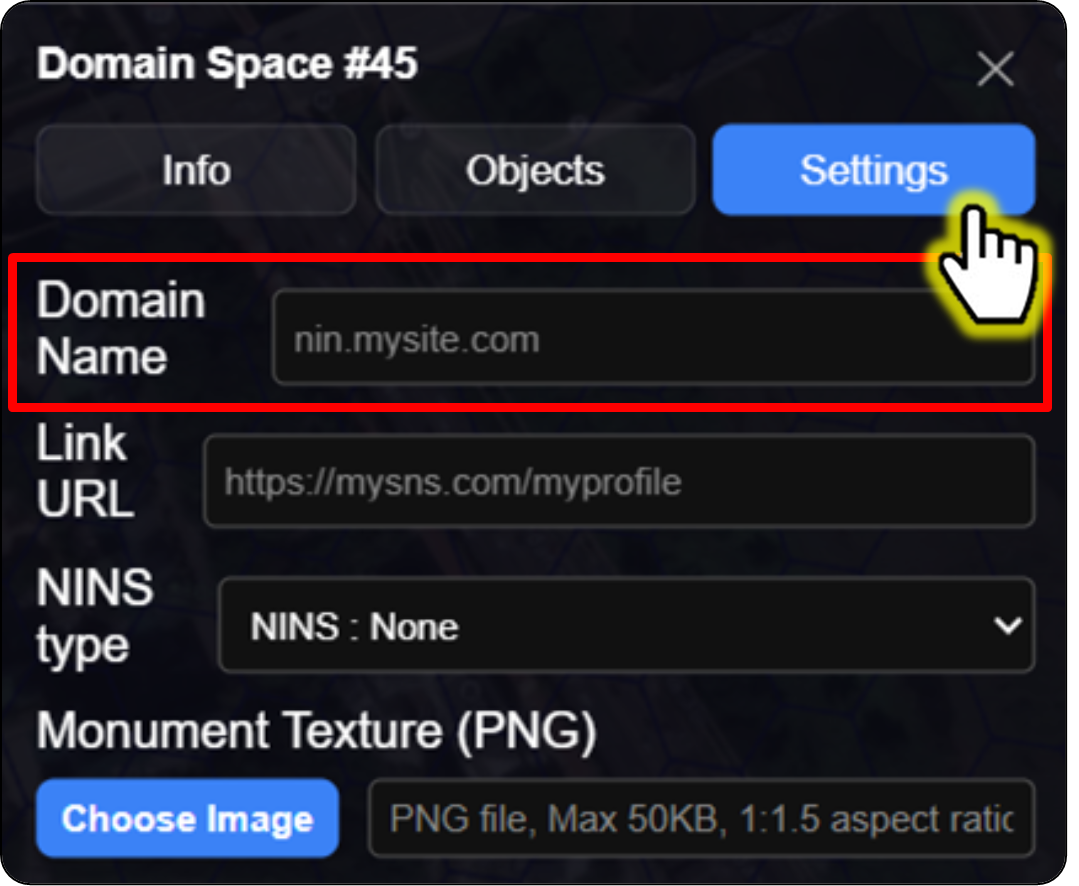
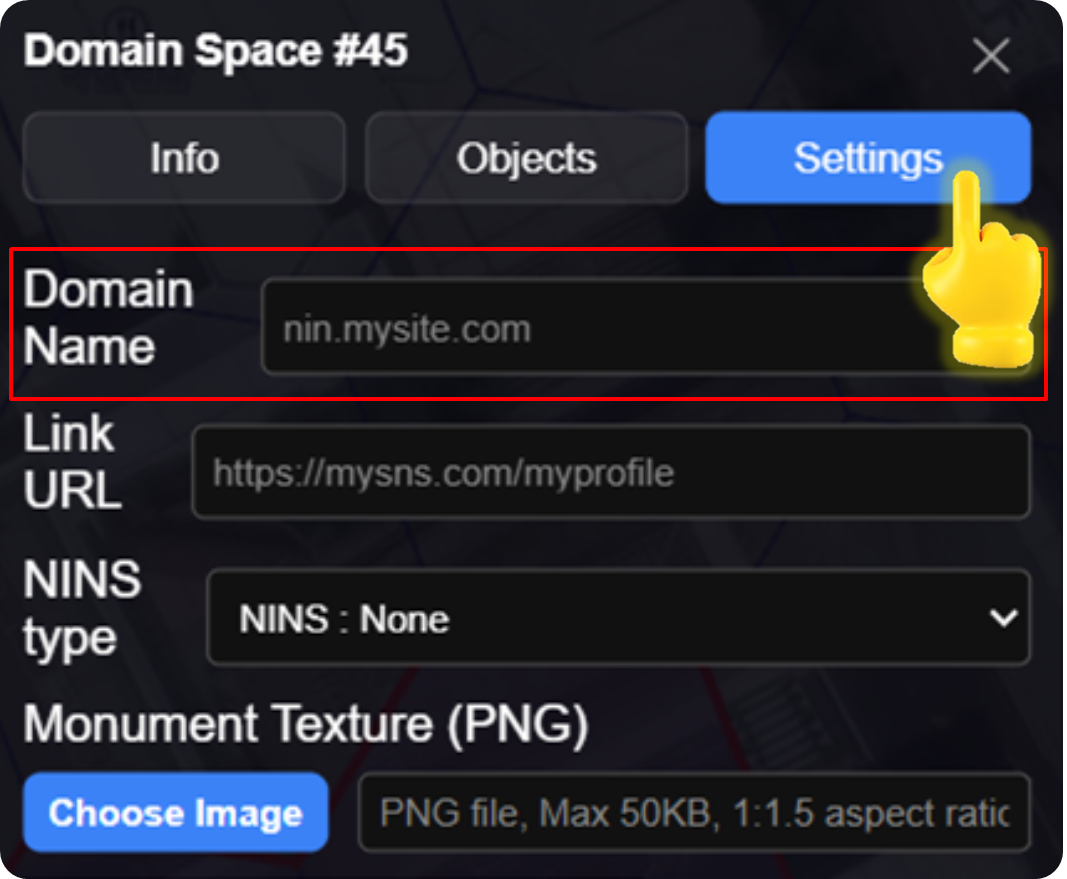
#### <mark style="color:$primary;">Click</mark> \[Settings] → Domain Name

<figure><img src="https://2902267430-files.gitbook.io/~/files/v0/b/gitbook-x-prod.appspot.com/o/spaces%2F5LAEHDS7jvCC6hgJFI2D%2Fuploads%2FVFj97v8pbqa1XOiqBNox%2Fimage.png?alt=media&amp;token=1fe79564-1b03-4467-b56a-44c8885ec40d" alt="" width="375"><figcaption></figcaption></figure>
{% endstep %}

{% step %}

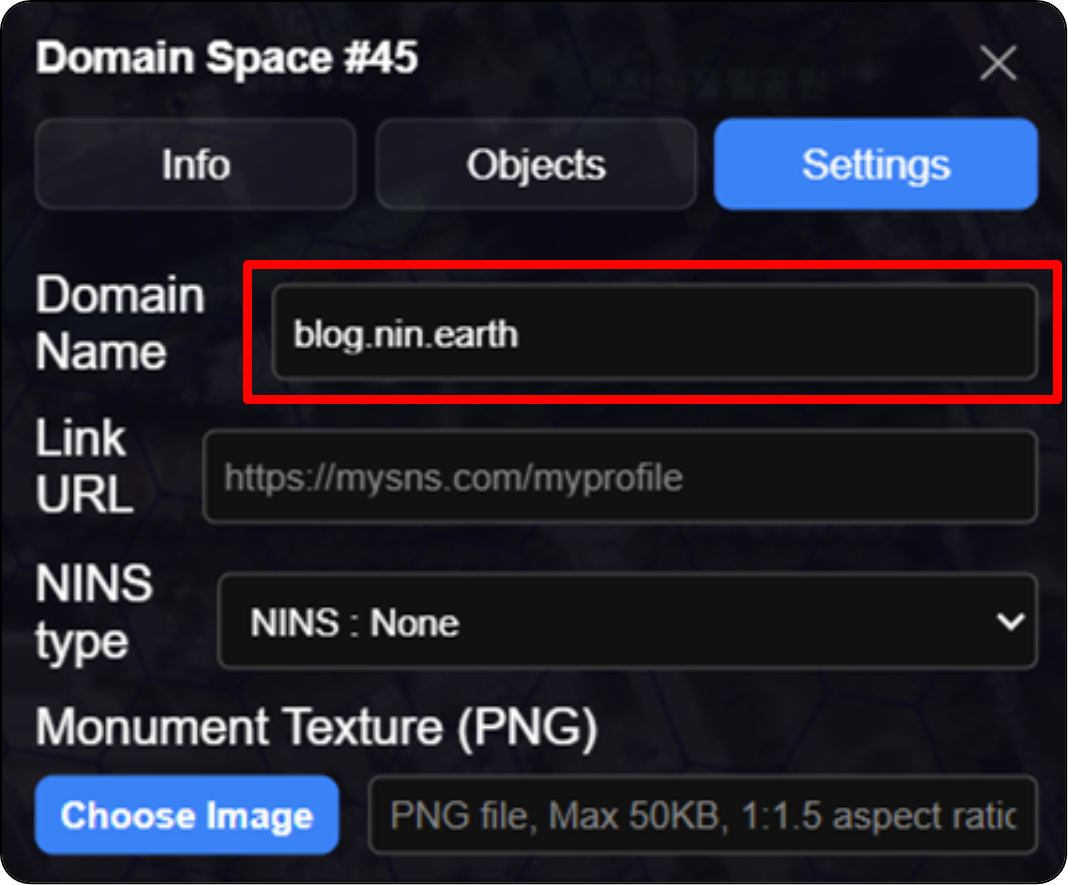
#### <mark style="color:$primary;">Enter</mark> Domain Name & <mark style="color:$primary;">Click</mark> \[save]

<figure><img src="https://2902267430-files.gitbook.io/~/files/v0/b/gitbook-x-prod.appspot.com/o/spaces%2F5LAEHDS7jvCC6hgJFI2D%2Fuploads%2FTJdZxTETXdrZ1idGfzuI%2Fimage.png?alt=media&amp;token=ebb49eae-5fe2-4dae-a30b-ae5c8a35c80d" alt="" width="375"><figcaption></figcaption></figure>

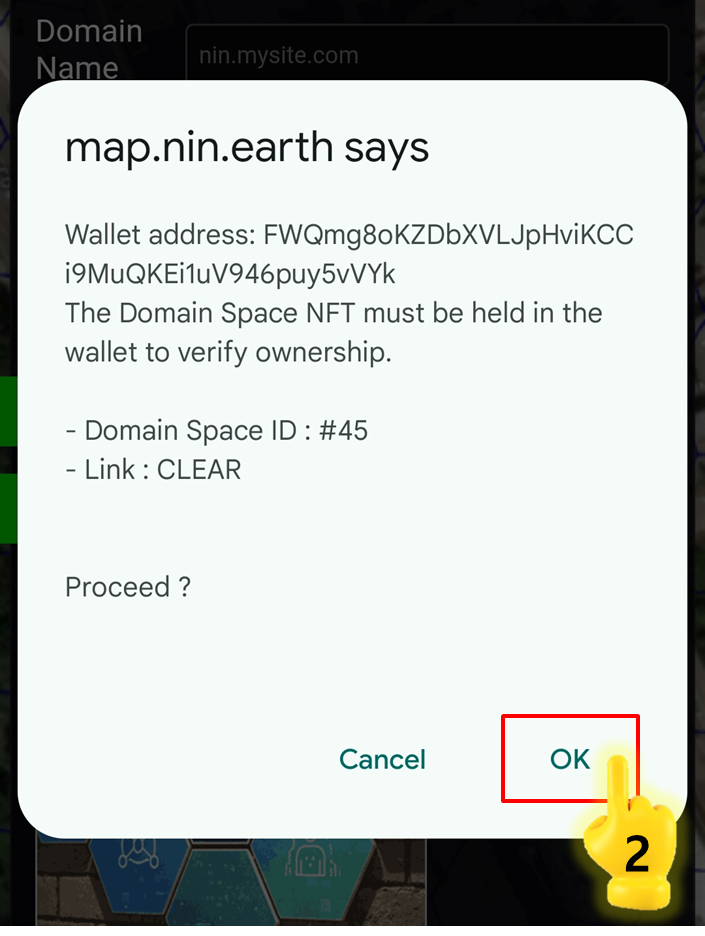
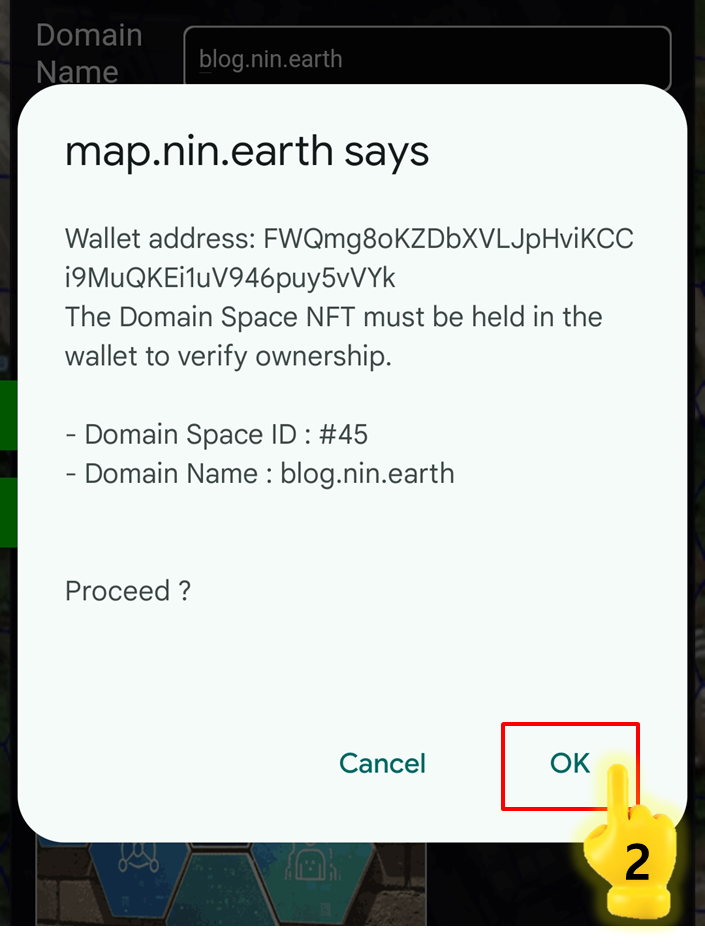
1. Enter URL and Click \[Save] button → open pop-up

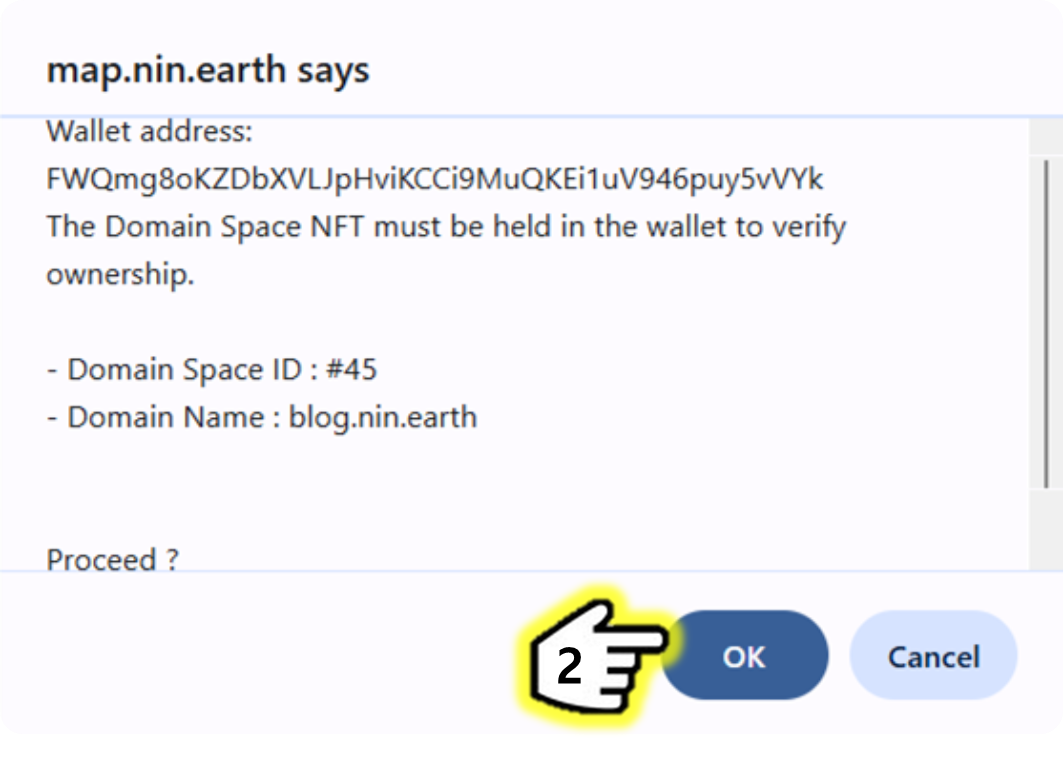
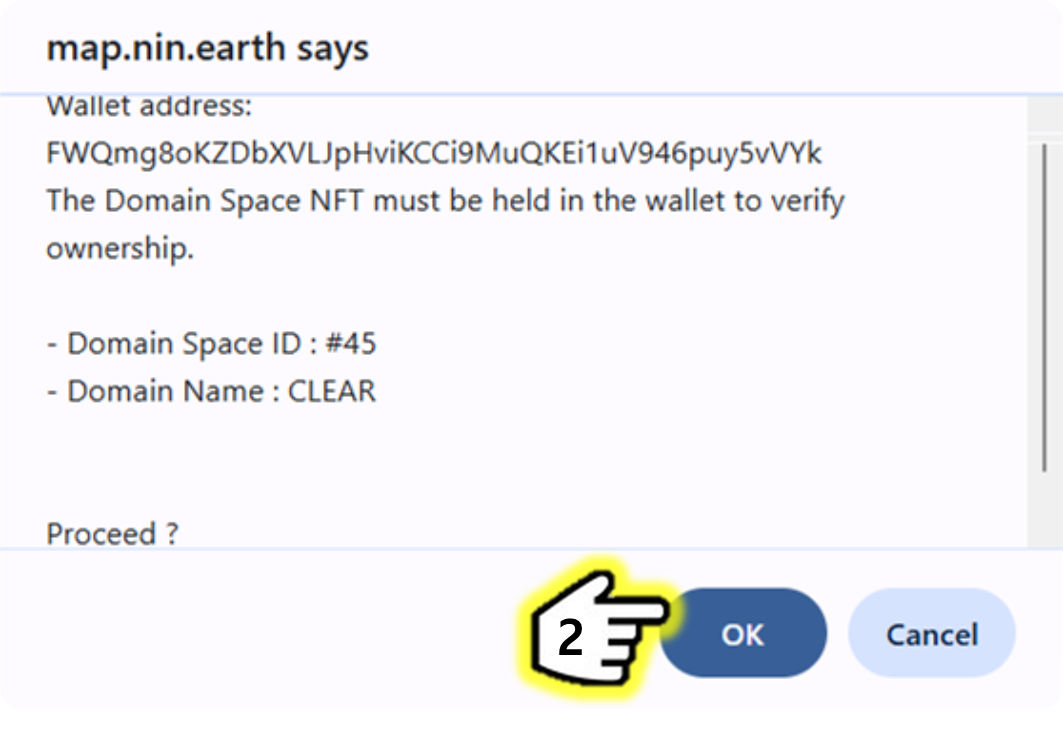
<figure><img src="https://2902267430-files.gitbook.io/~/files/v0/b/gitbook-x-prod.appspot.com/o/spaces%2F5LAEHDS7jvCC6hgJFI2D%2Fuploads%2F9mHWxkUtrfxcE1kXzgQd%2Fimage.png?alt=media&amp;token=a9558d72-fd57-45bc-8ebf-fd3ff5a63f2c" alt="" width="563"><figcaption></figcaption></figure>

2. Click \[OK]

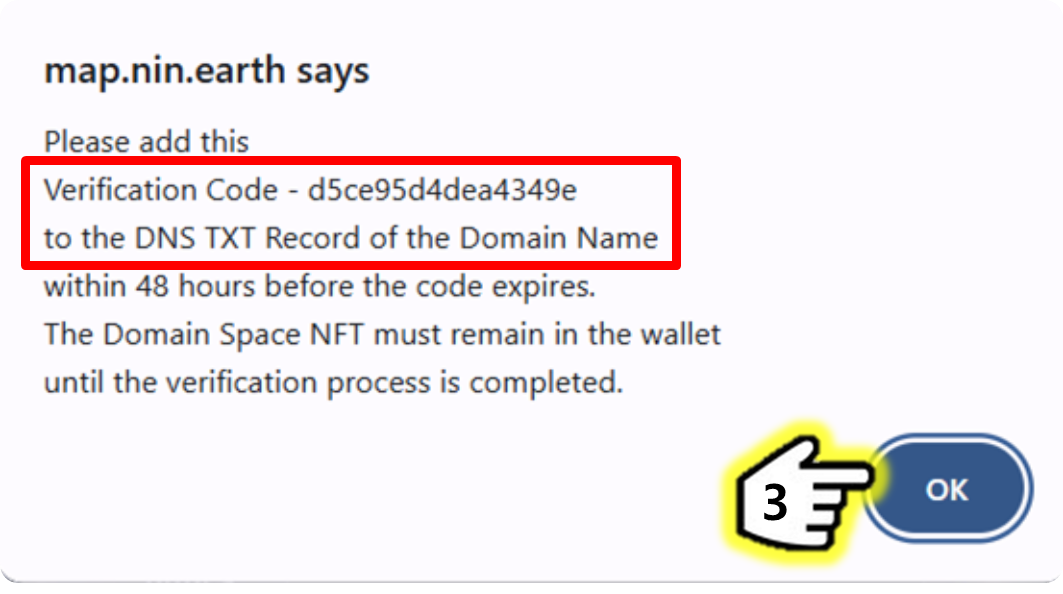
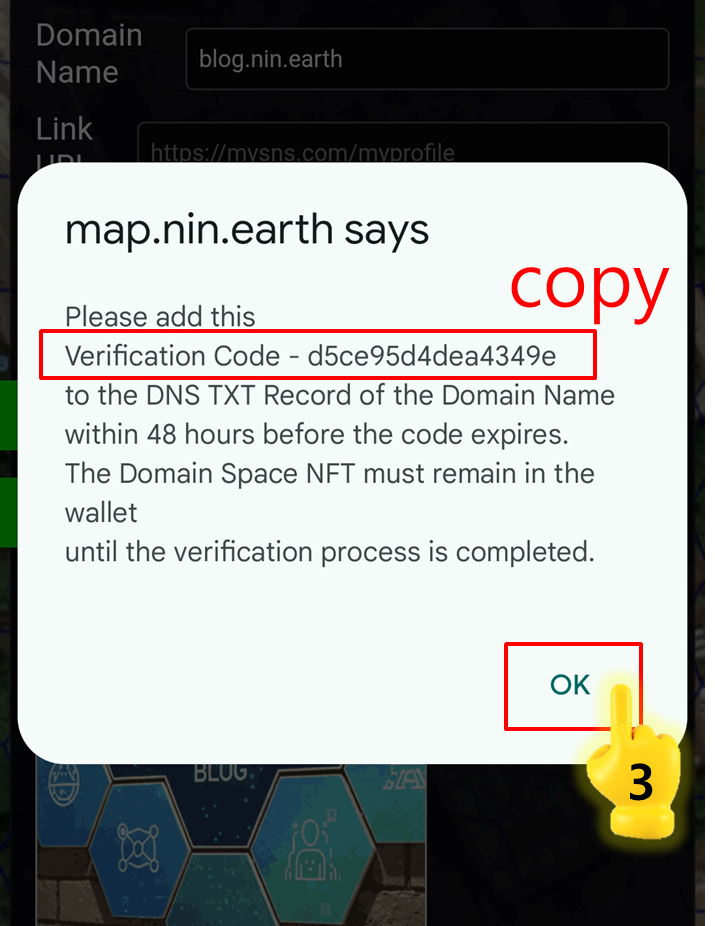
<figure><img src="https://2902267430-files.gitbook.io/~/files/v0/b/gitbook-x-prod.appspot.com/o/spaces%2F5LAEHDS7jvCC6hgJFI2D%2Fuploads%2FXeo6HCZfSAGlpCfjBZa2%2Fimage.png?alt=media&amp;token=7b72a5b8-88f7-4d94-b8dc-6cc1a2cda38c" alt="" width="563"><figcaption></figcaption></figure>

3. Copy the "Verification Code"→ Click \[OK]
   {% endstep %}

{% step %}

#### <mark style="color:$primary;">Add</mark> a TXT Record

{% hint style="success" %}

### NOTE.

1. Many domain providers operate worldwide, and the process for adding a **TXT record** is similar across platforms.
2. In this guide, "Gabia.com" is used as an example.
3. For other providers such as GoDaddy or Google Domains, please refer to each platform’s official manual.

* GoDaddy: [Add a TXT Record](https://www.godaddy.com/en/help/add-a-txt-record-19232)
* Google Domains: [Add a TXT Record](https://support.google.com/a/answer/16018515?hl=en)
  {% endhint %}

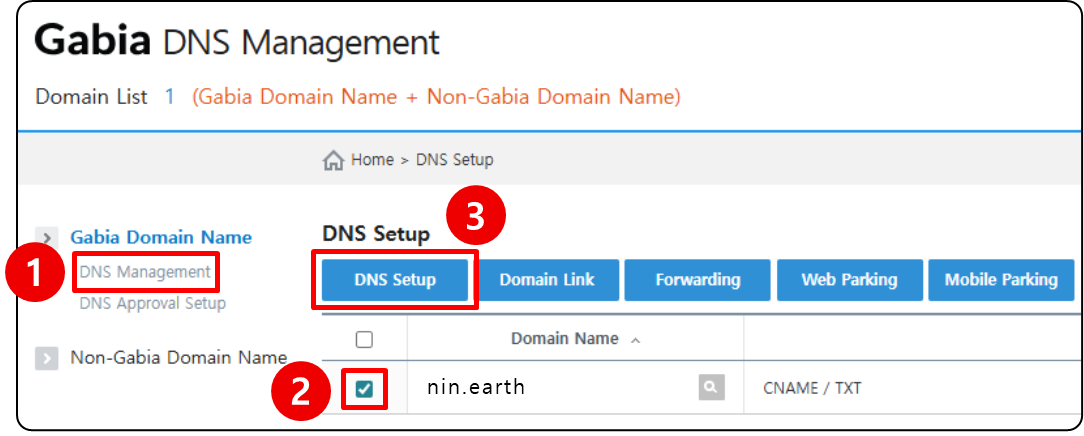
After logging in to **Gabia**, go to the management page of the relevant domain name.

<figure><img src="https://2902267430-files.gitbook.io/~/files/v0/b/gitbook-x-prod.appspot.com/o/spaces%2F5LAEHDS7jvCC6hgJFI2D%2Fuploads%2FhsHQBKfGDfLc0ptBHap7%2Fimage.png?alt=media&amp;token=fd37431c-818e-4d6a-acca-8e44f6ab38da" alt=""><figcaption></figcaption></figure>

1. Click \[DNS Management] tab
2. Check the box the Domain Name you want to manage
3. Click \[DNS Setup] button

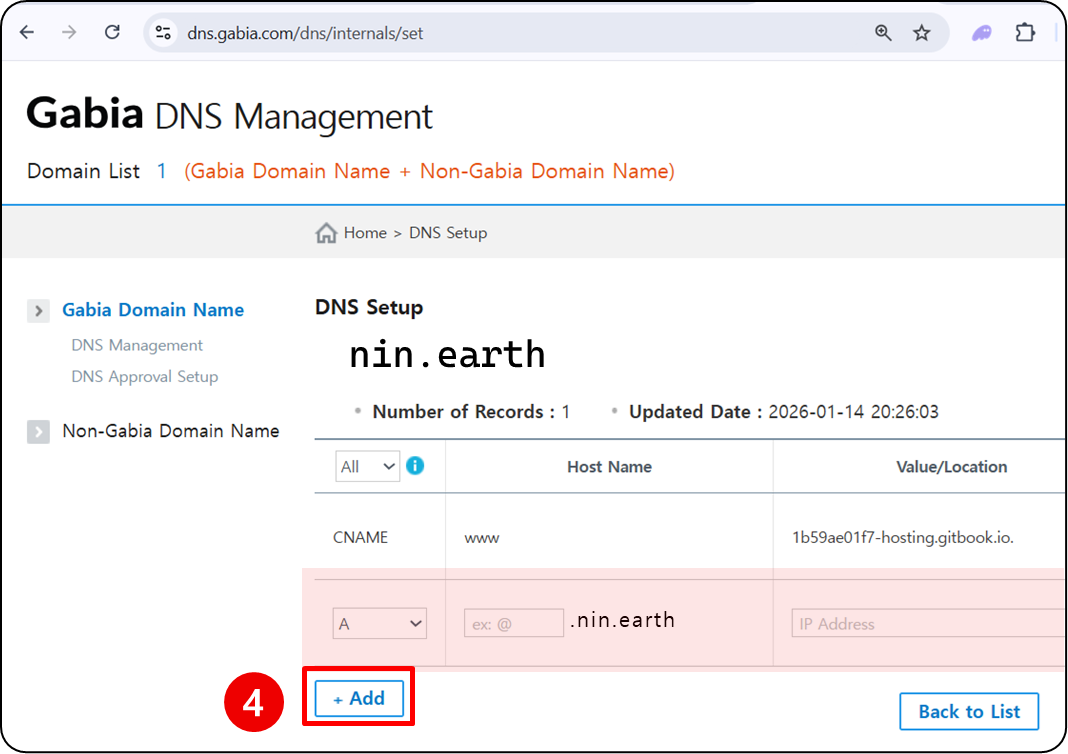
<figure><img src="https://2902267430-files.gitbook.io/~/files/v0/b/gitbook-x-prod.appspot.com/o/spaces%2F5LAEHDS7jvCC6hgJFI2D%2Fuploads%2F2txxzCtY9e6plXVrVsUo%2Fimage.png?alt=media&amp;token=4e8e9091-8281-46bd-b38f-47a09e1a010c" alt=""><figcaption></figcaption></figure>

4. Click \[+ Add] to create a new record

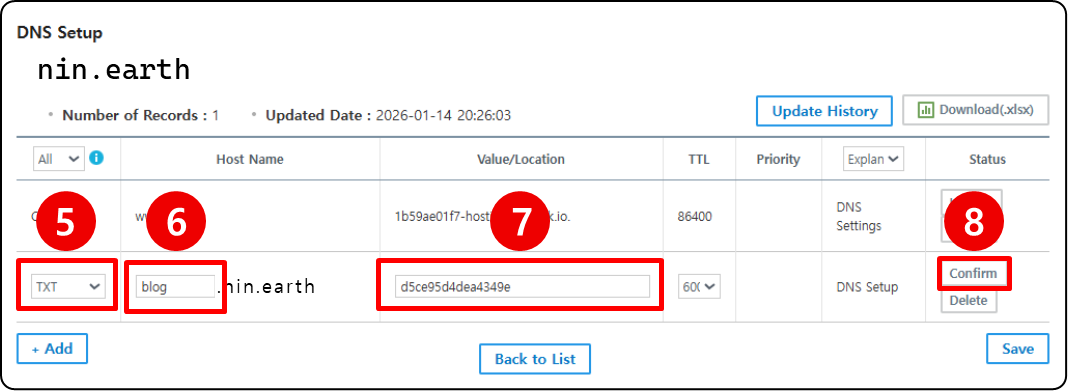
<figure><img src="https://2902267430-files.gitbook.io/~/files/v0/b/gitbook-x-prod.appspot.com/o/spaces%2F5LAEHDS7jvCC6hgJFI2D%2Fuploads%2F5lCh3TUk5VMfXPnCYRR0%2Fimage.png?alt=media&amp;token=dfc9103f-d02d-4aec-a507-9e428408a3cd" alt=""><figcaption></figcaption></figure>

5. Select \[TXT] as the record type
6. Enter your subdomain
7. Paste the "Verification Code"
8. Click Confirm

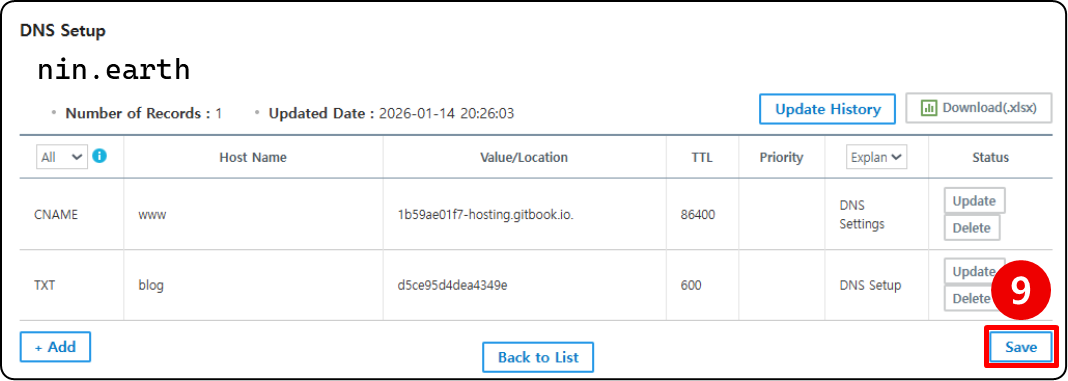
<figure><img src="https://2902267430-files.gitbook.io/~/files/v0/b/gitbook-x-prod.appspot.com/o/spaces%2F5LAEHDS7jvCC6hgJFI2D%2Fuploads%2F7CAYi1HT03T7z2jydRgG%2Fimage.png?alt=media&amp;token=55366038-aa96-41bf-a587-260862632b26" alt=""><figcaption></figcaption></figure>

9. Click \[Save] → Done.
   {% endstep %}

{% step %}

#### <mark style="color:$primary;">\*Check</mark> Updates

<figure><img src="https://2902267430-files.gitbook.io/~/files/v0/b/gitbook-x-prod.appspot.com/o/spaces%2F5LAEHDS7jvCC6hgJFI2D%2Fuploads%2F9EpbKWOYVUH43FmQBeg3%2Fimage.png?alt=media&amp;token=bd500fee-a93b-45fe-b888-b2a6248325c3" alt=""><figcaption></figcaption></figure>

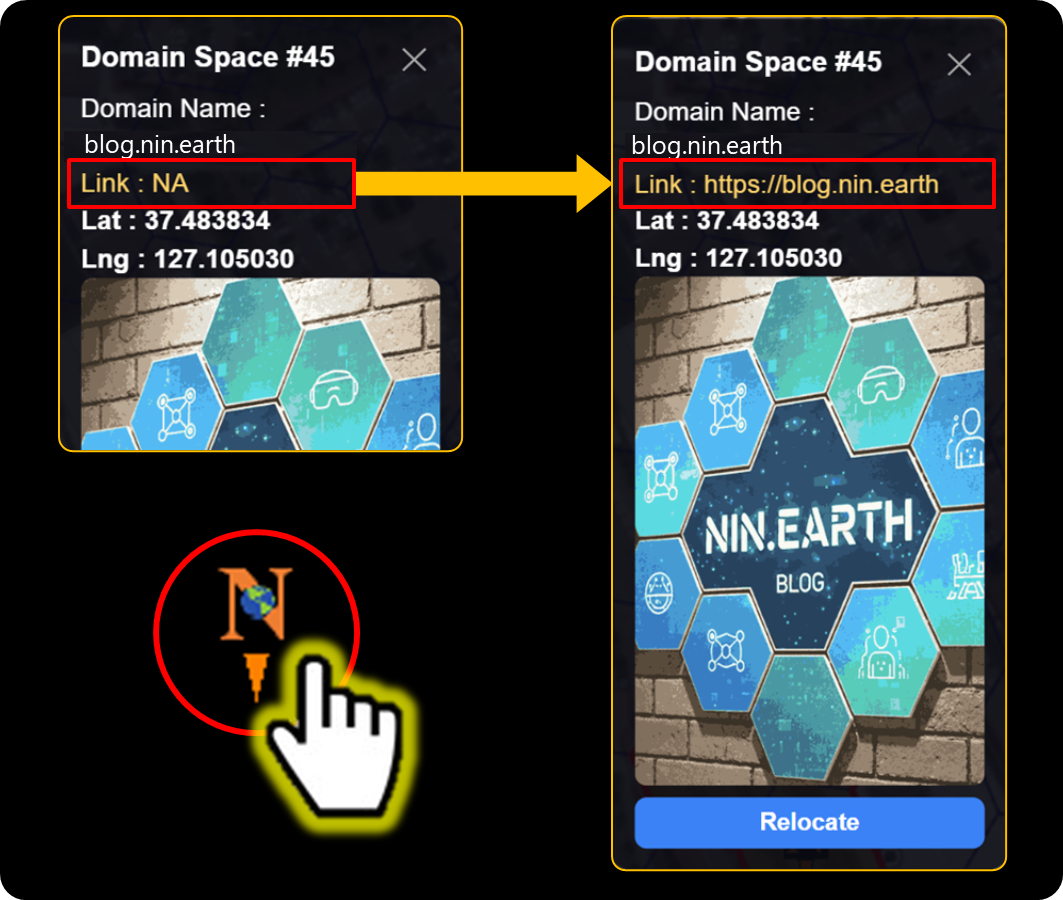
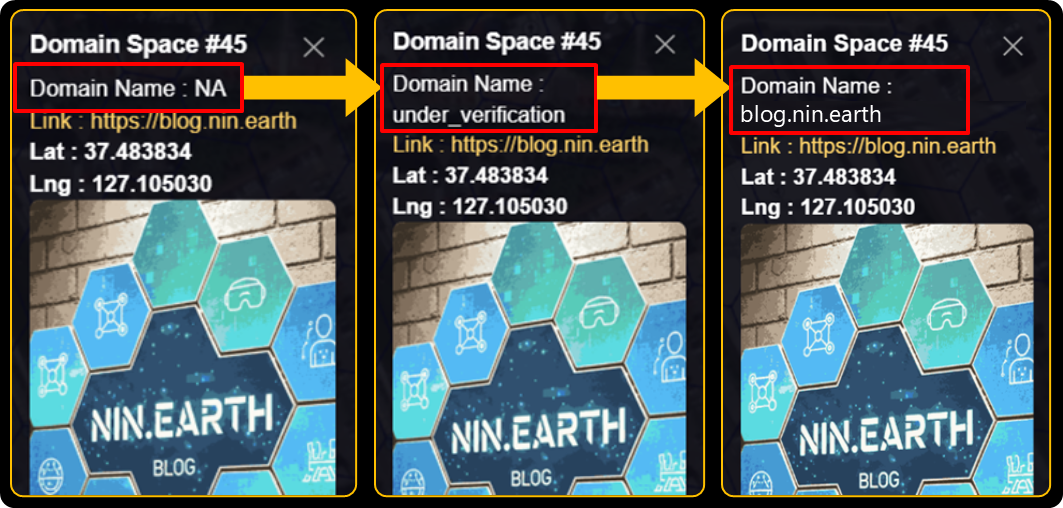
In <mark style="color:orange;">NIN.Earth</mark>, the update status of a Domain Name is shown in the pop-up window that appears when the Marker is clicked.

* If no Domain Name has been registered, the status is shown as "NA".
* If domain registration has been initiated and a verification code has been issued, the status is shown as "under\_verification"
* Once verification is complete, the registered (sub) Domain Name will be displayed.
  {% endstep %}

{% step %}

#### <mark style="color:$primary;">\*Clear</mark> Domain Name

<figure><img src="https://2902267430-files.gitbook.io/~/files/v0/b/gitbook-x-prod.appspot.com/o/spaces%2F5LAEHDS7jvCC6hgJFI2D%2Fuploads%2FPx1VOTaDZGw9qwdLdlG1%2Fimage.png?alt=media&amp;token=881f5962-b0a4-4fb3-beec-1a699b4ef2db" alt="" width="375"><figcaption></figcaption></figure>

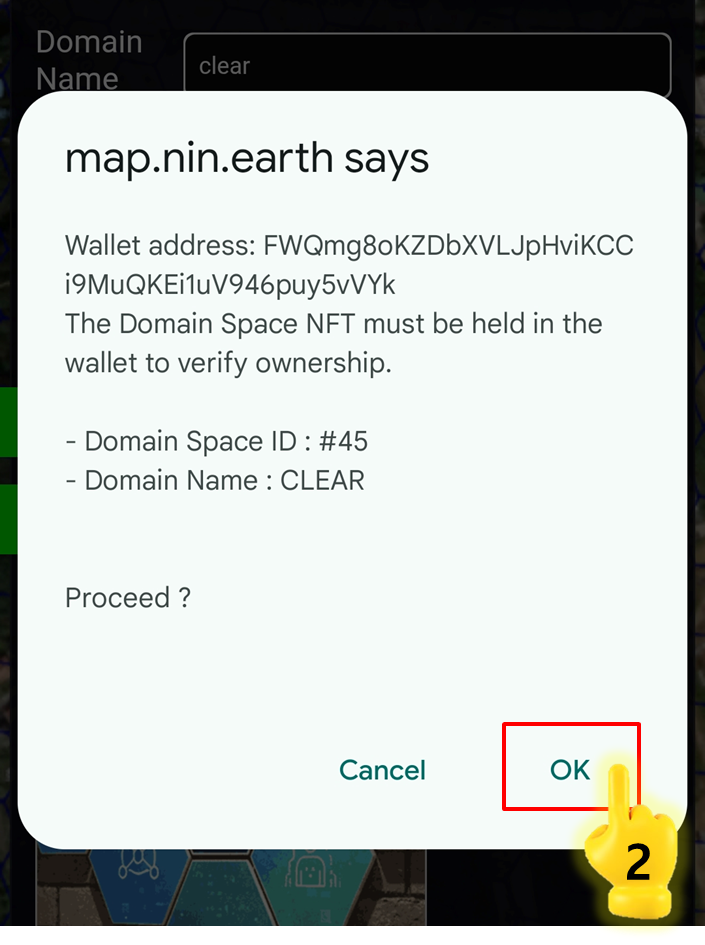
Go to the Settings tab & Type "clear" into the Domain Name field.

<figure><img src="https://2902267430-files.gitbook.io/~/files/v0/b/gitbook-x-prod.appspot.com/o/spaces%2F5LAEHDS7jvCC6hgJFI2D%2Fuploads%2FGINkaWnKJ8itYVcpfPul%2Fimage.png?alt=media&amp;token=d06232ee-e706-429c-8f1c-ca0a27c3d123" alt="" width="375"><figcaption></figcaption></figure>

1. Click \[Save] button → open pop-up

<figure><img src="https://2902267430-files.gitbook.io/~/files/v0/b/gitbook-x-prod.appspot.com/o/spaces%2F5LAEHDS7jvCC6hgJFI2D%2Fuploads%2FtRENyI55RlbPDYbdgouw%2Fimage.png?alt=media&amp;token=65d0cafe-cb34-4250-bf7e-3e63ded30dc6" alt="" width="563"><figcaption></figcaption></figure>

2. Click \[OK] → done.
   {% endstep %}
   {% endstepper %}
   {% endtab %}

{% tab title="Mobile" %}
{% stepper %}
{% step %}

#### <mark style="color:$primary;">Search</mark> Tiles & <mark style="color:$primary;">Connect</mark> Wallet

1. [How do I find the Tile I want?](/guidebook/markdown/how-do-i-find-the-tile-i-want.md)
2. [How do I connect my wallet?](/guidebook/markdown/how-do-i-connect-my-wallet.md)
   {% endstep %}

{% step %}

#### <mark style="color:$primary;">Tap</mark> anywhere inside your Grid

<figure><img src="https://2902267430-files.gitbook.io/~/files/v0/b/gitbook-x-prod.appspot.com/o/spaces%2F5LAEHDS7jvCC6hgJFI2D%2Fuploads%2FlMWhNed9a5rIqSmyuVIg%2Fimage.png?alt=media&amp;token=33b3a86f-fe4e-48e2-b0d8-be01ae388a25" alt="" width="353"><figcaption></figcaption></figure>

When you click anywhere inside your <mark style="color:$danger;">Domain Space Grid (red boundary)</mark>, pop-up will appear.

<figure><img src="https://2902267430-files.gitbook.io/~/files/v0/b/gitbook-x-prod.appspot.com/o/spaces%2F5LAEHDS7jvCC6hgJFI2D%2Fuploads%2FmufTsb7XcD4YBQCvWib7%2Fimage.png?alt=media&amp;token=50d78651-0989-4f29-9a0e-1fd225cfec7e" alt="" width="375"><figcaption></figcaption></figure>
{% endstep %}

{% step %}

#### <mark style="color:$primary;">Tap</mark> \[Settings] → Domain Name

<figure><img src="https://2902267430-files.gitbook.io/~/files/v0/b/gitbook-x-prod.appspot.com/o/spaces%2F5LAEHDS7jvCC6hgJFI2D%2Fuploads%2FvUNMsS5zXpYhHgBJ3Ueb%2Fimage.png?alt=media&amp;token=a09d4ca8-41a7-4c6a-acc1-c6580ed30a4b" alt="" width="375"><figcaption></figcaption></figure>
{% endstep %}

{% step %}

#### <mark style="color:$primary;">Enter</mark> Domain Name & <mark style="color:$primary;">Tap</mark> \[save]

<figure><img src="https://2902267430-files.gitbook.io/~/files/v0/b/gitbook-x-prod.appspot.com/o/spaces%2F5LAEHDS7jvCC6hgJFI2D%2Fuploads%2FTJdZxTETXdrZ1idGfzuI%2Fimage.png?alt=media&amp;token=ebb49eae-5fe2-4dae-a30b-ae5c8a35c80d" alt="" width="375"><figcaption></figcaption></figure>

<figure><img src="https://2902267430-files.gitbook.io/~/files/v0/b/gitbook-x-prod.appspot.com/o/spaces%2F5LAEHDS7jvCC6hgJFI2D%2Fuploads%2FU8EpBzhdNDI2brV7ONsA%2Fimage.png?alt=media&amp;token=eb6b5127-6a6a-48c5-b2df-e836857b797e" alt="" width="359"><figcaption></figcaption></figure>

1. Enter URL and Tap \[Save] button → open pop-up

<figure><img src="https://2902267430-files.gitbook.io/~/files/v0/b/gitbook-x-prod.appspot.com/o/spaces%2F5LAEHDS7jvCC6hgJFI2D%2Fuploads%2FD7Tf4j1dEuzE5maJKspw%2Fimage.png?alt=media&amp;token=c4526d34-c020-4e86-b555-b317a00a8627" alt="" width="353"><figcaption></figcaption></figure>

2. Tap \[OK]

<figure><img src="https://2902267430-files.gitbook.io/~/files/v0/b/gitbook-x-prod.appspot.com/o/spaces%2F5LAEHDS7jvCC6hgJFI2D%2Fuploads%2Fxdhu9xkAhJuSSRctiK88%2Fimage.png?alt=media&amp;token=5997049c-9ddb-4dfb-b765-35cdfbba4783" alt="" width="358"><figcaption></figcaption></figure>

3. Copy the "Verification Code"→ Tap\[OK]
   {% endstep %}

{% step %}

#### <mark style="color:$primary;">Add</mark> a TXT Record

{% hint style="success" %}

### NOTE

1. Many domain providers operate worldwide, and the process for adding a TXT record is similar across platforms.
2. In this guide, "Gabia.com" is used as an example.

&#x20;**→ Please refer to the** [#pc-15](#pc-15 "mention") **version guide.**

3. For other providers such as GoDaddy or Google Domains, please refer to each platform’s official manual.

* GoDaddy: [Add a TXT Record](https://www.godaddy.com/en/help/add-a-txt-record-19232)
* Google Domains: [Add a TXT Record](https://support.google.com/a/answer/16018515?hl=en)
  {% endhint %}
  {% endstep %}

{% step %}

#### <mark style="color:$primary;">\*Check</mark> Updates

<figure><img src="https://2902267430-files.gitbook.io/~/files/v0/b/gitbook-x-prod.appspot.com/o/spaces%2F5LAEHDS7jvCC6hgJFI2D%2Fuploads%2F9EpbKWOYVUH43FmQBeg3%2Fimage.png?alt=media&amp;token=bd500fee-a93b-45fe-b888-b2a6248325c3" alt=""><figcaption></figcaption></figure>

In <mark style="color:orange;">NIN.Earth</mark>, the update status of a Domain Name is shown in the pop-up window that appears when the Marker is tapped.

* If no Domain Name has been registered, the status is shown as "NA".
* If domain registration has been initiated and a verification code has been issued, the status is shown as "under\_verification"
* Once verification is complete, the registered (sub) Domain Name will be displayed.
  {% endstep %}

{% step %}

#### <mark style="color:$primary;">\*Clear</mark> Domain Name

<figure><img src="https://2902267430-files.gitbook.io/~/files/v0/b/gitbook-x-prod.appspot.com/o/spaces%2F5LAEHDS7jvCC6hgJFI2D%2Fuploads%2FPx1VOTaDZGw9qwdLdlG1%2Fimage.png?alt=media&amp;token=881f5962-b0a4-4fb3-beec-1a699b4ef2db" alt="" width="375"><figcaption></figcaption></figure>

Go to the \[Settings] tab & Type "clear" into the Domain Name field.

<figure><img src="https://2902267430-files.gitbook.io/~/files/v0/b/gitbook-x-prod.appspot.com/o/spaces%2F5LAEHDS7jvCC6hgJFI2D%2Fuploads%2FU8EpBzhdNDI2brV7ONsA%2Fimage.png?alt=media&amp;token=eb6b5127-6a6a-48c5-b2df-e836857b797e" alt="" width="359"><figcaption></figcaption></figure>

1. Click \[Save] button → open pop-up

<figure><img src="https://2902267430-files.gitbook.io/~/files/v0/b/gitbook-x-prod.appspot.com/o/spaces%2F5LAEHDS7jvCC6hgJFI2D%2Fuploads%2FkpD1Ox6eIWDlayjR867K%2Fimage.png?alt=media&amp;token=8ffa7965-e73e-4b83-af70-1030117f1cdb" alt="" width="353"><figcaption></figcaption></figure>

2. Click \[OK] → done.
   {% endstep %}
   {% endstepper %}
   {% endtab %}
   {% endtabs %}

### **Control 3D Objects**

This is a guide on how to place 3D Objects, relocate their positions, and remove them.

{% hint style="warning" %}

### Important NOTE.

Currently, this service is provided at an early stage where users can select & place sample 3D Objects only.
{% endhint %}

{% tabs %}
{% tab title="PC" %}
{% stepper %}
{% step %}

#### <mark style="color:$primary;">Search</mark> Tiles & <mark style="color:$primary;">Connect</mark> Wallet

1. [How do I find the Tile I want?](/guidebook/markdown/how-do-i-find-the-tile-i-want.md)
2. [How do I connect my wallet?](/guidebook/markdown/how-do-i-connect-my-wallet.md)
   {% endstep %}

{% step %}

#### <mark style="color:$primary;">Click</mark> anywhere inside your Grid

<figure><img src="https://2902267430-files.gitbook.io/~/files/v0/b/gitbook-x-prod.appspot.com/o/spaces%2F5LAEHDS7jvCC6hgJFI2D%2Fuploads%2FyT0KrYm4BWMIl1PYpkct%2Fimage.png?alt=media&amp;token=e36ad6af-11a4-4de0-b346-76287ff1dd53" alt="" width="563"><figcaption></figcaption></figure>

When you click anywhere inside your <mark style="color:$danger;">Domain Space Grid (red boundary)</mark>, pop-up will appear.

<figure><img src="https://2902267430-files.gitbook.io/~/files/v0/b/gitbook-x-prod.appspot.com/o/spaces%2F5LAEHDS7jvCC6hgJFI2D%2Fuploads%2FmufTsb7XcD4YBQCvWib7%2Fimage.png?alt=media&amp;token=50d78651-0989-4f29-9a0e-1fd225cfec7e" alt="" width="375"><figcaption></figcaption></figure>
{% endstep %}

{% step %}

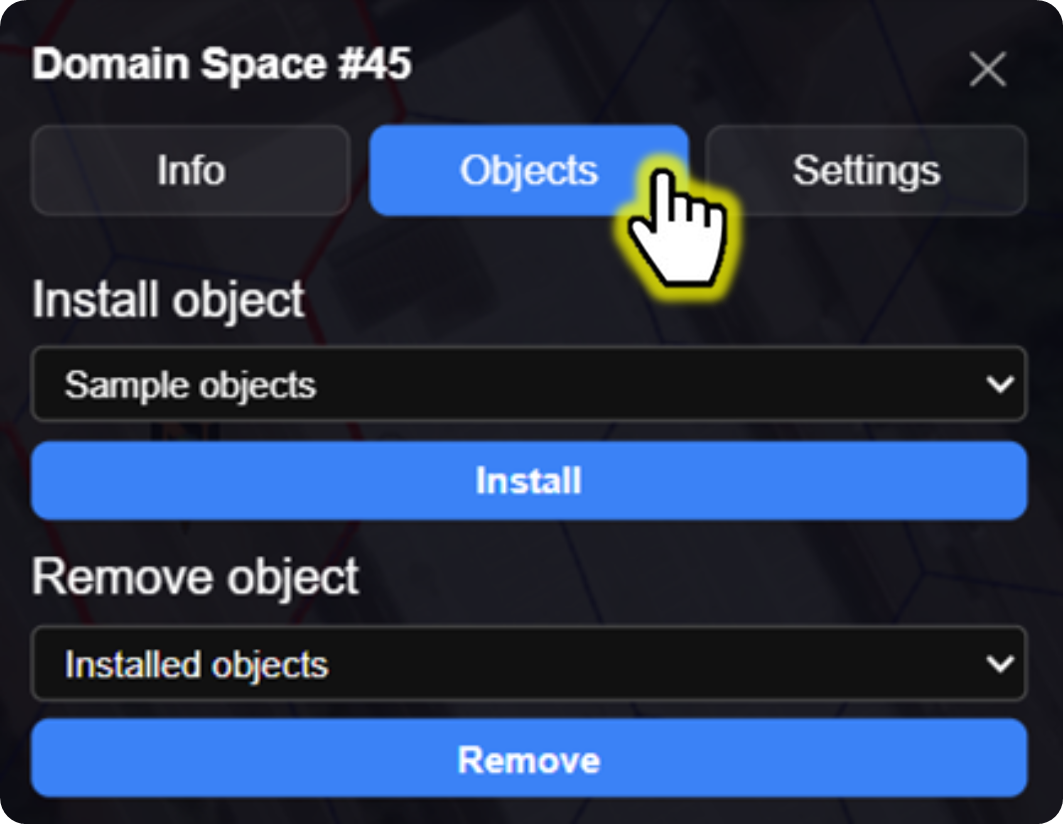
#### <mark style="color:$primary;">Click</mark> \[Settings] → Objects

<figure><img src="https://2902267430-files.gitbook.io/~/files/v0/b/gitbook-x-prod.appspot.com/o/spaces%2F5LAEHDS7jvCC6hgJFI2D%2Fuploads%2FDyf5x273nzZXdEC53WXY%2Fimage.png?alt=media&amp;token=0b7eaa6b-fd64-43f5-8e4a-83ef67b5a4b2" alt="" width="375"><figcaption></figcaption></figure>
{% endstep %}

{% step %}

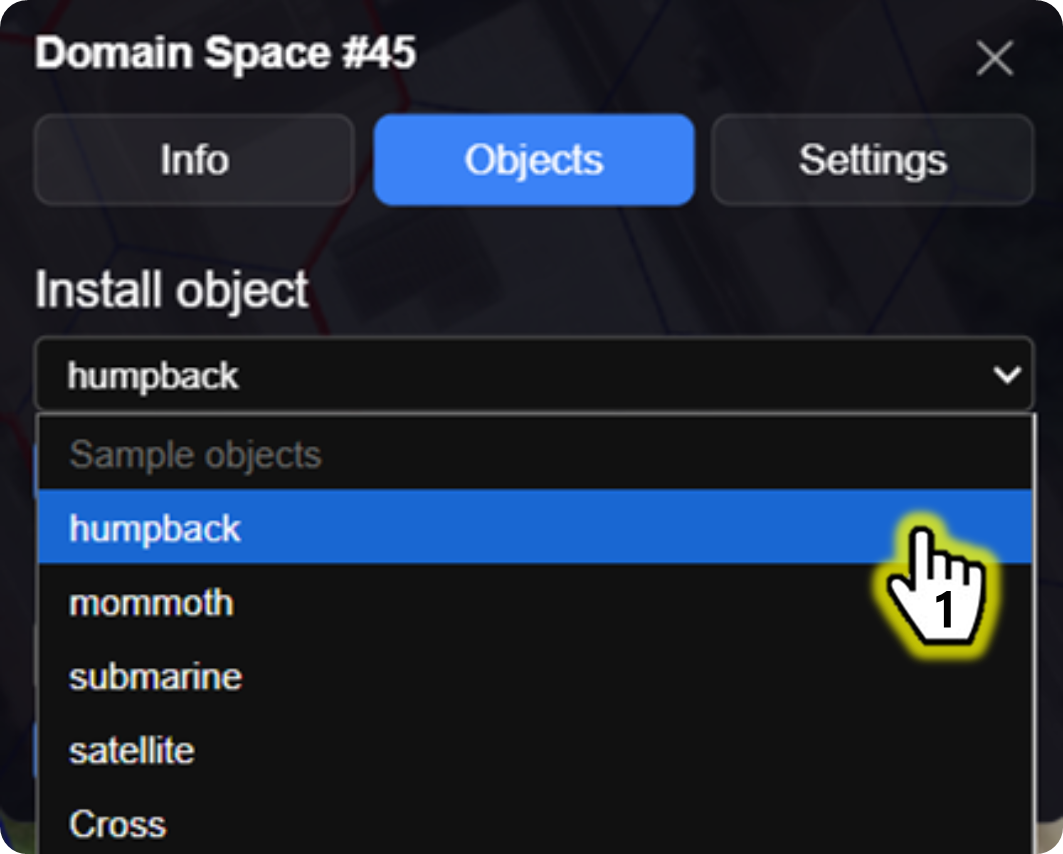
#### <mark style="color:$primary;">Select</mark> 3D Objects

<figure><img src="https://2902267430-files.gitbook.io/~/files/v0/b/gitbook-x-prod.appspot.com/o/spaces%2F5LAEHDS7jvCC6hgJFI2D%2Fuploads%2Fuhz7bQezYMkbmRVjQJ1R%2Fimage.png?alt=media&amp;token=99075ead-265d-4177-8dcb-b5d192bec13b" alt="" width="375"><figcaption></figcaption></figure>

1. Select one of the sample 3D Objects

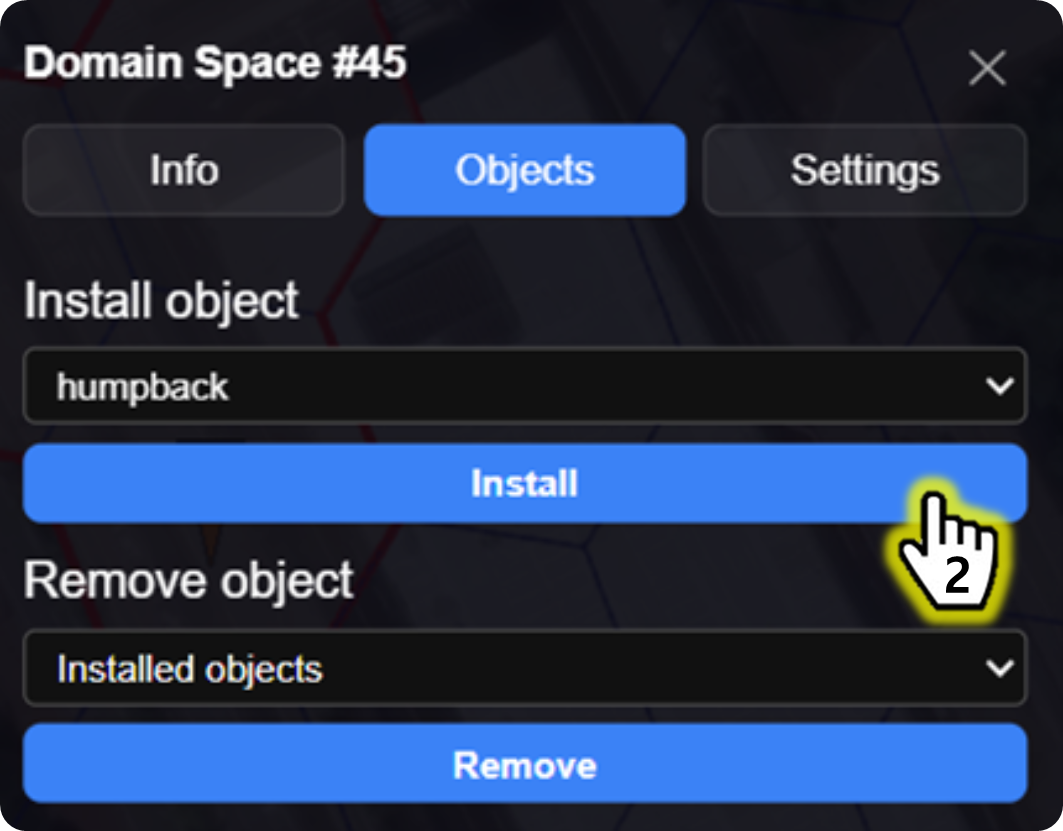
<figure><img src="https://2902267430-files.gitbook.io/~/files/v0/b/gitbook-x-prod.appspot.com/o/spaces%2F5LAEHDS7jvCC6hgJFI2D%2Fuploads%2FmWqLE9wDfpMCpneB1ntp%2Fimage.png?alt=media&amp;token=c5e588f8-c6f0-407d-aafe-2a2064d73546" alt="" width="375"><figcaption></figcaption></figure>

2. Click \[Install] button → Done

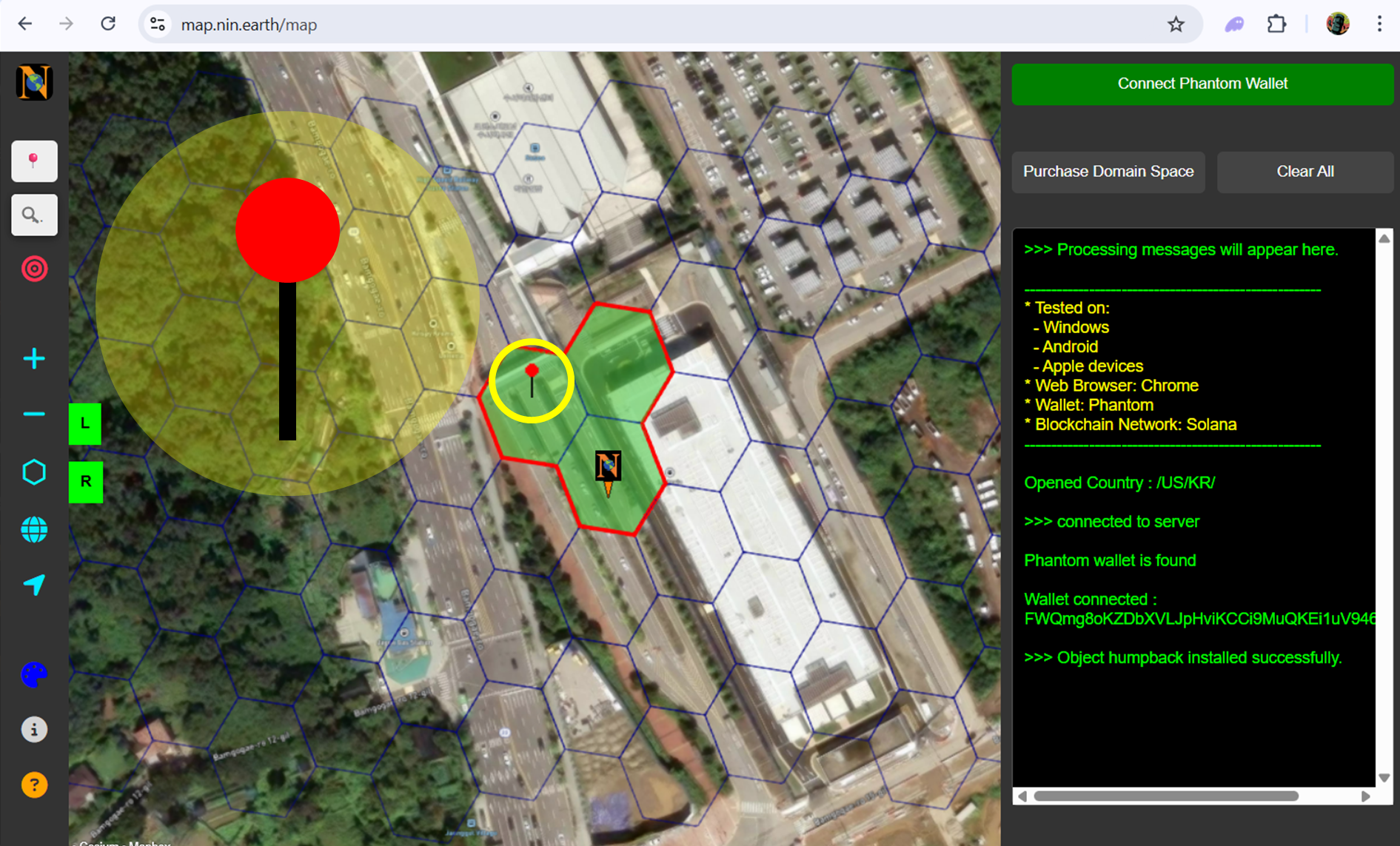
<figure><img src="https://2902267430-files.gitbook.io/~/files/v0/b/gitbook-x-prod.appspot.com/o/spaces%2F5LAEHDS7jvCC6hgJFI2D%2Fuploads%2FCNK74Bvjri2MxmFCEqv4%2Fimage.png?alt=media&amp;token=51b50ffd-42d1-40af-864a-60303296bffe" alt="" width="563"><figcaption></figcaption></figure>

An Pin Icon shaped like a black pole with a red sphere attached is installed on the Domain Space.
{% endstep %}

{% step %}

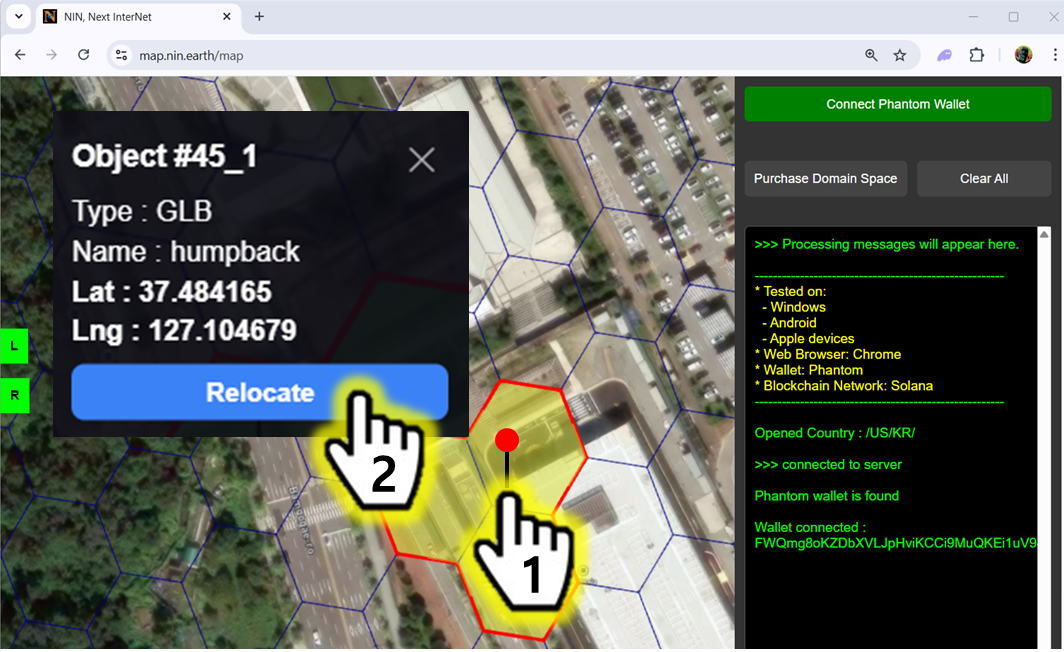
#### <mark style="color:$primary;">\*Relocate</mark> 3D objects

<figure><img src="https://2902267430-files.gitbook.io/~/files/v0/b/gitbook-x-prod.appspot.com/o/spaces%2F5LAEHDS7jvCC6hgJFI2D%2Fuploads%2FXpTsYkgLoo1ENuwjG340%2Fimage.png?alt=media&amp;token=1f499fa2-24fb-477a-a129-1f5d753b4a0d" alt="" width="563"><figcaption></figcaption></figure>

1. Click the Pin icon
2. Click \[Relocate] button

→ When you click \[Relocate] button, the mouse cursor changes to a cross-shaped indicator.

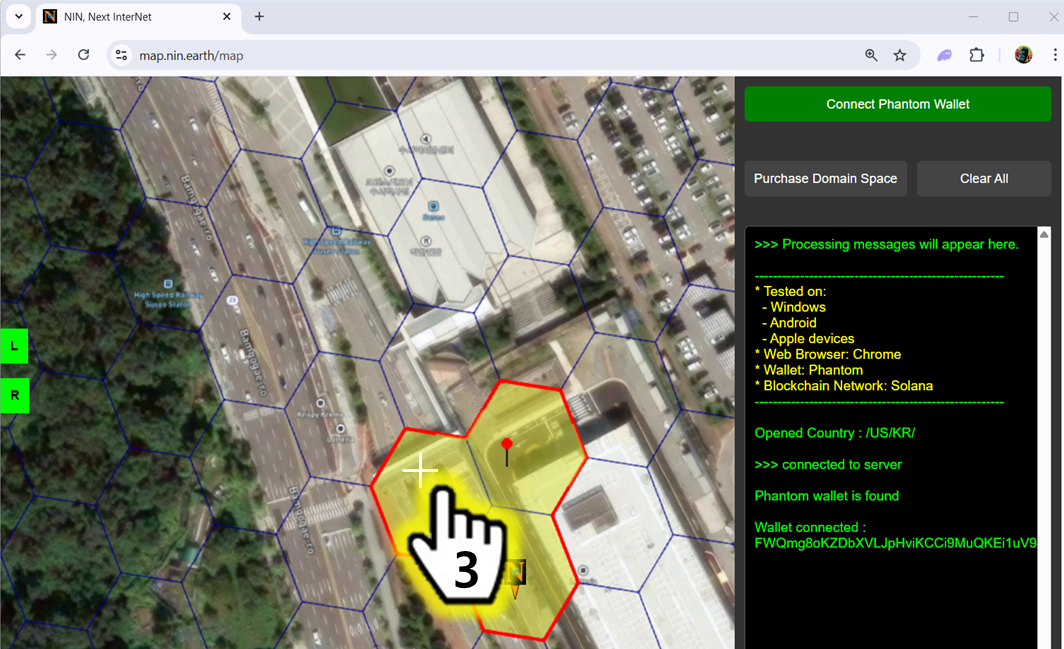
<figure><img src="https://2902267430-files.gitbook.io/~/files/v0/b/gitbook-x-prod.appspot.com/o/spaces%2F5LAEHDS7jvCC6hgJFI2D%2Fuploads%2FVym6sBuxC52Vll6cKVLe%2Fimage.png?alt=media&amp;token=5bb105b3-ce0d-4a7c-a21b-26be66b881c2" alt="" width="563"><figcaption></figcaption></figure>

3. Click your desired position

→ The Pin is automatically relocated.
{% endstep %}

{% step %}

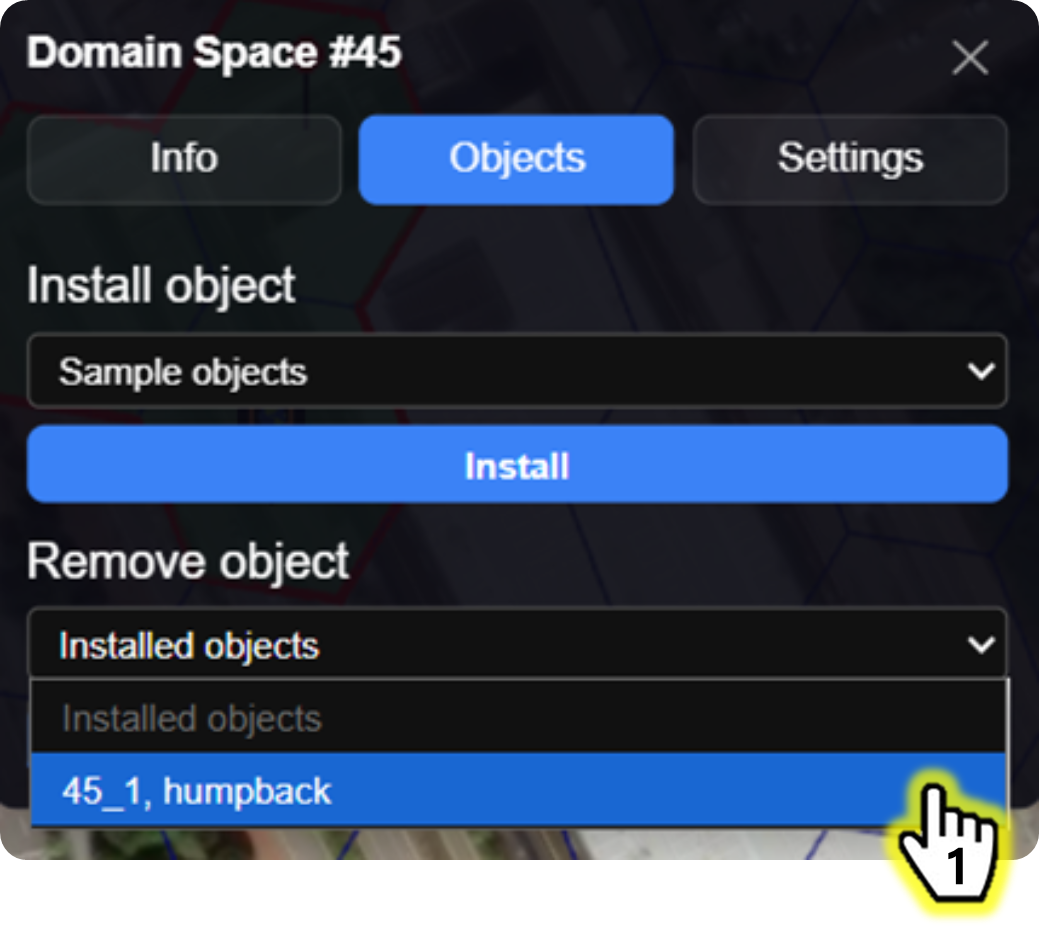
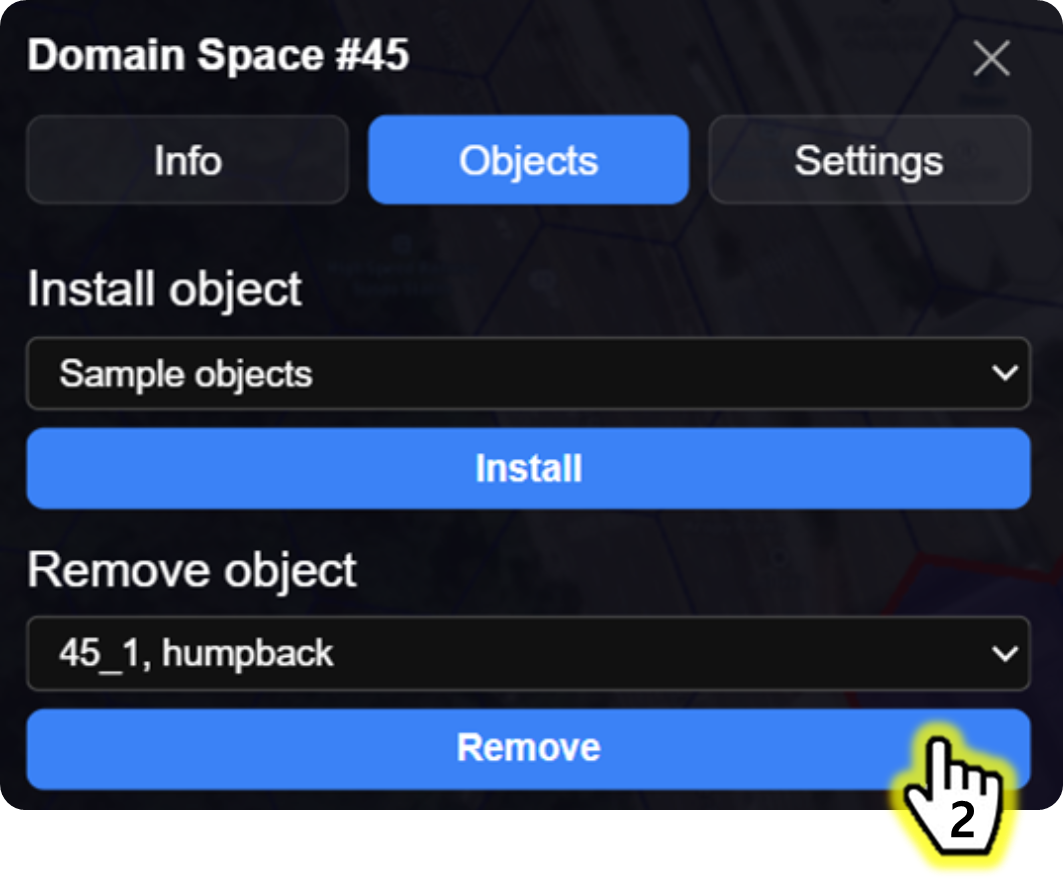
#### <mark style="color:$primary;">\*Remove</mark> the 3D objects

<figure><img src="https://2902267430-files.gitbook.io/~/files/v0/b/gitbook-x-prod.appspot.com/o/spaces%2F5LAEHDS7jvCC6hgJFI2D%2Fuploads%2FyhdySc53sV5FBo8M76Fd%2Fimage.png?alt=media&amp;token=06c79ae5-de2d-4e6f-b5c5-edfa95d48537" alt="" width="375"><figcaption></figcaption></figure>

1. Select the 3D objects you want to remove

<figure><img src="https://2902267430-files.gitbook.io/~/files/v0/b/gitbook-x-prod.appspot.com/o/spaces%2F5LAEHDS7jvCC6hgJFI2D%2Fuploads%2FKWH08OlfoLI25AZwKgA0%2Fimage.png?alt=media&amp;token=fbd4f26f-5b25-42f0-bd2b-a7698aa1041d" alt="" width="375"><figcaption></figcaption></figure>

2. Click \[Remove] button → Done.
   {% endstep %}
   {% endstepper %}
   {% endtab %}

{% tab title="Mobile" %}
{% stepper %}
{% step %}

#### <mark style="color:$primary;">Search</mark> Tiles & <mark style="color:$primary;">Connect</mark> Wallet

1. [How do I find the Tile I want?](/guidebook/markdown/how-do-i-find-the-tile-i-want.md)
2. [How do I connect my wallet?](/guidebook/markdown/how-do-i-connect-my-wallet.md)
   {% endstep %}

{% step %}

#### <mark style="color:$primary;">Tap</mark> anywhere inside your Grid

<figure><img src="https://2902267430-files.gitbook.io/~/files/v0/b/gitbook-x-prod.appspot.com/o/spaces%2F5LAEHDS7jvCC6hgJFI2D%2Fuploads%2FlMWhNed9a5rIqSmyuVIg%2Fimage.png?alt=media&amp;token=33b3a86f-fe4e-48e2-b0d8-be01ae388a25" alt="" width="353"><figcaption></figcaption></figure>

When you tap anywhere inside your <mark style="color:red;">Domain Space Grid (red boundary)</mark>, pop-up will appear.

<figure><img src="https://2902267430-files.gitbook.io/~/files/v0/b/gitbook-x-prod.appspot.com/o/spaces%2F5LAEHDS7jvCC6hgJFI2D%2Fuploads%2FmufTsb7XcD4YBQCvWib7%2Fimage.png?alt=media&amp;token=50d78651-0989-4f29-9a0e-1fd225cfec7e" alt="" width="375"><figcaption></figcaption></figure>
{% endstep %}

{% step %}

#### <mark style="color:$primary;">Tap</mark> \[Settings] → Objects

<figure><img src="https://2902267430-files.gitbook.io/~/files/v0/b/gitbook-x-prod.appspot.com/o/spaces%2F5LAEHDS7jvCC6hgJFI2D%2Fuploads%2FkPZp92PcpptmXeV3wiIm%2Fimage.png?alt=media&amp;token=347e24c2-e53c-49bf-a4e7-5f6d53f06d6f" alt="" width="353"><figcaption></figcaption></figure>
{% endstep %}

{% step %}

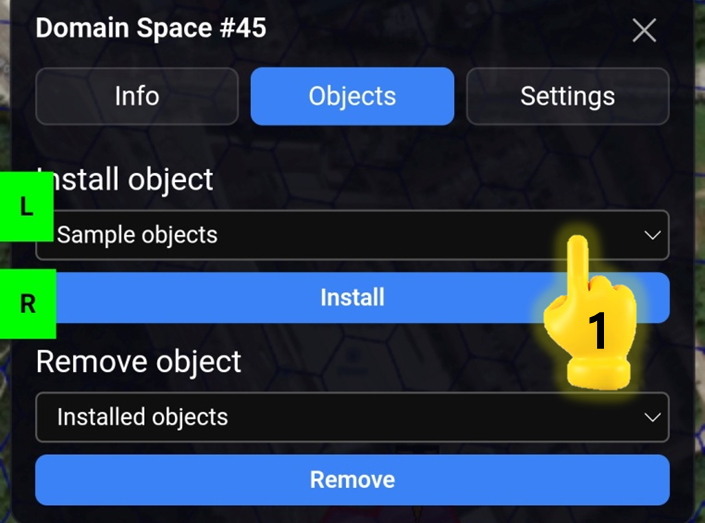
#### <mark style="color:$primary;">Select</mark> 3D Objects

<figure><img src="https://2902267430-files.gitbook.io/~/files/v0/b/gitbook-x-prod.appspot.com/o/spaces%2F5LAEHDS7jvCC6hgJFI2D%2Fuploads%2FRJfJGSMIigIpiN4SQhMt%2Fimage.png?alt=media&amp;token=267028a5-e9c7-4721-bb4c-678e2e01f828" alt="" width="353"><figcaption></figcaption></figure>

1. Tap \[Sample objects]

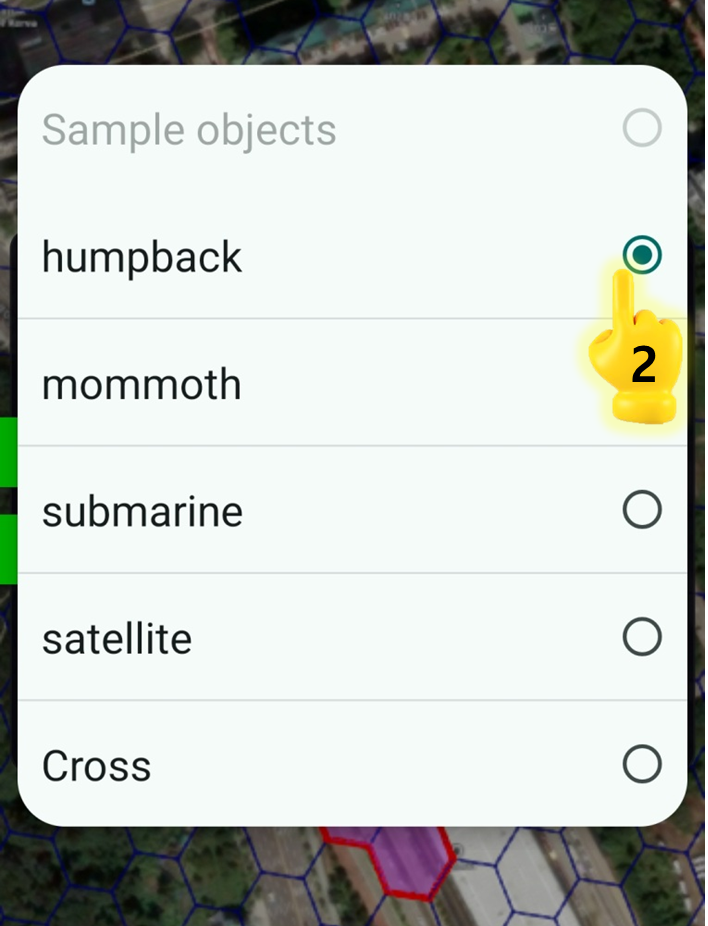
<figure><img src="https://2902267430-files.gitbook.io/~/files/v0/b/gitbook-x-prod.appspot.com/o/spaces%2F5LAEHDS7jvCC6hgJFI2D%2Fuploads%2Ff0m5QcYOGim31GePMmka%2Fimage.png?alt=media&amp;token=5fb2f8b3-9bc0-41be-b20c-bfa248d6a65b" alt="" width="354"><figcaption></figcaption></figure>

2. Tap one of the sample 3D Objects you like

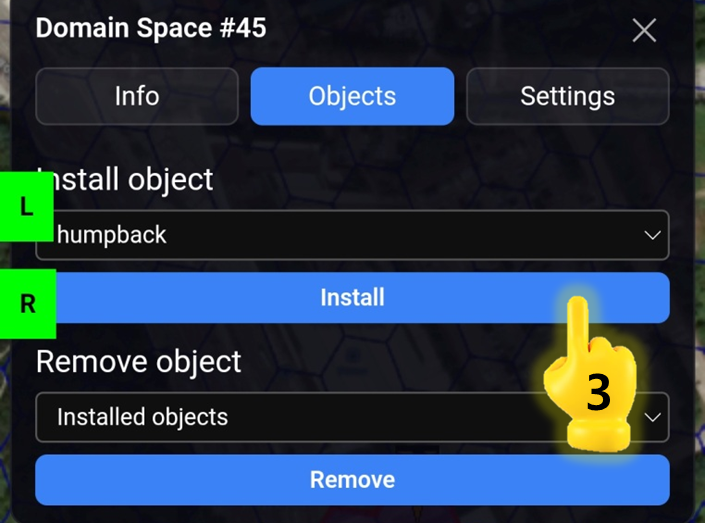
<figure><img src="https://2902267430-files.gitbook.io/~/files/v0/b/gitbook-x-prod.appspot.com/o/spaces%2F5LAEHDS7jvCC6hgJFI2D%2Fuploads%2F1UuKpUiJVK4kEr4Yoyzv%2Fimage.png?alt=media&amp;token=fa1cd569-67ca-4833-9ebe-e4a6ecaa4797" alt="" width="353"><figcaption></figcaption></figure>

3. Tap \[Install] button → Done

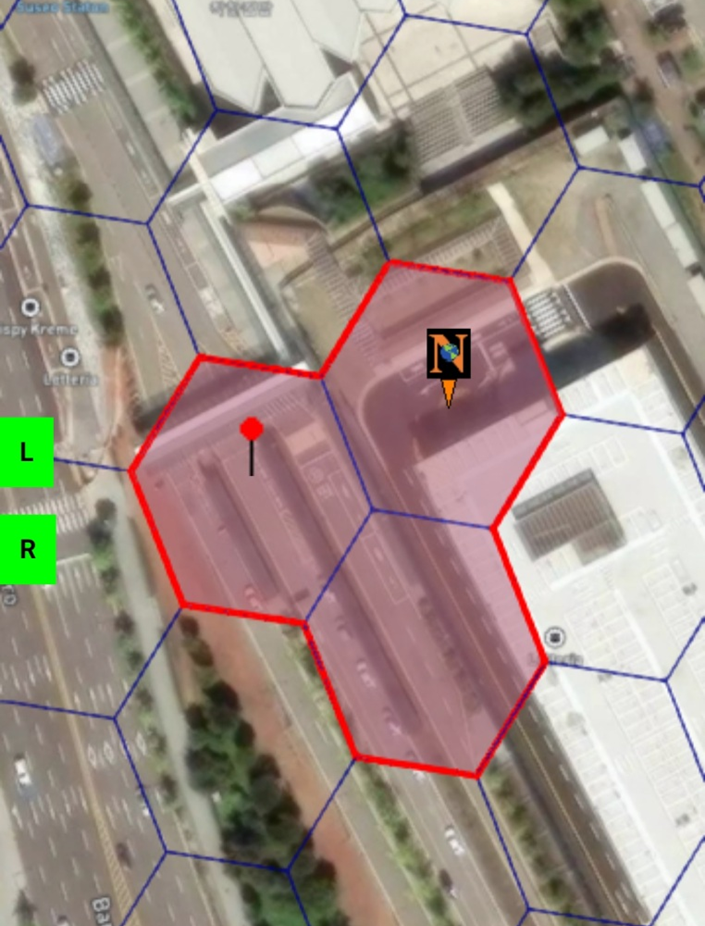
<figure><img src="https://2902267430-files.gitbook.io/~/files/v0/b/gitbook-x-prod.appspot.com/o/spaces%2F5LAEHDS7jvCC6hgJFI2D%2Fuploads%2FeFFCtfkKXY6Bv7DD9LBv%2Fimage.png?alt=media&amp;token=d81bd3fd-0cc5-4a3b-a532-2478524071b6" alt="" width="353"><figcaption></figcaption></figure>

An Pin Icon shaped like a black pole with a red sphere attached is installed on the Domain Space.

<figure><img src="https://2902267430-files.gitbook.io/~/files/v0/b/gitbook-x-prod.appspot.com/o/spaces%2F5LAEHDS7jvCC6hgJFI2D%2Fuploads%2FcpMfIQf4HxBDeWJKmcb9%2Fimage.png?alt=media&amp;token=832ab037-96df-49ae-b079-a87b06e132a8" alt="" width="358"><figcaption></figcaption></figure>

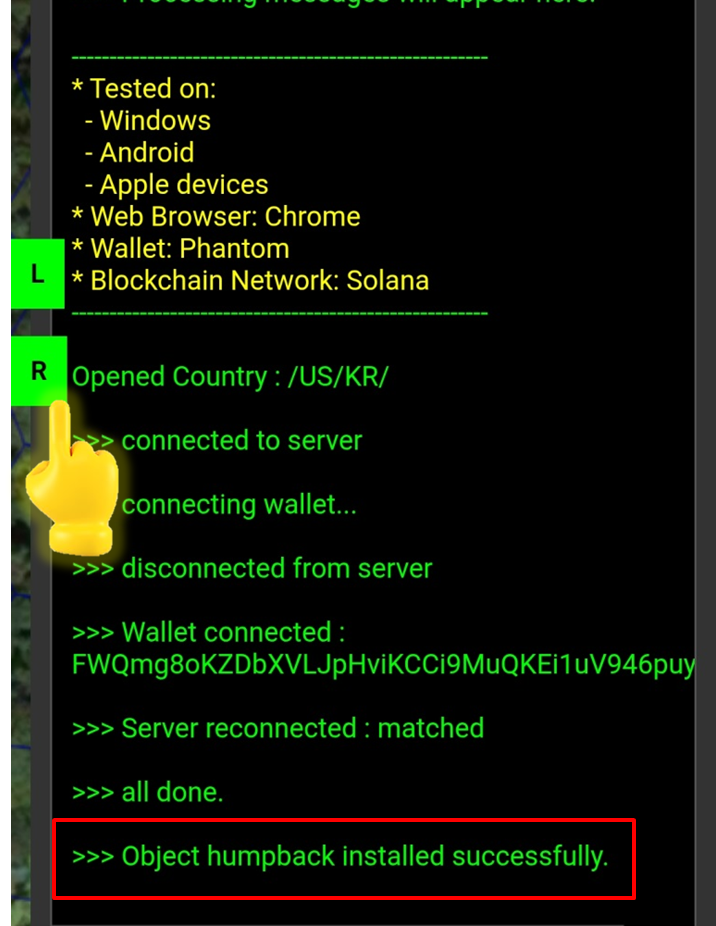
When you tap <mark style="color:green;">R panel</mark>, you can check the installation update in real time in the Info panel.
{% endstep %}

{% step %}

#### <mark style="color:$primary;">\*Relocate</mark> the 3D object

<figure><img src="https://2902267430-files.gitbook.io/~/files/v0/b/gitbook-x-prod.appspot.com/o/spaces%2F5LAEHDS7jvCC6hgJFI2D%2Fuploads%2F3u5Ado7yIwJQUi3Vj6wf%2Fimage.png?alt=media&amp;token=6e3cc3b8-cefc-4591-9264-e639c97734d7" alt="" width="353"><figcaption></figcaption></figure>

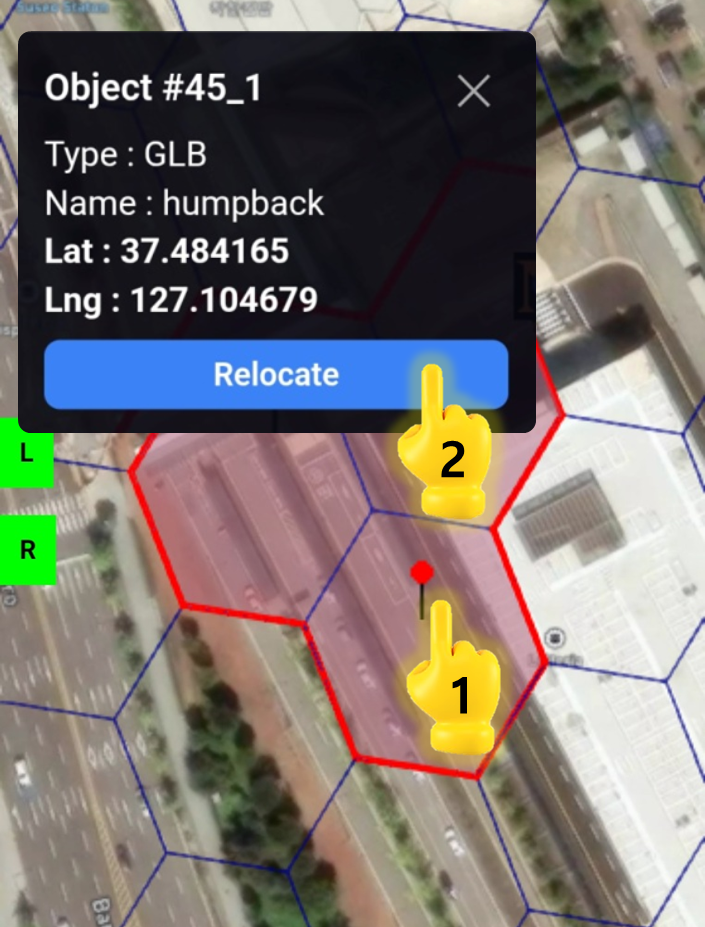
1. Tap the Pin icon
2. Tap \[Relocate] button

<figure><img src="https://2902267430-files.gitbook.io/~/files/v0/b/gitbook-x-prod.appspot.com/o/spaces%2F5LAEHDS7jvCC6hgJFI2D%2Fuploads%2Fh9FwLGDleK2dbnlLjjLW%2Fimage.png?alt=media&amp;token=24ca186f-a336-4276-9100-bcb9b9c0625f" alt="" width="353"><figcaption></figcaption></figure>

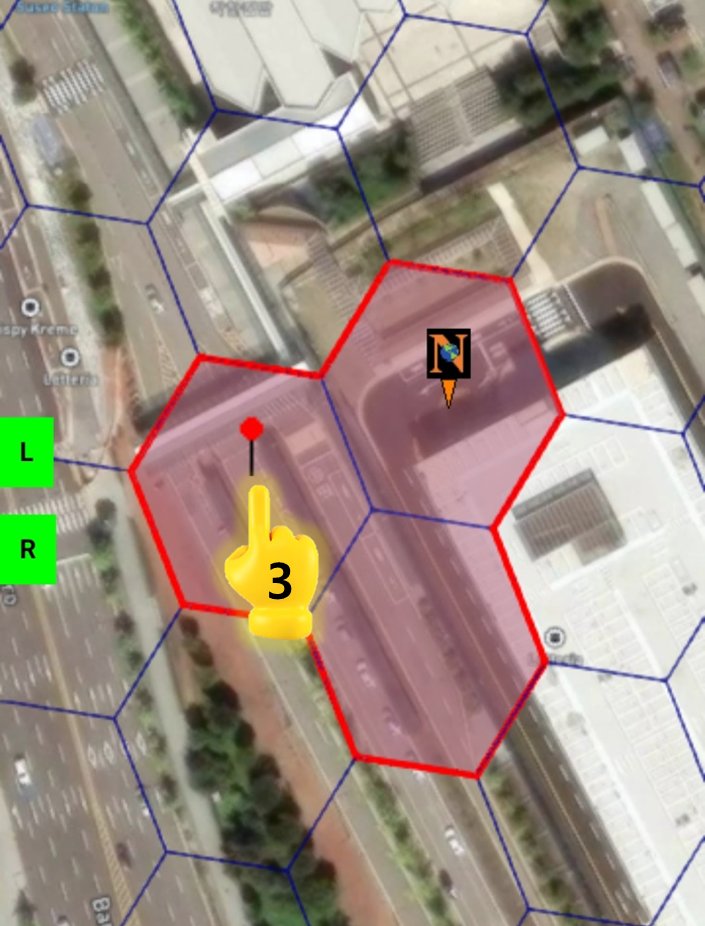
3. Tap your desired position

→ The Pin (3D Object) is automatically relocated.

{% hint style="warning" %}

### NOTE

1. The relocate position must be inside your <mark style="color:red;">Domain Space grid (red boundary)</mark>.   \
   ※ Clicking outside the grid will automatically cancel the action.
2. On mobile, the cross-shaped indicator (available on PC) does not appear.\
   Instead, zoom in as much as needed and simply Tap the spot where you want the Pin Icon to move.
   {% endhint %}

<figure><img src="https://2902267430-files.gitbook.io/~/files/v0/b/gitbook-x-prod.appspot.com/o/spaces%2F5LAEHDS7jvCC6hgJFI2D%2Fuploads%2F1Sa0llc1ufhUmAlQJWRB%2Fimage.png?alt=media&amp;token=984c2091-b2ce-4c1b-bb12-dc8f999f43e8" alt="" width="358"><figcaption></figcaption></figure>

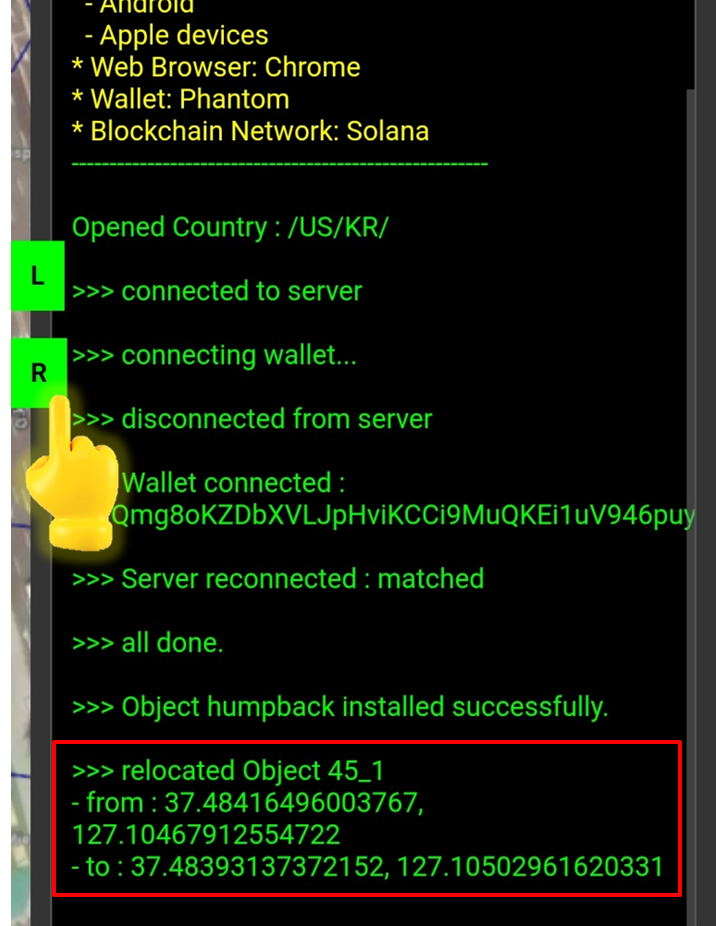
When you tap <mark style="color:green;">R panel</mark>, you can check the relocation update in real time in the Info panel.
{% endstep %}

{% step %}

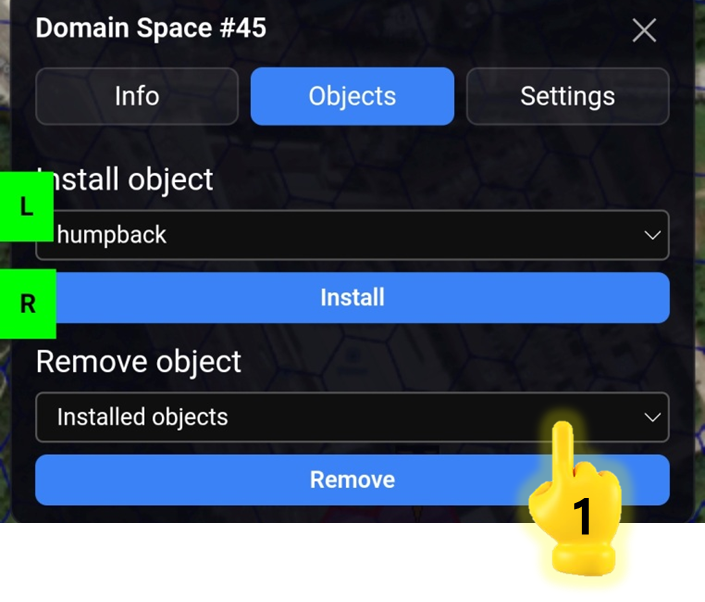
#### <mark style="color:$primary;">\*Remove</mark> the 3D objects

<figure><img src="https://2902267430-files.gitbook.io/~/files/v0/b/gitbook-x-prod.appspot.com/o/spaces%2F5LAEHDS7jvCC6hgJFI2D%2Fuploads%2FVeJX5roo81TrxpJxlFyR%2Fimage.png?alt=media&amp;token=0f6b517e-651f-49c4-b336-f5f8ed1c1832" alt="" width="353"><figcaption></figcaption></figure>

1. Tap \[Installed objects]

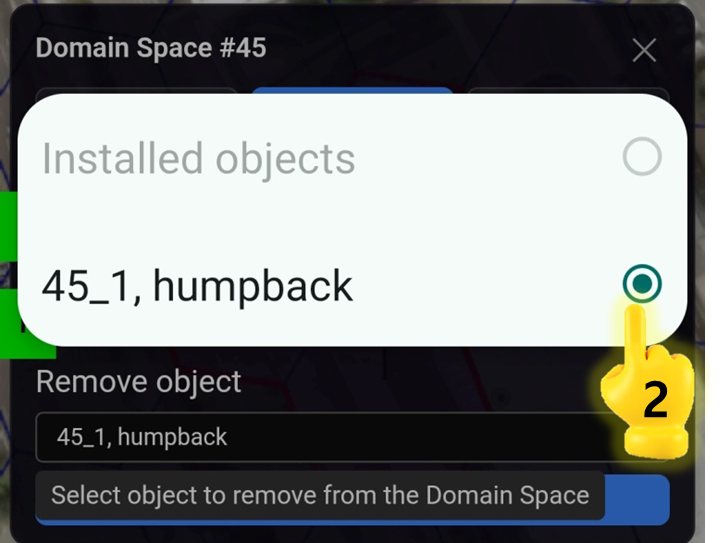
<figure><img src="https://2902267430-files.gitbook.io/~/files/v0/b/gitbook-x-prod.appspot.com/o/spaces%2F5LAEHDS7jvCC6hgJFI2D%2Fuploads%2F3OE0cLf3XnN05PeYyD8A%2Fimage.png?alt=media&amp;token=26b7761b-9bda-421d-ab7f-244ad96ec2ac" alt="" width="360"><figcaption></figcaption></figure>

2. Tap one of the installed 3D Objects you want to remove

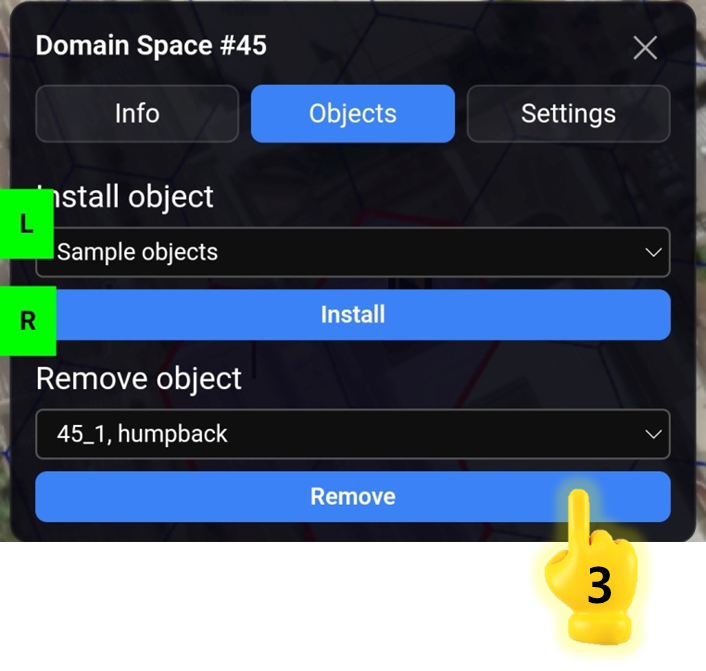
<figure><img src="https://2902267430-files.gitbook.io/~/files/v0/b/gitbook-x-prod.appspot.com/o/spaces%2F5LAEHDS7jvCC6hgJFI2D%2Fuploads%2F9BjFX6qOgmEKlt2OauNU%2Fimage.png?alt=media&amp;token=e62a9430-cd48-44eb-bb26-8bbd454cd545" alt="" width="353"><figcaption></figcaption></figure>

3. Tap \[Remove] button → Done.

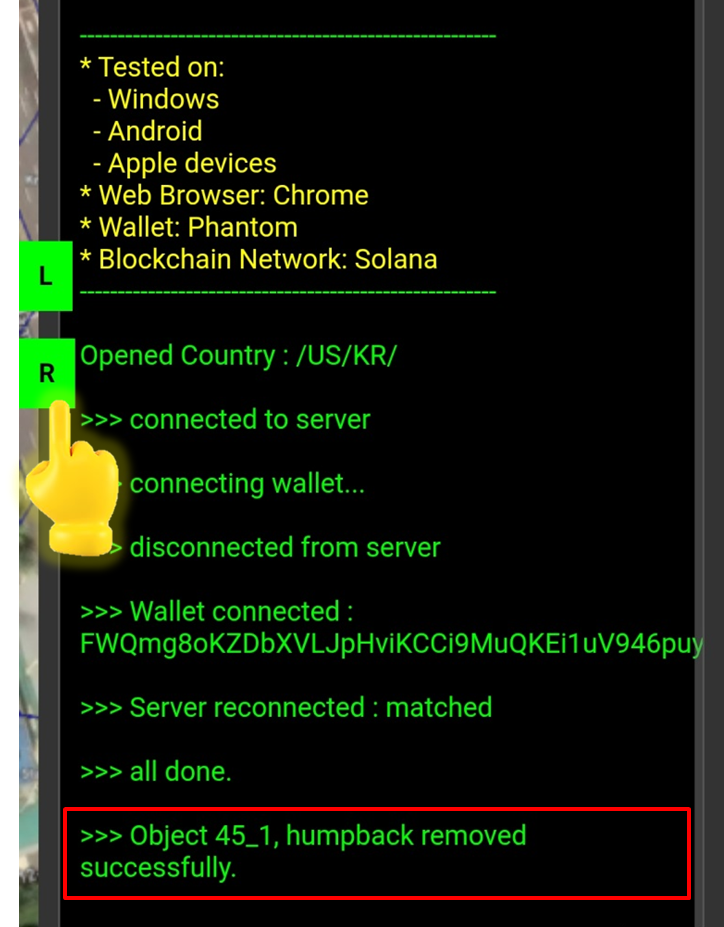
<figure><img src="https://2902267430-files.gitbook.io/~/files/v0/b/gitbook-x-prod.appspot.com/o/spaces%2F5LAEHDS7jvCC6hgJFI2D%2Fuploads%2FRoq6MeaLkpgQ5jrmSBFJ%2Fimage.png?alt=media&amp;token=a06cea23-4872-4d31-965c-19aa3d07db5b" alt="" width="362"><figcaption></figcaption></figure>

When you tap <mark style="color:green;">R panel</mark>, you can check the remove update in real time in the Info panel.
{% endstep %}
{% endstepper %}
{% endtab %}
{% endtabs %}