> For the complete documentation index, see [llms.txt](https://guide.nin.earth/llms.txt). Markdown versions of documentation pages are available by appending `.md` to page URLs; this page is available as [Markdown](https://guide.nin.earth/guidebook/markdown/how-do-i-use-ar-mode.md).
# How do I use AR mode?
You can enter AR mode and view your Monument & 3D Objects in the real world using your device’s camera.
Back to top
{% hint style="success" %}
### **NOTE**.
1. **GPS/GNSS Accuracy**\
AR alignment may shift due to location errors, so using a modern device with dual-band(L1+L5) GPS/GNSS provides better stability.
2. **Device & Browser Support**\
AR Mode is mainly tested on Android devices with the Chrome browser and works best in this environment.
{% endhint %}
### **Access AR mode**
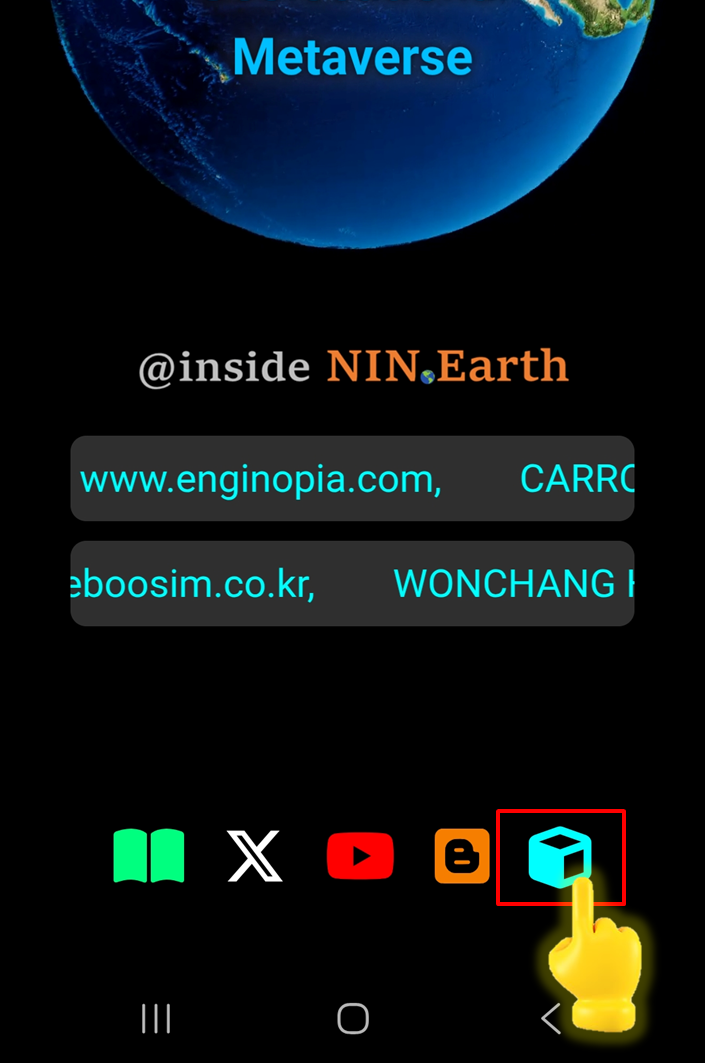
You can tap \[AR mode] Icon from the Main page, and the system will align your Monument & 3D Objects with the real-world environment through your device’s camera.
{% tabs %}
{% tab title="Mobile" %}
{% stepper %}
{% step %}
#### Tap AR mode Icon
Scroll down on the Main page → Tap \[AR Mode] Icon
{% hint style="success" %}
### **NOTE. GPS (Location) ON.**
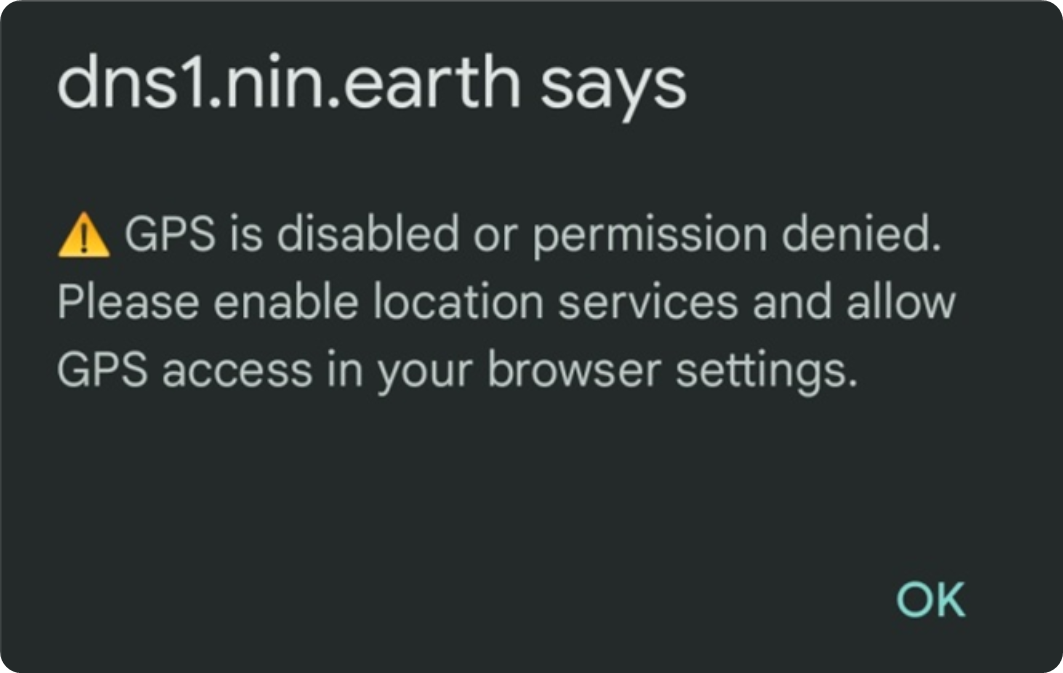
AR Mode requires GPS (Location) to be enabled. If Location is turned off, a warning message will appear.
Please enable Location in your phone settings before using AR Mode.

{% endhint %}
{% endstep %}
{% step %}
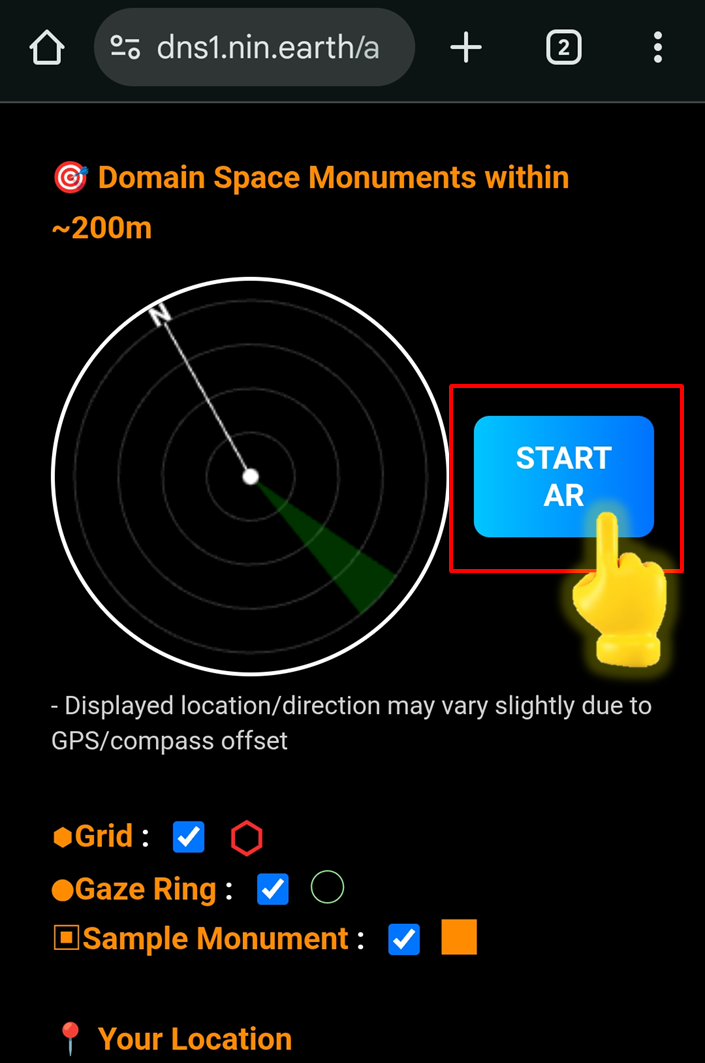
#### Tap \[START AR]
Tap \[START AR] button to activate AR Mode.
{% endstep %}
{% endstepper %}
{% endtab %}
{% endtabs %}
### **AR mode Settings**
You can toggle the Grid display, the Gaze ring, and the Sample Monument to adjust how AR elements appear in your surroundings.
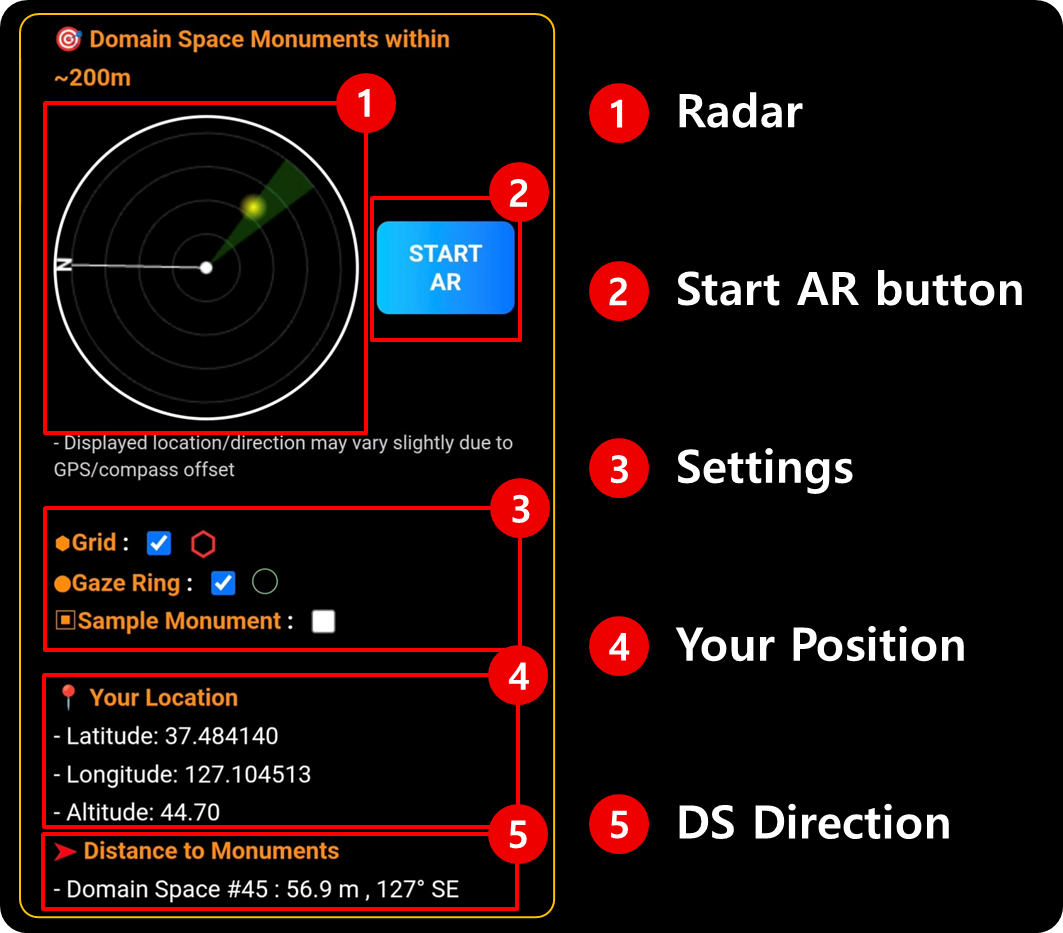
AR mode consists of 5 core elements:
1. **Radar**: Shows nearby Domain Spaces as yellow dots.
2. **\[Start AR] button**: Tap to instantly enter the AR view.
3. **Settings**: On / Off toggles to control the display of Grid, Gaze Ring, and Sample Monument.
4. **Your Position**: Indicates your current 3D position in space.
5. **Domain Spaces Direction**: Displays the distance & direction to nearby Domain Spaces.
{% hint style="success" %}
### **NOTE.**
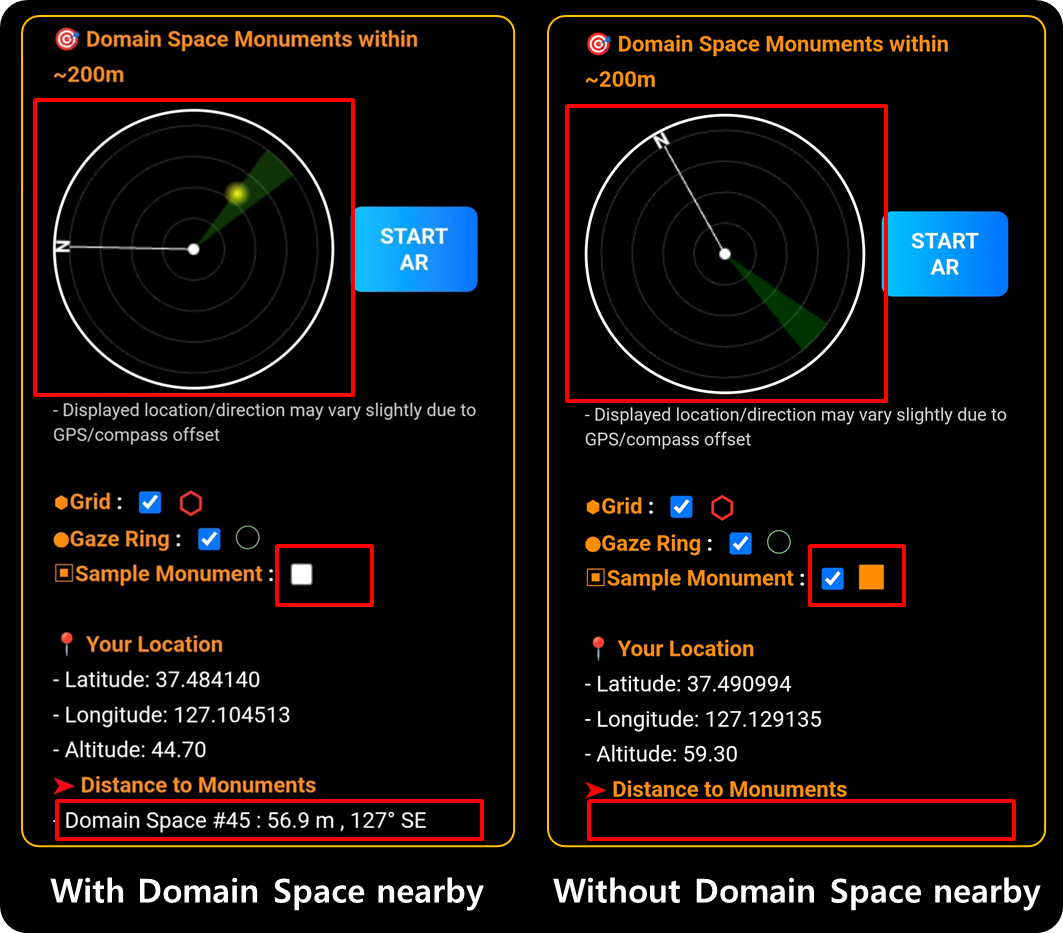
When there is a Domain Space (Tiles owned by user) within 200 m, there are 3 differences compared to when AR mode settings are not available:
1. Domain Spaces are displayed as yellow dots on the radar.
2. Sample Monument is turned OFF.
3. The distance & direction to the Monument are displayed.
{% endhint %}
{% tabs %}
{% tab title="Mobile" %}
{% stepper %}
{% step %}
#### **Grid** (on/off)
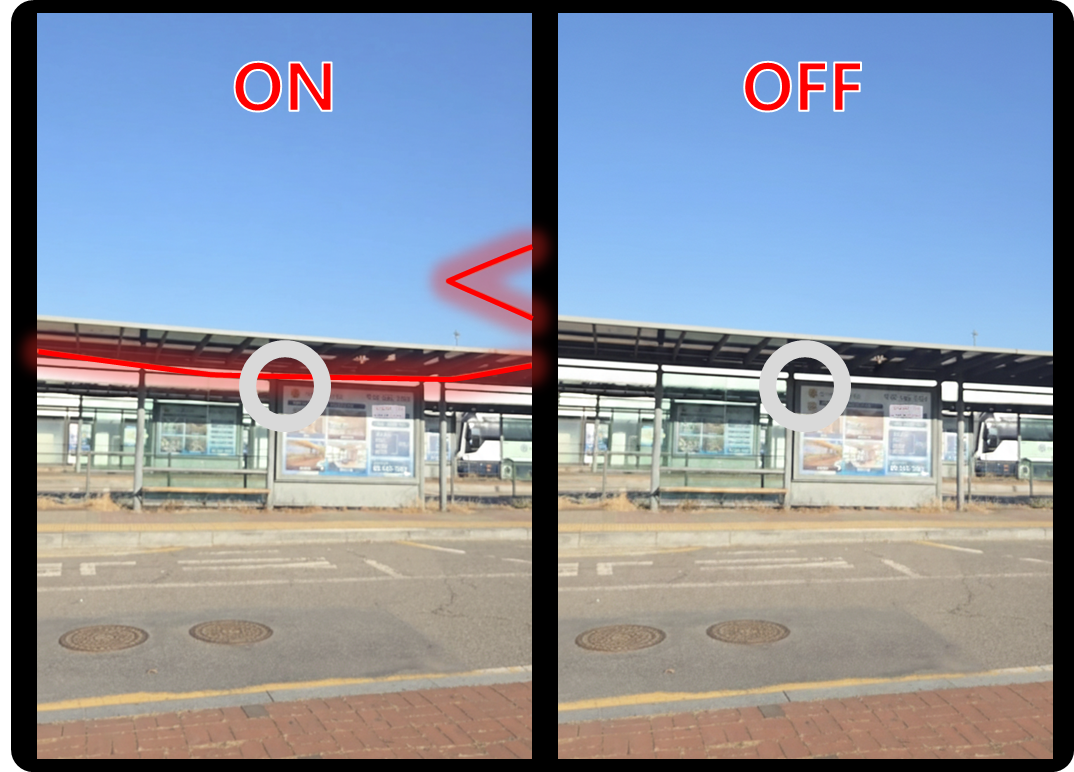
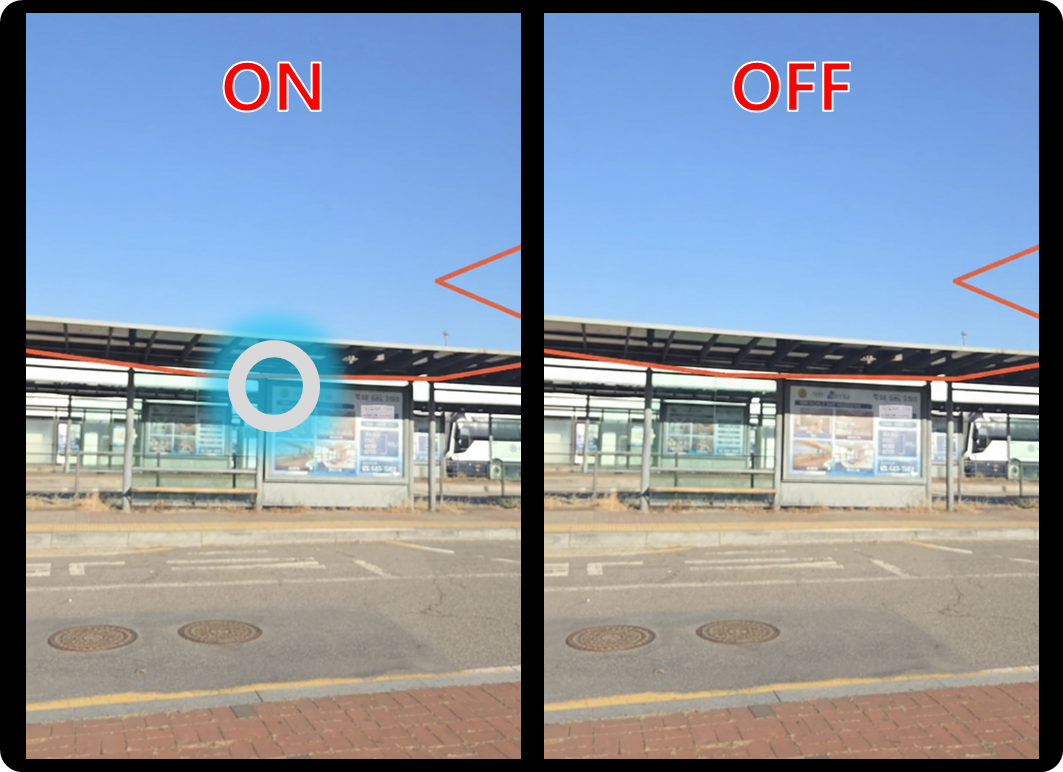
Toggle the Grid(Red line) to show or hide the Tile boundaries over the real-world environment.
This helps visualize how your Domain Space aligns with physical space.
{% endstep %}
{% step %}
#### **Gaze Ring** (on/off)
Enable or disable the Gaze Ring.
When ON, you can open linked URLs or interact with objects simply by matching your gaze with the target.
{% endstep %}
{% step %}
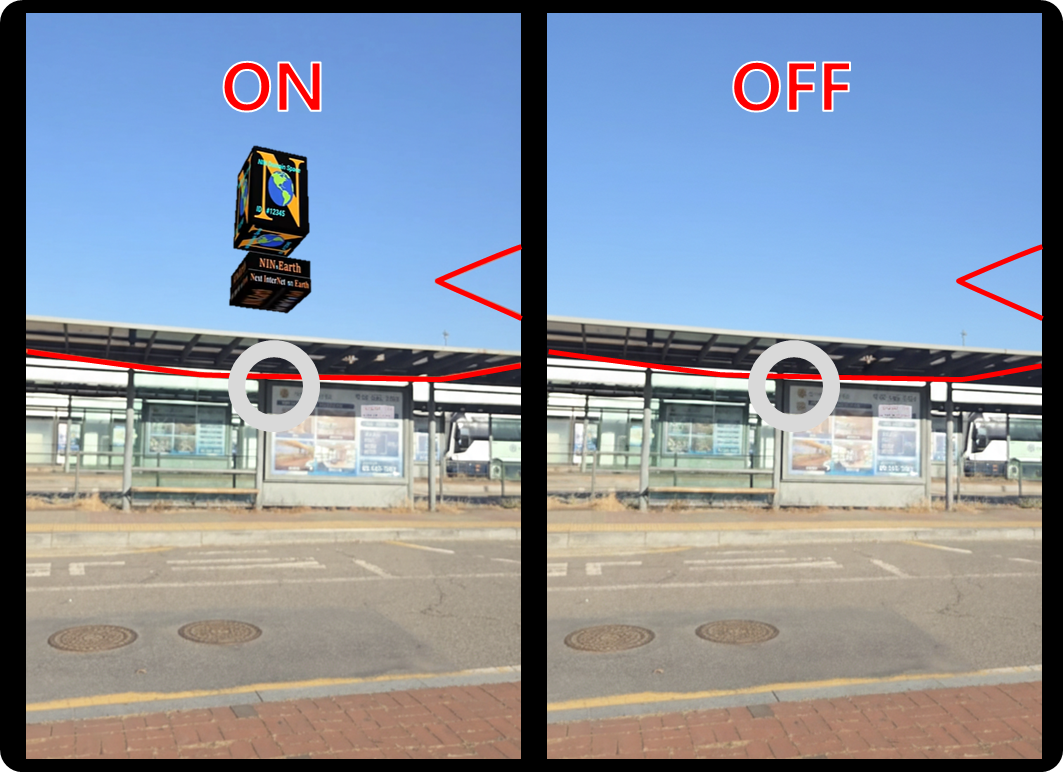
#### **Sample Monument** (on/off)
Turn on a sample Monument to preview how your assets will appear in AR, even if your Domain Space does not yet contain a Monument image.
{% endstep %}
{% endstepper %}
{% endtab %}
{% endtabs %}

 Please enable Location in your phone settings before using AR Mode.

{% endhint %}
{% endstep %}
{% step %}
#### Tap \[START AR]
Please enable Location in your phone settings before using AR Mode.

{% endhint %}
{% endstep %}
{% step %}
#### Tap \[START AR]