> For the complete documentation index, see [llms.txt](https://guide.nin.earth/llms.txt). Markdown versions of documentation pages are available by appending `.md` to page URLs; this page is available as [Markdown](https://guide.nin.earth/guidebook/markdown/how-do-i-use-3d-mode.md).

# How do I use 3D mode?

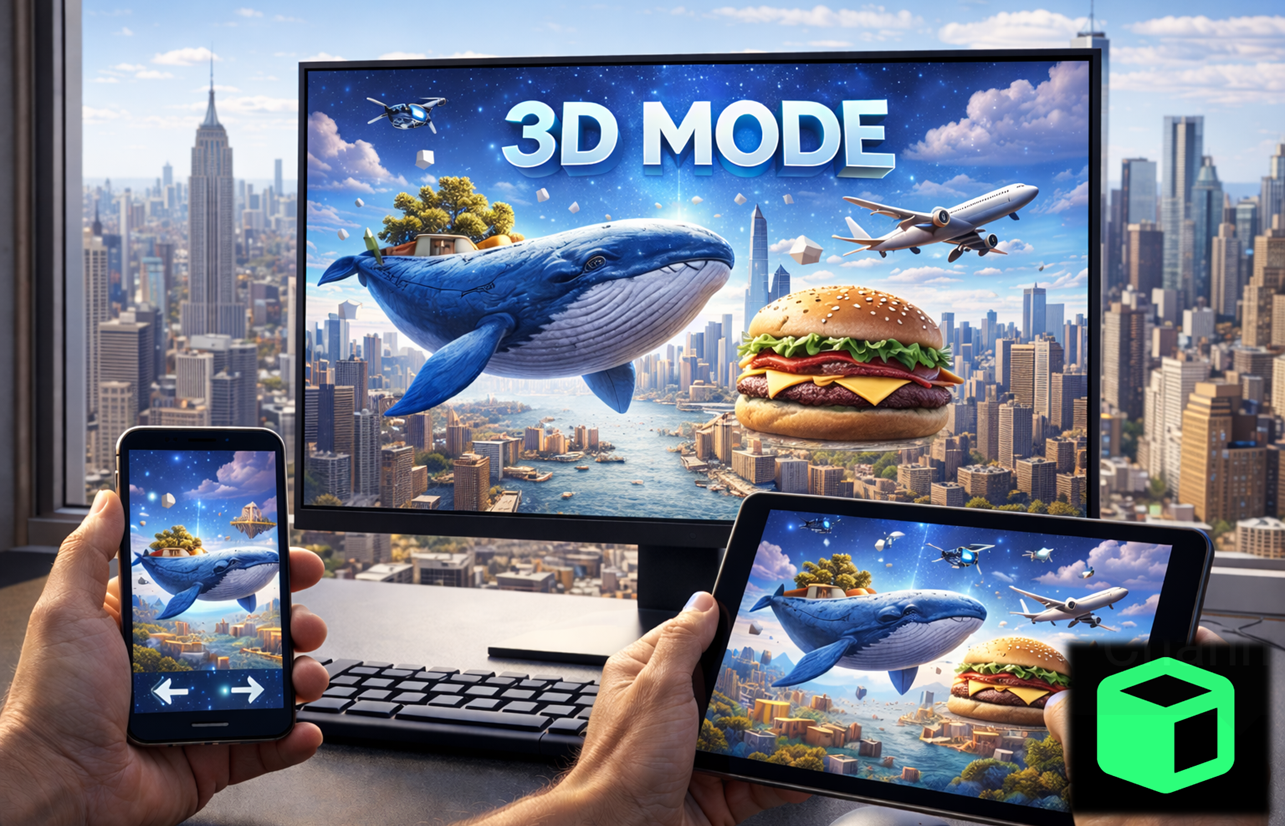
You can enter 3D mode and view your Monument & 3D Objects in the 3d world using your PC, Tablet, and Mobile devices.

<figure><img src="https://2902267430-files.gitbook.io/~/files/v0/b/gitbook-x-prod.appspot.com/o/spaces%2F5LAEHDS7jvCC6hgJFI2D%2Fuploads%2F3gpXn5Z24MxqzK3Oi8EK%2Fimage.png?alt=media&amp;token=521c0679-aeb1-4ab3-b0ca-a71a1fee35f4" alt="" width="563"><figcaption></figcaption></figure>

<a href="/guidebook/markdown.md" class="button primary" data-icon="circle-up">Back to top</a>

### **Access 3D mode**

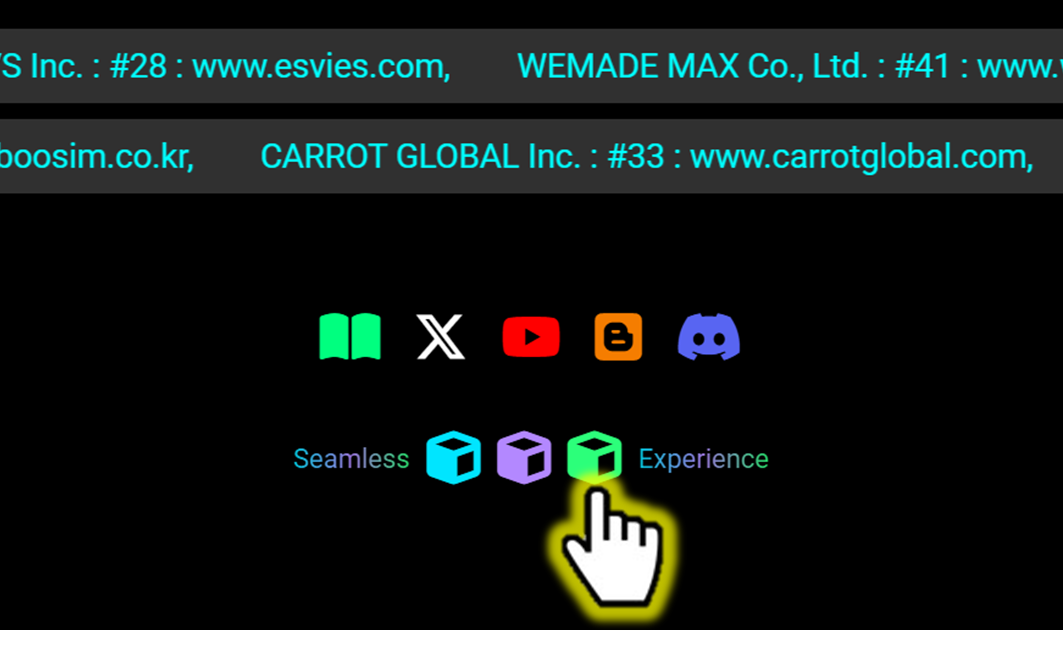
You can tap \[3D mode] Icon from the Main page, and the system will display your Monument & 3D Objects with the virtual-world environment on your VR device.

{% tabs %}
{% tab title="PC" %}
{% stepper %}
{% step %}

#### <mark style="color:$primary;">Click</mark> 3D mode Icon

<figure><img src="https://2902267430-files.gitbook.io/~/files/v0/b/gitbook-x-prod.appspot.com/o/spaces%2F5LAEHDS7jvCC6hgJFI2D%2Fuploads%2F8qjvFnVJWvaZKe99OJgA%2Fimage.png?alt=media&amp;token=ebaa768e-e1a8-4af8-80dc-d8203b4791a5" alt="" width="563"><figcaption></figcaption></figure>

Scroll down on the Mian page → Click \[3D mode] Icon&#x20;
{% endstep %}

{% step %}

### <mark style="color:$primary;">Search</mark> Domain Space(or Tile)

<figure><img src="https://2902267430-files.gitbook.io/~/files/v0/b/gitbook-x-prod.appspot.com/o/spaces%2F5LAEHDS7jvCC6hgJFI2D%2Fuploads%2FuthOebRgFxOCZno6uALt%2Fimage.png?alt=media&amp;token=781f2731-8997-4f3b-a35c-cbfa1d22b86f" alt="" width="563"><figcaption></figcaption></figure>

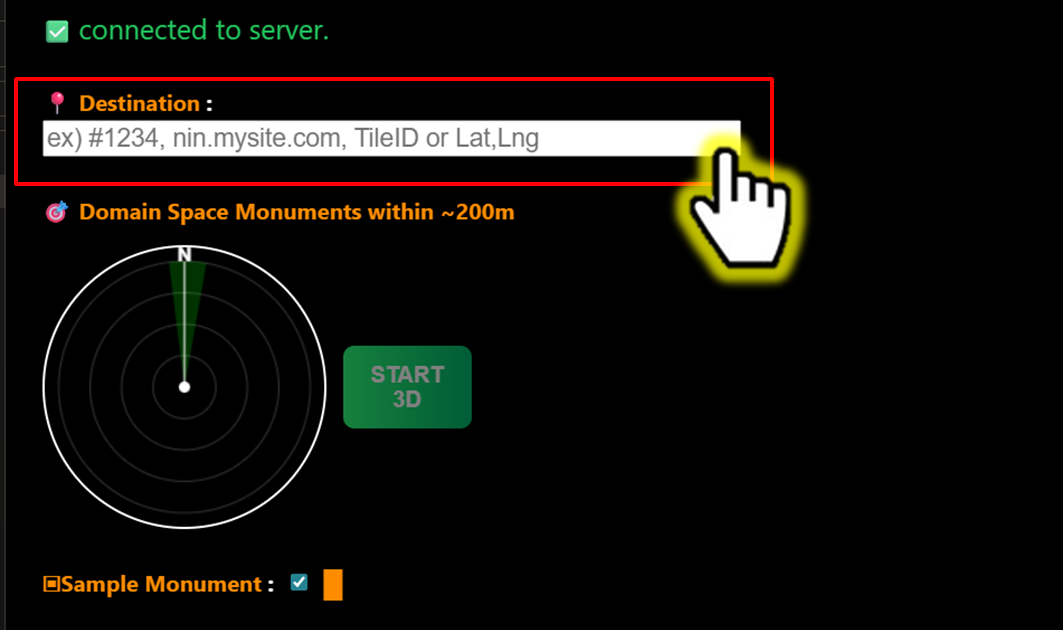
At the top search bar, Type your desired location and press the \[Enter] key

You can search by:

* Domain Space ID
* Tile ID
* Domain Name
* Latitude & Longitude

For more details >> [#how-do-i-find-the-tile-i-want](#how-do-i-find-the-tile-i-want "mention")

<figure><img src="https://2902267430-files.gitbook.io/~/files/v0/b/gitbook-x-prod.appspot.com/o/spaces%2F5LAEHDS7jvCC6hgJFI2D%2Fuploads%2FVSUmGXhNkAhm0uclybdf%2Fimage.png?alt=media&amp;token=1db87c40-7f9c-4396-8741-2d5375cb01b2" alt="" width="563"><figcaption></figcaption></figure>

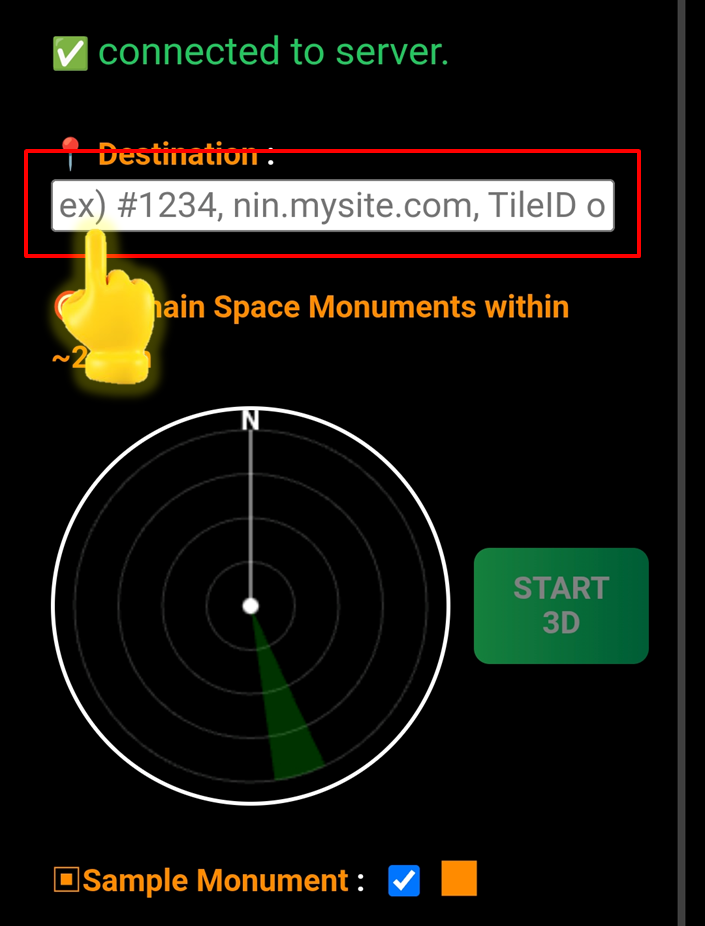
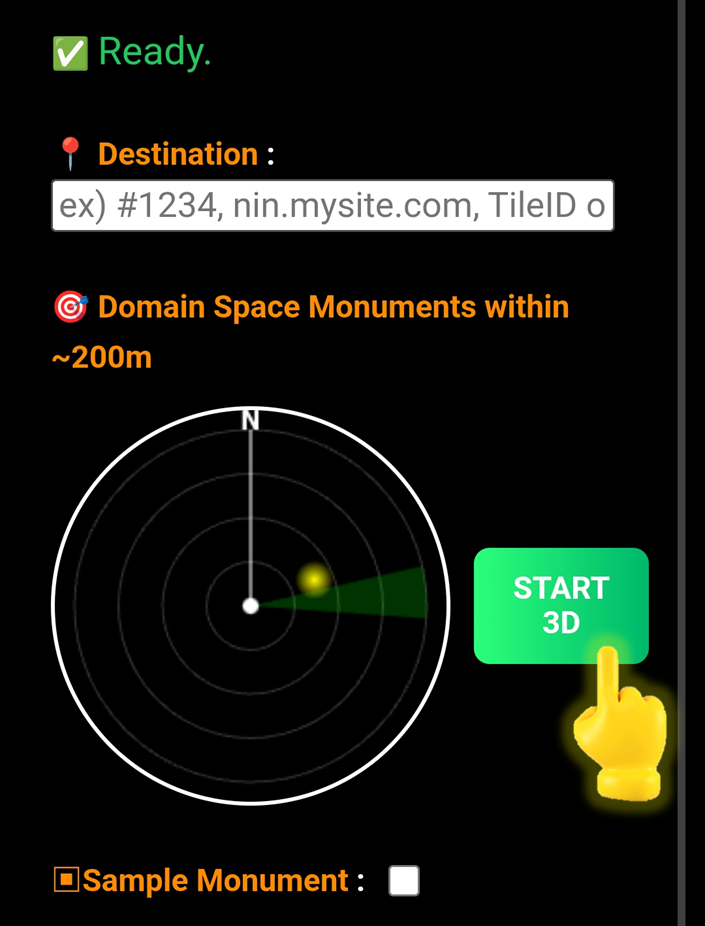
When the status at the top shows “<mark style="color:$success;">connected to server</mark>”, enter your desired location. The status will change to “<mark style="color:$success;">Ready</mark>”, and the \[START 3D] button will become active.
{% endstep %}

{% step %}

### <mark style="color:$primary;">Click</mark> \[START 3D]

<figure><img src="https://2902267430-files.gitbook.io/~/files/v0/b/gitbook-x-prod.appspot.com/o/spaces%2F5LAEHDS7jvCC6hgJFI2D%2Fuploads%2FVIaVRUeM9jQZXgwD8pms%2Fimage.png?alt=media&amp;token=1e169b09-0516-4f8f-b07a-5af83244a911" alt="" width="563"><figcaption></figcaption></figure>

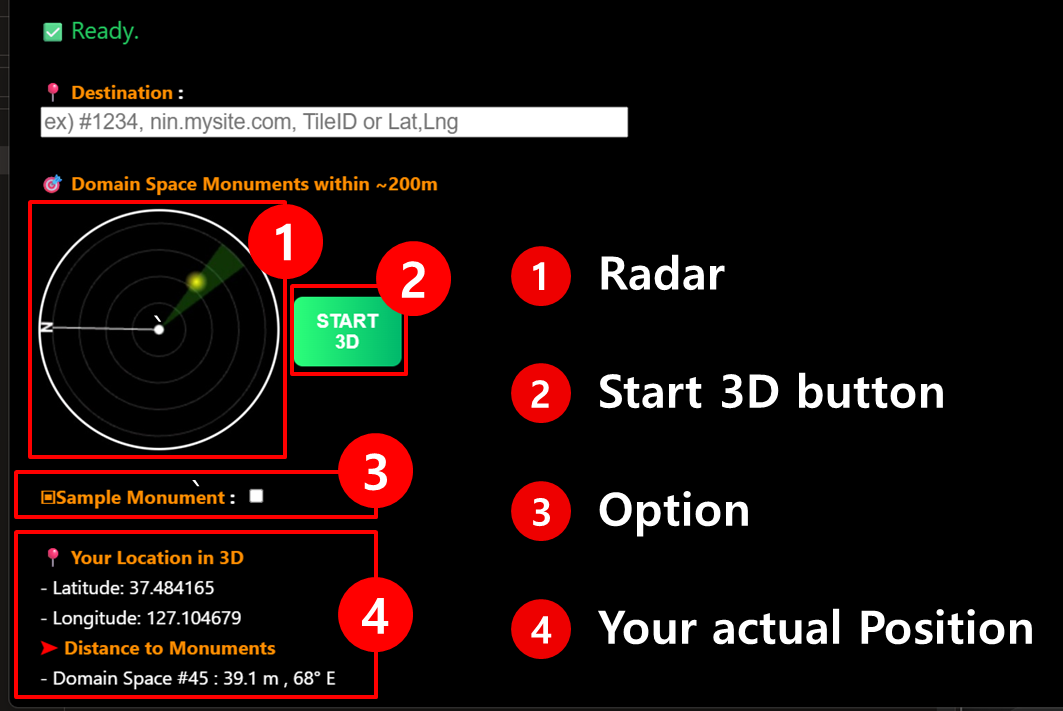
Click \[START 3D] button to activate 3D mode.

* **Radar** shows the locations of nearby Domain Spaces centered around the position you searched.
* With **Option**, you can select a **Sample Monument** and place it even if there are no nearby Domain Spaces.
* It displays **your actual Position** and also shows where nearby Domain Space monuments are positioned.
  {% endstep %}
  {% endstepper %}
  {% endtab %}

{% tab title="Mobile" %}
{% stepper %}
{% step %}

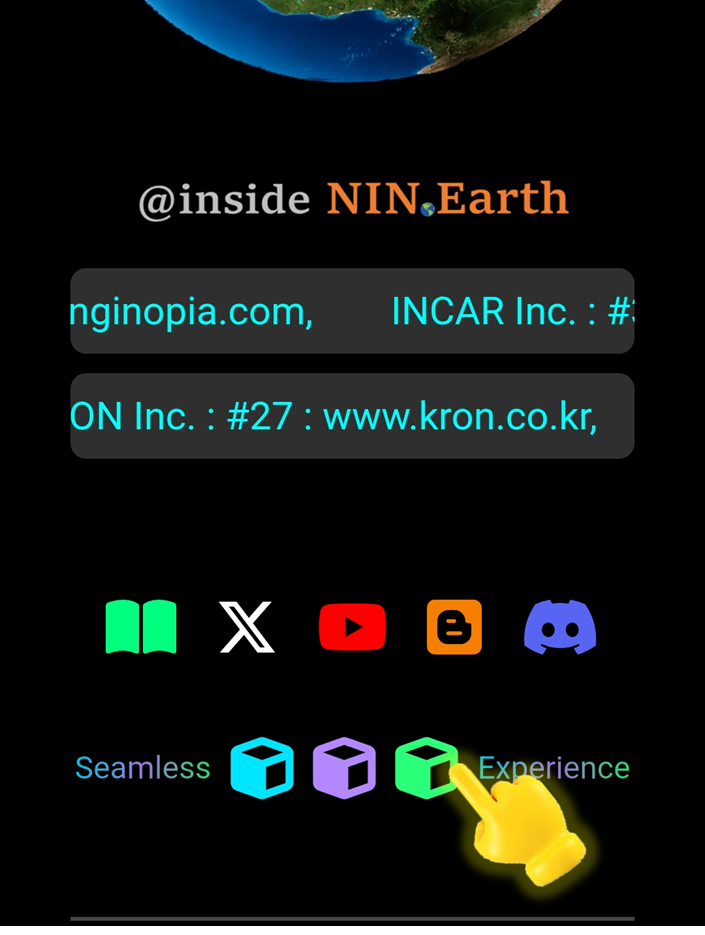
#### <mark style="color:$primary;">Tap</mark> 3D mode Icon

<figure><img src="https://2902267430-files.gitbook.io/~/files/v0/b/gitbook-x-prod.appspot.com/o/spaces%2F5LAEHDS7jvCC6hgJFI2D%2Fuploads%2FyRKSezZRXTytxThJXmj1%2Fimage.png?alt=media&amp;token=eafca392-2490-46b4-b637-c74b15c77d04" alt="" width="353"><figcaption></figcaption></figure>

Scroll down on the Main page → Tap \[3R Mode] Icon
{% endstep %}

{% step %}

#### <mark style="color:$primary;">Search</mark> Domain Space(or Tile)

<figure><img src="https://2902267430-files.gitbook.io/~/files/v0/b/gitbook-x-prod.appspot.com/o/spaces%2F5LAEHDS7jvCC6hgJFI2D%2Fuploads%2FLlClOq7pc5As5MPS3FuC%2Fimage.png?alt=media&amp;token=91abe62f-eb7f-452e-bbda-5a124af7559f" alt="" width="353"><figcaption></figcaption></figure>

At the top search bar, find your desired location.

You can search by:

* Domain Space ID
* Tile ID
* Domain Name
* Latitude & Longitude

For more details >> [#how-do-i-find-the-tile-i-want](#how-do-i-find-the-tile-i-want "mention")

<figure><img src="https://2902267430-files.gitbook.io/~/files/v0/b/gitbook-x-prod.appspot.com/o/spaces%2F5LAEHDS7jvCC6hgJFI2D%2Fuploads%2FVSUmGXhNkAhm0uclybdf%2Fimage.png?alt=media&amp;token=1db87c40-7f9c-4396-8741-2d5375cb01b2" alt="" width="563"><figcaption></figcaption></figure>

When the status at the top shows “<mark style="color:$success;">connected to server</mark>”, enter your desired location. The status will change to “<mark style="color:$success;">Ready</mark>”, and the \[START 3D] button will become active.
{% endstep %}

{% step %}

#### <mark style="color:$primary;">Tap</mark> \[START 3D]

<figure><img src="https://2902267430-files.gitbook.io/~/files/v0/b/gitbook-x-prod.appspot.com/o/spaces%2F5LAEHDS7jvCC6hgJFI2D%2Fuploads%2FZ29UNZhRwZmYiDDvlYMB%2Fimage.png?alt=media&amp;token=e0912400-8e36-444c-bb7e-520182ddcfba" alt="" width="353"><figcaption></figcaption></figure>

Tap \[START 3D] button to activate 3D mode.
{% endstep %}
{% endstepper %}
{% endtab %}
{% endtabs %}

### 3D Mode Controls

Use simple controls to move, rotate, and zoom in 3D Mode on PC & Mobile.

{% tabs %}
{% tab title="PC" %}
{% stepper %}
{% step %}

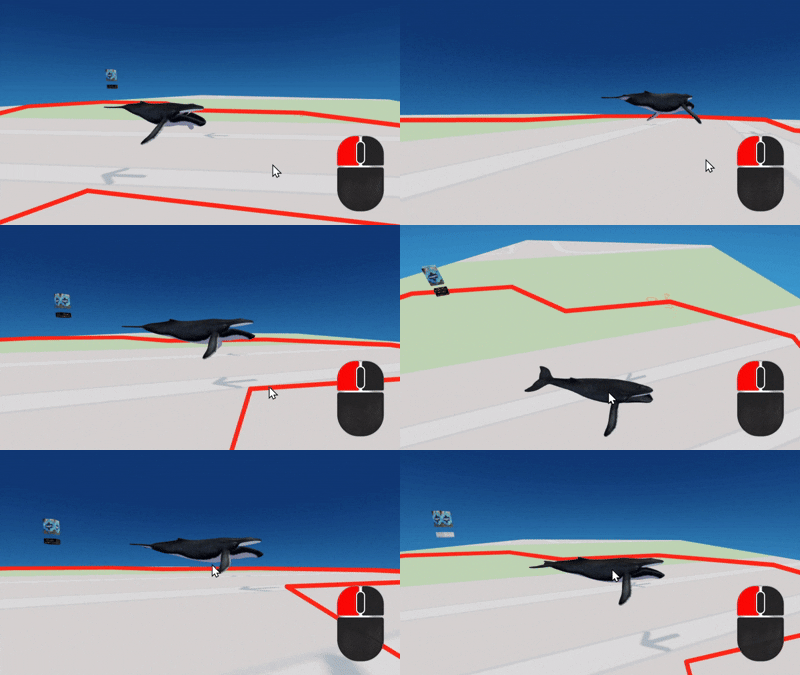
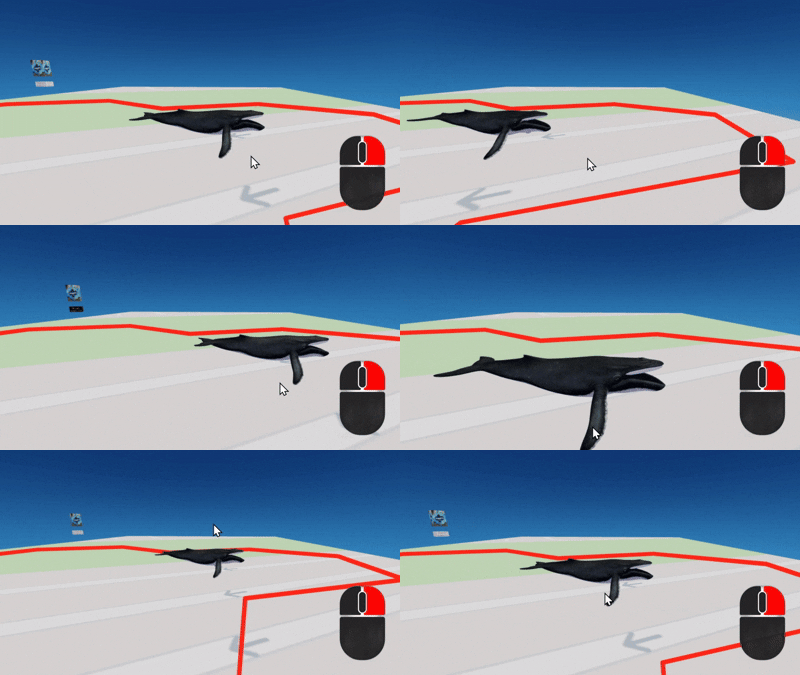
#### <mark style="color:$primary;">\*Rotate</mark> (Left Click & Drag)

<figure><img src="https://2902267430-files.gitbook.io/~/files/v0/b/gitbook-x-prod.appspot.com/o/spaces%2F5LAEHDS7jvCC6hgJFI2D%2Fuploads%2FaVE7Ub8mUtyuCzZrGJY9%2FQuick%20start-9-2-pc-01.gif?alt=media&amp;token=f1686ccb-58fd-4cc8-a9b0-da9f7a970806" alt=""><figcaption></figcaption></figure>

Click and hold the left mouse button, then Move the mouse to rotate your view.
{% endstep %}

{% step %}

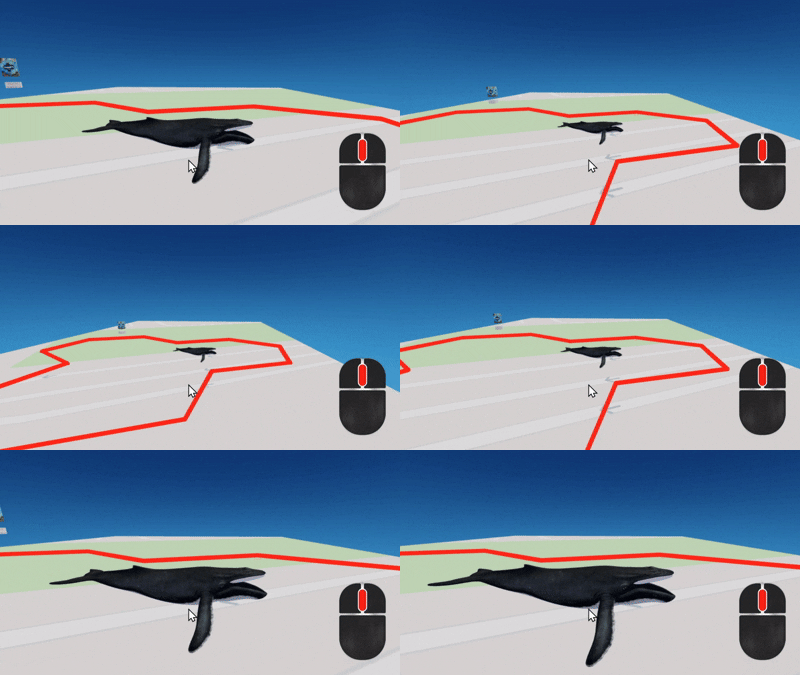
#### <mark style="color:$primary;">\*Pan</mark> (Right Click & Drag)

<figure><img src="https://2902267430-files.gitbook.io/~/files/v0/b/gitbook-x-prod.appspot.com/o/spaces%2F5LAEHDS7jvCC6hgJFI2D%2Fuploads%2FGcDUY2ufHUkRPhIZNBO1%2FQuick%20start-9-2-pc-02.gif?alt=media&amp;token=d00d87e6-3000-4d38-9046-b05c3a9d295d" alt=""><figcaption></figcaption></figure>

Click and hold the right mouse button, then Move the mouse to shift your position.
{% endstep %}

{% step %}

#### <mark style="color:$primary;">\*Zoom</mark> (Scroll up or down)

<figure><img src="https://2902267430-files.gitbook.io/~/files/v0/b/gitbook-x-prod.appspot.com/o/spaces%2F5LAEHDS7jvCC6hgJFI2D%2Fuploads%2FETcG6yGcj6BPhPgPmx85%2F%EC%A4%8C%20%EC%A1%B0%EC%A0%95.gif?alt=media&amp;token=fd304481-ee0f-4182-acf9-7c826f329324" alt=""><figcaption></figcaption></figure>

Use the mouse scroll wheel to zoom in or out.
{% endstep %}

{% step %}

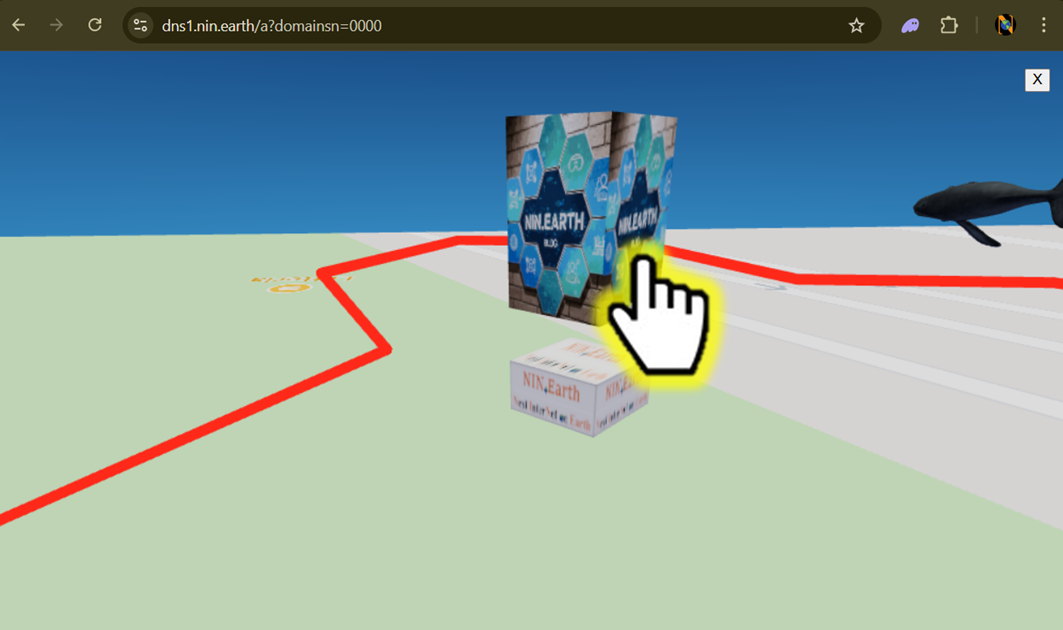
#### <mark style="color:$primary;">\*Gaze</mark> (Click the Monument Cube)

* Click the Top Cube → Opens the linked URL in a new page

<figure><img src="https://2902267430-files.gitbook.io/~/files/v0/b/gitbook-x-prod.appspot.com/o/spaces%2F5LAEHDS7jvCC6hgJFI2D%2Fuploads%2F3WLIO60Zg0WdWz5ZbDpp%2Fimage.png?alt=media&amp;token=534c6b9e-663a-404d-b215-6b0fe9d5560e" alt="" width="563"><figcaption></figcaption></figure>

* Click the Bottom Cube → Displays Domain Space information
  {% endstep %}
  {% endstepper %}
  {% endtab %}
  {% endtabs %}