> For the complete documentation index, see [llms.txt](https://guide.nin.earth/llms.txt). Markdown versions of documentation pages are available by appending `.md` to page URLs; this page is available as [Markdown](https://guide.nin.earth/guidebook/markdown/how-do-i-connect-my-wallet.md).

# How do I connect my wallet?

<mark style="color:orange;">NIN.Earth</mark> uses a Solana-based wallet.

To use core features, such as Purchasing Tiles, Setting your Domain Space, you must connect a Phantom wallet on the Solana Mainnet.

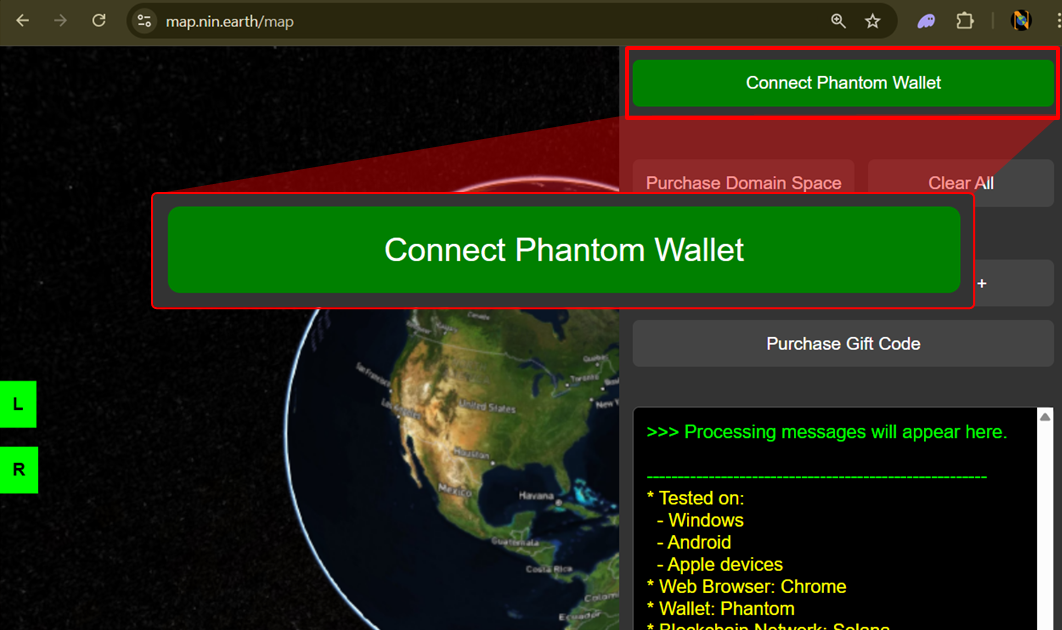
<figure><img src="https://2902267430-files.gitbook.io/~/files/v0/b/gitbook-x-prod.appspot.com/o/spaces%2F5LAEHDS7jvCC6hgJFI2D%2Fuploads%2FfD7Se2JWtIqXEU156hZN%2Fconnect%20wallet_main.jpg?alt=media&amp;token=596ab201-8e38-4a99-9302-7703d97744c4" alt="" width="563"><figcaption></figcaption></figure>

<a href="/guidebook/markdown.md" class="button primary" data-icon="circle-up">Back to top</a>

Before you start, please make sure your device, browser, and wallet meet the following requirements.

{% hint style="success" %}

### NOTE. Requirements

* Devices: Windows, Android, Apple
* Browser: Chrome
* Wallet: Phantom (Solana Mainnet)
  {% endhint %}

{% tabs %}
{% tab title="PC" %}
{% stepper %}
{% step %}

#### <mark style="color:$primary;">Add to Chrome</mark> (Phantom wallet)

{% embed url="<https://phantom.com/>" %}

You can either search portal website(e.g. Google) for "phantom wallet", or type "phantom.com" directly into your browser’s address bar.

<figure><img src="https://2902267430-files.gitbook.io/~/files/v0/b/gitbook-x-prod.appspot.com/o/spaces%2F5LAEHDS7jvCC6hgJFI2D%2Fuploads%2FYZxe3jBfjVCuhroJ3x3e%2Fimage.png?alt=media&amp;token=a3f2ccf0-9ea7-42c8-8074-3658a18ff1d4" alt="" width="563"><figcaption></figcaption></figure>

1. Click \[Download]
2. Click \[Chrome]

<figure><img src="https://2902267430-files.gitbook.io/~/files/v0/b/gitbook-x-prod.appspot.com/o/spaces%2F5LAEHDS7jvCC6hgJFI2D%2Fuploads%2FBrQc3Qe9eV8JjfwSLFOh%2Fimage.png?alt=media&amp;token=9875ebe6-acf8-4309-b13e-211294523d76" alt="" width="563"><figcaption></figcaption></figure>

3. Click \[Add to Chrome]
4. Click \[Add extension]

※ Direct link (you can skip Step 1-2 by opening this URL):

{% embed url="<https://chromewebstore.google.com/detail/phantom/bfnaelmomeimhlpmgjnjophhpkkoljpa>" %}
{% endstep %}

{% step %}

#### <mark style="color:$primary;">Pin</mark> Phantom on Chrome Extensions

<figure><img src="https://2902267430-files.gitbook.io/~/files/v0/b/gitbook-x-prod.appspot.com/o/spaces%2F5LAEHDS7jvCC6hgJFI2D%2Fuploads%2FMzB8FKqyALITL6RbFunk%2Fimage.png?alt=media&amp;token=e2ff04b3-d482-482e-9645-ef2eb42978b8" alt="" width="563"><figcaption></figcaption></figure>

1. Click the puzzle-piece (Extensions) icon at the top-right of Chrome
2. Click \[Pin]

The Phantom icon will now appear on your toolbar.
{% endstep %}

{% step %}

#### <mark style="color:$primary;">Create</mark> a new wallet

{% hint style="success" %}

### INTRODUCE.

There are several ways to create a new wallet address, but this guide introduces the simplest method: creating a wallet using your email.
{% endhint %}

Click the Phantom icon on toolbar.

<figure><img src="https://2902267430-files.gitbook.io/~/files/v0/b/gitbook-x-prod.appspot.com/o/spaces%2F5LAEHDS7jvCC6hgJFI2D%2Fuploads%2F3obeetOKBYBZu7e5aly2%2Fimage.png?alt=media&amp;token=1aeb5273-037a-4169-8ad2-f4b1b7e1cc30" alt="" width="563"><figcaption></figcaption></figure>

1. Click \[Create a new wallet]
2. Click \[Continue with Email]&#x20;

<figure><img src="https://2902267430-files.gitbook.io/~/files/v0/b/gitbook-x-prod.appspot.com/o/spaces%2F5LAEHDS7jvCC6hgJFI2D%2Fuploads%2FfOxQEDoexERdTkIDLB9e%2Fimage.png?alt=media&amp;token=02168a92-afad-451e-9cb1-9378487eb143" alt="" width="563"><figcaption></figcaption></figure>

3. Click \[Google]
4. Click your \[Email account]

<figure><img src="https://2902267430-files.gitbook.io/~/files/v0/b/gitbook-x-prod.appspot.com/o/spaces%2F5LAEHDS7jvCC6hgJFI2D%2Fuploads%2F5IOseJs2DdcxGGBGnpLP%2Fimage.png?alt=media&amp;token=14cbffe1-73e8-468c-9438-702d15126e6c" alt="" width="563"><figcaption></figcaption></figure>

5. Click \[Continue]

<figure><img src="https://2902267430-files.gitbook.io/~/files/v0/b/gitbook-x-prod.appspot.com/o/spaces%2F5LAEHDS7jvCC6hgJFI2D%2Fuploads%2FKZBOrQzM0F46POXceVMo%2Fimage.png?alt=media&amp;token=43cc85f8-92f6-42b8-a235-e0756aa904cc" alt="" width="563"><figcaption></figcaption></figure>

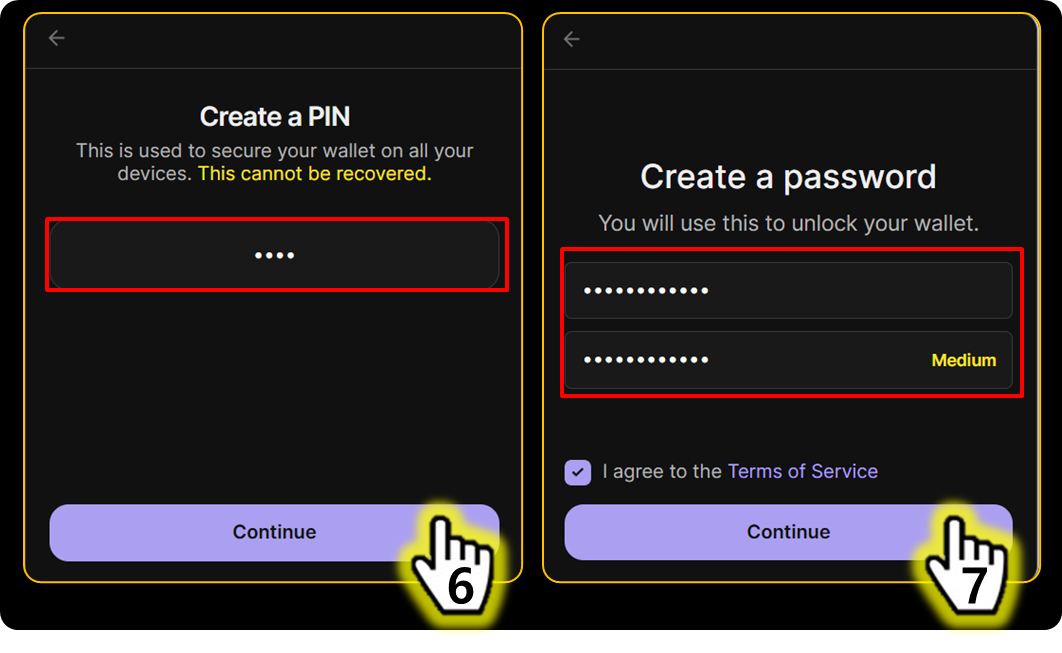
6. Create a PIN and Click \[Continue]
7. Create and confirm a password, then Click \[Continue]

<figure><img src="https://2902267430-files.gitbook.io/~/files/v0/b/gitbook-x-prod.appspot.com/o/spaces%2F5LAEHDS7jvCC6hgJFI2D%2Fuploads%2FtoYlElV7KSwze39cJZiQ%2Fimage.png?alt=media&amp;token=295d00f4-3a00-4da8-9f87-9209a2ef0d64" alt="" width="563"><figcaption></figcaption></figure>

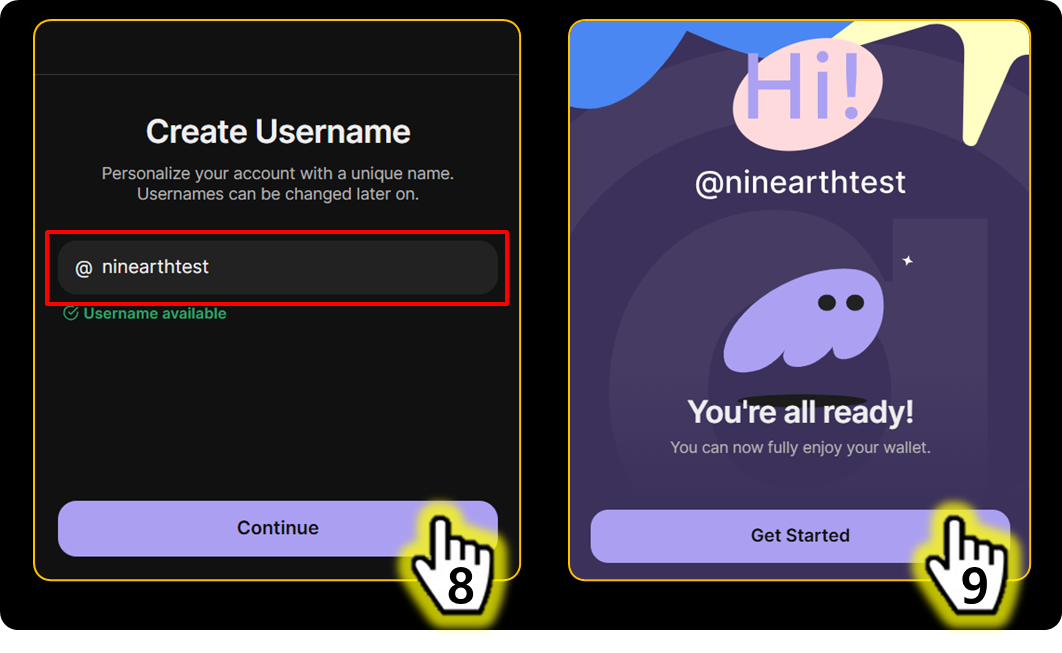
8. Set your username and Click \[Continue]
9. Done. Your new wallet address has now been successfully created. Click \[Get Started]
   {% endstep %}

{% step %}

#### <mark style="color:$primary;">Connect</mark> your Wallet

<figure><img src="https://2902267430-files.gitbook.io/~/files/v0/b/gitbook-x-prod.appspot.com/o/spaces%2F5LAEHDS7jvCC6hgJFI2D%2Fuploads%2FrlM5ZbXFYOIKoSAqUZGT%2Fimage.png?alt=media&amp;token=8e8e51b3-5801-41a9-bd8f-6a2e23e3958a" alt="" width="563"><figcaption></figcaption></figure>

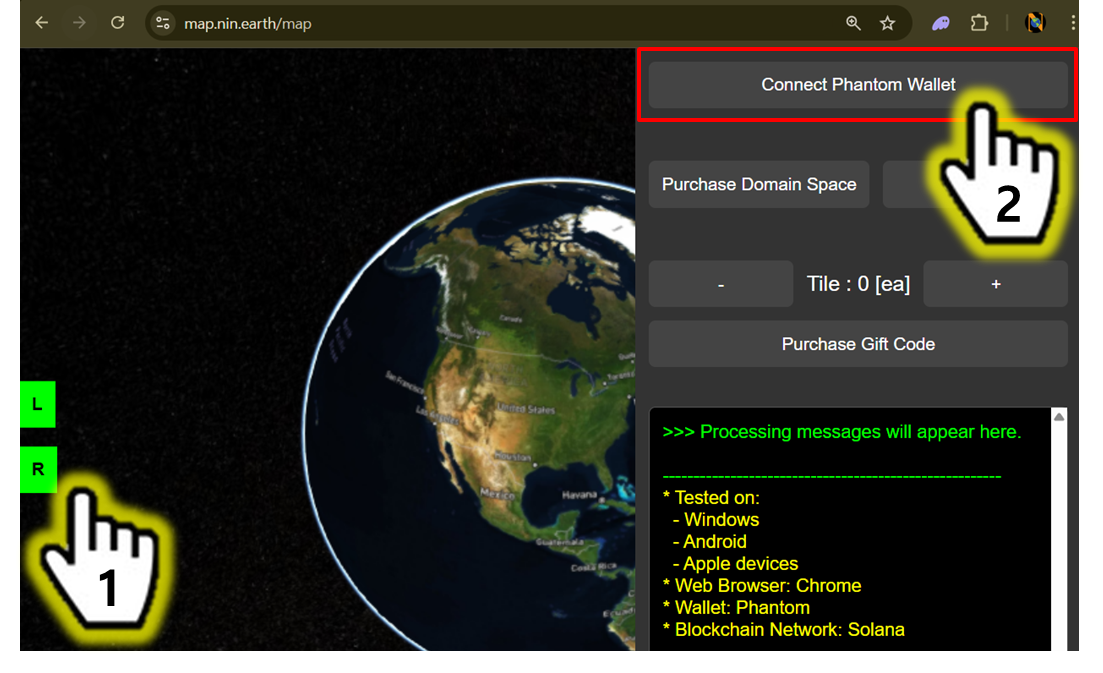
1. Click <mark style="color:$success;">R panel</mark>
2. Click \[Connect Phantom Wallet]

<figure><img src="https://2902267430-files.gitbook.io/~/files/v0/b/gitbook-x-prod.appspot.com/o/spaces%2F5LAEHDS7jvCC6hgJFI2D%2Fuploads%2FYrS87UAztlgb31OqoF61%2Fimage.png?alt=media&amp;token=c6e379bf-91bb-49bd-90c7-df88e55d9bf8" alt="" width="563"><figcaption></figcaption></figure>

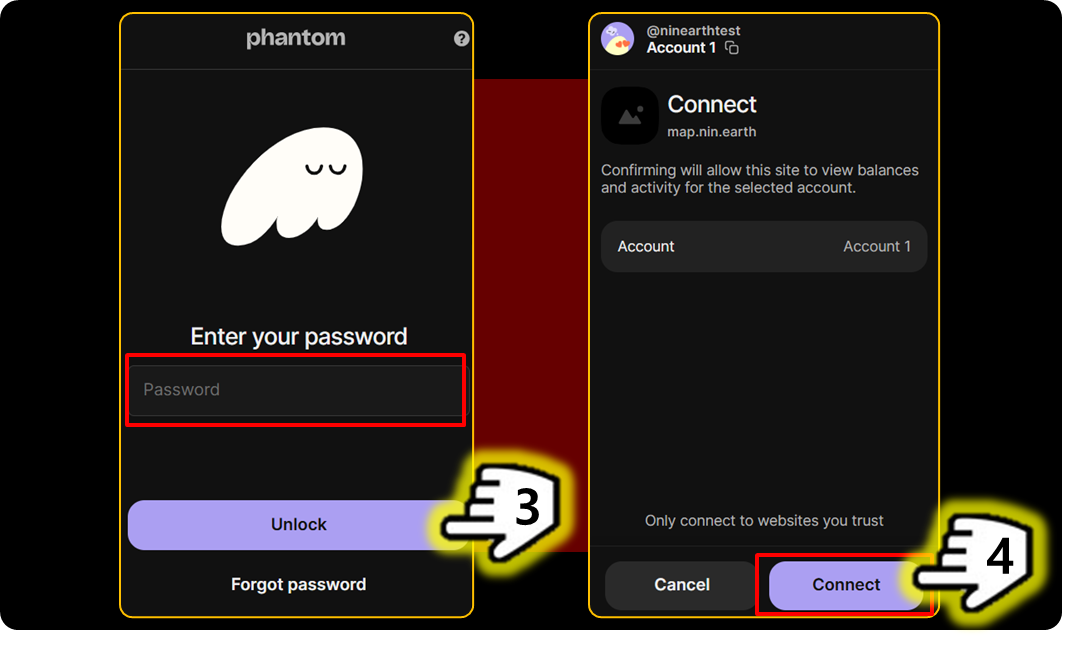
3. Enter your password and Click \[Unlock].
4. Click \[Connect] button to connect your wallet to <mark style="color:orange;">NIN.Earth</mark>.

<figure><img src="https://2902267430-files.gitbook.io/~/files/v0/b/gitbook-x-prod.appspot.com/o/spaces%2F5LAEHDS7jvCC6hgJFI2D%2Fuploads%2FHwZpx5WXgx4EGTJxKP46%2Fimage.png?alt=media&amp;token=f4c17d5c-249d-45f5-b6d5-dc5d71b0f829" alt="" width="563"><figcaption></figcaption></figure>

Once the wallet is connected, the \[Connect Phantom Wallet] button will turn <mark style="color:green;">green</mark>.

{% hint style="success" %}
Once your wallet has been connected for the first time, future visits will not require pressing Confirm again, your wallet will reconnect automatically.
{% endhint %}
{% endstep %}
{% endstepper %}
{% endtab %}

{% tab title="Mobile" %}
{% stepper %}
{% step %}

#### <mark style="color:$primary;">Install</mark> Phantom App

<figure><img src="https://2902267430-files.gitbook.io/~/files/v0/b/gitbook-x-prod.appspot.com/o/spaces%2F5LAEHDS7jvCC6hgJFI2D%2Fuploads%2FoYl1nnve2Aw3rIoqufp6%2Fimage.png?alt=media&amp;token=693d2d38-3f2e-4e0f-9b2e-2857c09d65f3" alt="" width="563"><figcaption></figcaption></figure>

Install and set up the Phantom wallet (Solana-based).

* Apple (iPhone): Search Phantom Wallet in the App Store
* Android: Search Phantom Wallet in the Google Play Store

<p align="center"> <a href="https://play.google.com/store/apps/details?id=app.phantom" class="button primary" data-icon="mobile">Download Phantom</a></p>
{% endstep %}

{% step %}

#### <mark style="color:$primary;">Create</mark> a new wallet

{% hint style="success" %}

### INTRODUCE

There are several ways to create a new wallet address, but this guide introduces the simplest method: creating a wallet using your (google) email.
{% endhint %}

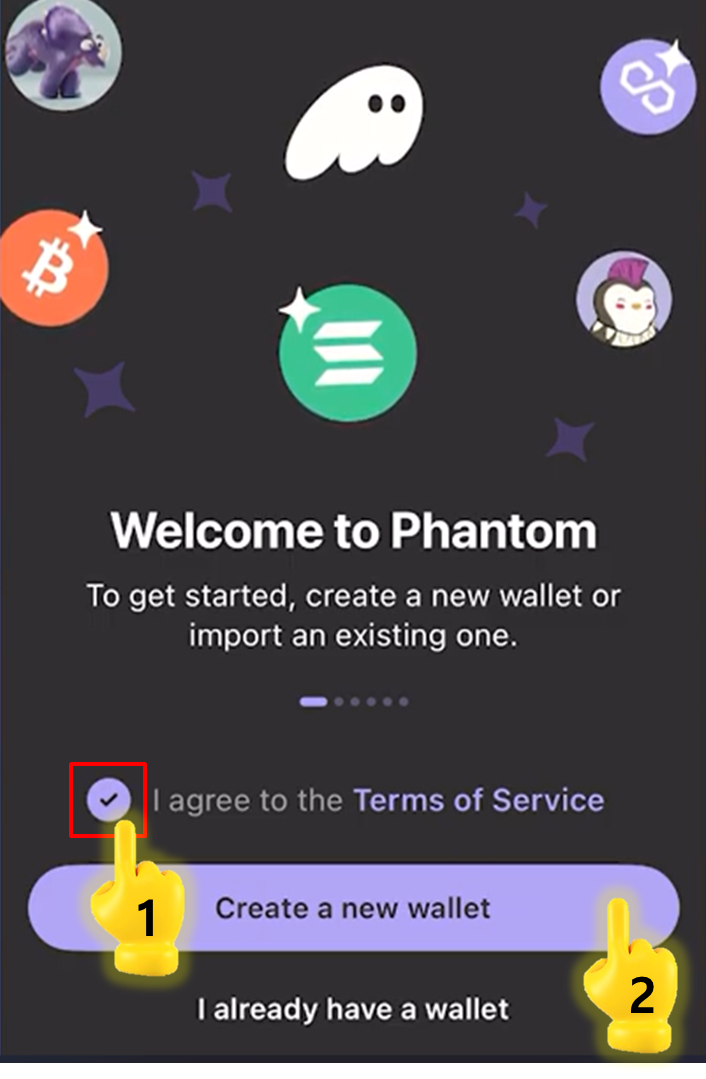
<figure><img src="https://2902267430-files.gitbook.io/~/files/v0/b/gitbook-x-prod.appspot.com/o/spaces%2F5LAEHDS7jvCC6hgJFI2D%2Fuploads%2FiEBs8qnBvHHm4t2INhJe%2Fimage.png?alt=media&amp;token=a5606810-0f50-48f5-ac20-fa7b9640d520" alt="" width="353"><figcaption></figcaption></figure>

1. Check \[Terms of Service]
2. Tap \[Create a new wallet]

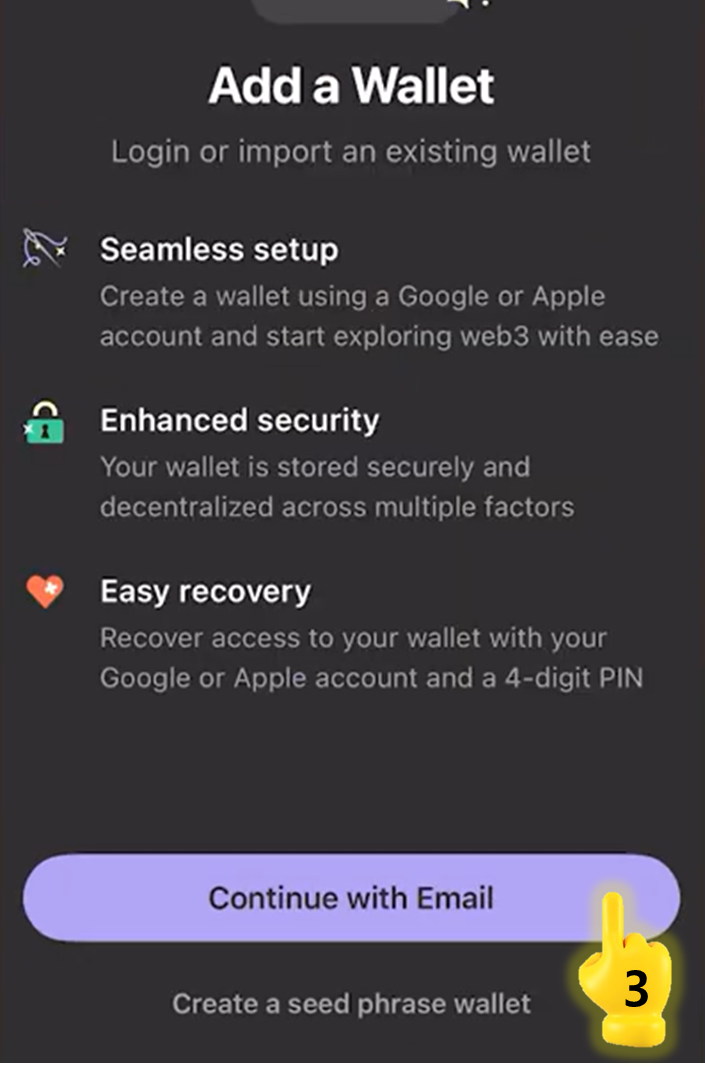
<figure><img src="https://2902267430-files.gitbook.io/~/files/v0/b/gitbook-x-prod.appspot.com/o/spaces%2F5LAEHDS7jvCC6hgJFI2D%2Fuploads%2FpDYX6zM0VPe0DwaOrEi8%2Fimage.png?alt=media&amp;token=ccbced39-7657-4053-b4c3-0bba640fe902" alt="" width="353"><figcaption></figcaption></figure>

3. Tap \[Continue with Email]

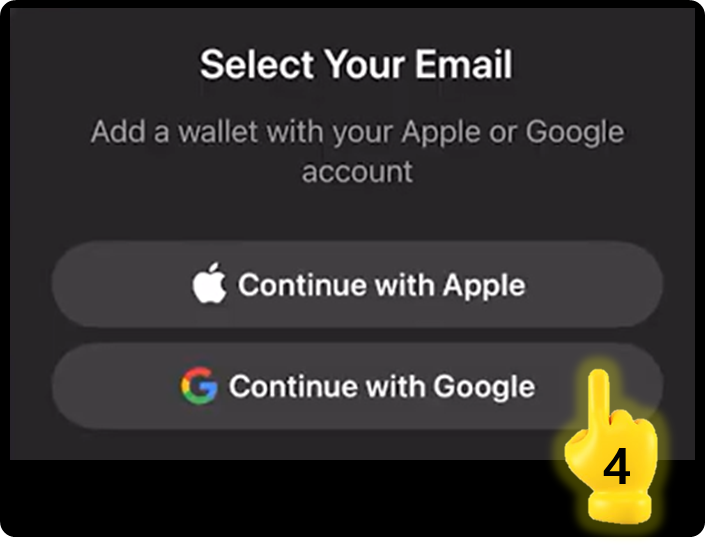
<figure><img src="https://2902267430-files.gitbook.io/~/files/v0/b/gitbook-x-prod.appspot.com/o/spaces%2F5LAEHDS7jvCC6hgJFI2D%2Fuploads%2FfWy1oD74HvyVvI4pO61U%2Fimage.png?alt=media&amp;token=f9ab7706-d6dd-4d3d-ad2e-8f3f209ccc2b" alt="" width="353"><figcaption></figcaption></figure>

4. Tap \[Countinue with Google]

<figure><img src="https://2902267430-files.gitbook.io/~/files/v0/b/gitbook-x-prod.appspot.com/o/spaces%2F5LAEHDS7jvCC6hgJFI2D%2Fuploads%2FLztKr9HpQn7bnVwt204r%2Fimage.png?alt=media&amp;token=aeaae554-cdd0-4606-8d49-e7d163f7bf19" alt="" width="353"><figcaption></figcaption></figure>

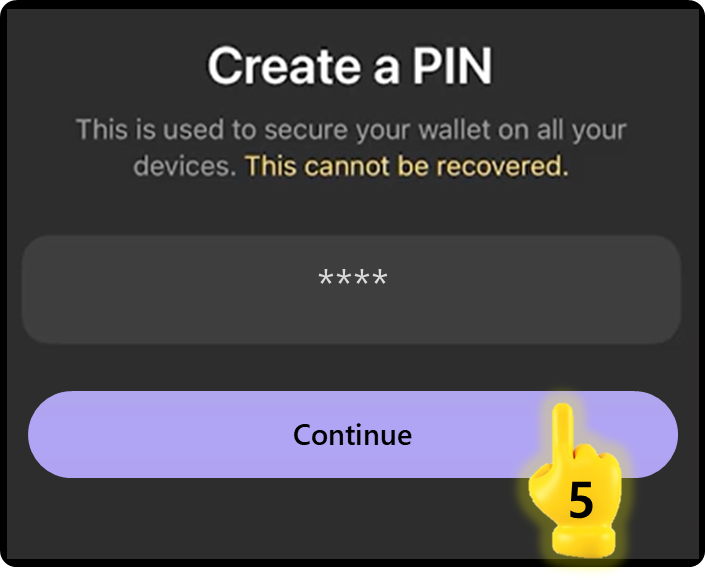
5. Create a PIN number and Tap \[Continue]

<figure><img src="https://2902267430-files.gitbook.io/~/files/v0/b/gitbook-x-prod.appspot.com/o/spaces%2F5LAEHDS7jvCC6hgJFI2D%2Fuploads%2FVFkQF4O8PKPVySTCJZpp%2Fimage.png?alt=media&amp;token=312cfcb5-a198-47e5-b036-2baa434bf76c" alt="" width="353"><figcaption></figcaption></figure>

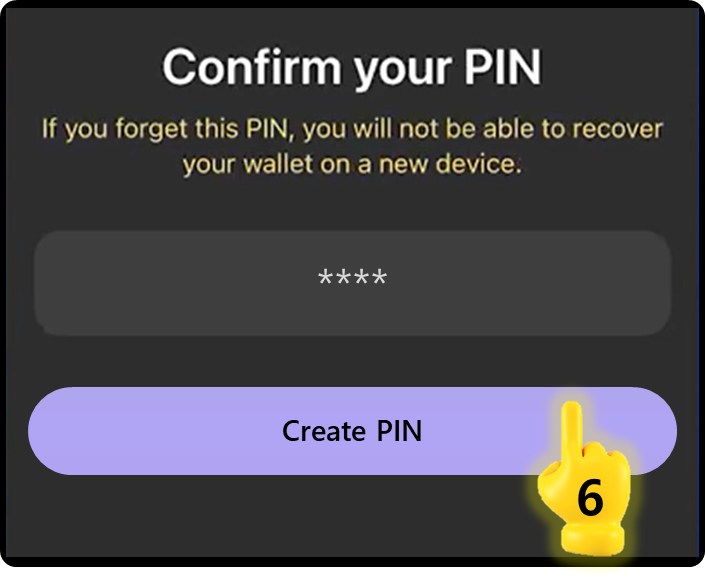
6. Confirm your PIN number and Tap \[Create PIN]

<figure><img src="https://2902267430-files.gitbook.io/~/files/v0/b/gitbook-x-prod.appspot.com/o/spaces%2F5LAEHDS7jvCC6hgJFI2D%2Fuploads%2F8T6yoWzSp3rTVjLyN1jM%2Fimage.png?alt=media&amp;token=a5ea773a-ff61-458d-ada7-ad85f66233c9" alt="" width="353"><figcaption></figcaption></figure>

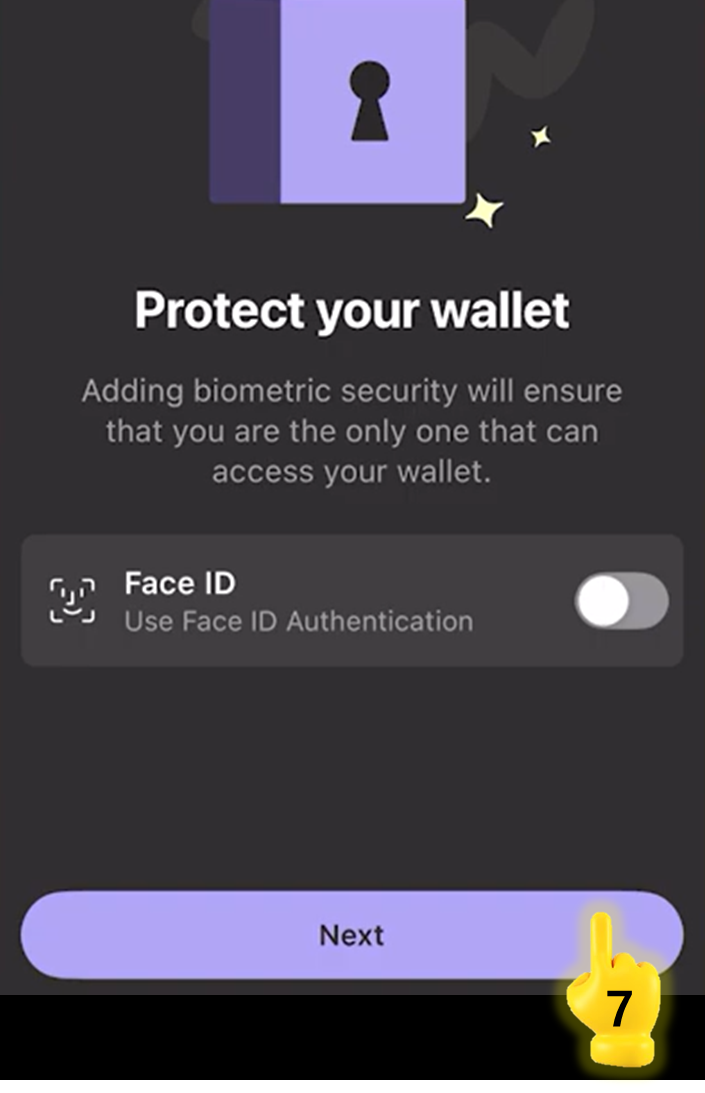
7. Tap \[Next]

{% hint style="info" %}
You can create \[Face ID] to protect your wallet, but we will skip this step for now.
{% endhint %}

<figure><img src="https://2902267430-files.gitbook.io/~/files/v0/b/gitbook-x-prod.appspot.com/o/spaces%2F5LAEHDS7jvCC6hgJFI2D%2Fuploads%2FLzAxMIyRPslgFjps1Mxp%2Fimage.png?alt=media&amp;token=a9b2806a-896c-4a88-9b3d-440dc784216a" alt="" width="353"><figcaption></figcaption></figure>

8. Tap \[Get Started] and Done.
   {% endstep %}

{% step %}

#### <mark style="color:$primary;">Tap</mark> \[Connect Phantom Wallet]

<figure><img src="https://2902267430-files.gitbook.io/~/files/v0/b/gitbook-x-prod.appspot.com/o/spaces%2F5LAEHDS7jvCC6hgJFI2D%2Fuploads%2FIQxkdGNz1nCy7YKwTdhJ%2Fimage.png?alt=media&amp;token=e13bf8a1-c84b-4dbb-b4ce-3c4e6ca1f230" alt="" width="360"><figcaption></figcaption></figure>

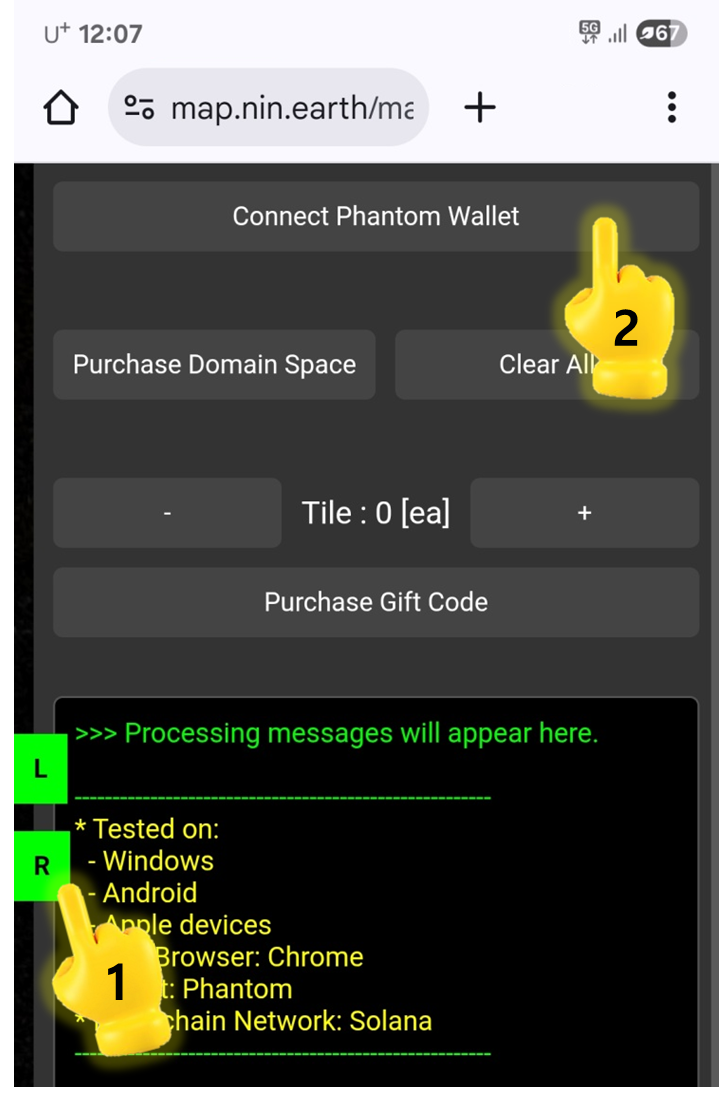
1. Tap <mark style="color:$success;">R panel</mark>
2. Tap \[Connect Phantom Wallet]

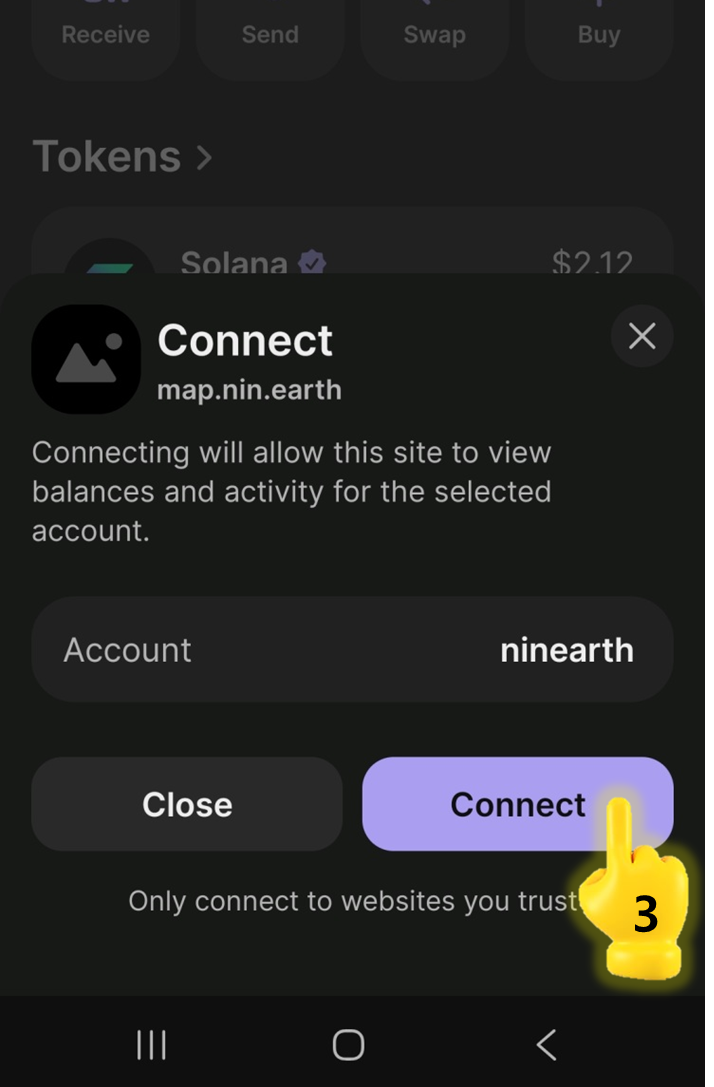
<figure><img src="https://2902267430-files.gitbook.io/~/files/v0/b/gitbook-x-prod.appspot.com/o/spaces%2F5LAEHDS7jvCC6hgJFI2D%2Fuploads%2FSrqC6dWy1RW0z4X47Oye%2Fimage.png?alt=media&amp;token=a3a00837-09cc-4fdd-9b5b-c14538c7dd44" alt="" width="357"><figcaption></figcaption></figure>

3. Log in Phantom app and Tap \[Connect]

{% hint style="info" %}
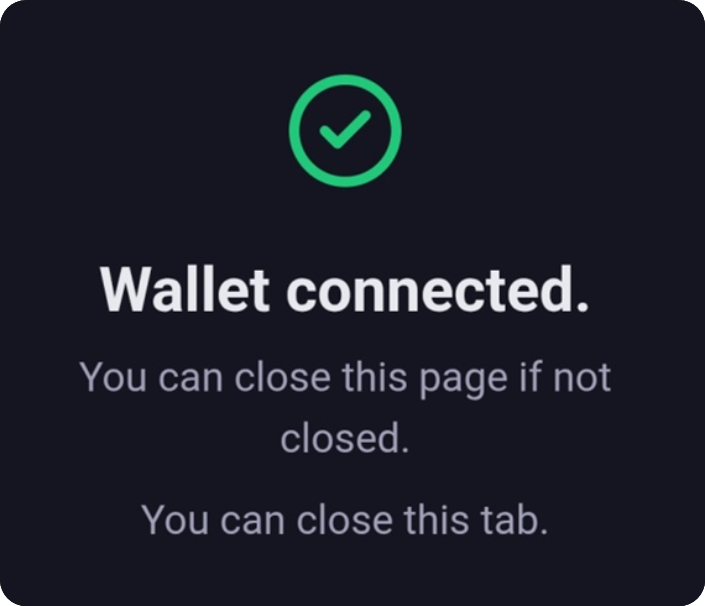
The Phantom App will open automatically, and once you tap \[Connect], it will close automatically and return you to the previous <mark style="color:orange;">NIN.Earth</mark> website screen.
{% endhint %}

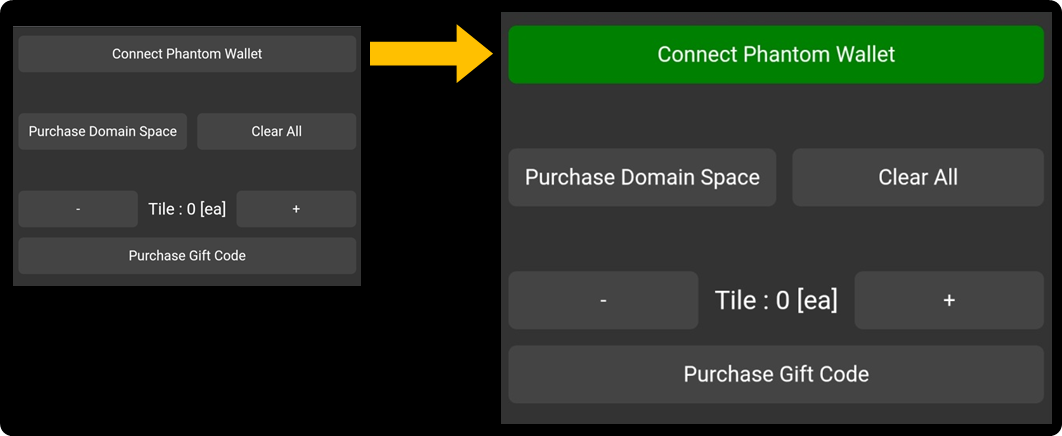
<figure><img src="https://2902267430-files.gitbook.io/~/files/v0/b/gitbook-x-prod.appspot.com/o/spaces%2F5LAEHDS7jvCC6hgJFI2D%2Fuploads%2FyiuNjmZi3jrBxUSjDn1L%2Fimage.png?alt=media&amp;token=6a336c9c-5b53-48e0-b728-569b749753dd" alt="" width="353"><figcaption></figcaption></figure>

After approval, the \[Connect Phantom Wallet] button will turn <mark style="color:green;">green</mark>. This indicates that your wallet is successfully connected to <mark style="color:orange;">NIN.Earth</mark>.

<figure><img src="https://2902267430-files.gitbook.io/~/files/v0/b/gitbook-x-prod.appspot.com/o/spaces%2F5LAEHDS7jvCC6hgJFI2D%2Fuploads%2FnxGXOpFPo7lOlcKNEqJZ%2Fimage.png?alt=media&amp;token=0a9ec1c8-3f41-42e3-b6de-cdef3c431223" alt="" width="563"><figcaption></figcaption></figure>

{% hint style="success" %}
Once your wallet has been connected for the first time, future visits will not require pressing Confirm again, your wallet will reconnect automatically.
{% endhint %}
{% endstep %}
{% endstepper %}
{% endtab %}
{% endtabs %}