




Page cover

Quick start

Guiding you through each step


How do I find the Tile I want?

You can find any Tile using search by coordinates, keywords, your current location, or exploring the Digital Earth manually. (e.g., Statue of Liberty)

Move to Domain Space ID

You can also search locations using a Domain Space ID.

Each Domain Space has its own unique ID. By entering this ID into the search bar, you can instantly locate the exact Tile and position it on the Digital Earth

1

Click Digital Earth

Q-click earth-gate page

Click Digital Earth on the gate page to enter.

2

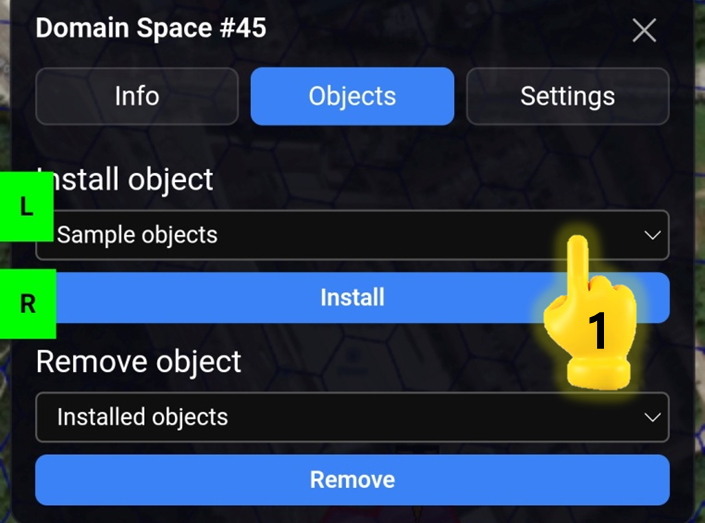
Click L panel

Click L panel.

3

Enter the Domain Name

Click the pin-shaped ‘Move to Location’ tool, enter the Domain Space ID (# + number; e.g. #12345), and press Enter.

The globe will move directly to that location.

Move to Domain Name

You can search directly using a Domain Name. This lets you find a Domain Space quickly.

For example, enter blog.nin.earth, NIN.Earth will locate the Domain Space linked to that Domain Name and display its connected space.

With Domain Name search, familiar web addresses turn into discoverable spaces on the Digital Earth.

1

Click Digital Earth

Q-click earth-gate page

Click Digital Earth on the gate page to enter.

2

Click L panel

Click L panel.

3

Enter the Domain Space ID

Click the pin-shaped ‘Move to Location’ tool, enter the Domain Name (e.g. blog.nin.earth), and press Enter.

The globe will move directly to that location.

NOTE

Move To Coordinates

You can move directly to any Tile in NIN.Earth by pasting latitude–longitude coordinates. (e.g., 40.68916, -74.04448 for Statue of Liberty)

1

Get the Coordinates

Use Google Map to retrieve the latitude–longitude values of the place you want. (e.g., 40.68916, -74.04448 for Statue of Liberty)

2

Click Digital Earth

Q-click earth-gate page

Click Digital Earth on the gate page to enter.

3

Click L panel

On the left side, click L panel to open the menu.

4

Enter the Coordinates

Click the pin-shaped ‘Move to Location’ tool, enter the latitude–longitude coordinates, and press Enter.

The globe will move directly to that location.

Move to Current Location

You can instantly jump to the tile where you are physically standing by using the red concentric-circle 'Move to Current Location' button.

1

Click Digital Earth

Q-click earth-gate page

Click Digital Earth on the gate page to enter.

2

Click L panel

Click L panel.

3

Click the red concentric-circle

The globe will immediately move to your current Tile, and the Tile you are standing on will be centered.

Exploring Earth manually

You can freely move across the globe and locate places using your own geographic sense. (e.g., Statue of Liberty)

1

Click Digital Earth

Q-click earth-gate page

Click Digital Earth on the gate page to enter.

2

Rotate the globe until the United States is visible.

Zoom & move to the target area.

Move toward the east coast and find New York State. Zoom into the New York City area. Continue adjusting until you see the island marked Statue of Liberty.

Click L panel if needed. Use navigation tools for smoother movement.

Search by Keyword

Use when you know the name of a place or landmark. (e.g., Statue of Liberty)

1

Click Digital Earth

Q-click earth-gate page

Click Digital Earth on the gate page to enter.

2

Click L panel

Click L panel.

3

Click

Click the [magnifying glass] icon to open "Search for a Location".

4

Type & Enter Statue of Liberty

Type Statue of Liberty into the search bar and press Enter on your keyboard.

The Digital Earth view will automatically move to the Statue of Liberty area, where you can zoom in and select the Tile you want.


How do I Select Tiles?

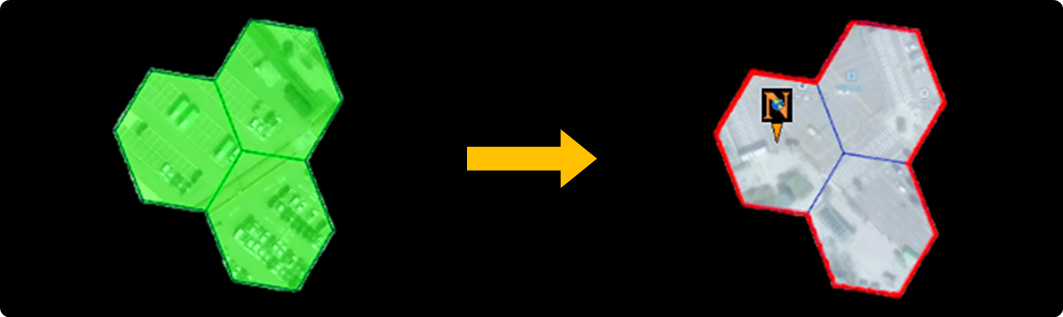
You can select tiles one by one or in groups (up to 35 tiles).

They can form any shape, but all selected tiles must be connected to each other. You can also clear all selections easily.

Select Tiles

1

Click Digital Earth

Q-click earth-gate page

Click Digital Earth on the gate page to enter.

2

Find your desired Location

Use the various location-search functions in the L panel. For details, refer to How do I find the Tile I want?

3

Right-Click Tiles

You can select 1 Tile or up to 35 connected Tiles. Right-click a Tile to select it.

4

Multi Selection

Press Ctrl + M to activate Multi selection mode.

When Multi selection is on, Tiles are selected automatically as your mouse moves, no right-click needed.

You will also see the message “Multi selection is on” displayed at the top of your screen.

This feature is available on PC only.

Clear selected Tiles

There are 3 ways to clear Tile selections.

1

Right-Click the Tile Again

Right-click any selected Tile to deselect it.

2

Use R panel

Click R panel.

Click [Clear All] button to remove all selected tiles at once.

3

Zoom Out beyond the Grid

If you zoom out high enough so that the grid disappears, all selected Tiles are automatically cleared.

You can zoom out in 2 ways:

  1. Scroll your mouse wheel backward

  2. Click [Zoom out] button in the L panel.


How do I connect my wallet?

NIN.Earth uses a Solana-based wallet.

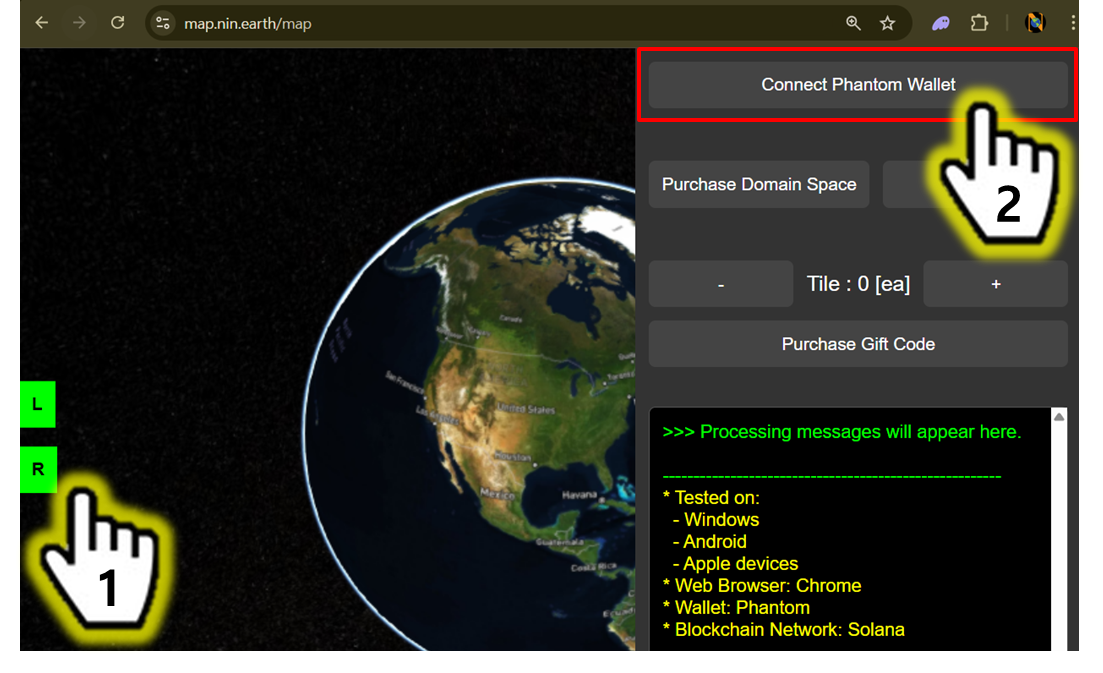
To use core features, such as Purchasing Tiles, Setting your Domain Space, you must connect a Phantom wallet on the Solana Mainnet.

Before you start, please make sure your device, browser, and wallet meet the following requirements.

Requirements

1

Add to Chrome (Phantom wallet)

You can either search portal website(e.g. Google) for "phantom wallet", or type "phantom.com" directly into your browser’s address bar.

  1. Click [Download]

  2. Click [Chrome]

  1. Click [Add to Chrome]

  2. Click [Add extension]

  • Direct link (you can skip Step 1-2 by opening this URL):

2

Pin Phantom on Chrome Extensions

  1. Click the puzzle-piece (Extensions) icon at the top-right of Chrome

  2. Click [Pin]

The Phantom icon will now appear on your toolbar.

3

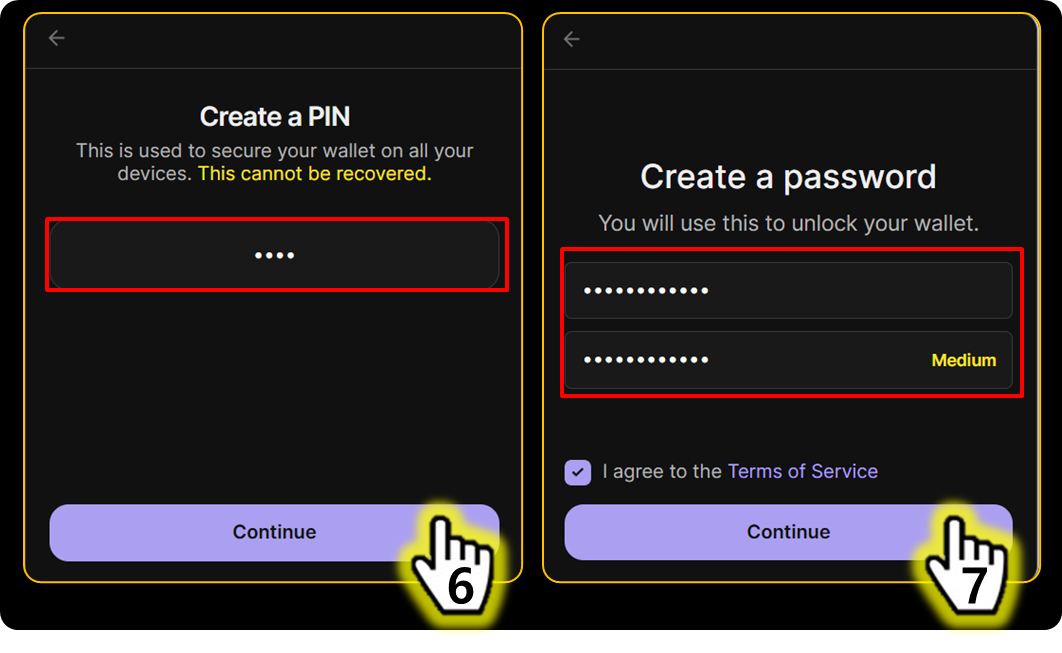
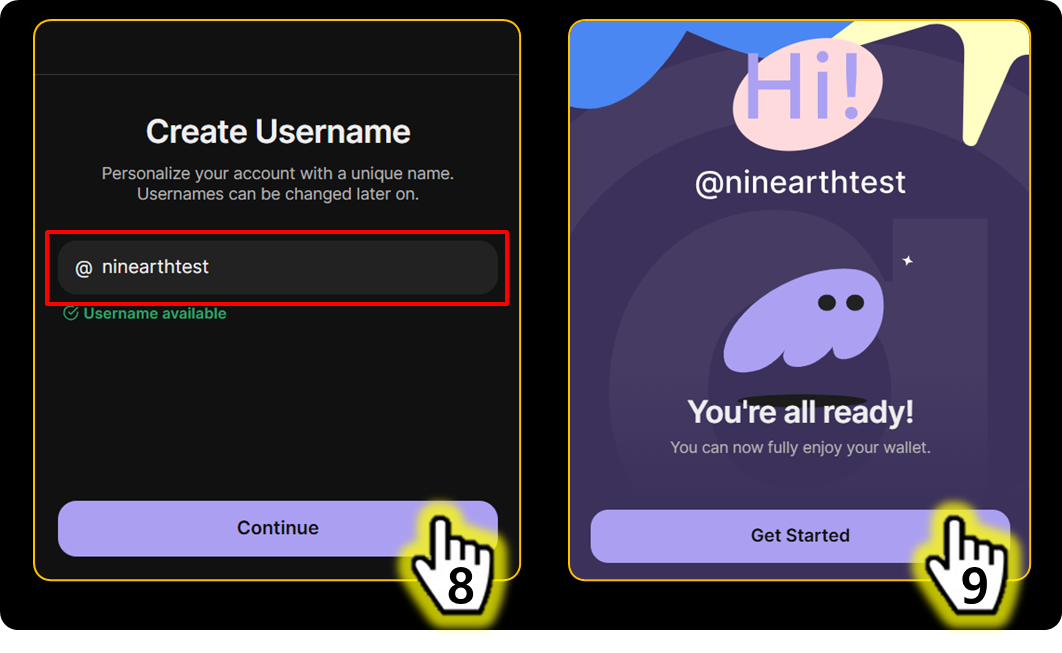
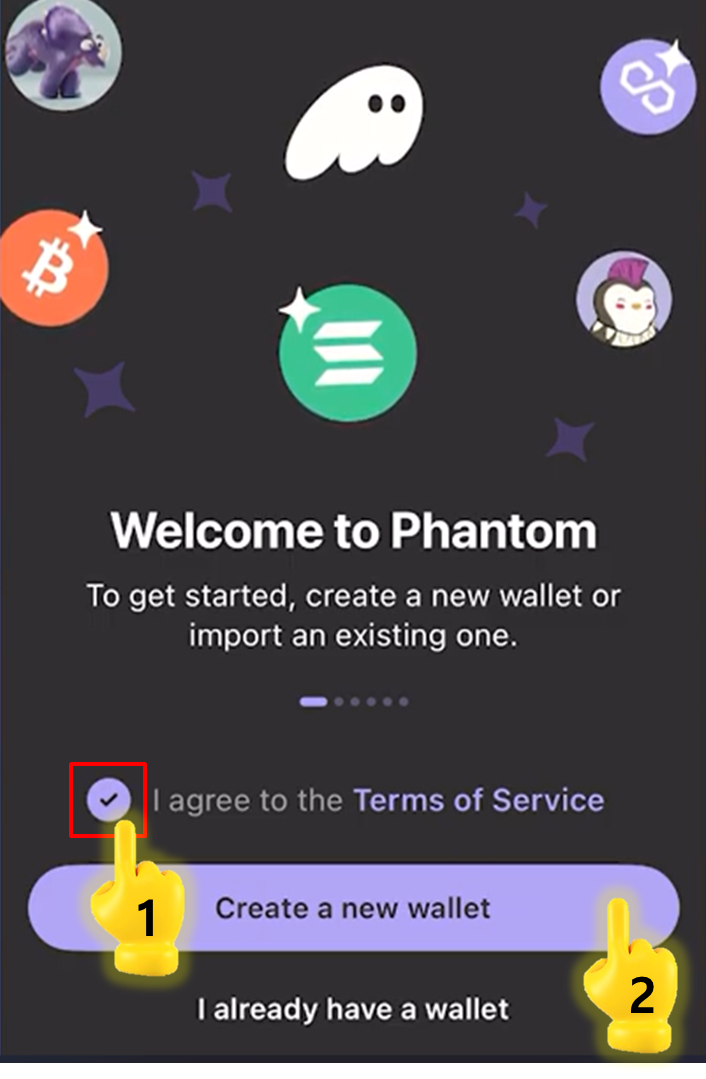
Create a new wallet

INTRODUCE

Click the Phantom icon on toolbar.

  1. Click [Create a new wallet]

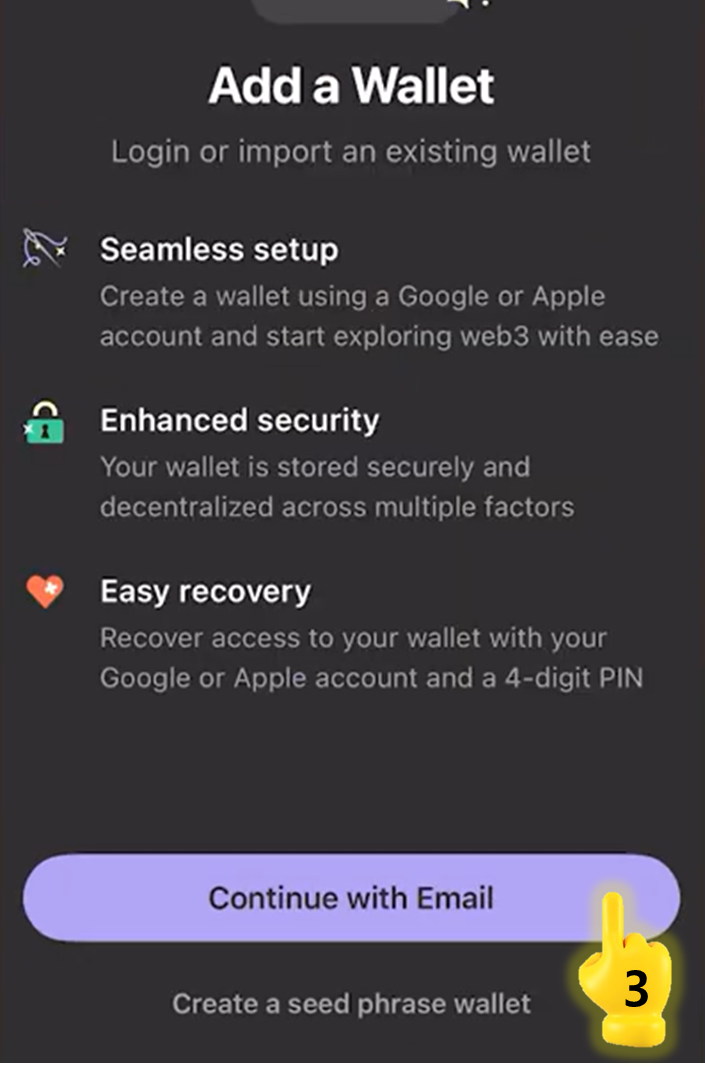
  2. Click [Continue with Email]

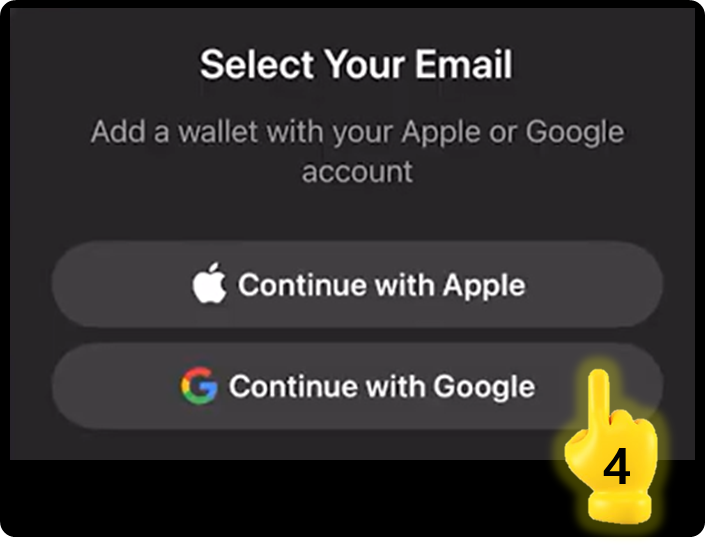
  1. Click [Google]

  2. Click your [Email account]

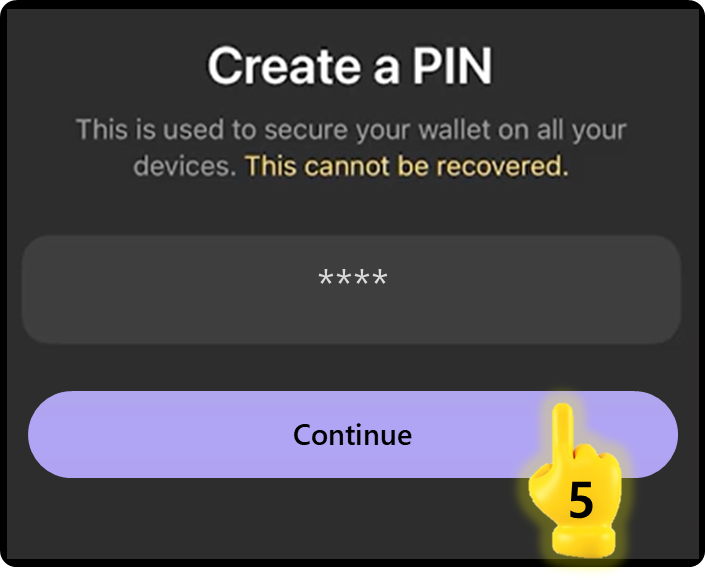
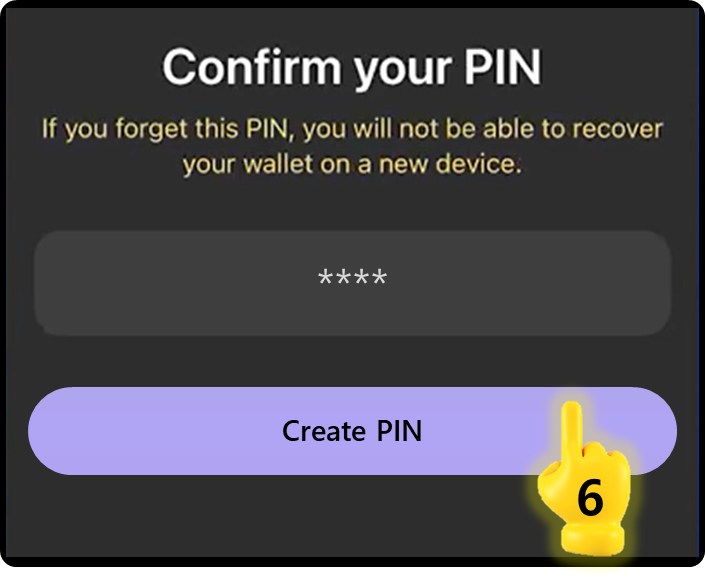
  1. Click [Continue]

4

Approve the Connection

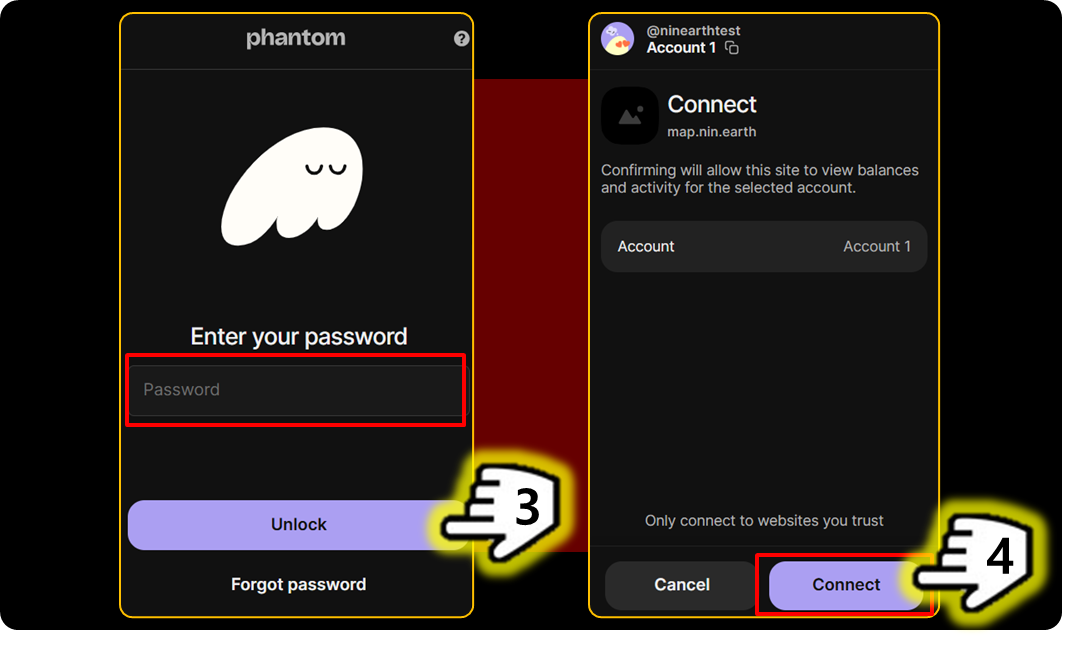
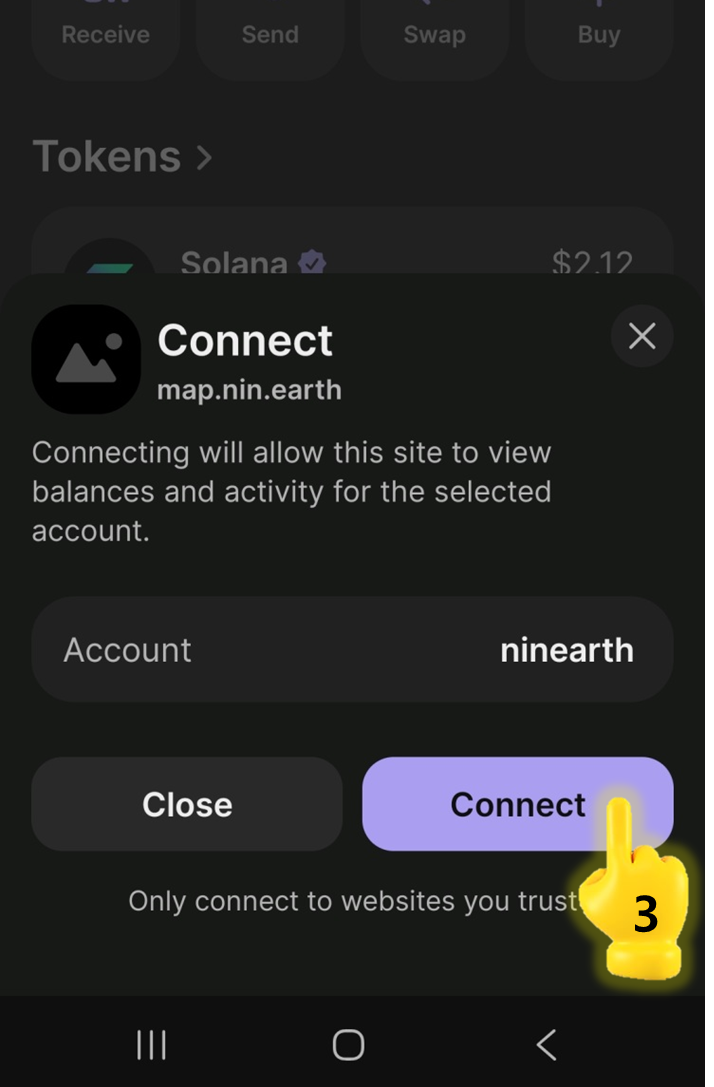
Your Phantom wallet window will open automatically. Check the connection request and Click [Confirm].

5

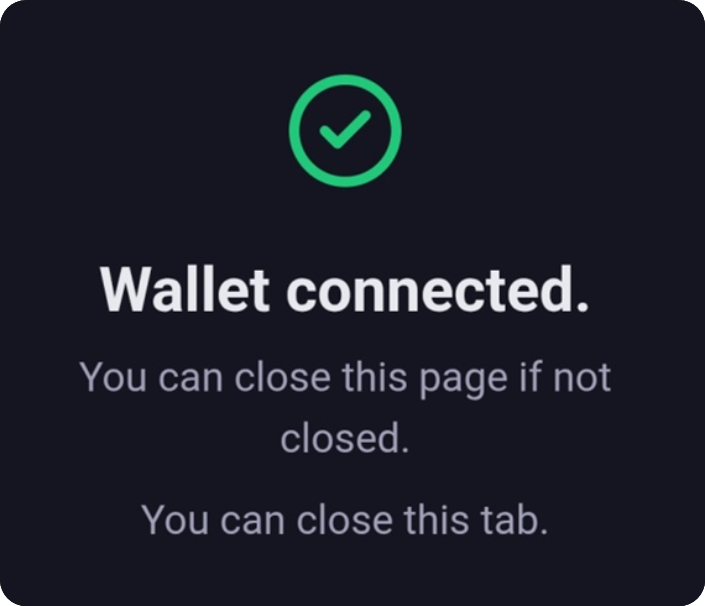
Check Connection Status

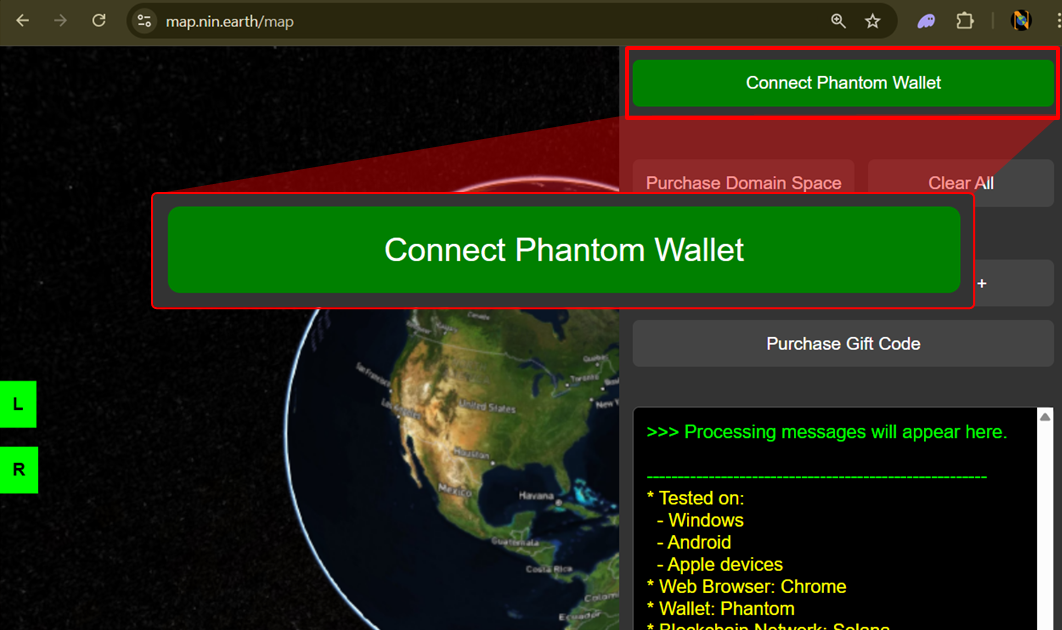
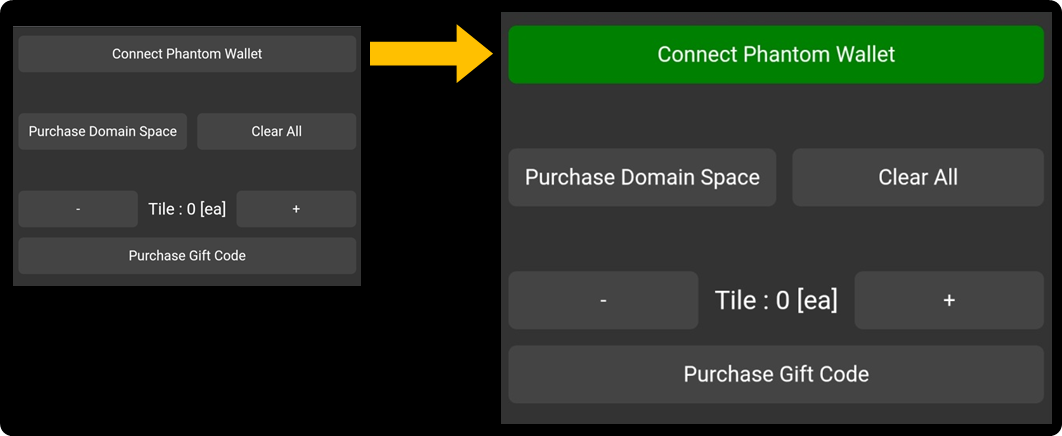
After approval, the [Connect Phantom Wallet] button will turn green. This indicates that your wallet is successfully connected to NIN.Earth.


How do I purchase Tiles?

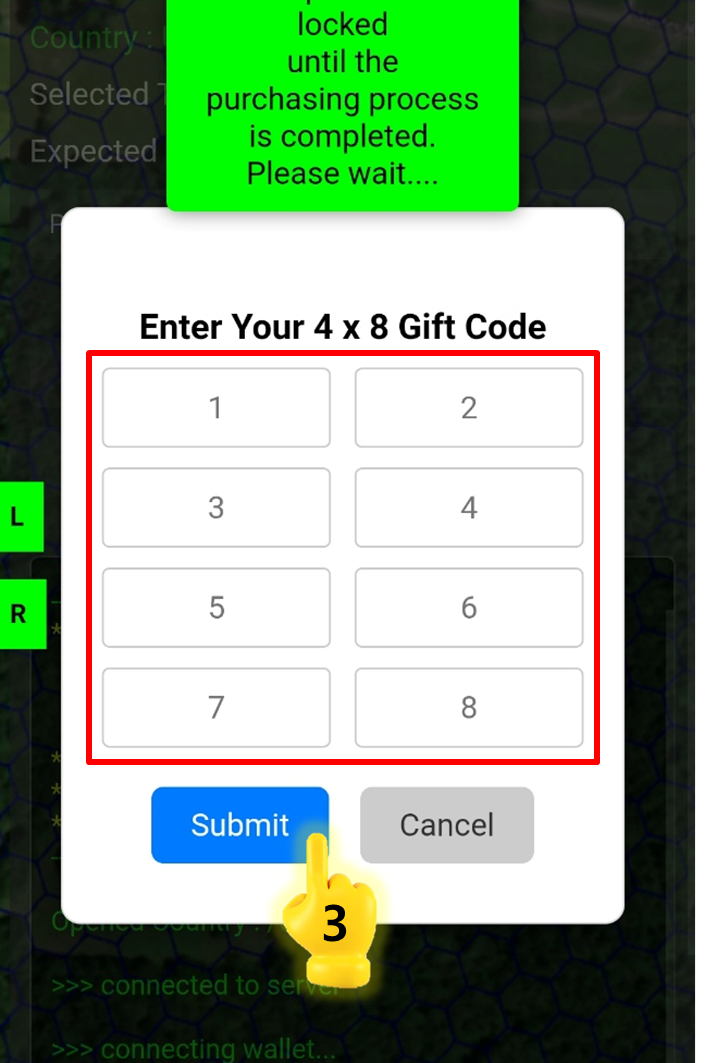
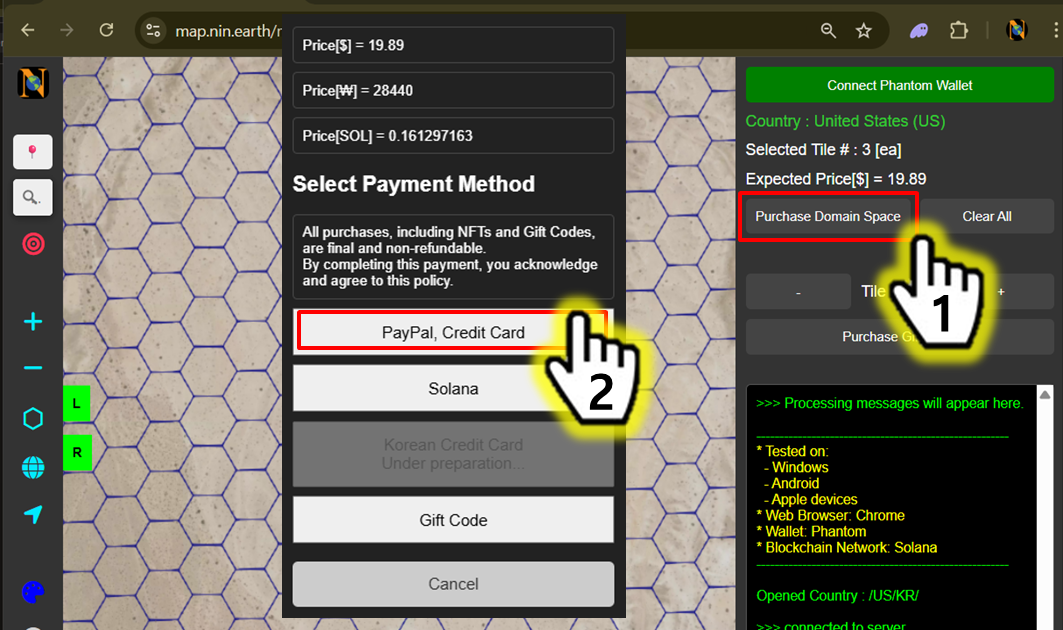
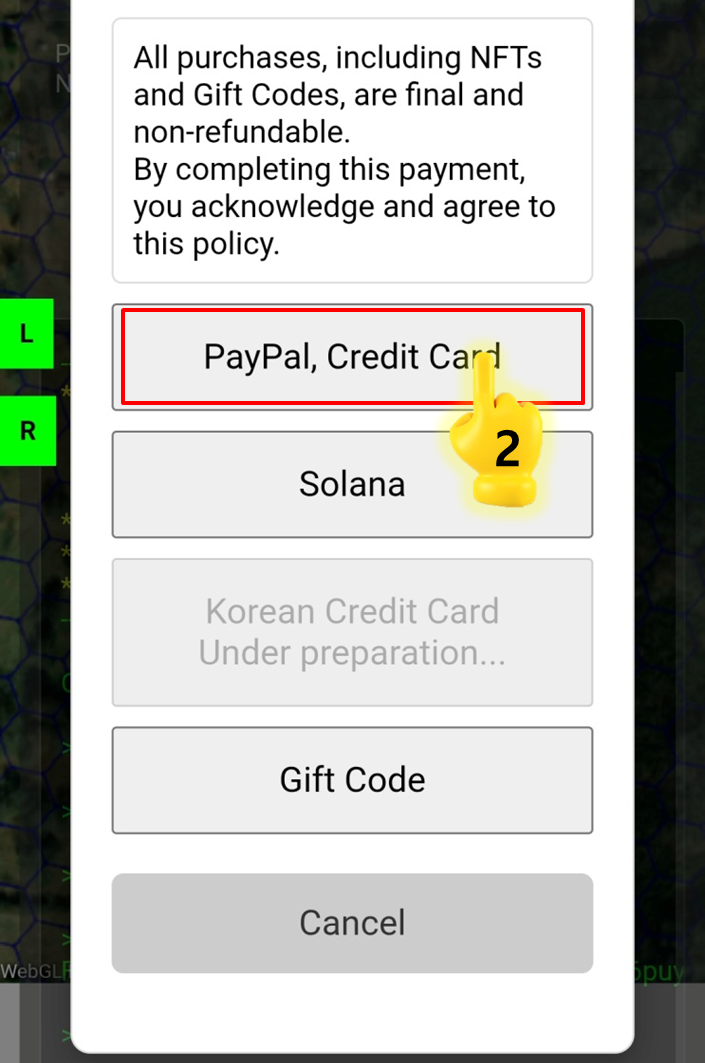
NIN.Earth currently supports 3 active payment methods for buying tiles. Users can choose the option that best suits their environment.

Crypto (Solana)

You can buy Tiles using SOL through your connected Solana wallet (e.g., Phantom).

Gift Code

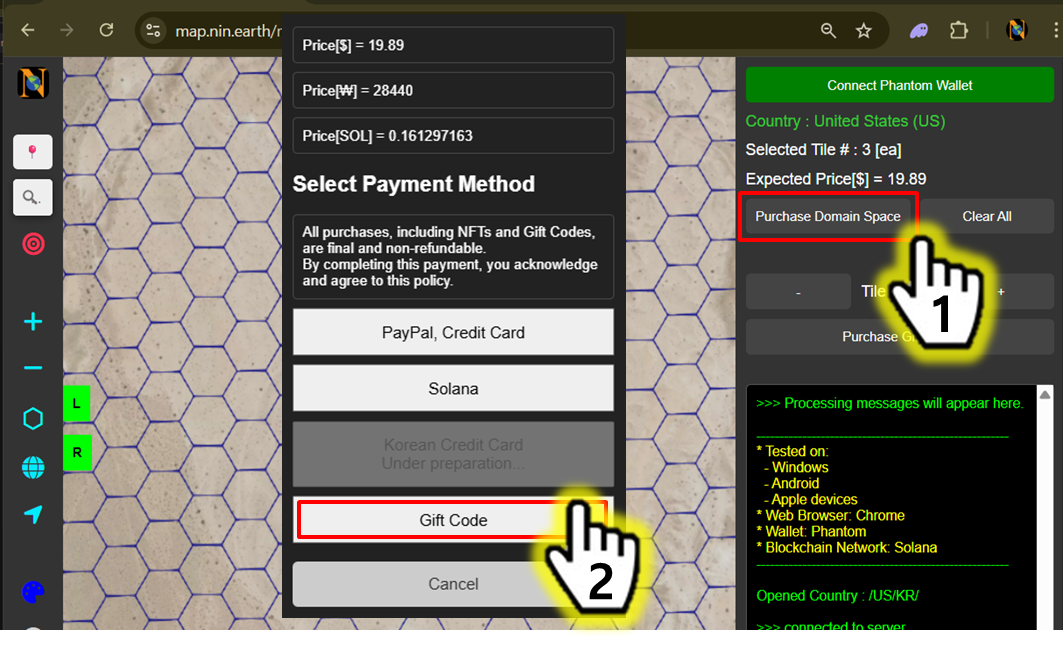
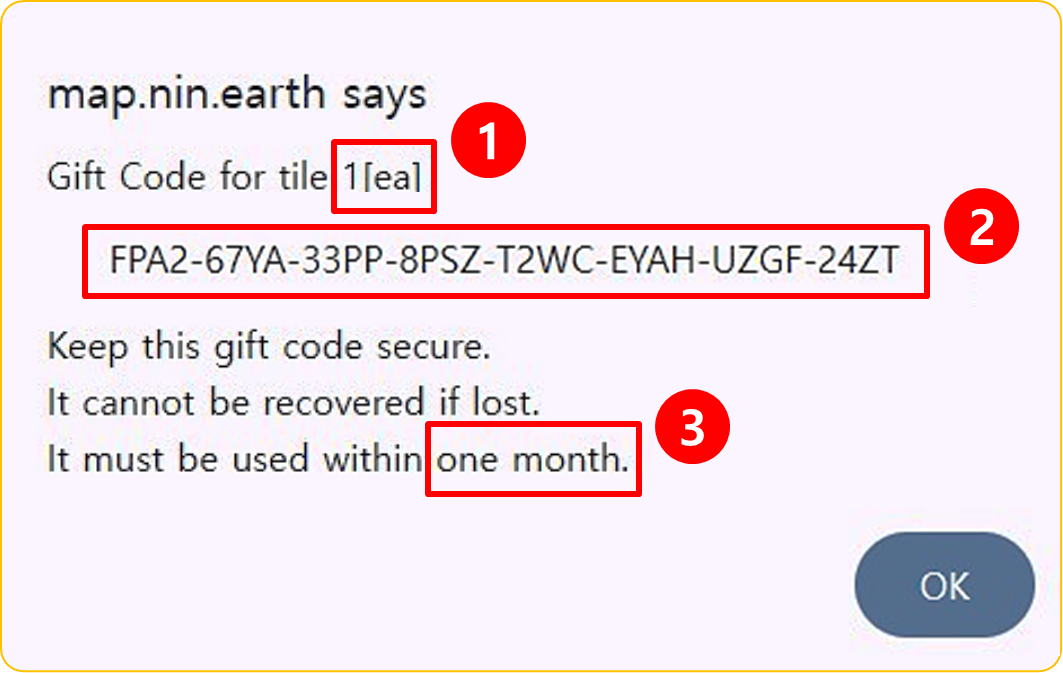
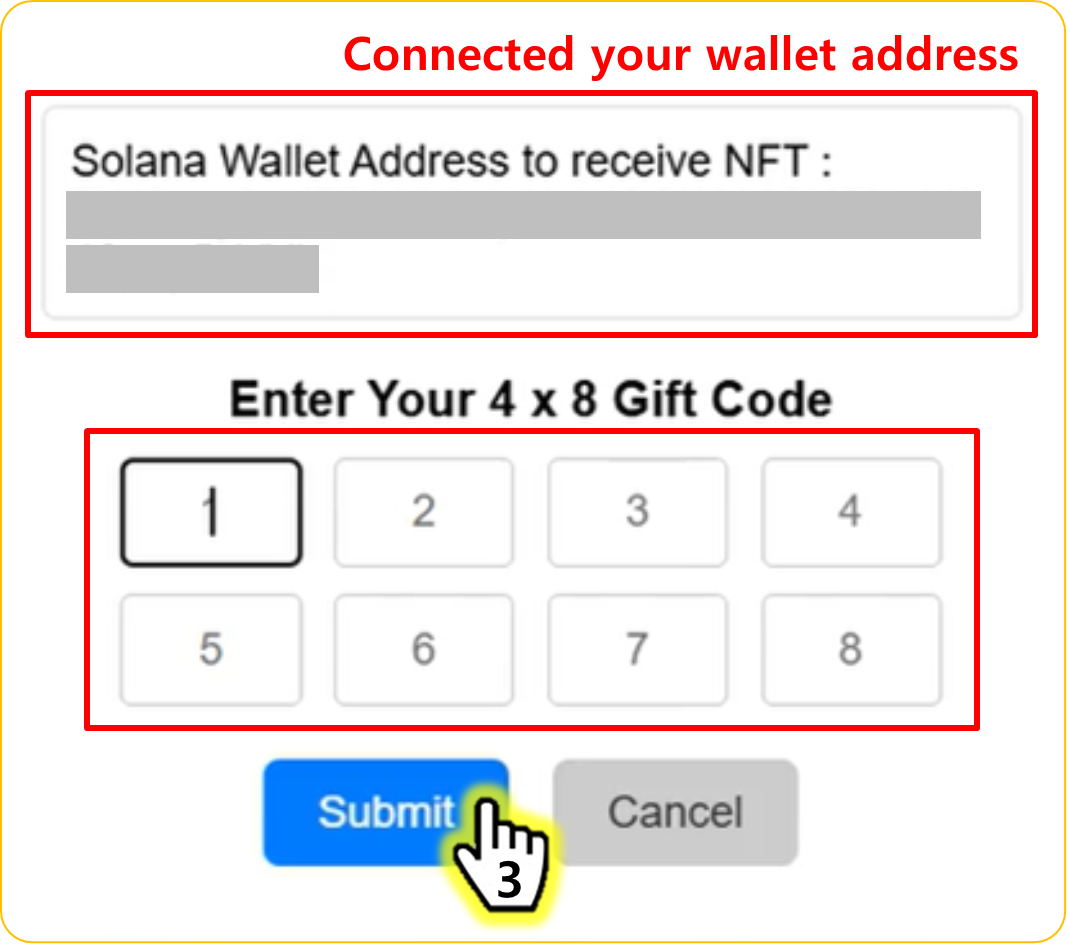
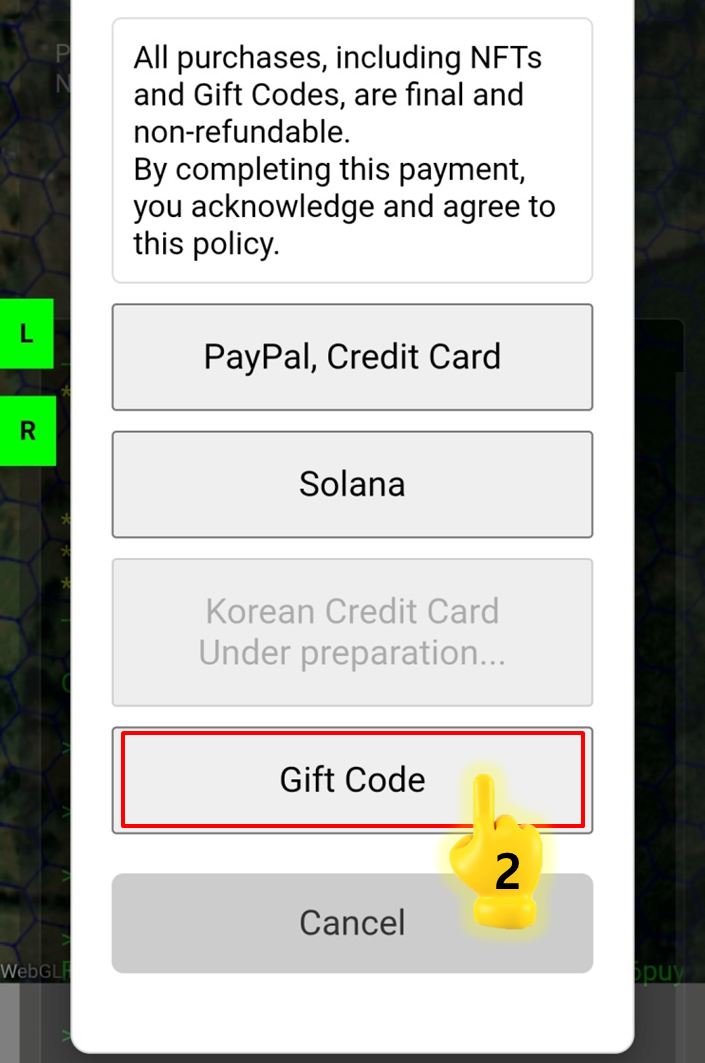
If you have a gift code, you can redeem it directly to acquire Tiles.

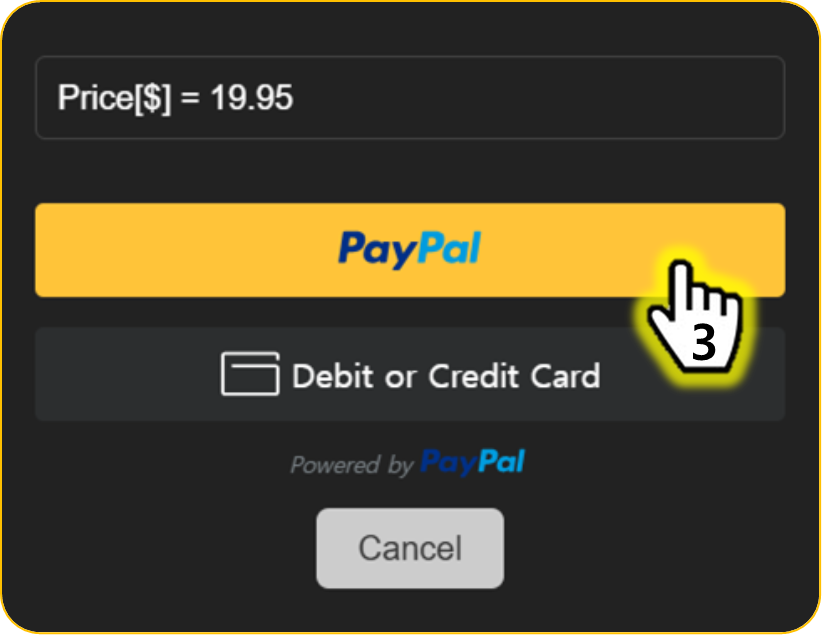
PayPal

You can use PayPal or supported credit/debit cards to complete your purchase.

1

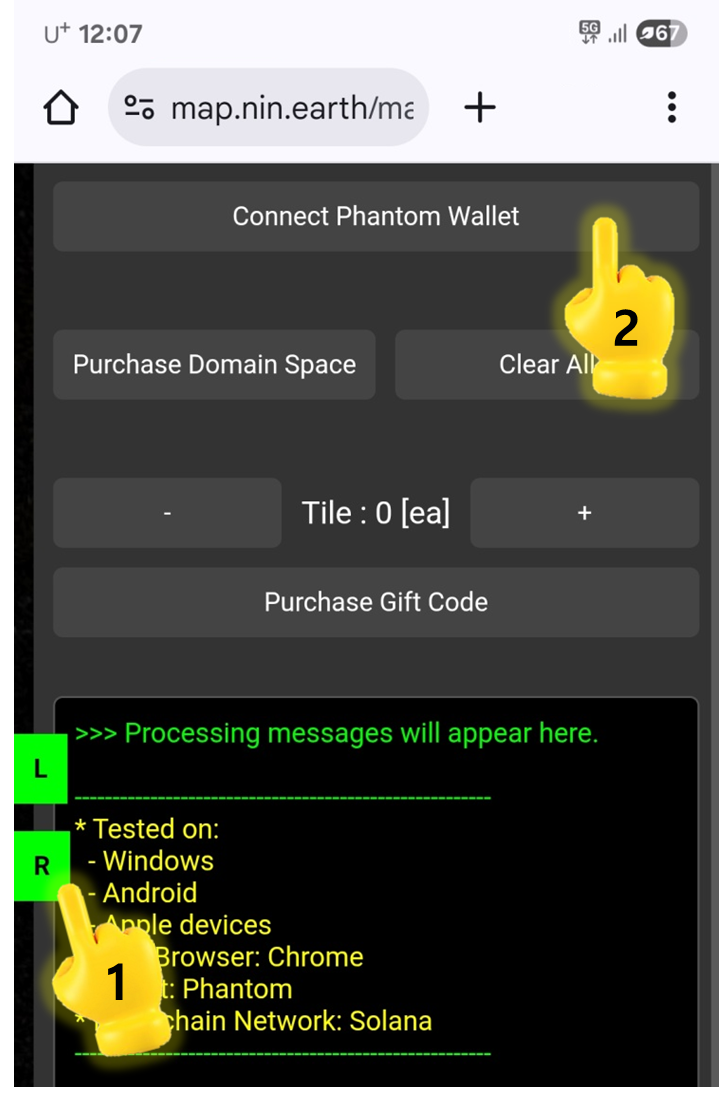
Click [Connect Phantom Wallet]

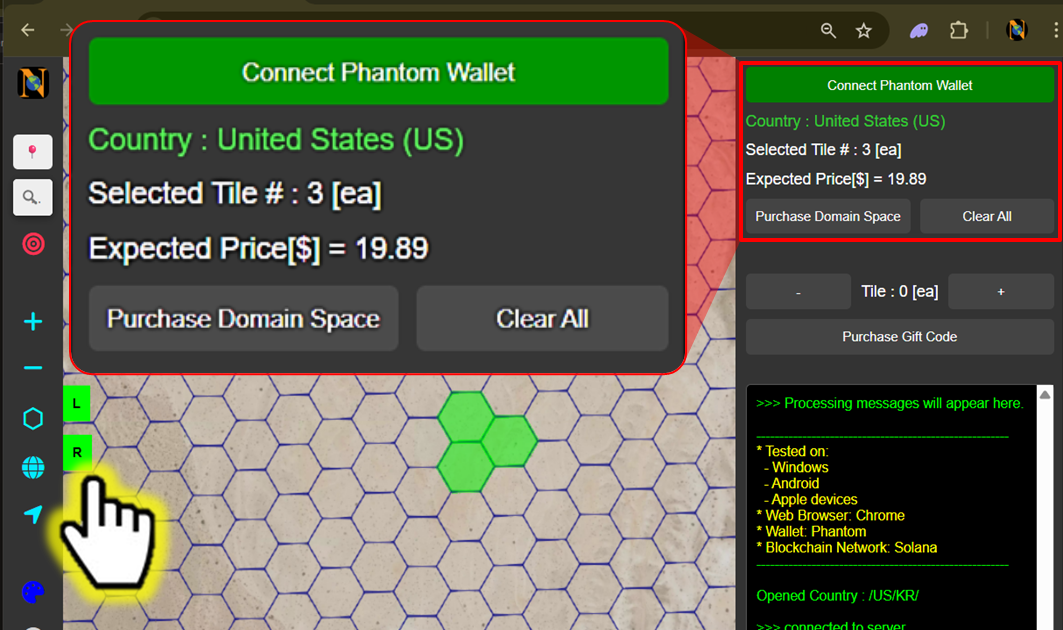
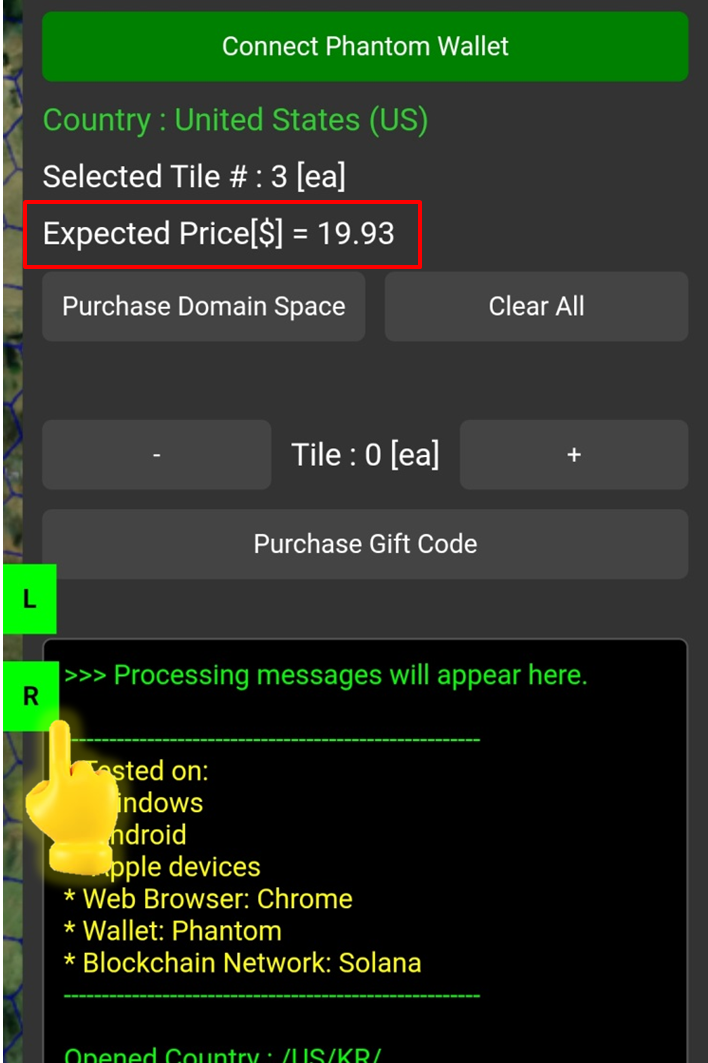
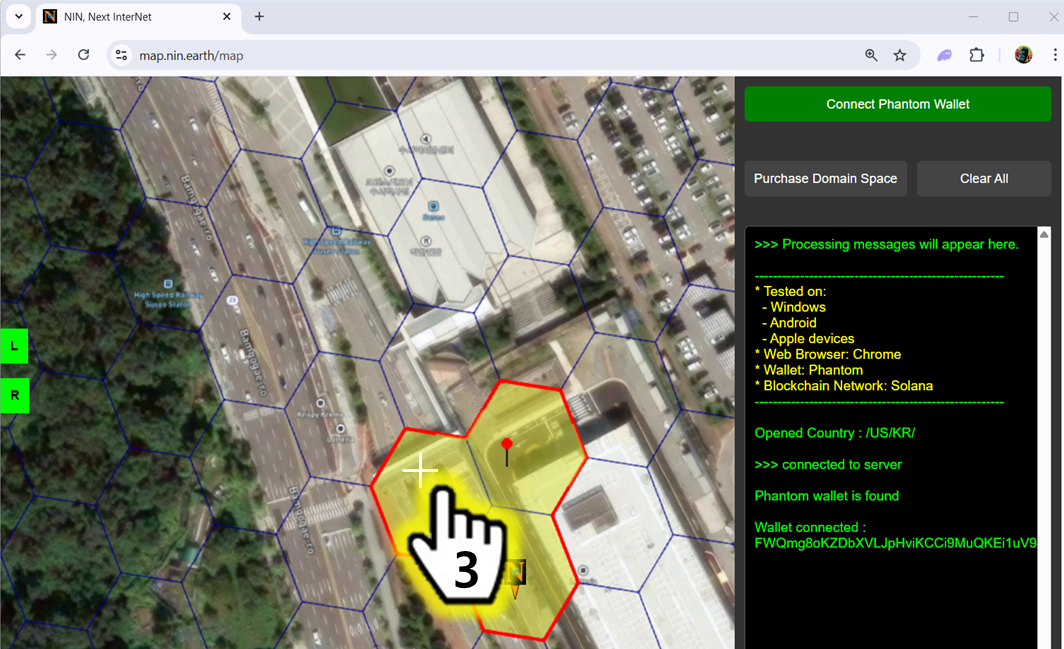
Click R panel.

Click [Connect Phantom Wallet] button.

2

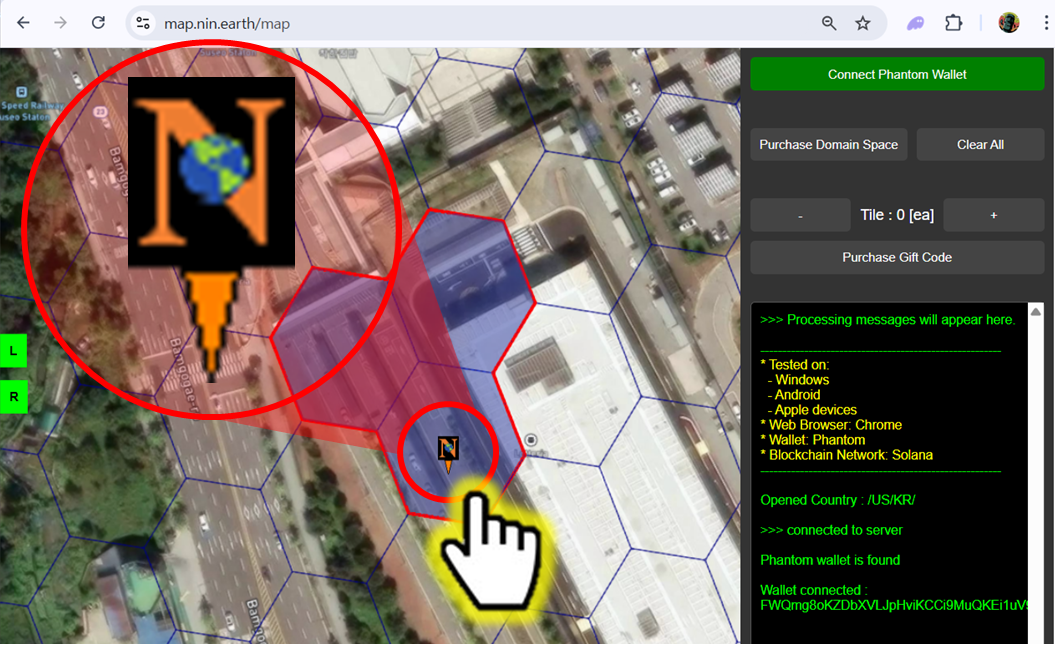
Click Tiles you want

3

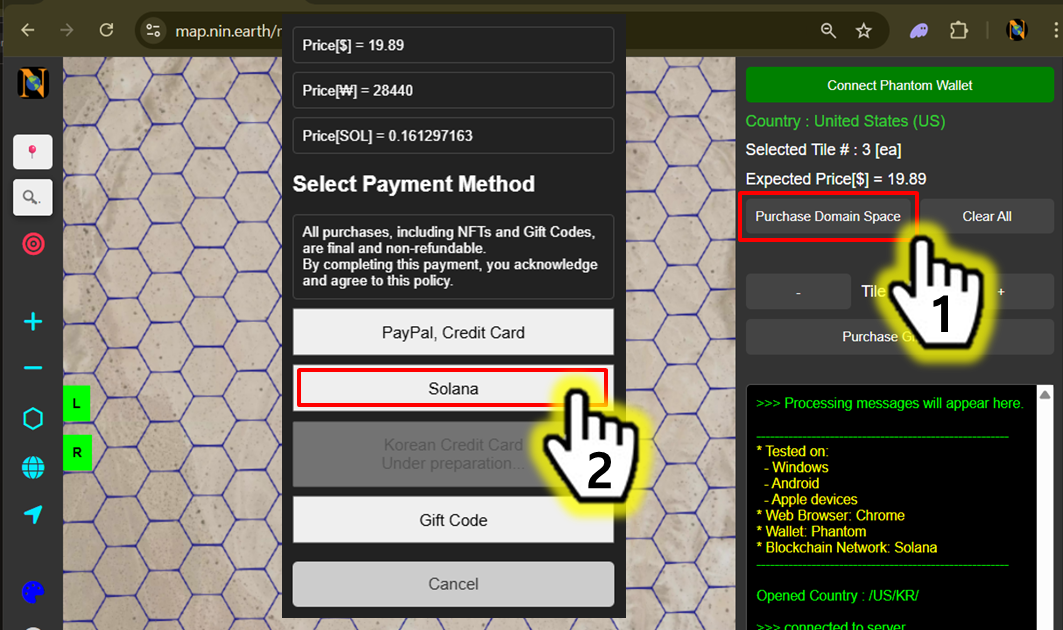
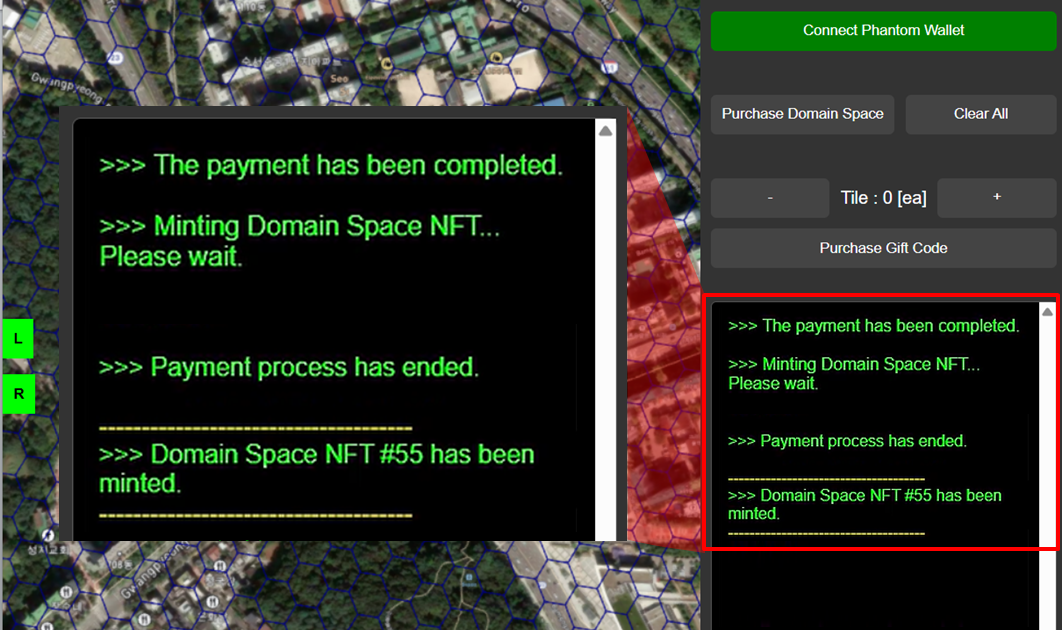
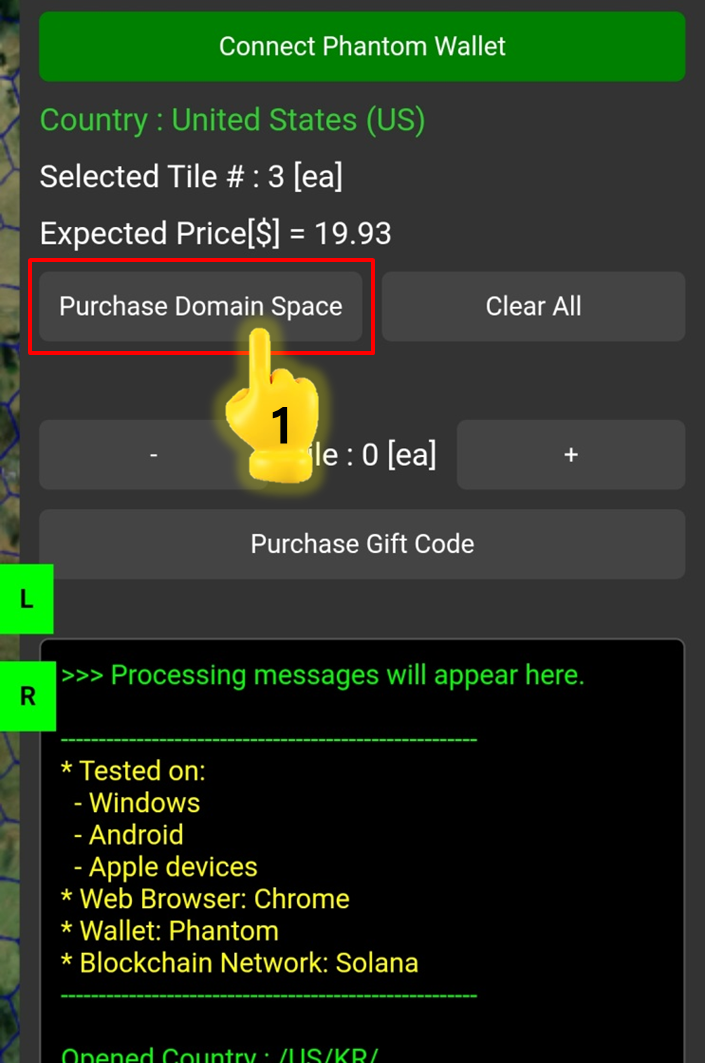
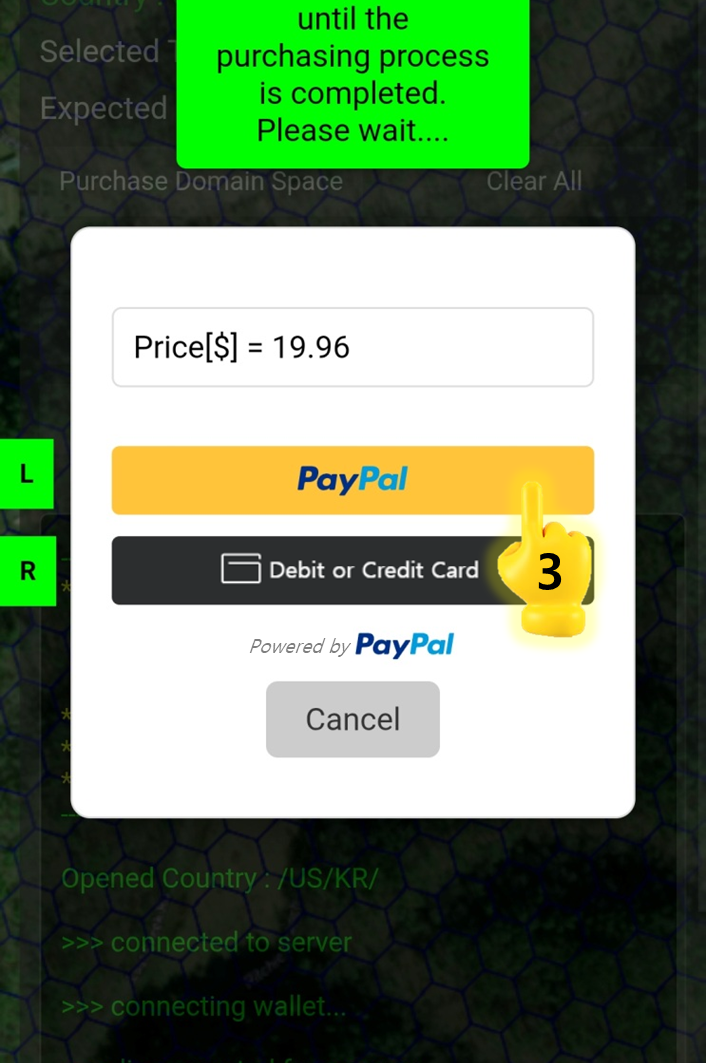
Click [Purchase Domain Space]

4

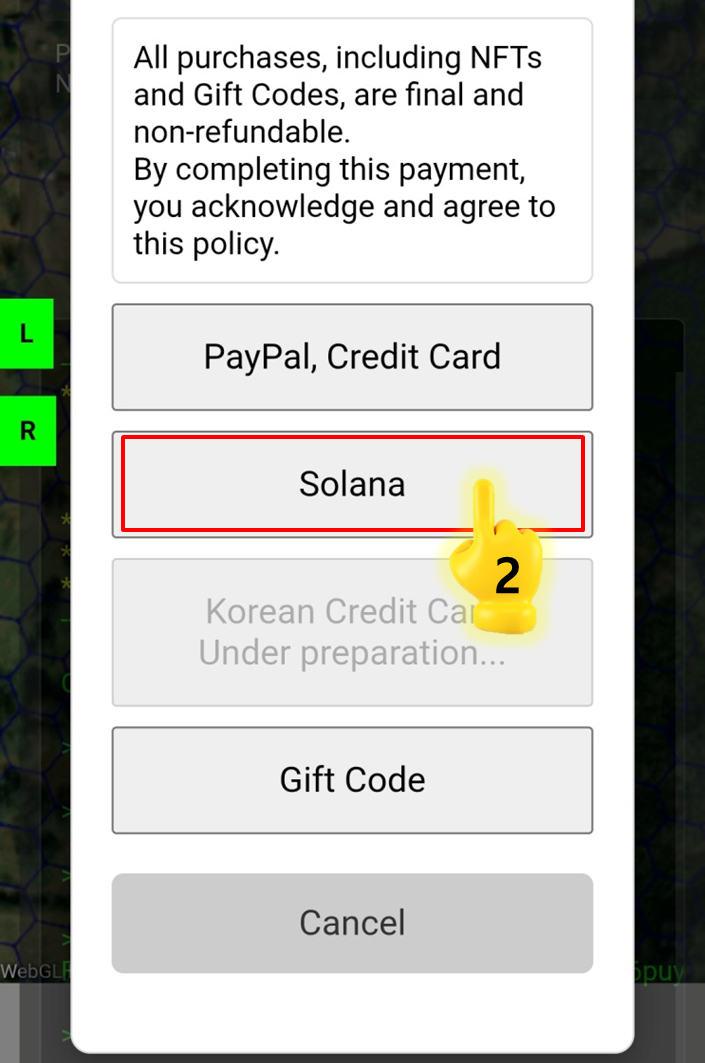
Click Payment Type you want

5

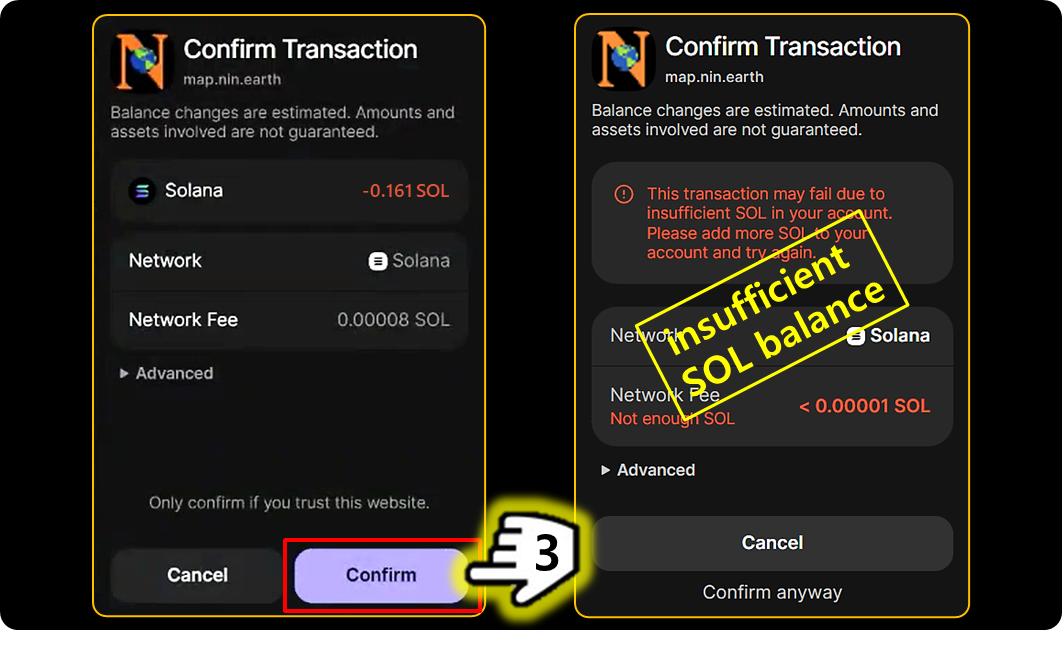
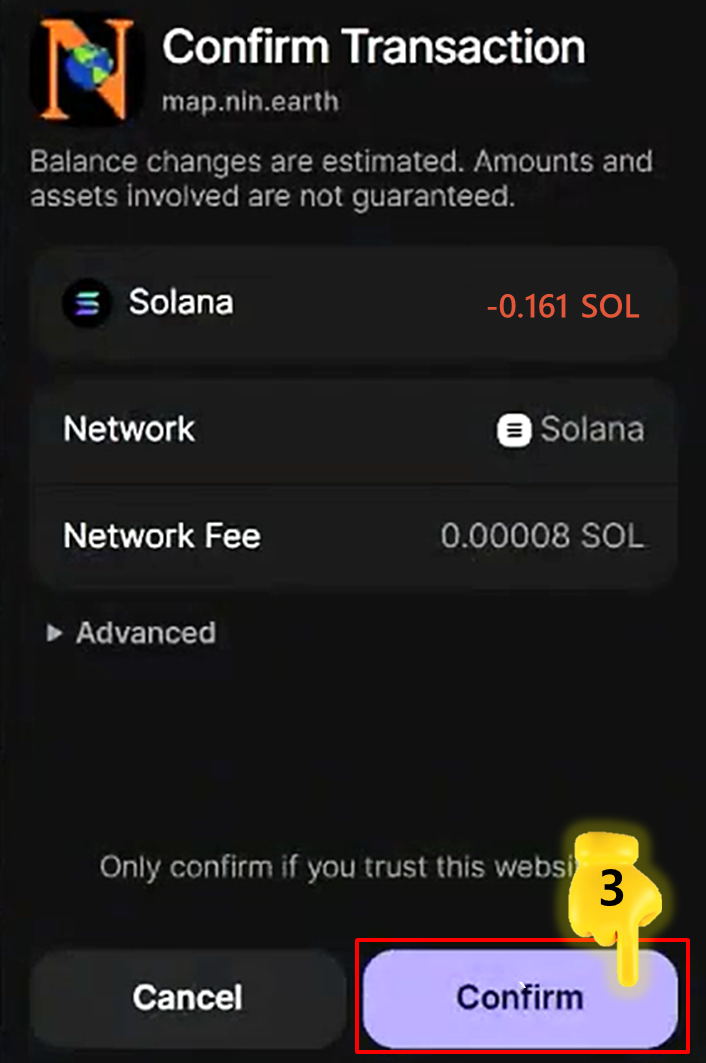
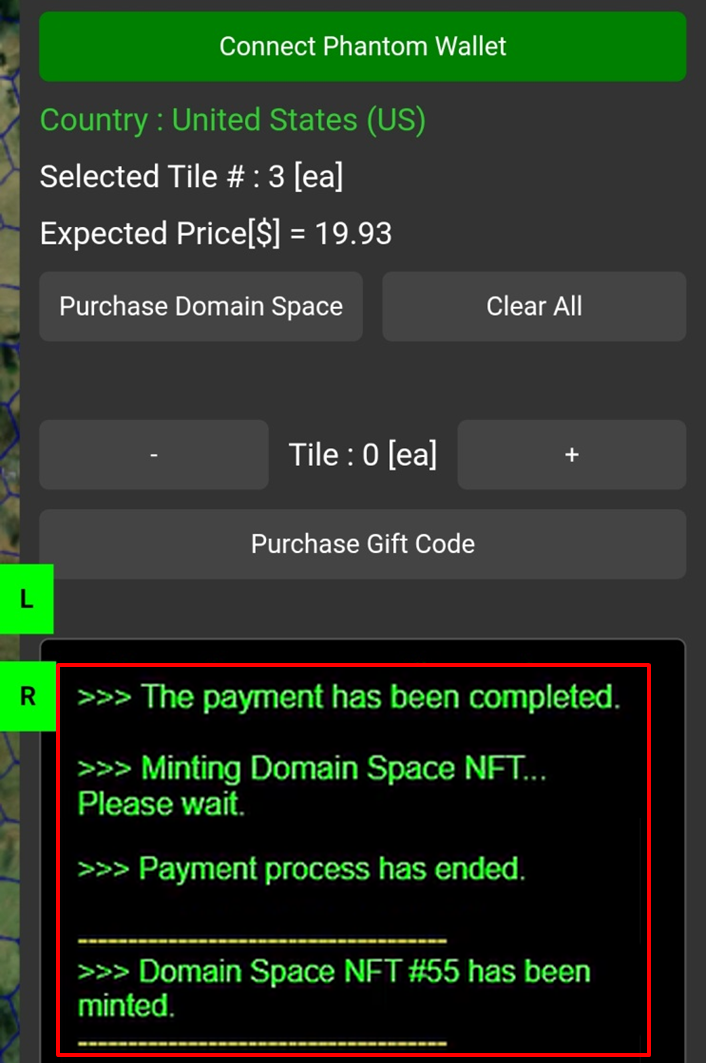
Click [Approve]


How do I Use my Domain Space?

A Domain Space is one or more tiles you own, each minted as an NFT that verifies your ownership on the blockchain.

When linked to a Domain Name, it becomes a core feature of NIN.Earth, bridging real-world coordinates with digital environments to create a unified Metaverse experience.

You must..

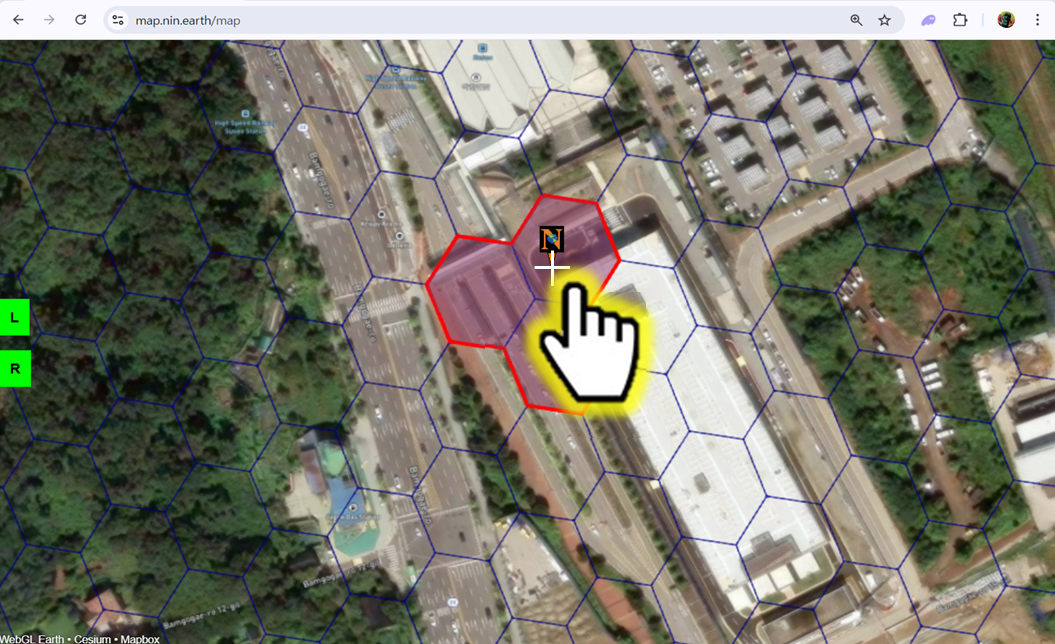
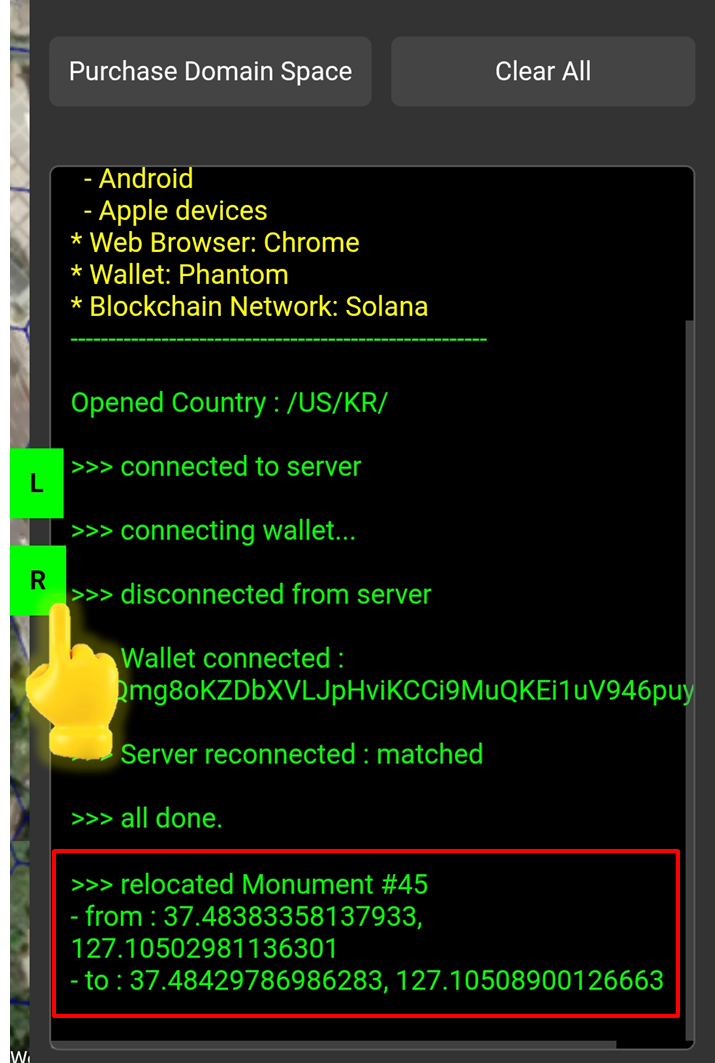
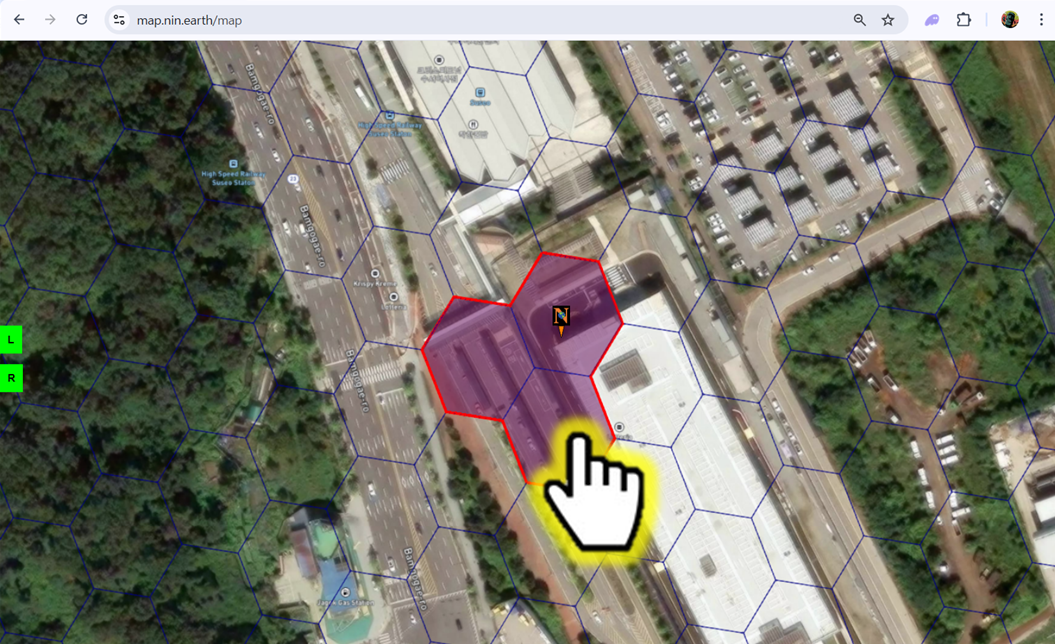
Adjust Marker

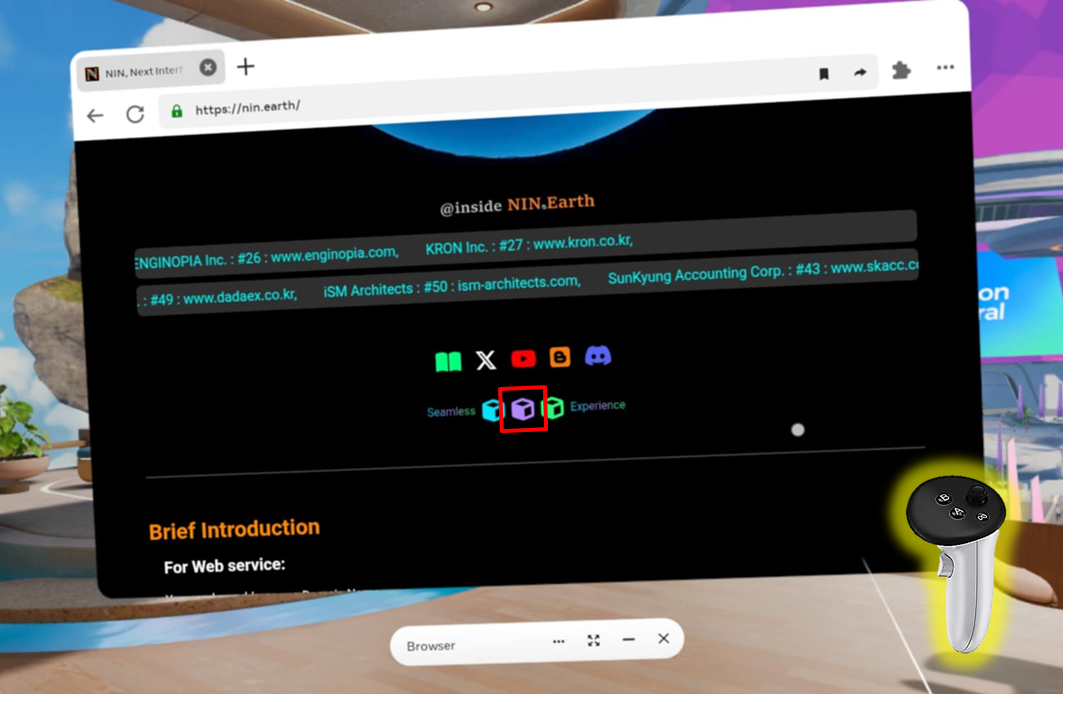
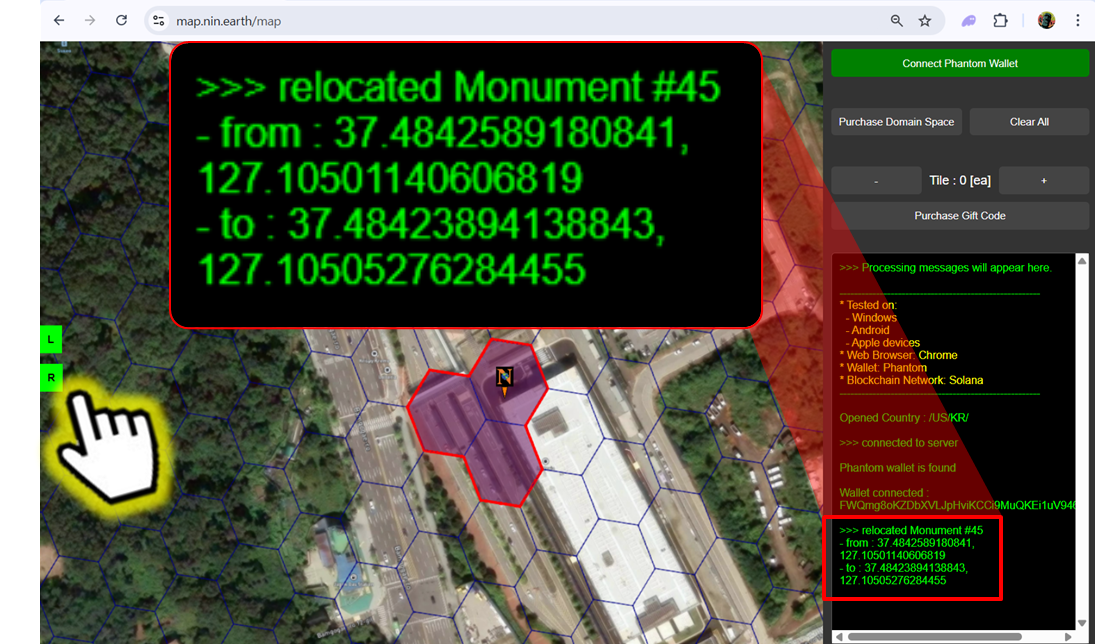
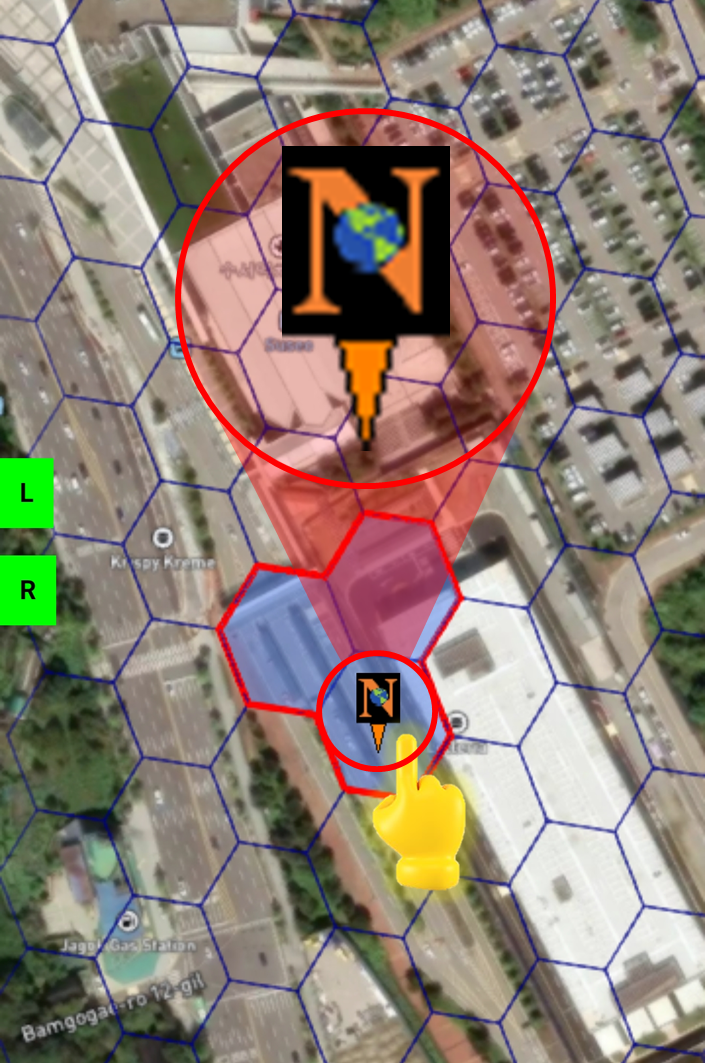
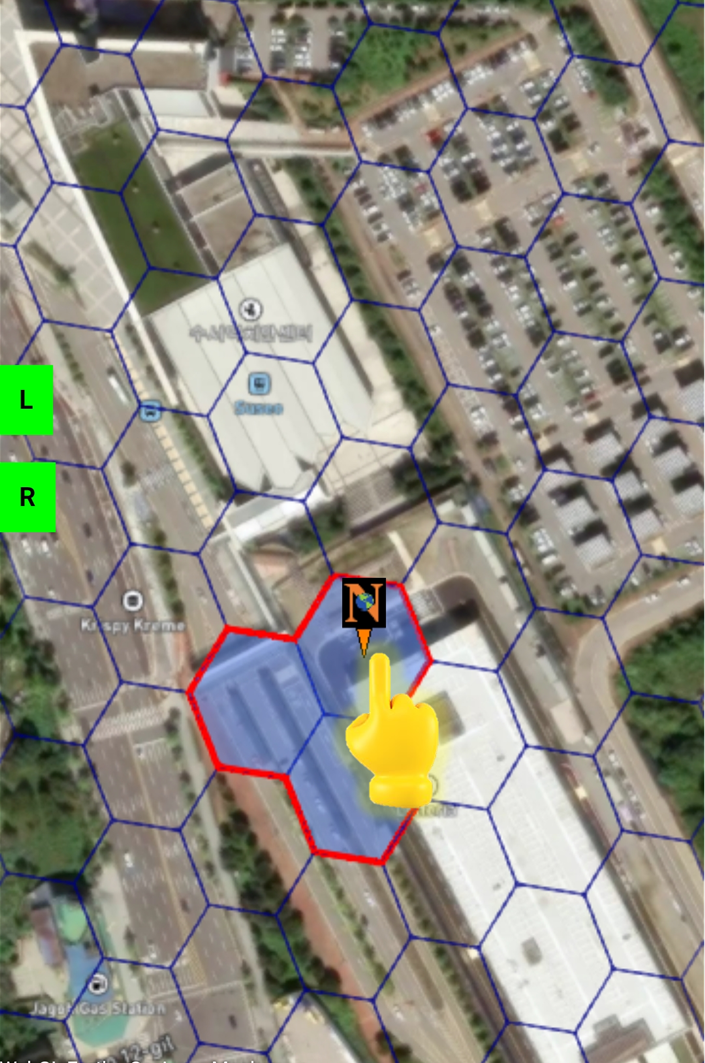
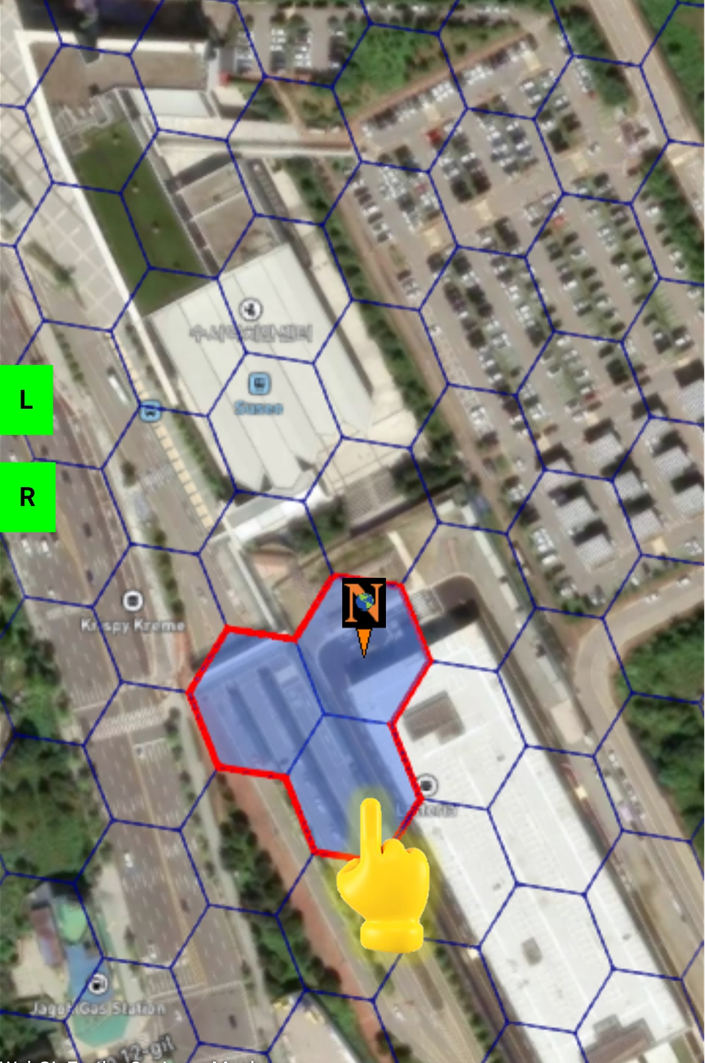
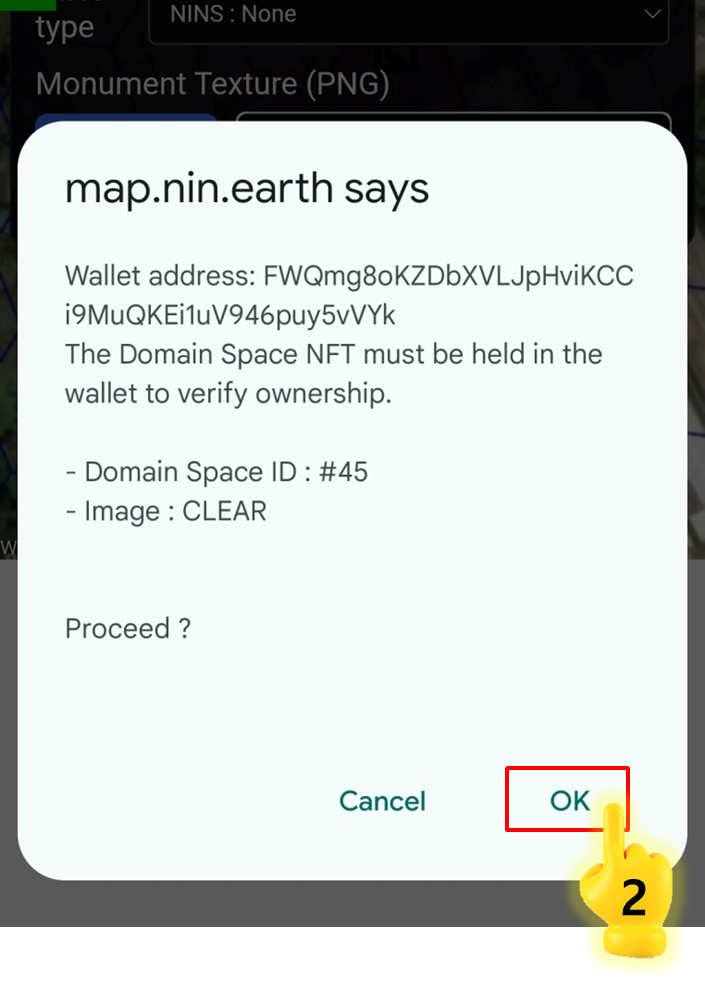
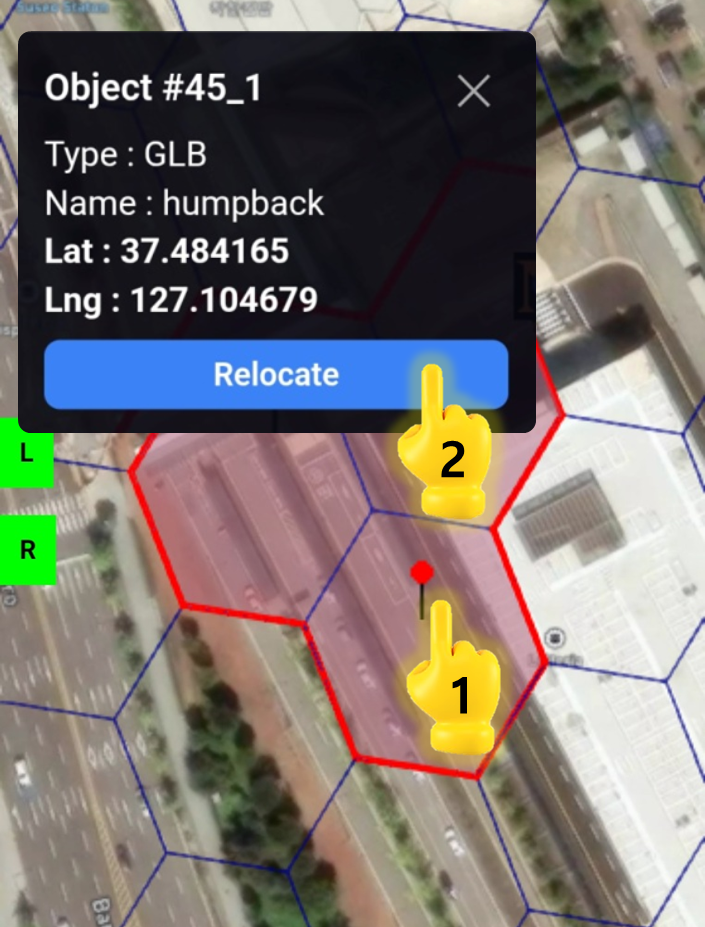
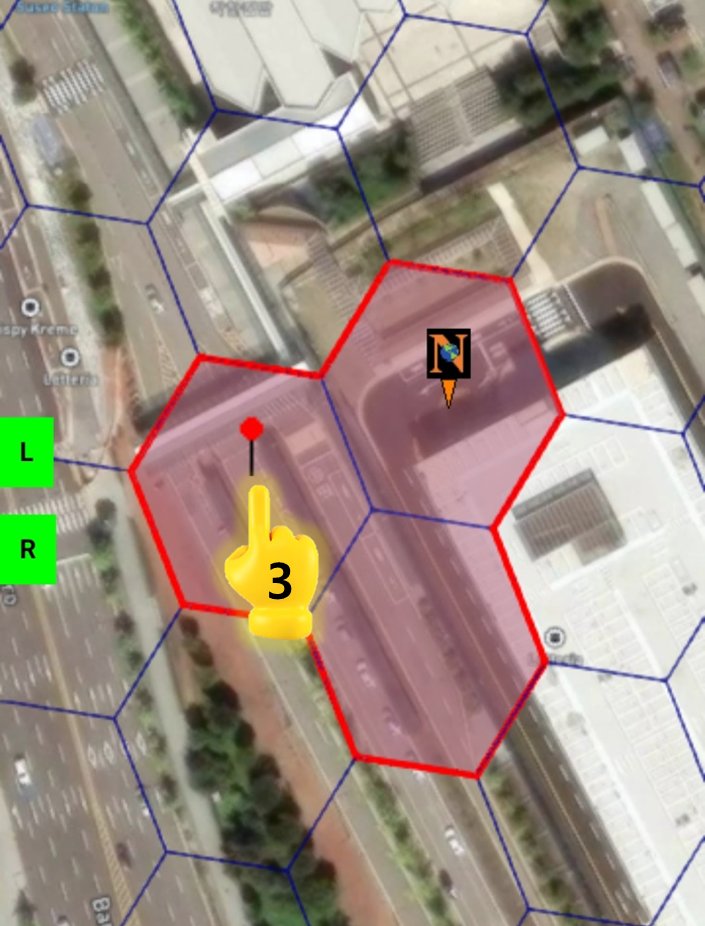
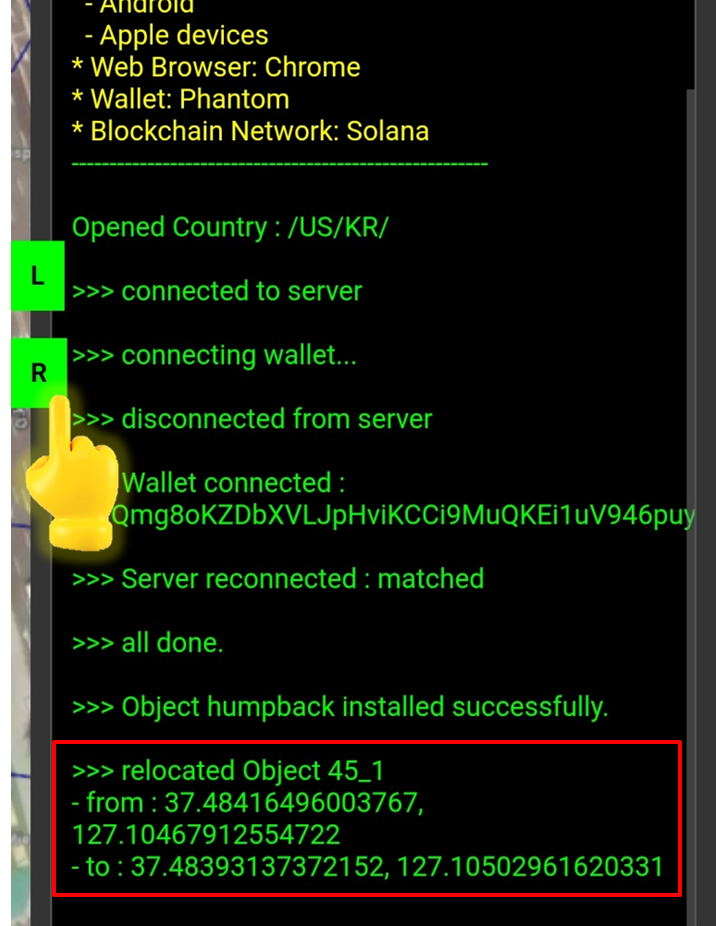
Move the marker within your Domain Space Grid to set the exact AR & VR display position for your Monument or 3D objects.

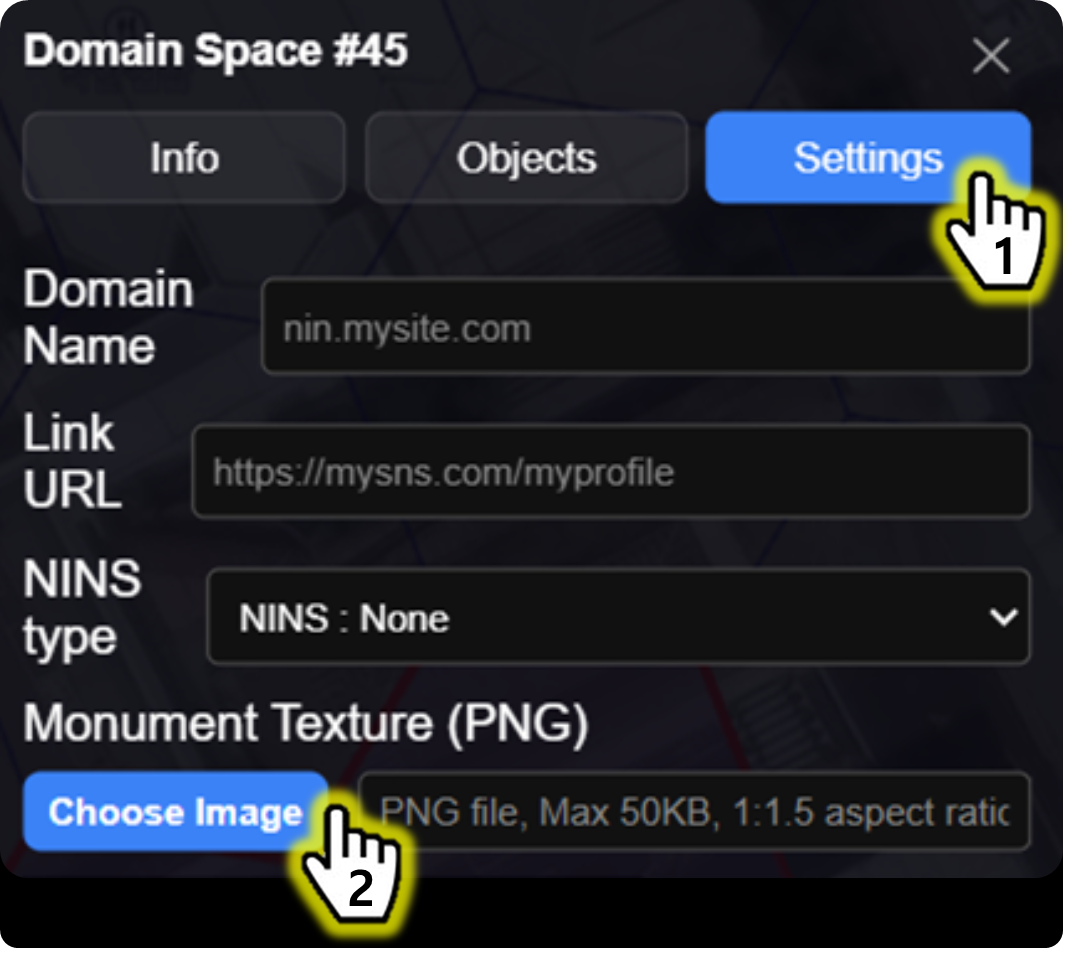
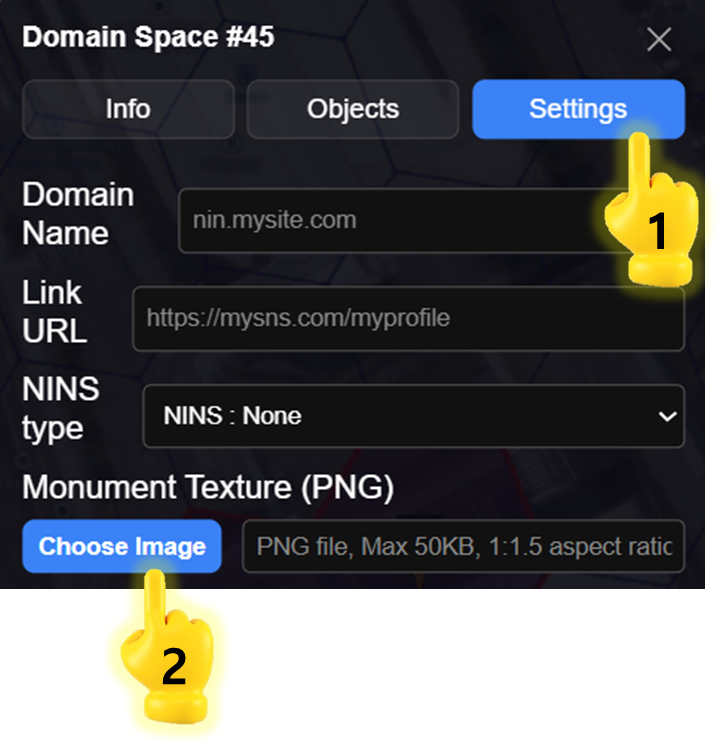
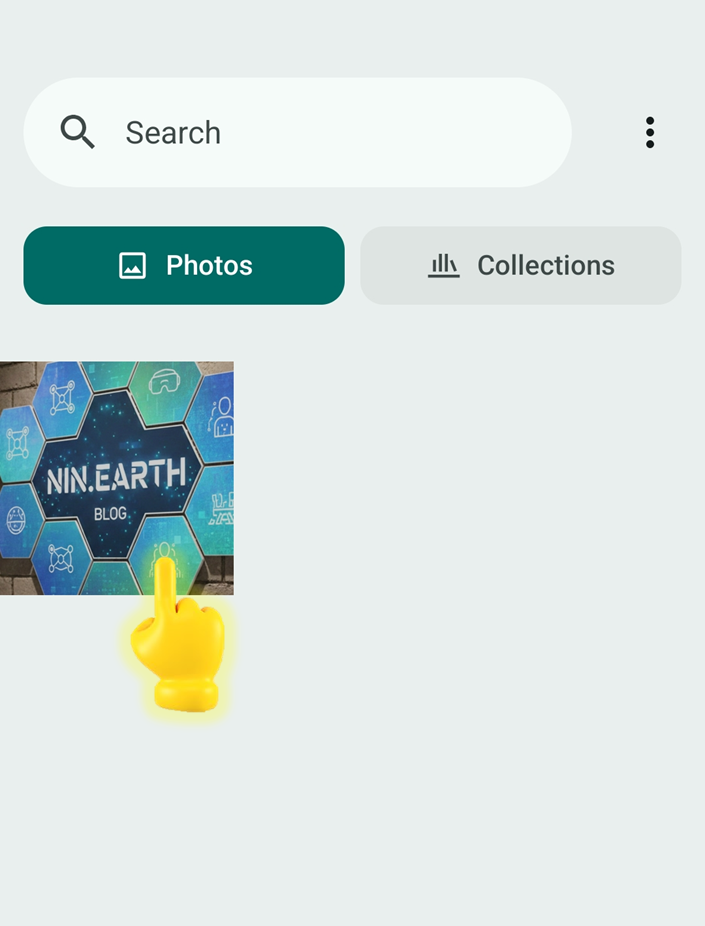
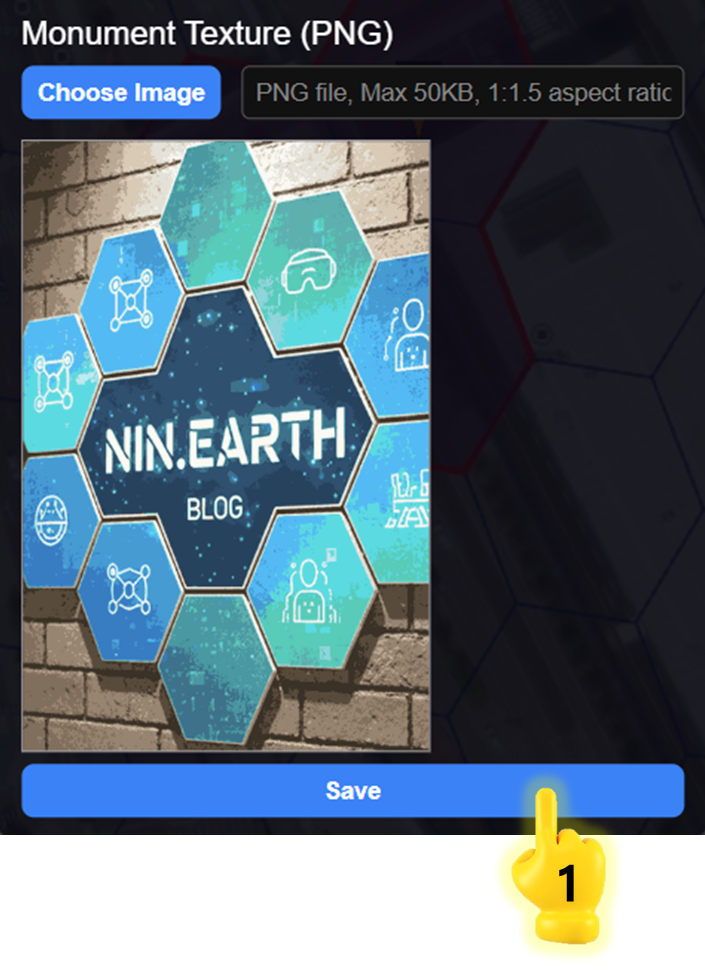
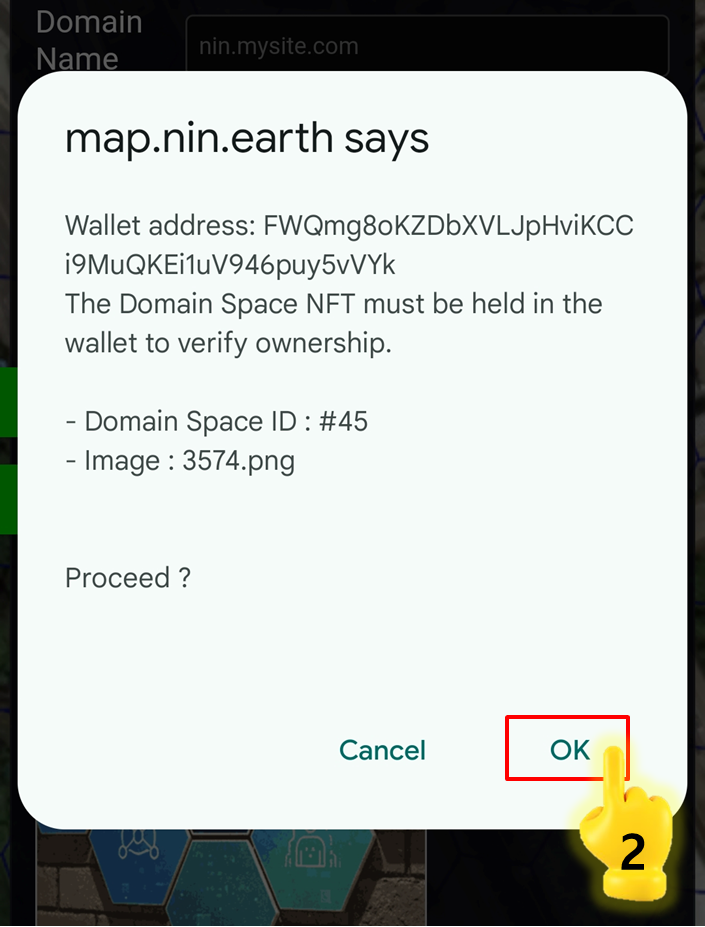
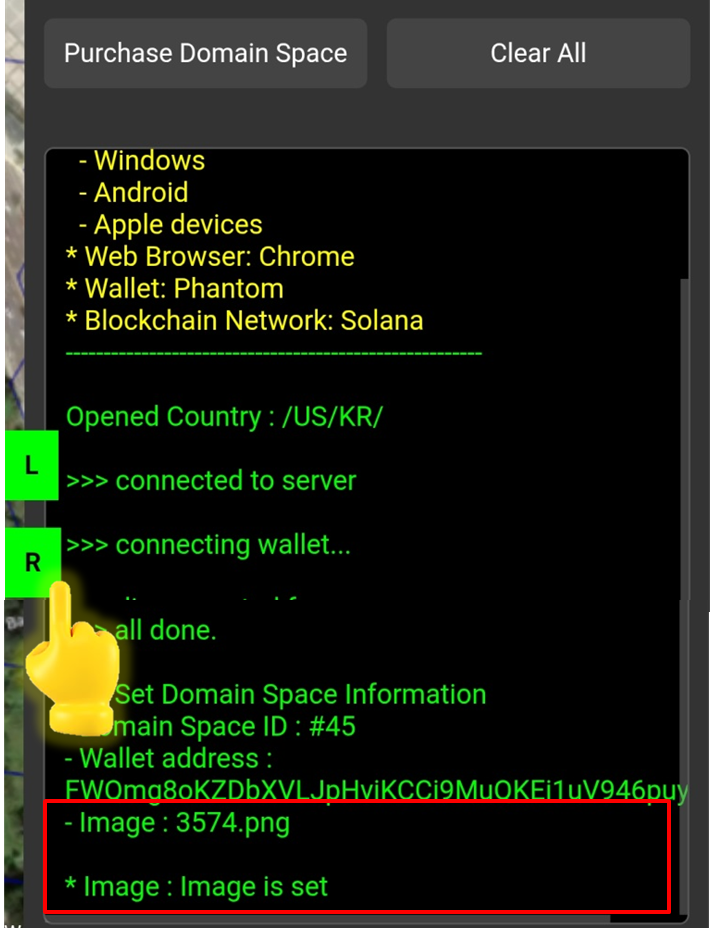
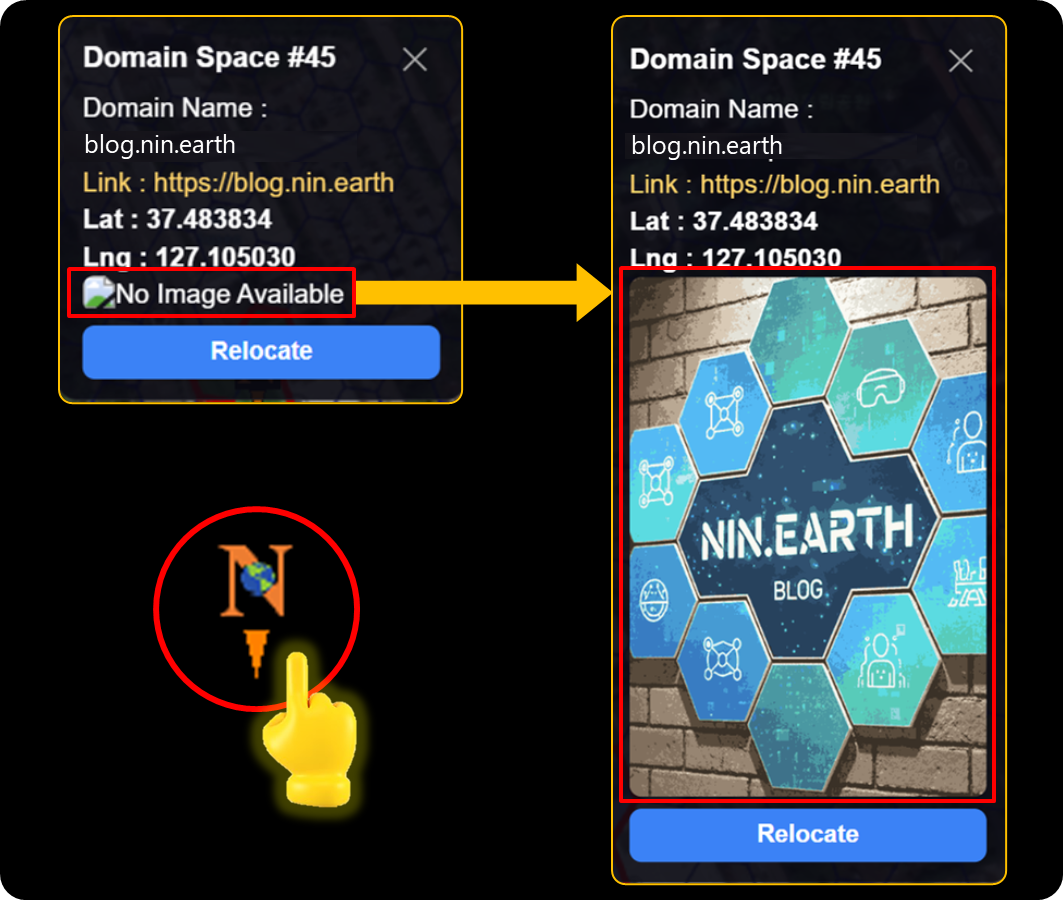
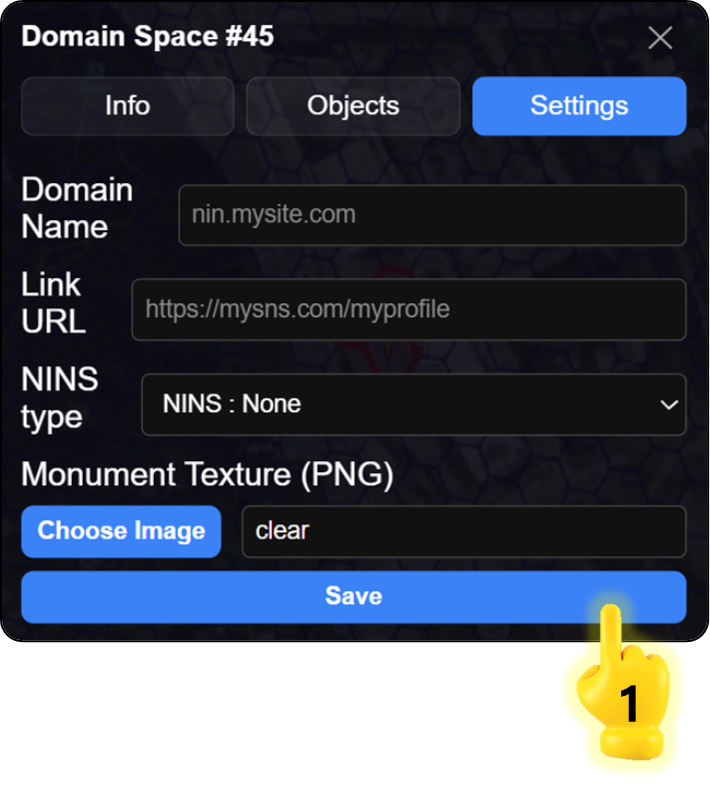
Upload Monument Image

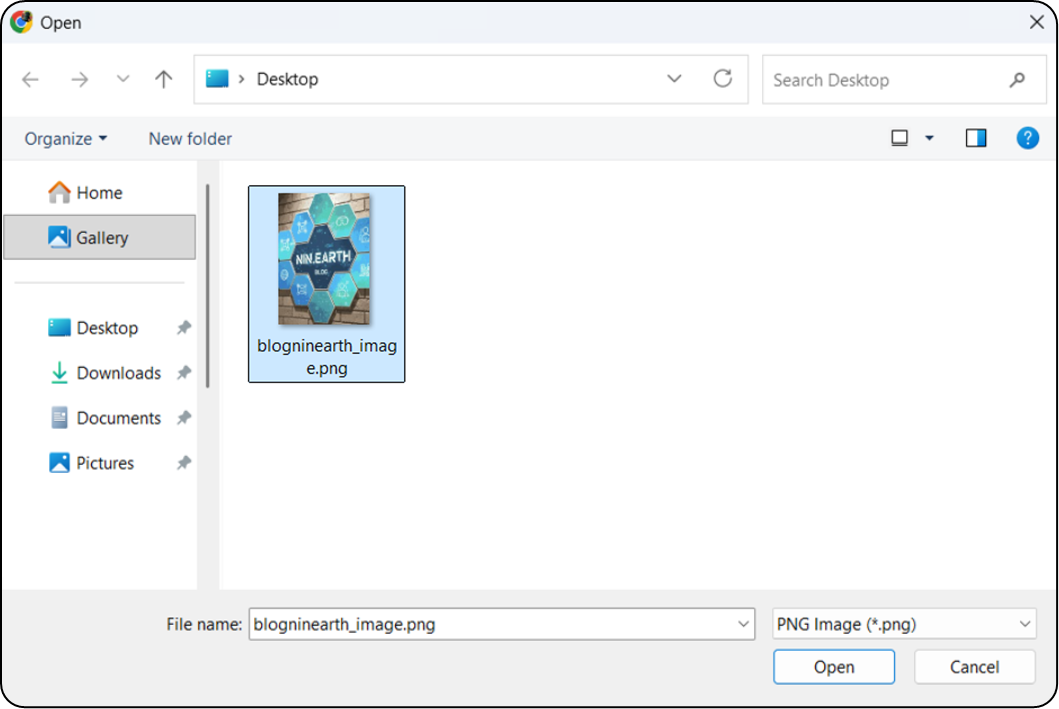
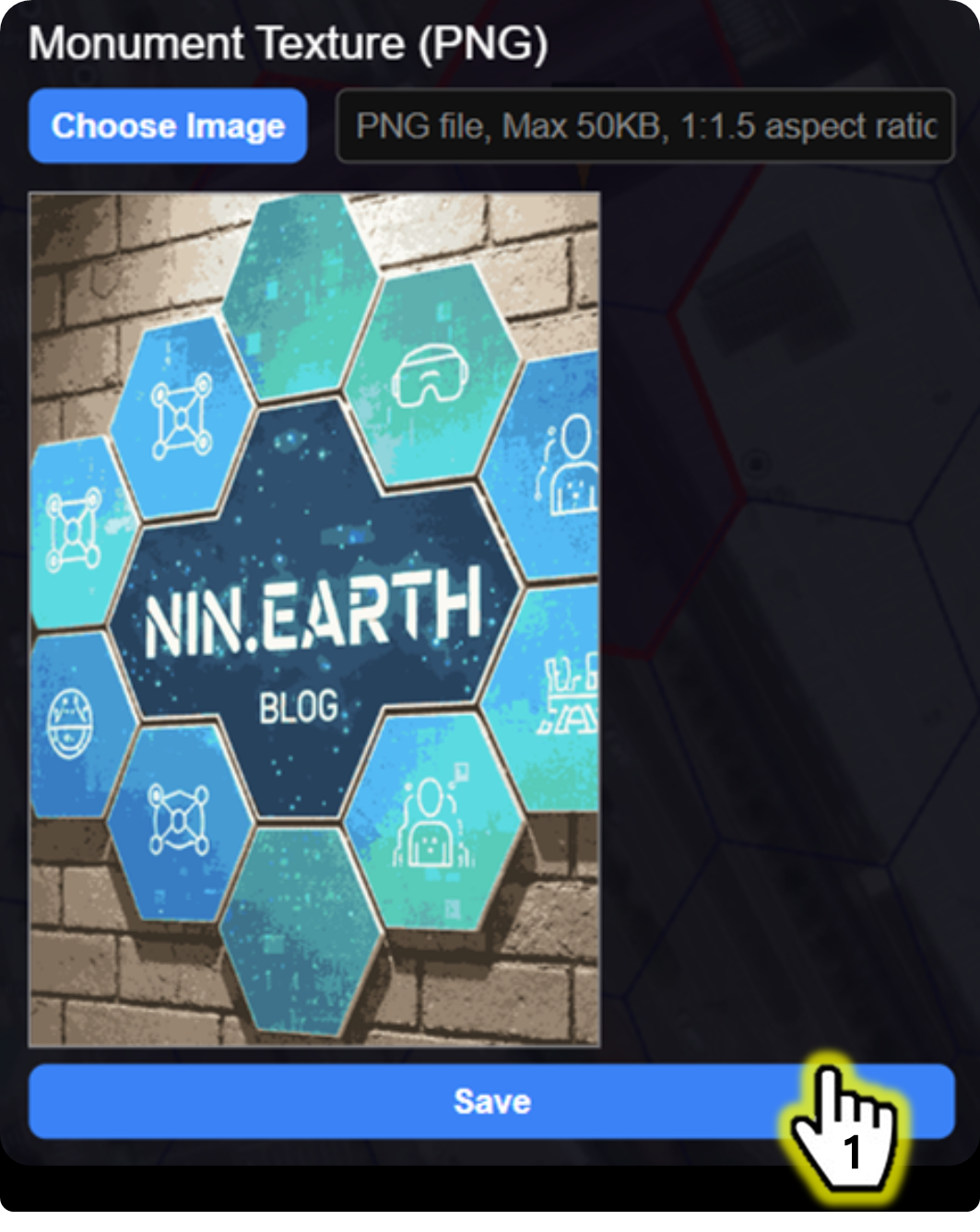
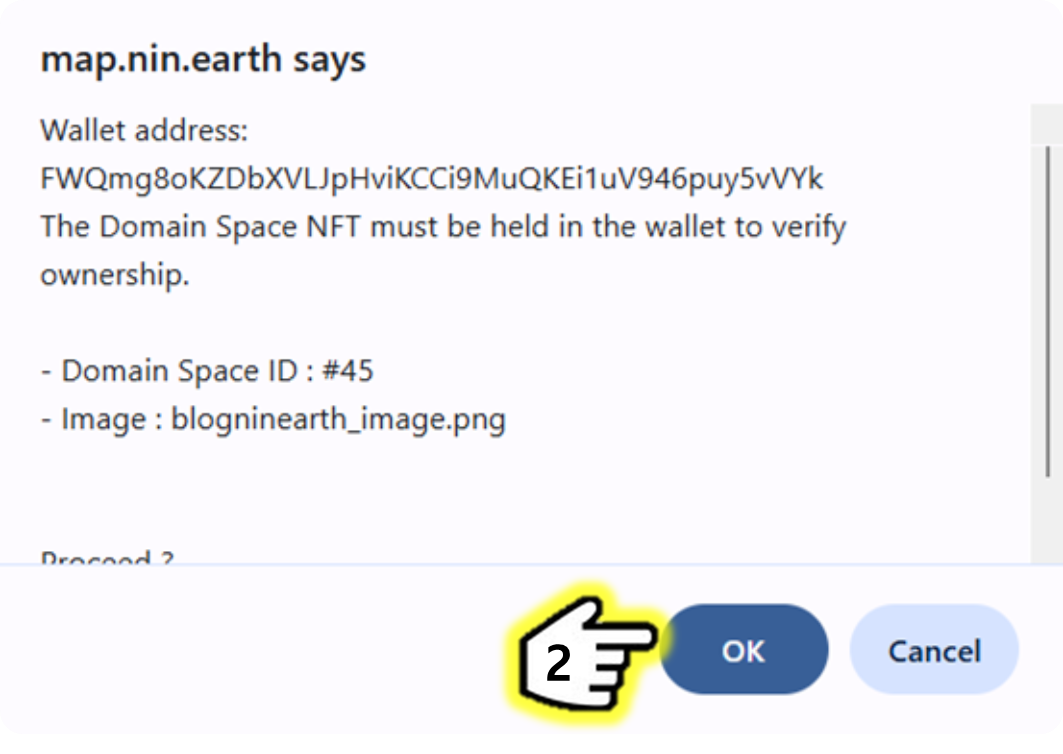
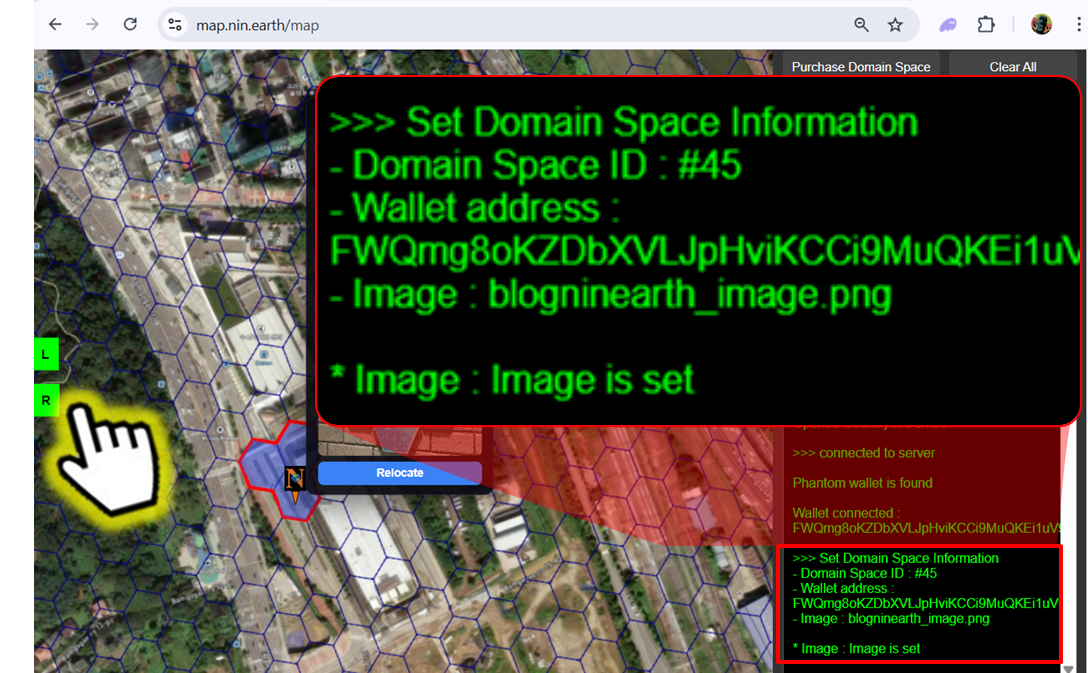
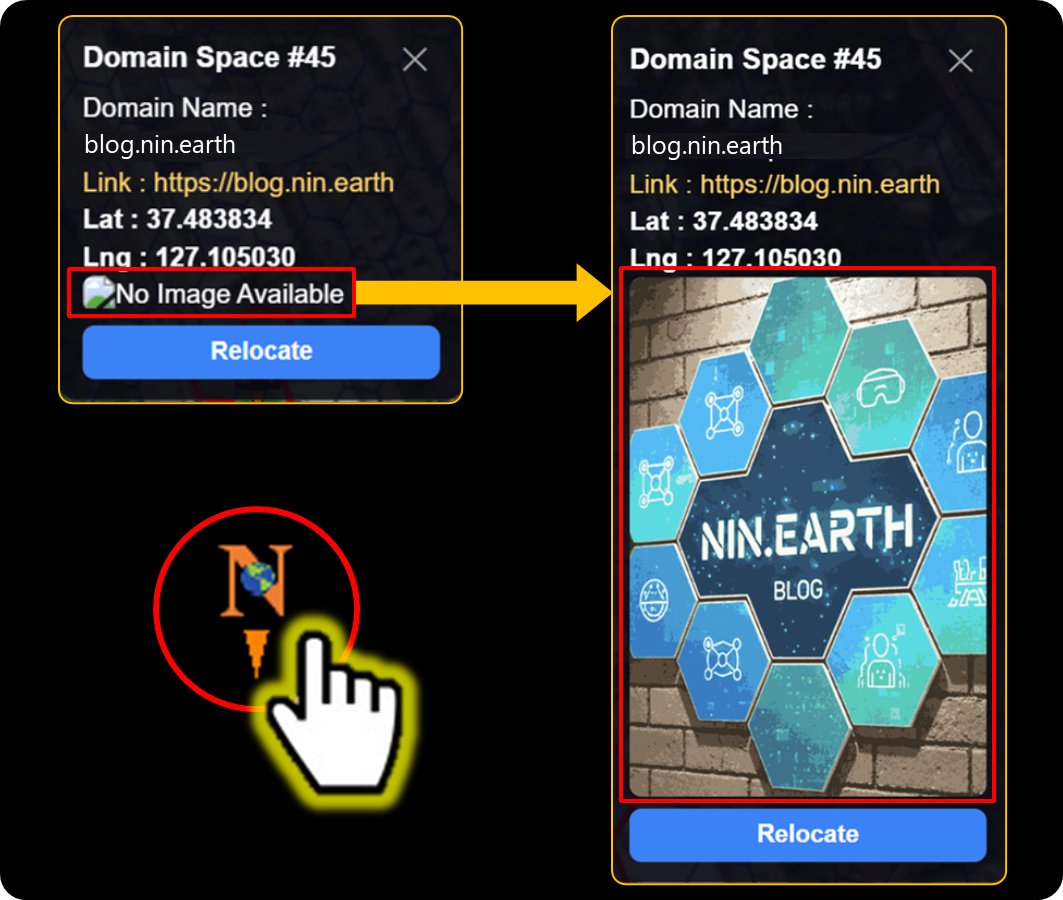
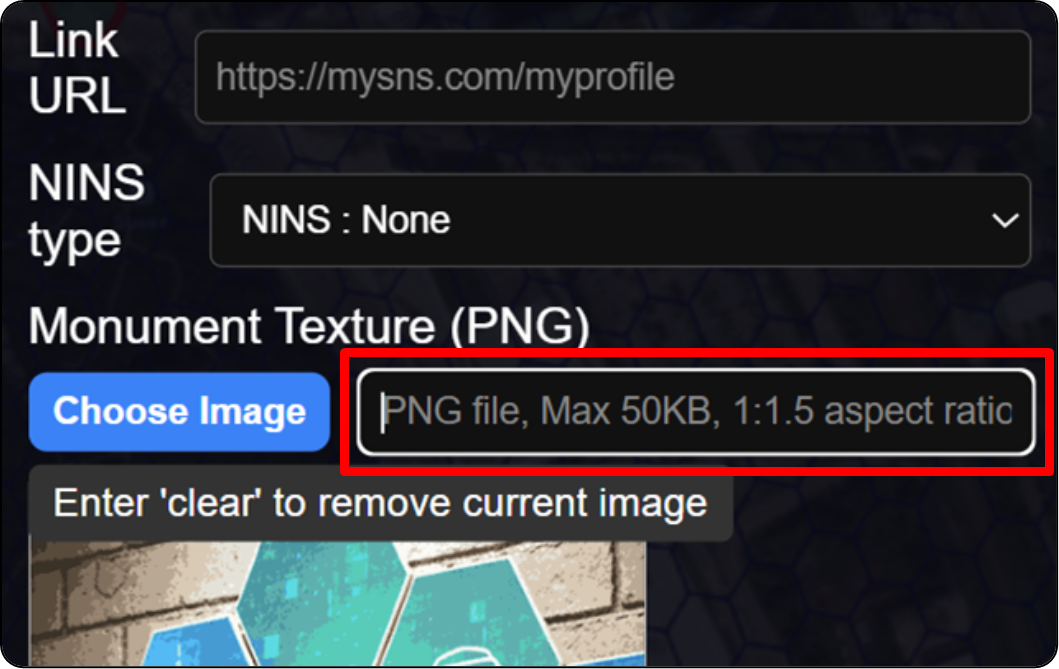
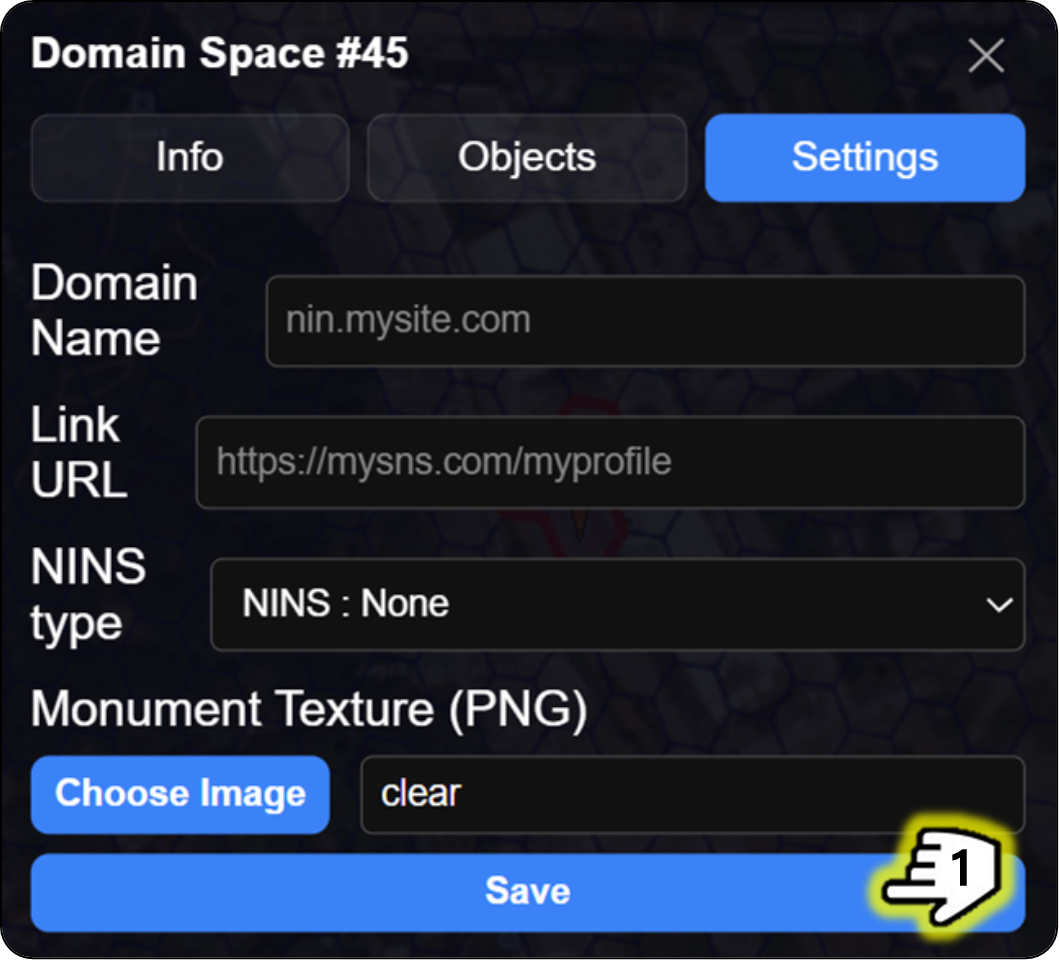
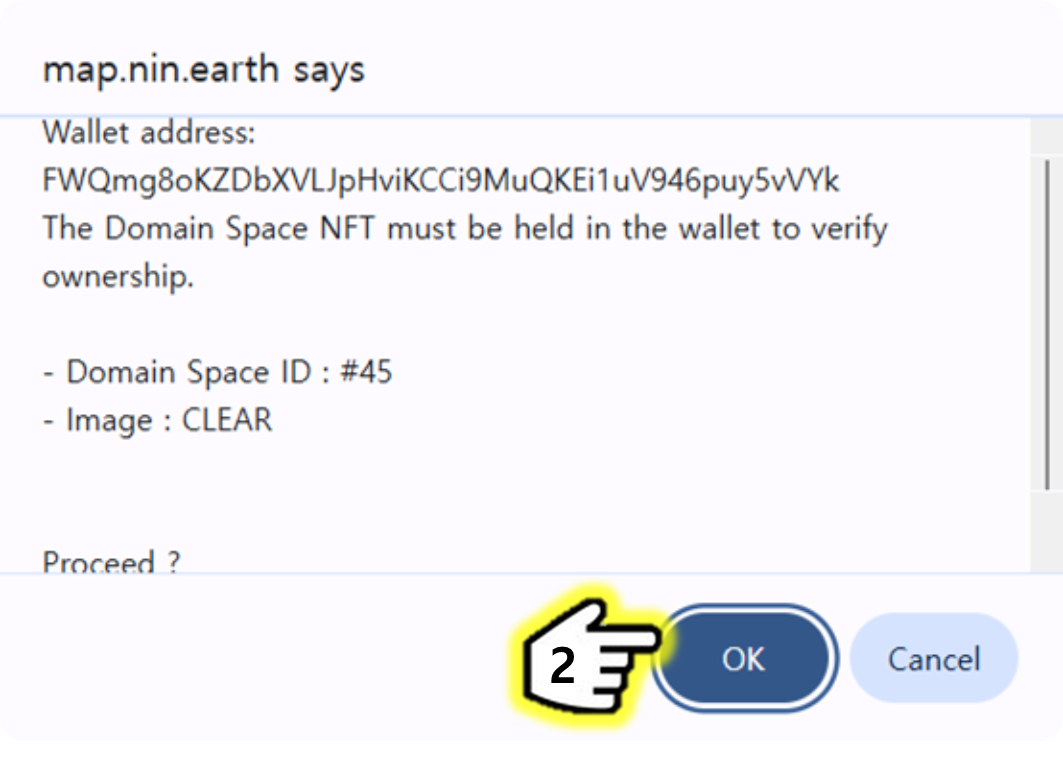
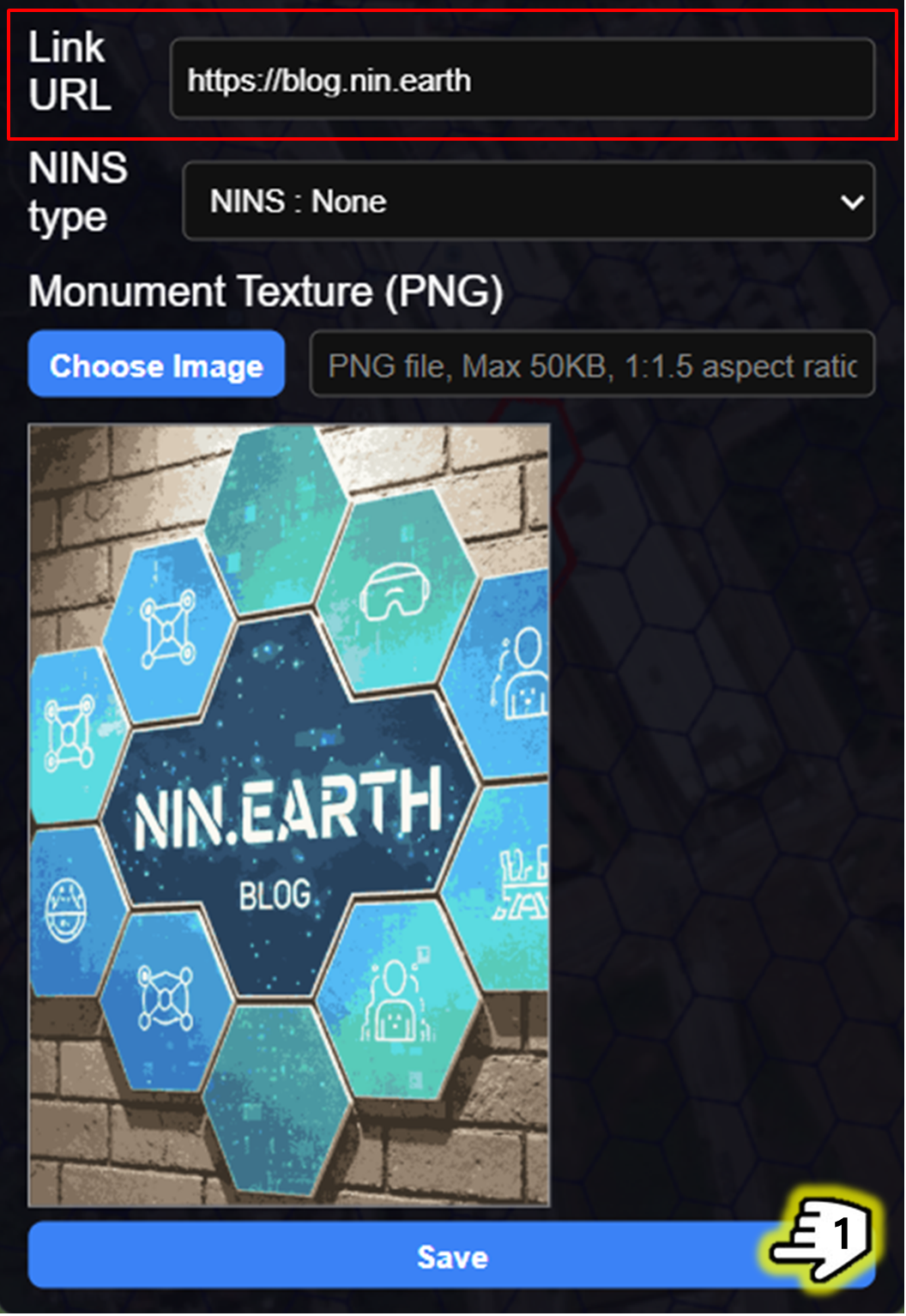
Add an image to the Monument’s top cube so it appears in AR & VR modes.

Images must..

Connect URL

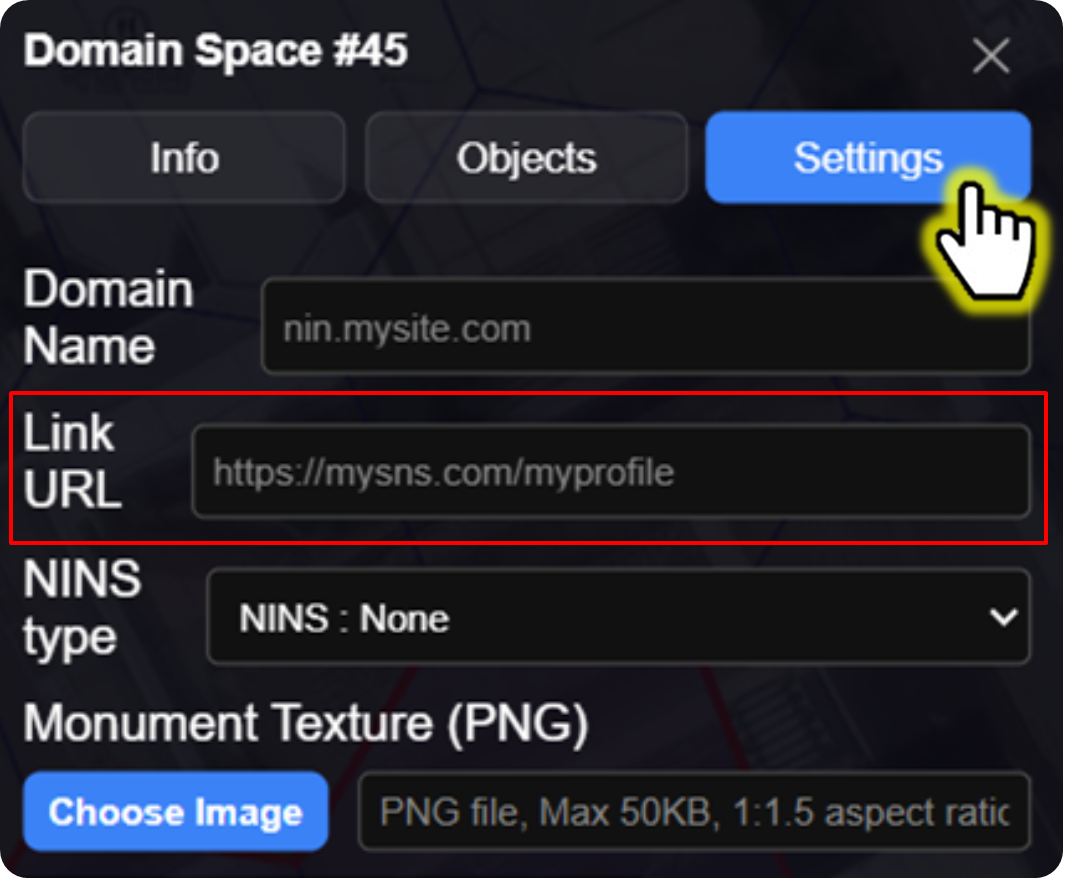
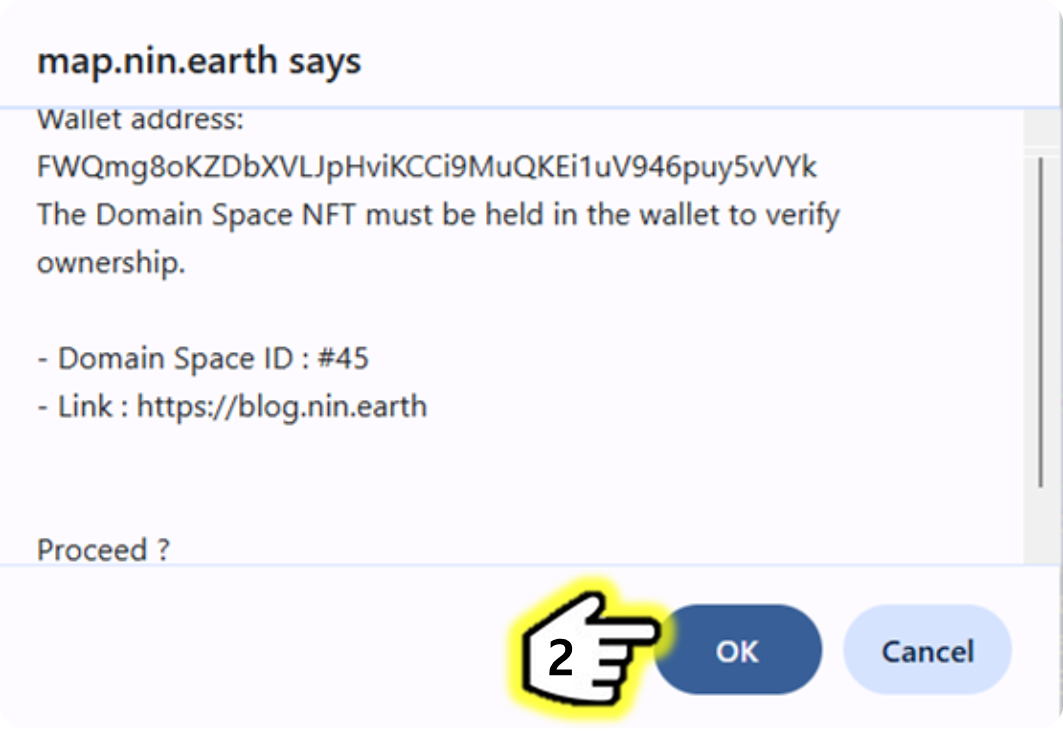
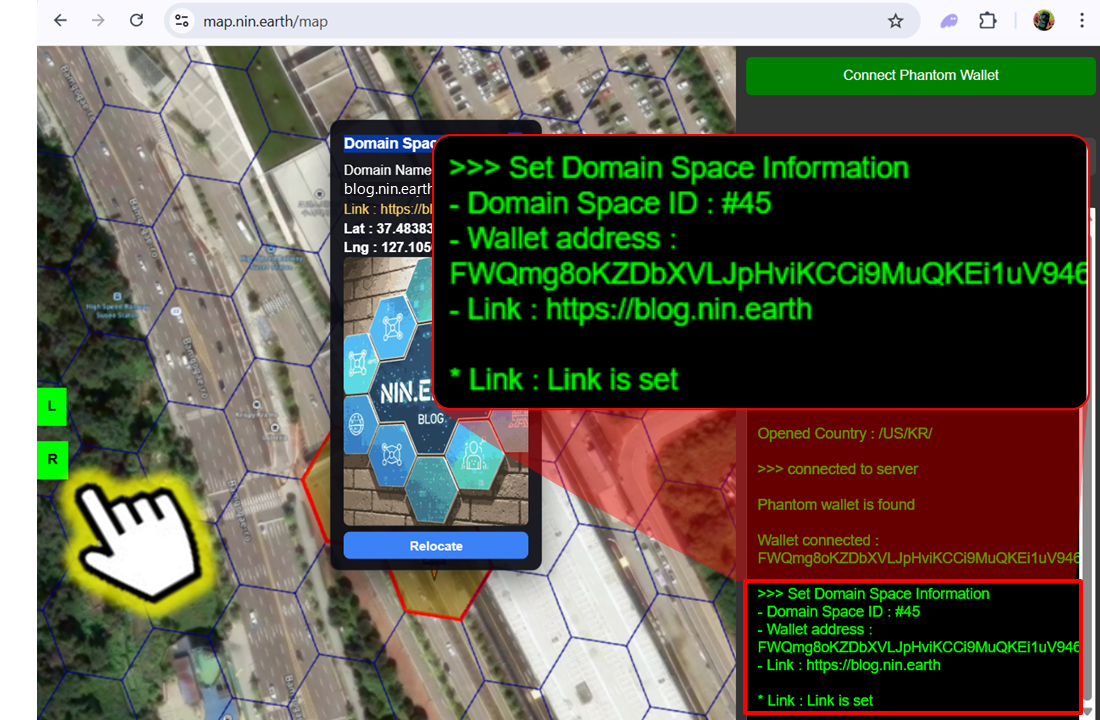
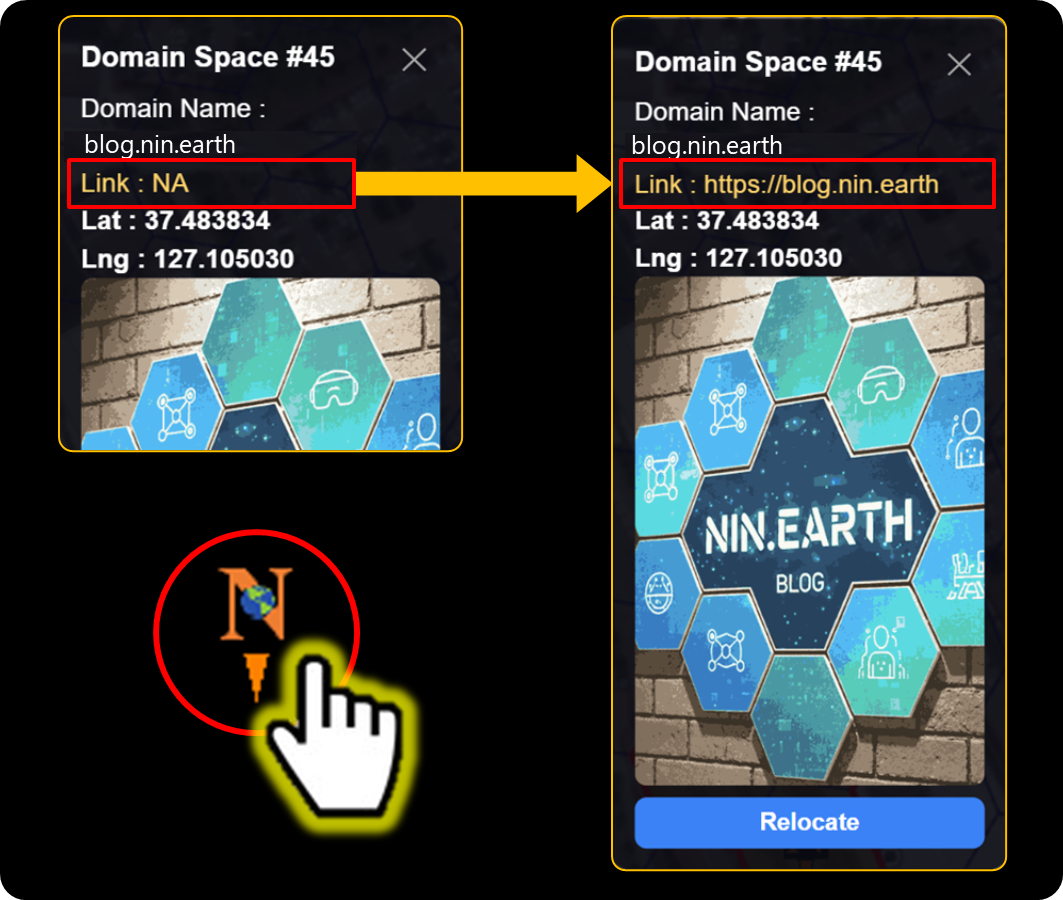
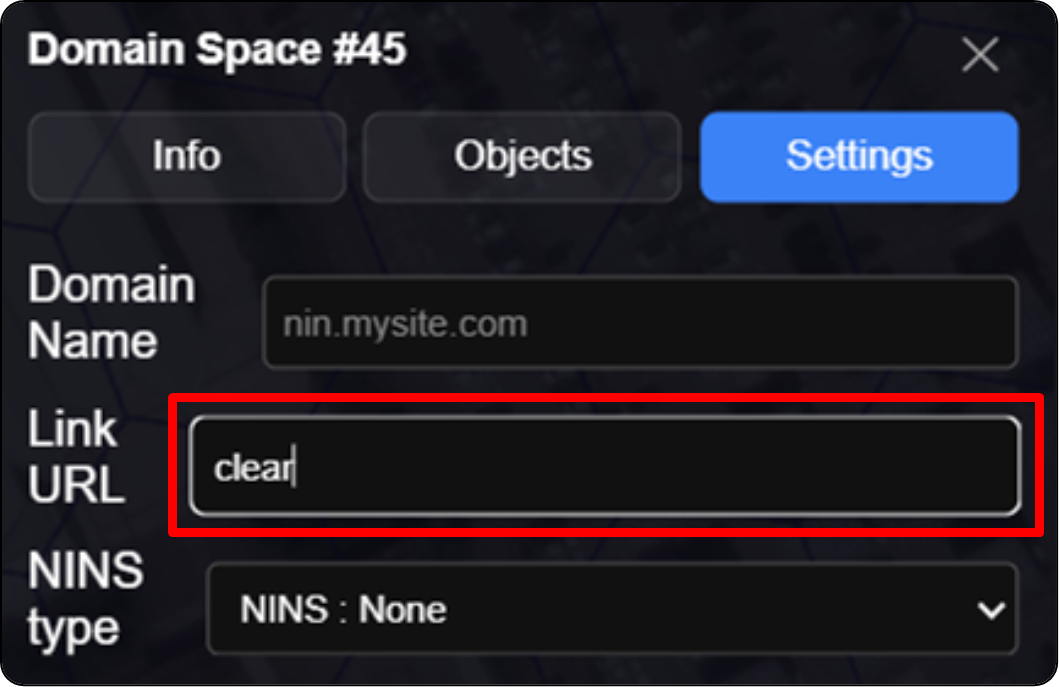
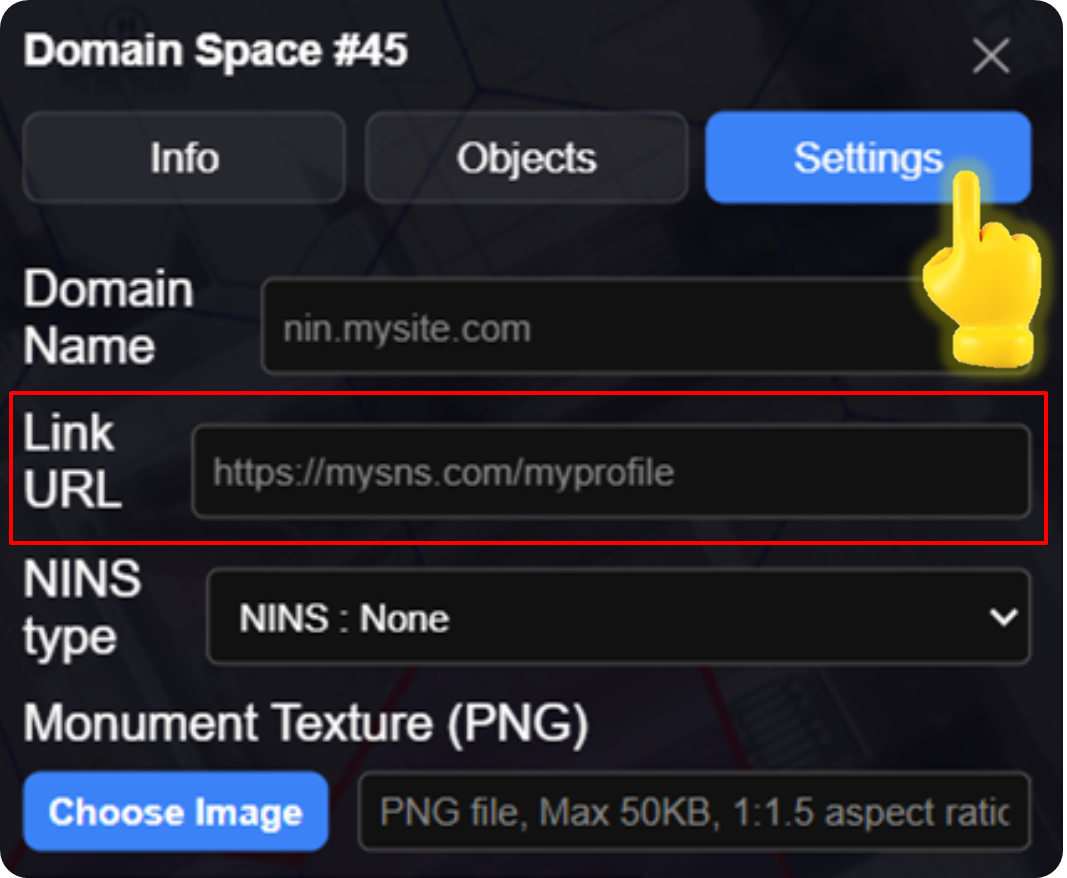
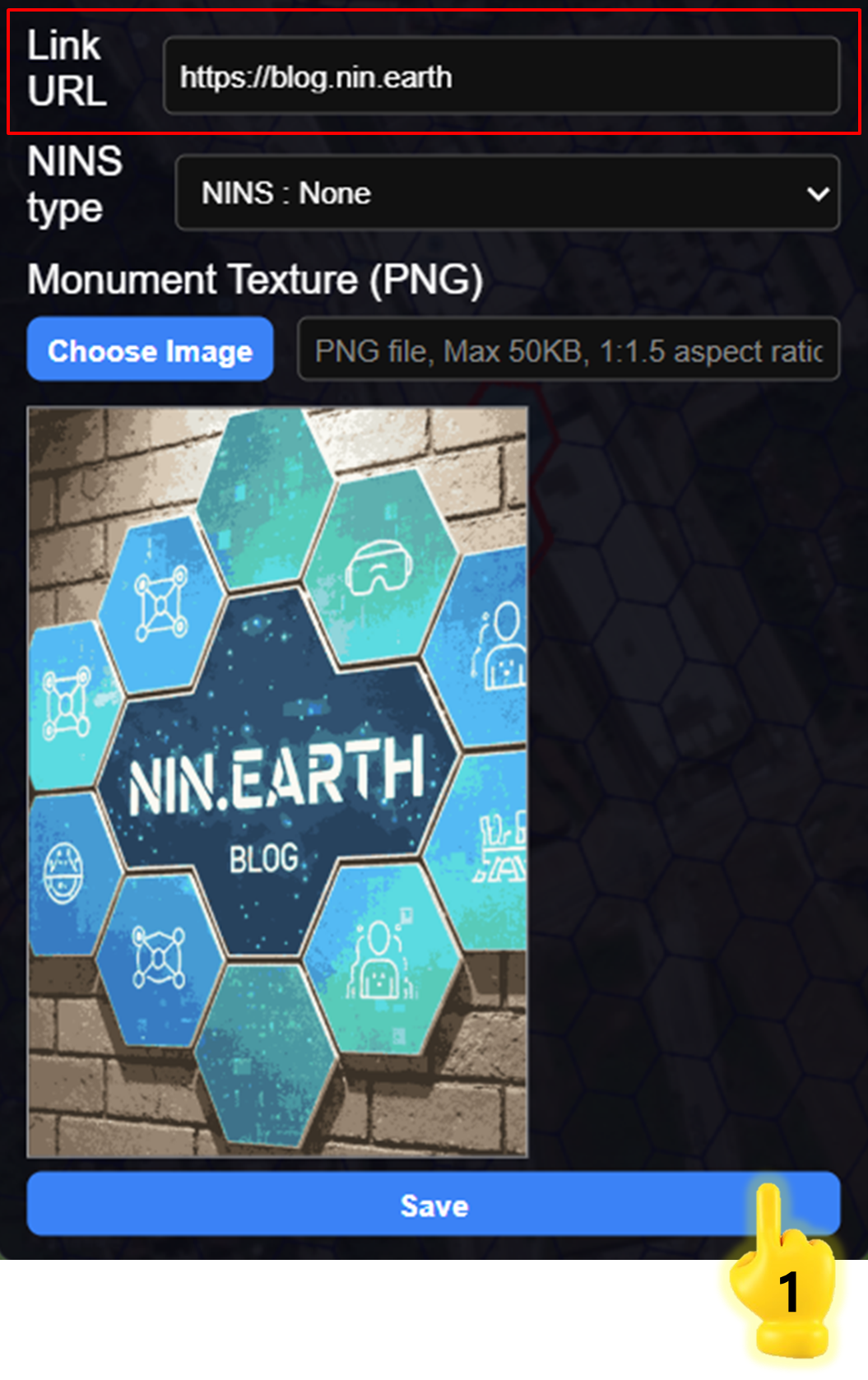
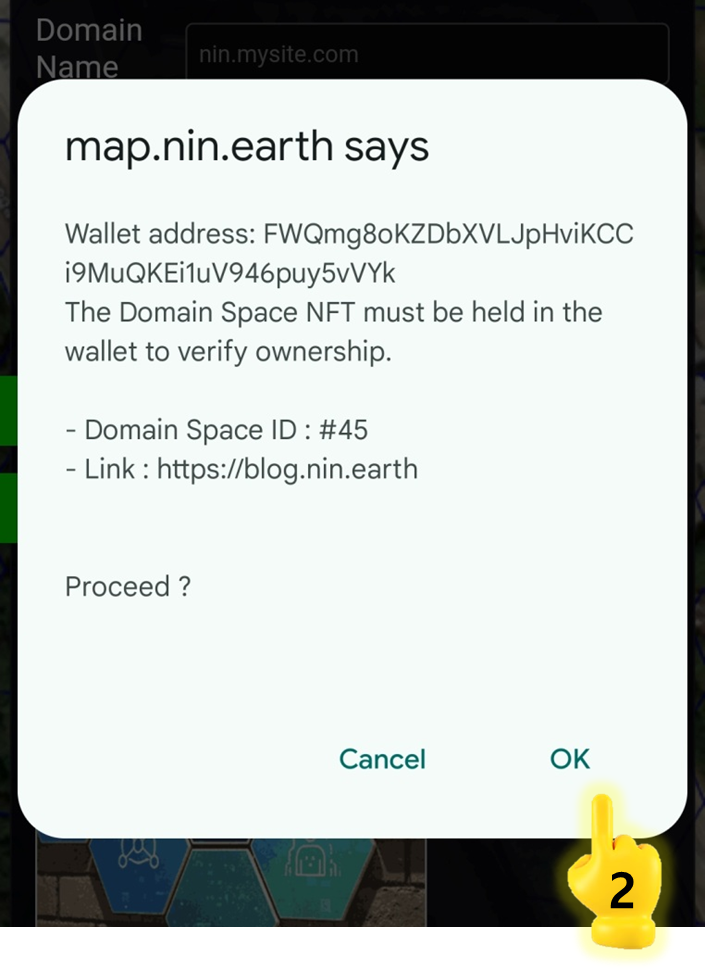
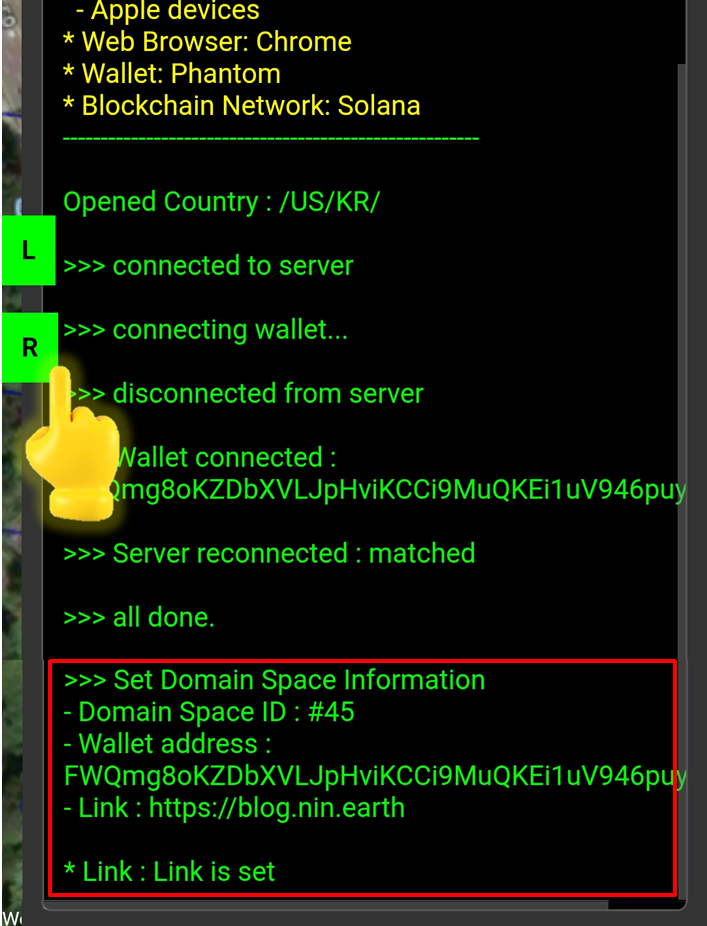
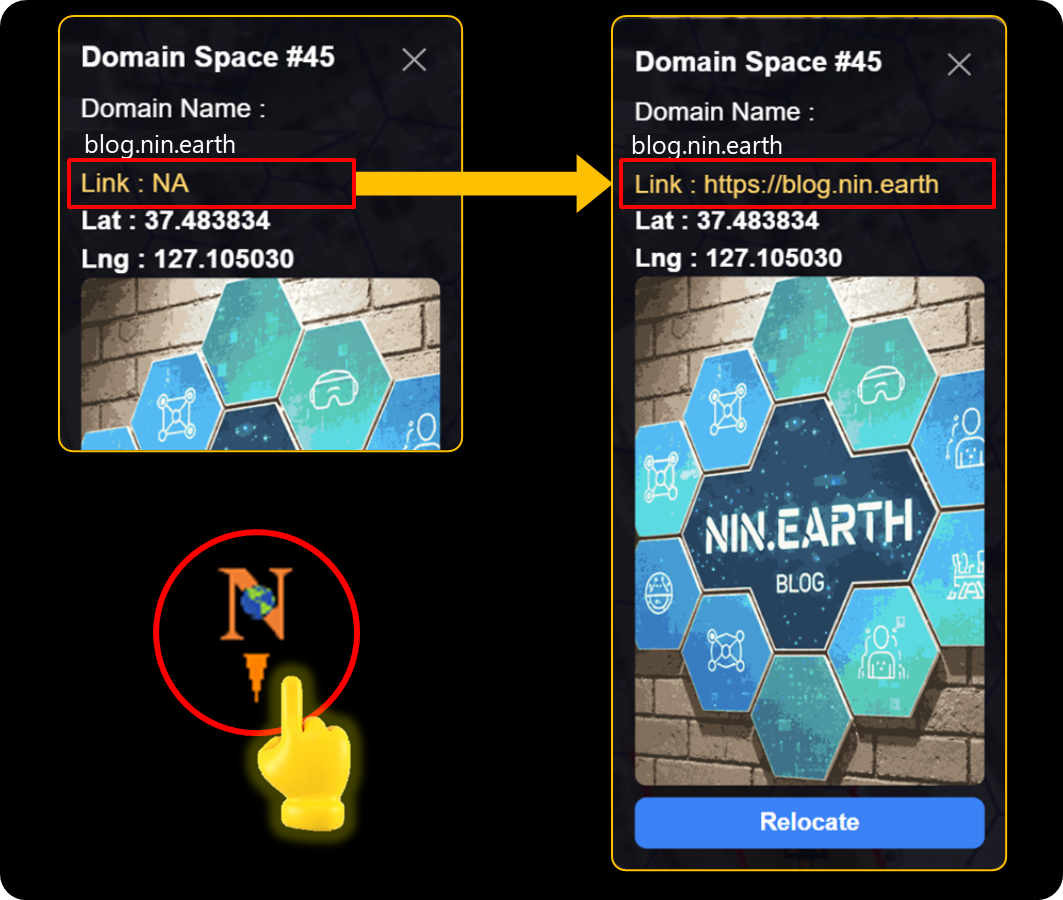
Register one URL. Clicking the Monument or Gazing at it in AR mode, opens the linked web-page.

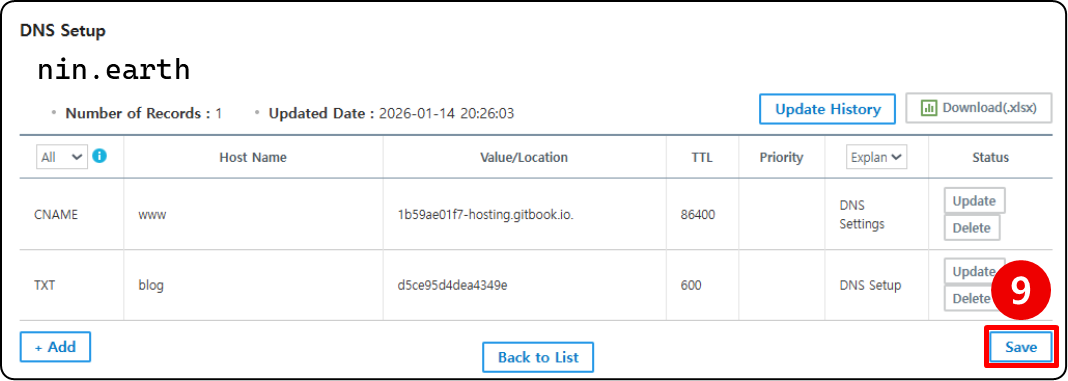
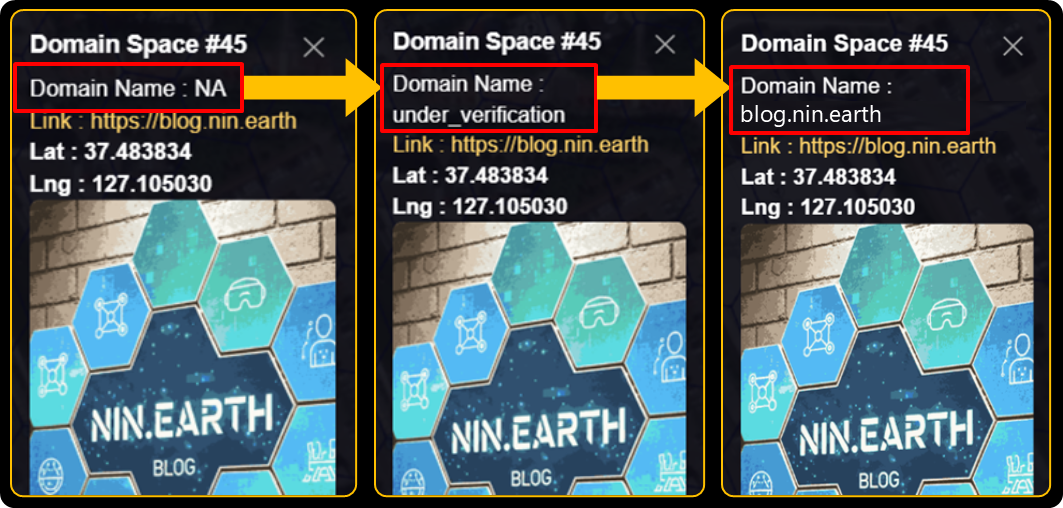
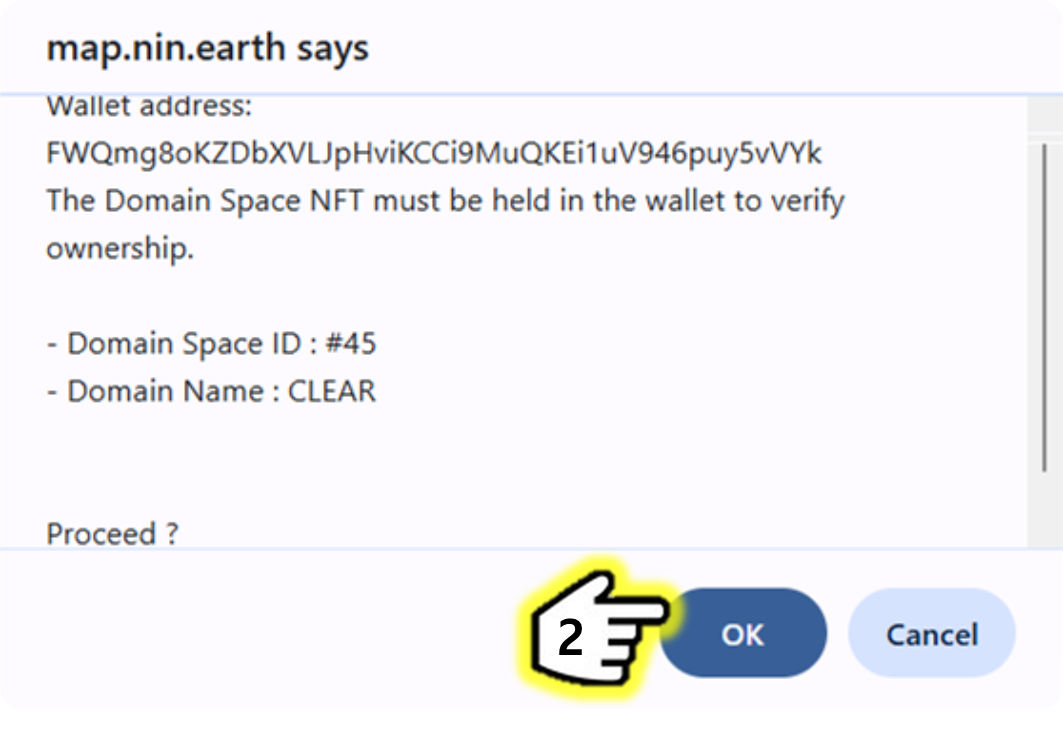
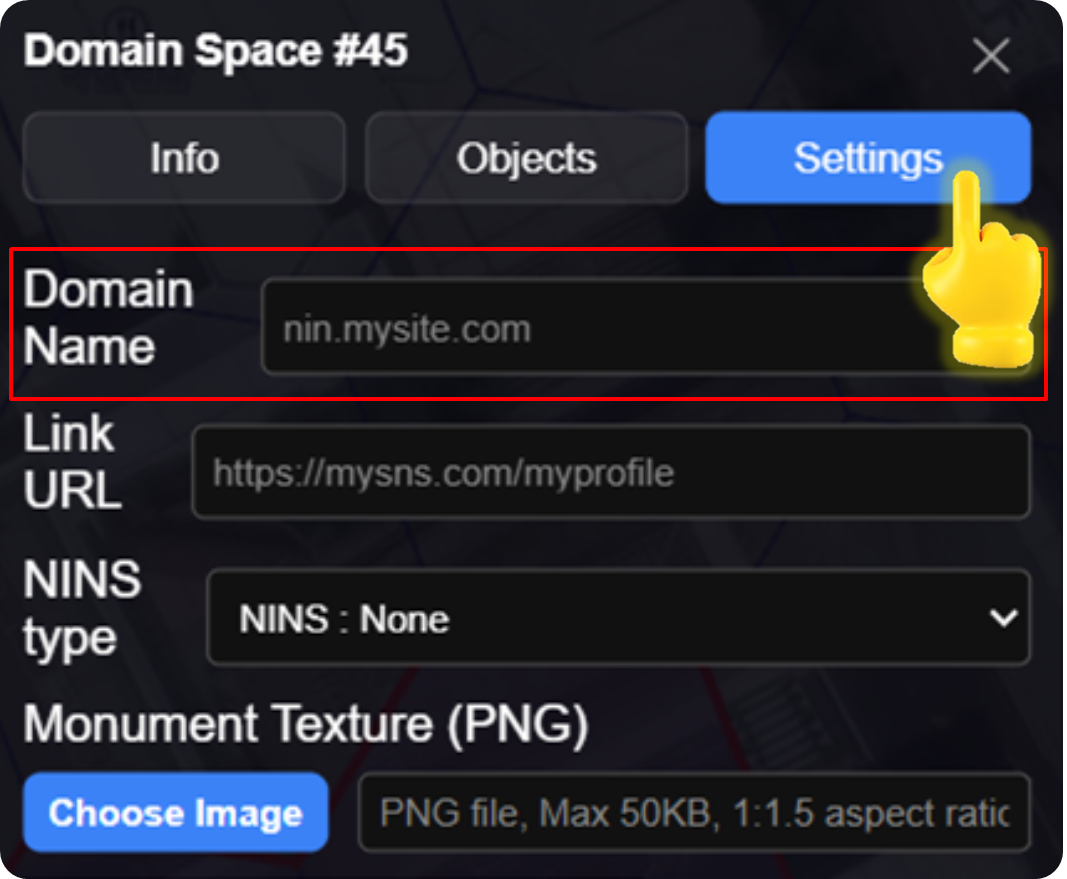
Connect Domain Name

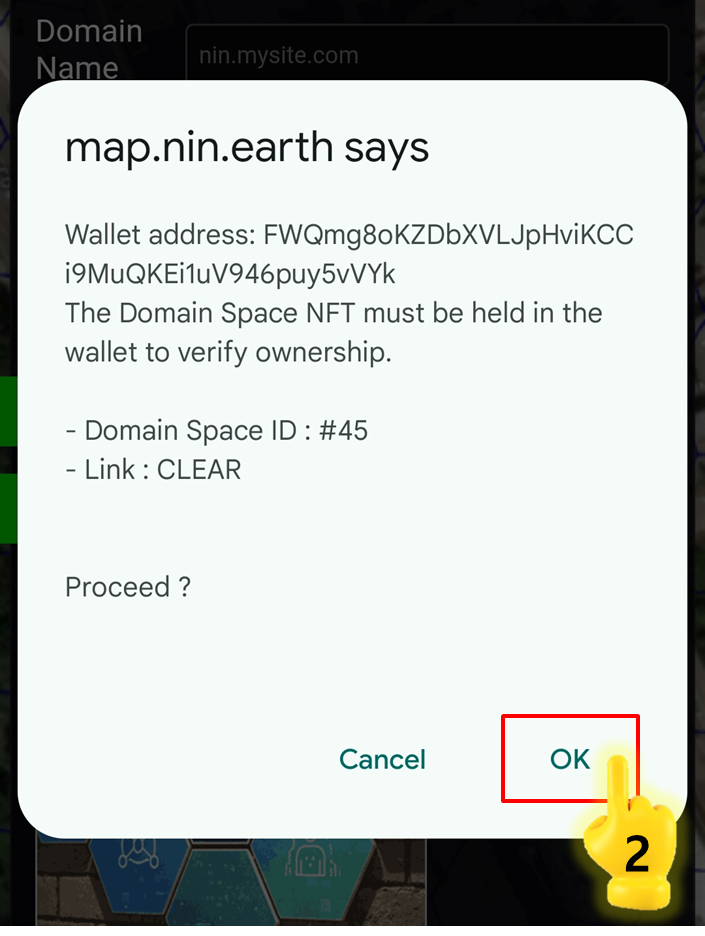
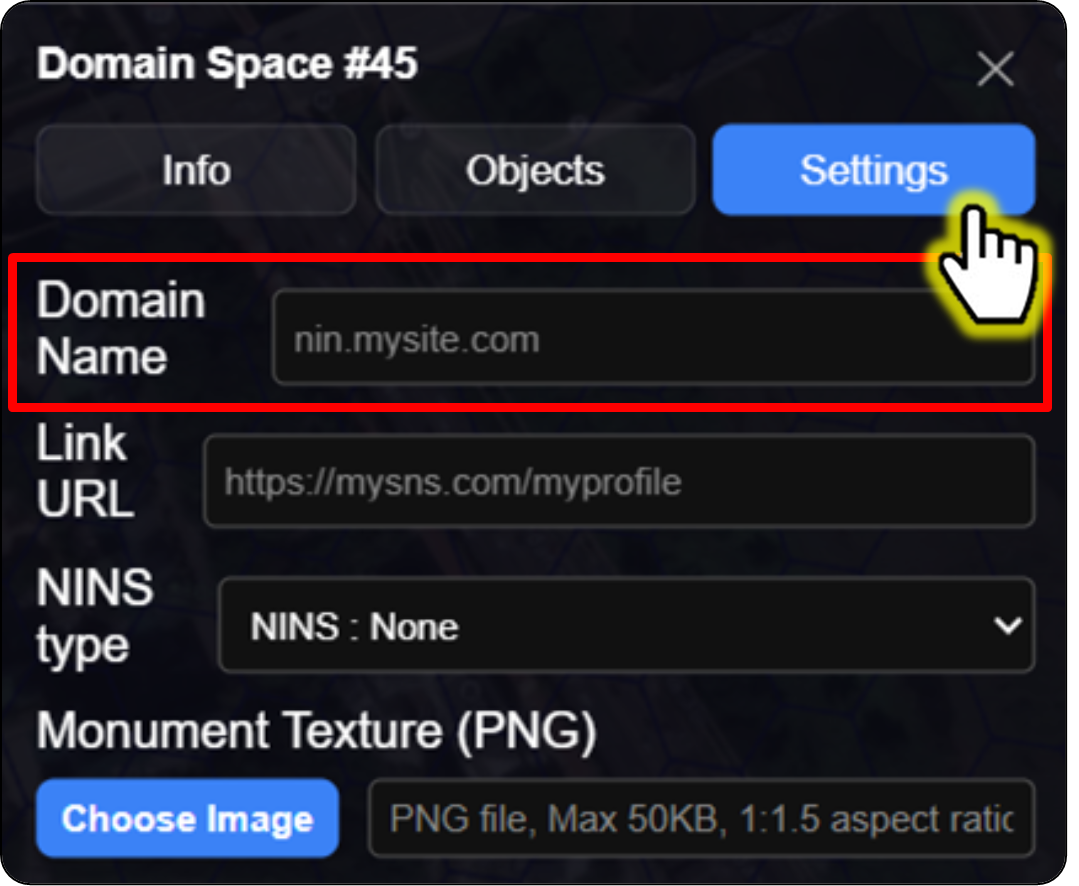
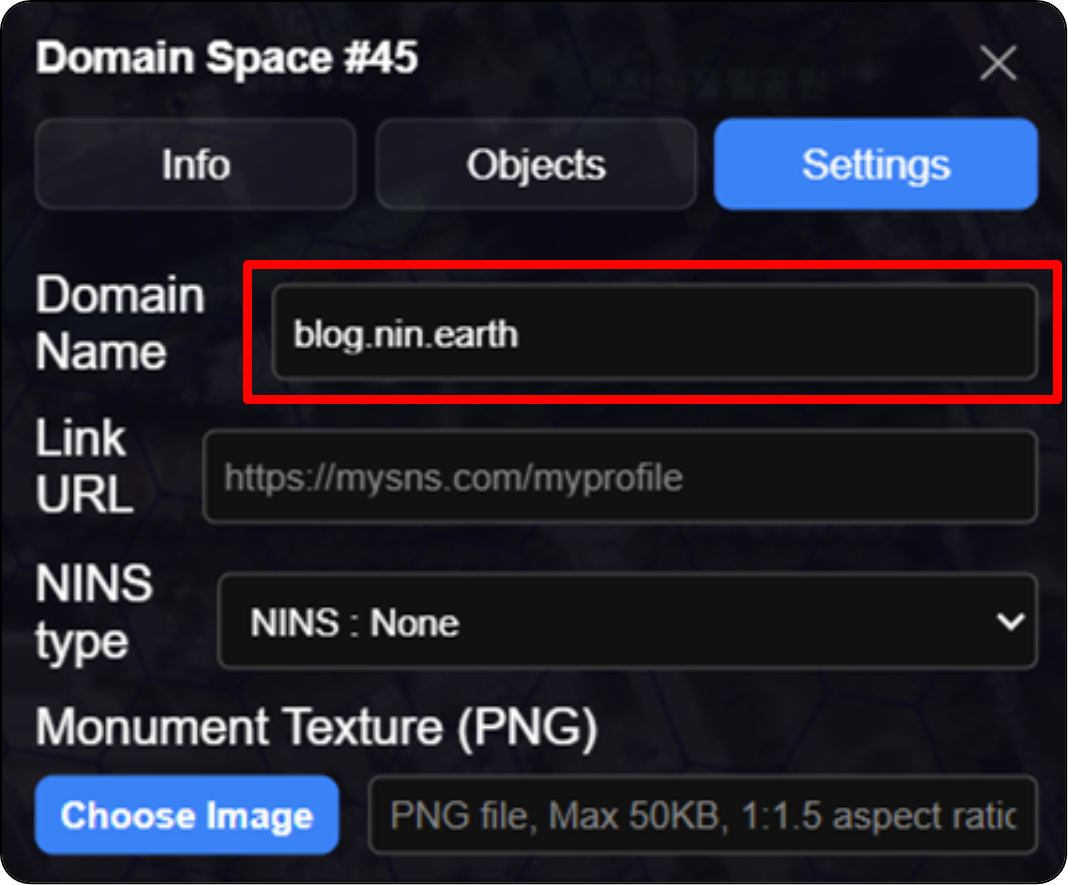
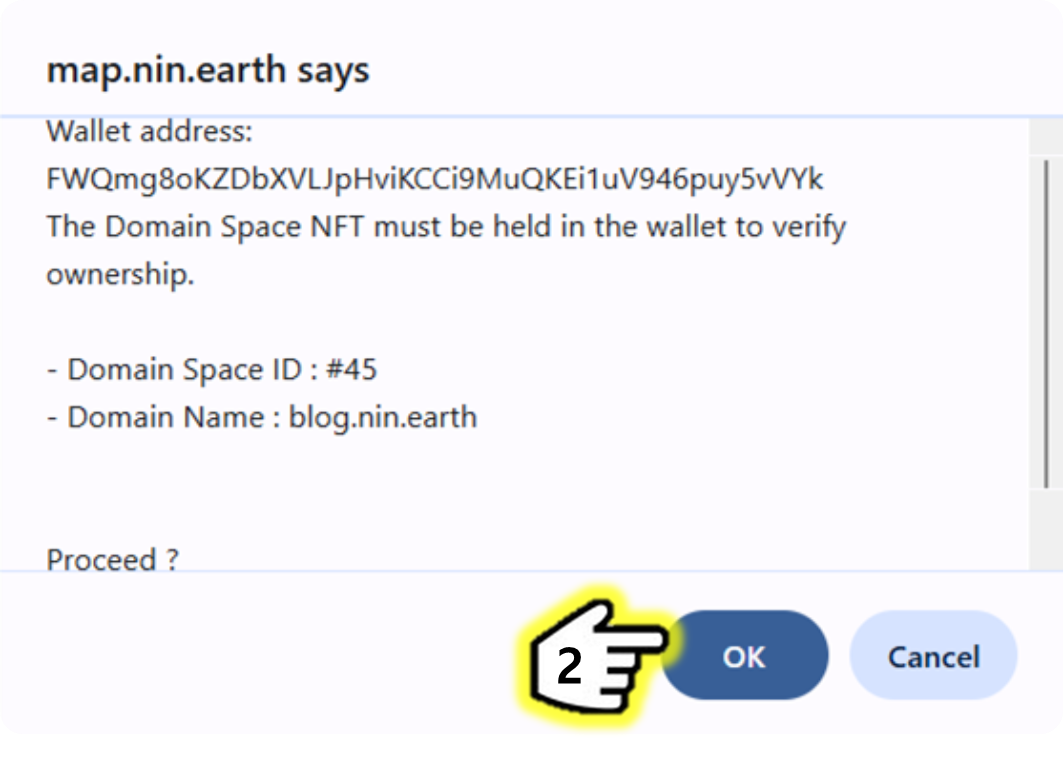
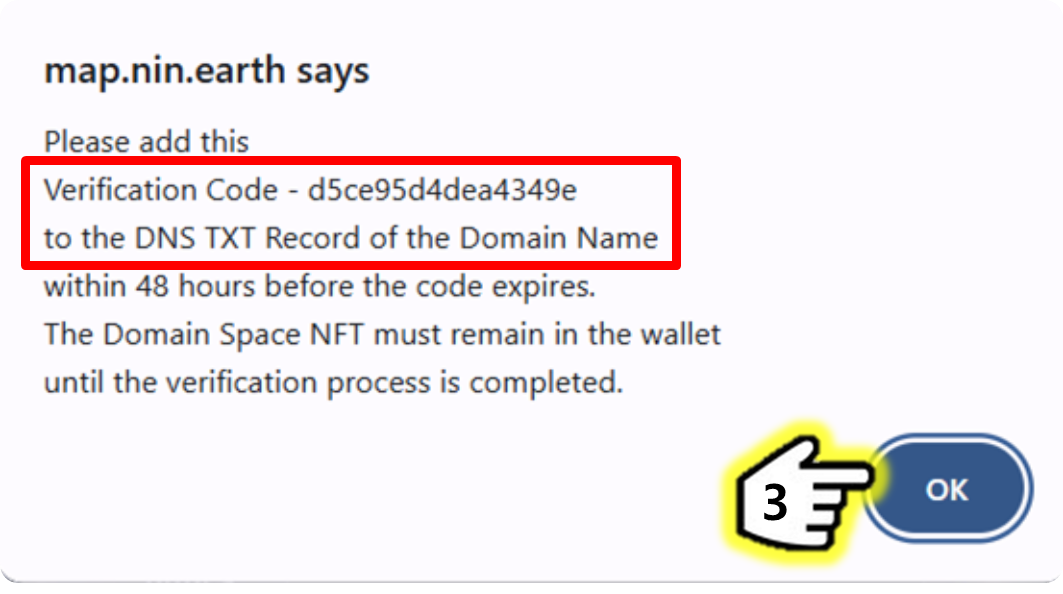
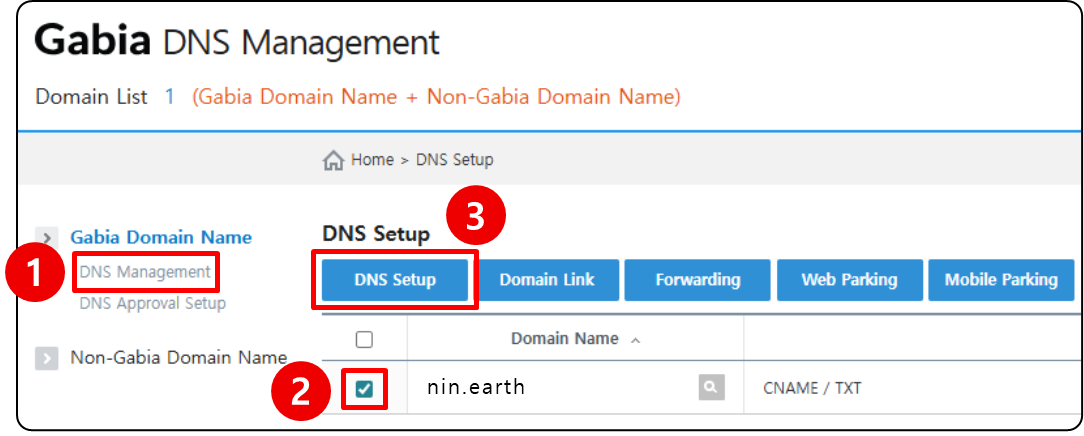
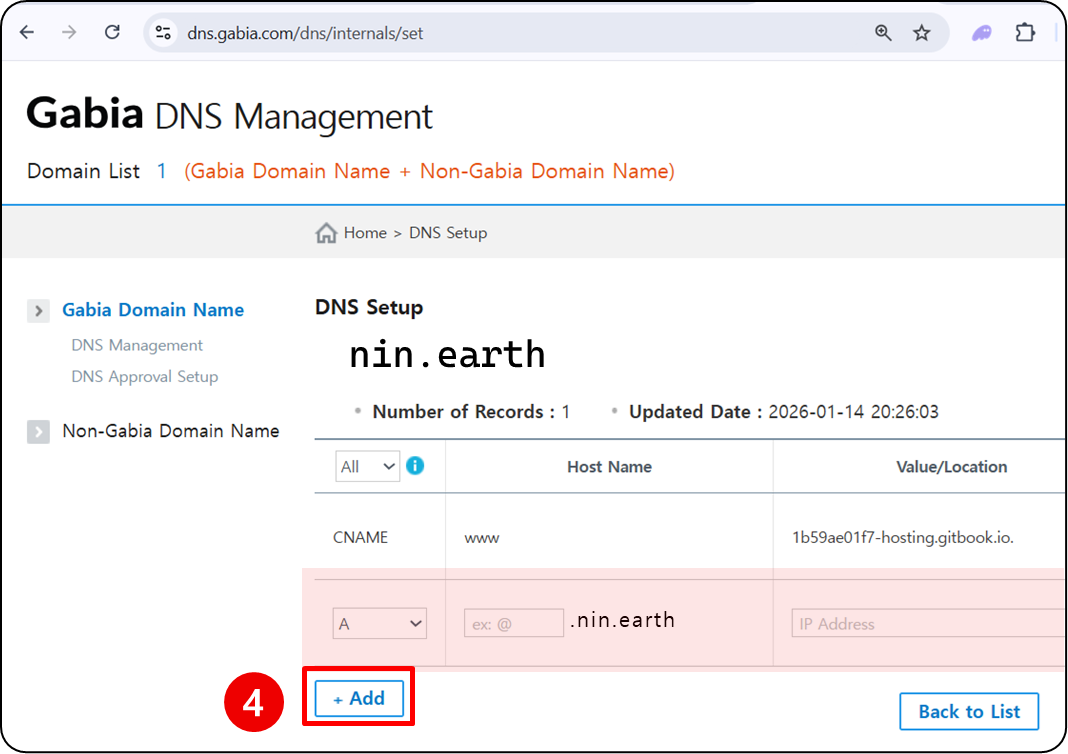
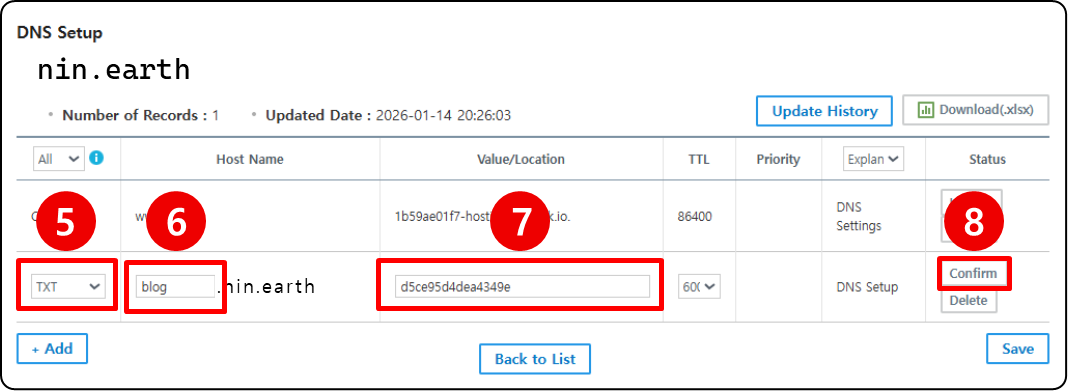
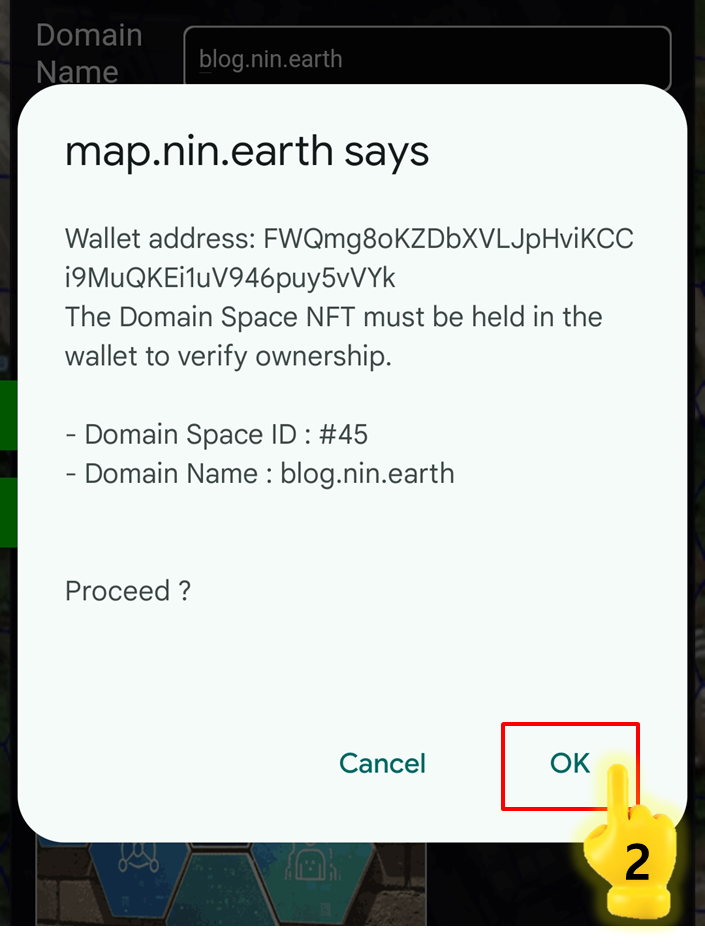
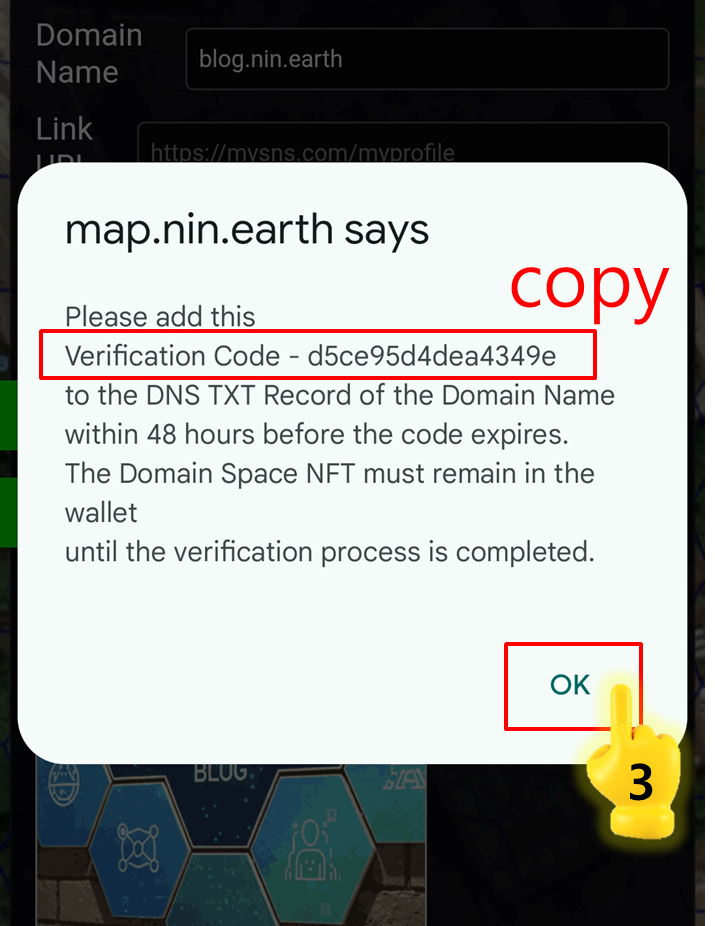
Link your Domain Name so users can search it and jump directly to your Domain Space.

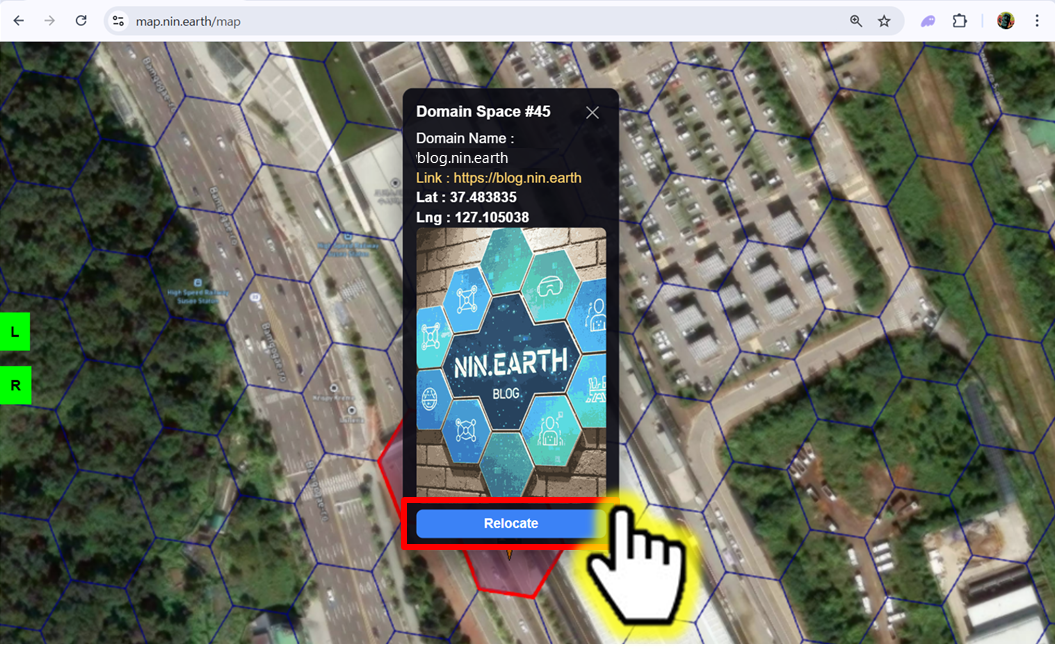
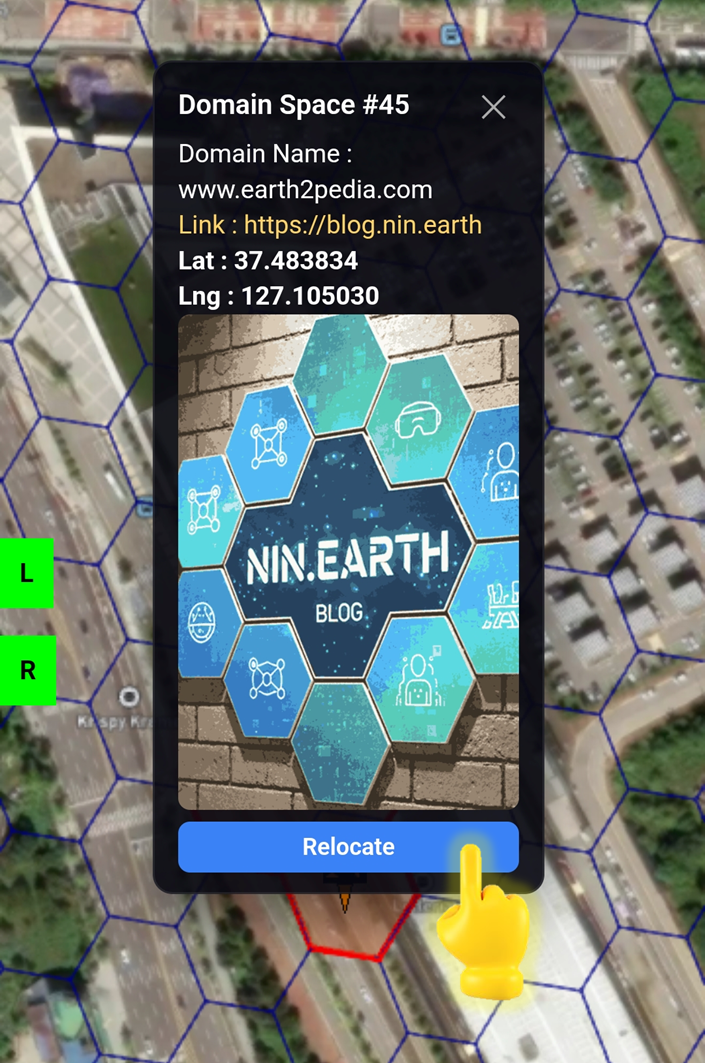
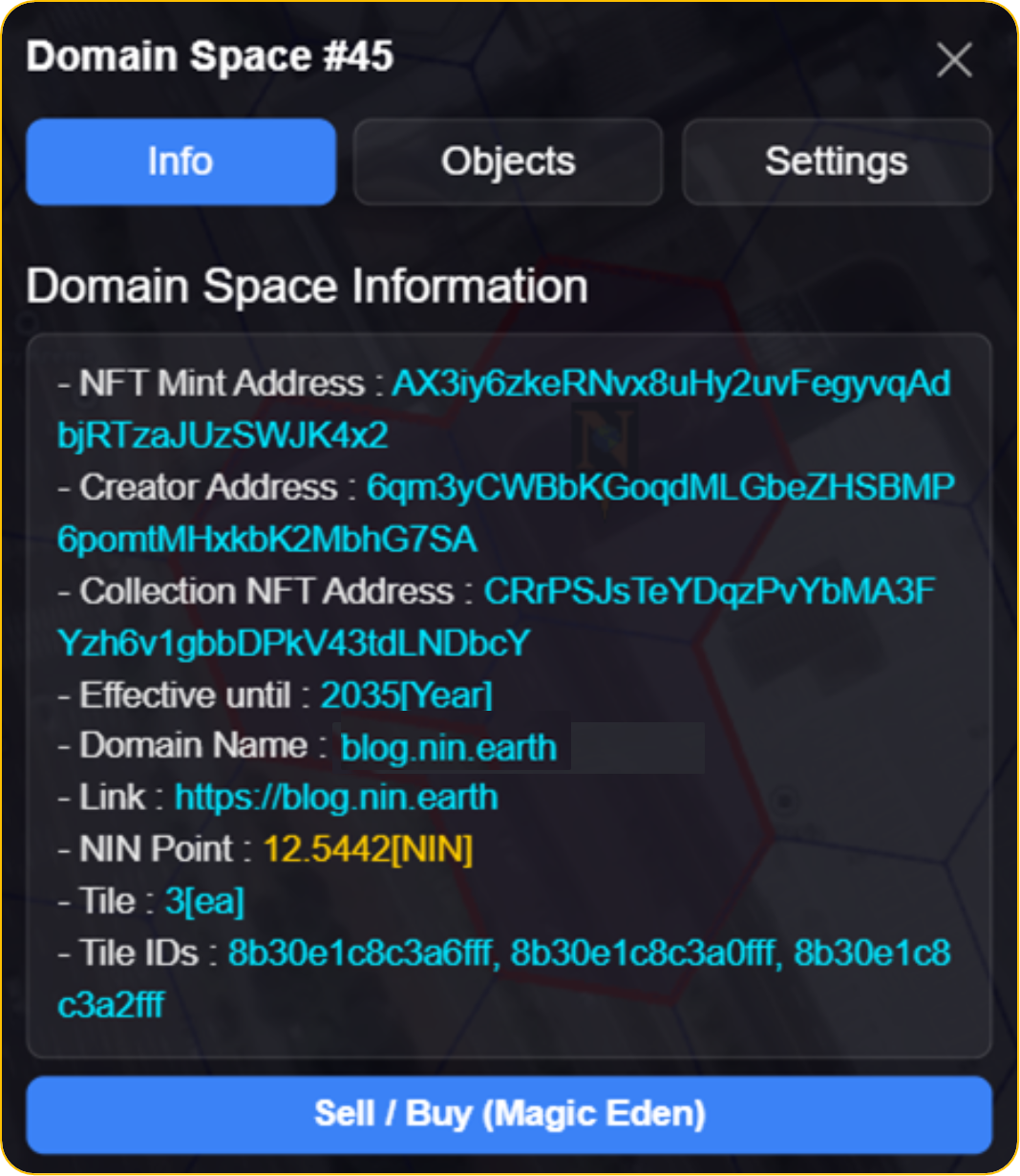
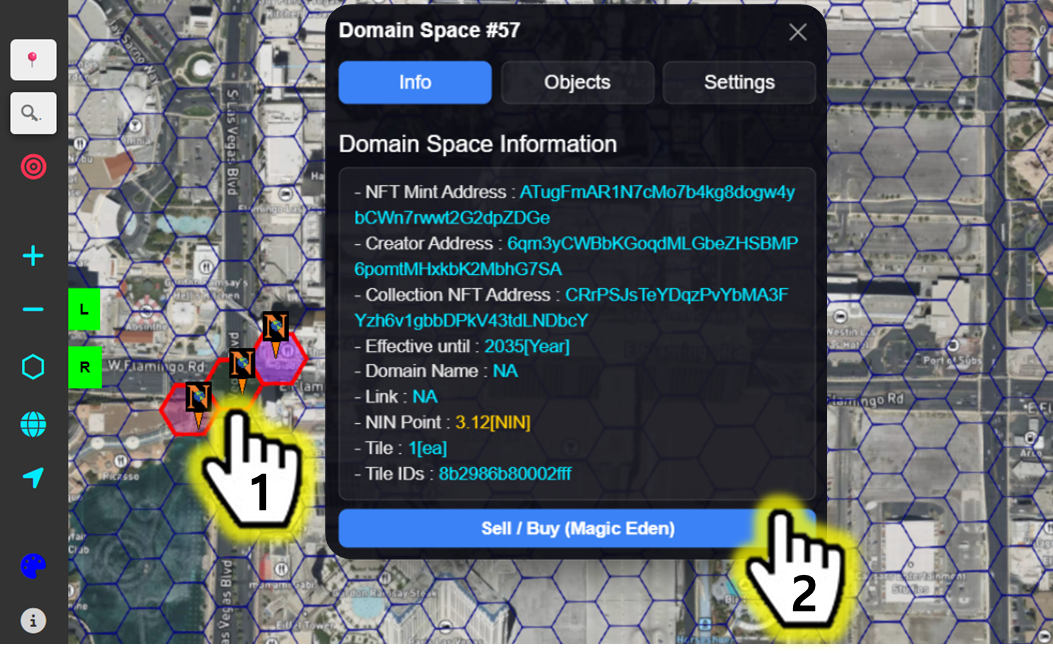
Domain Space Info

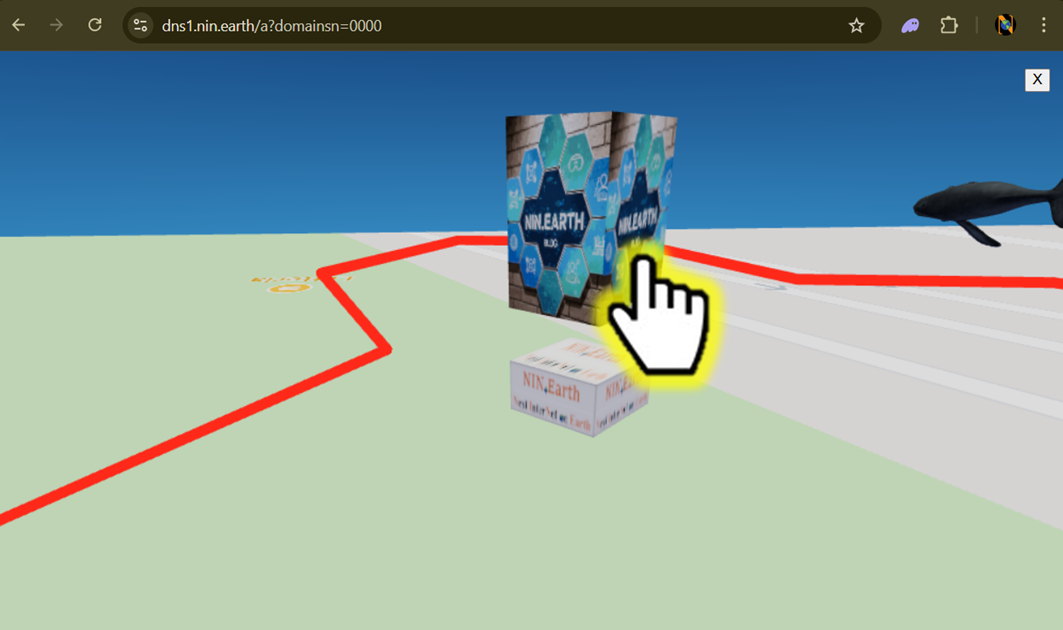
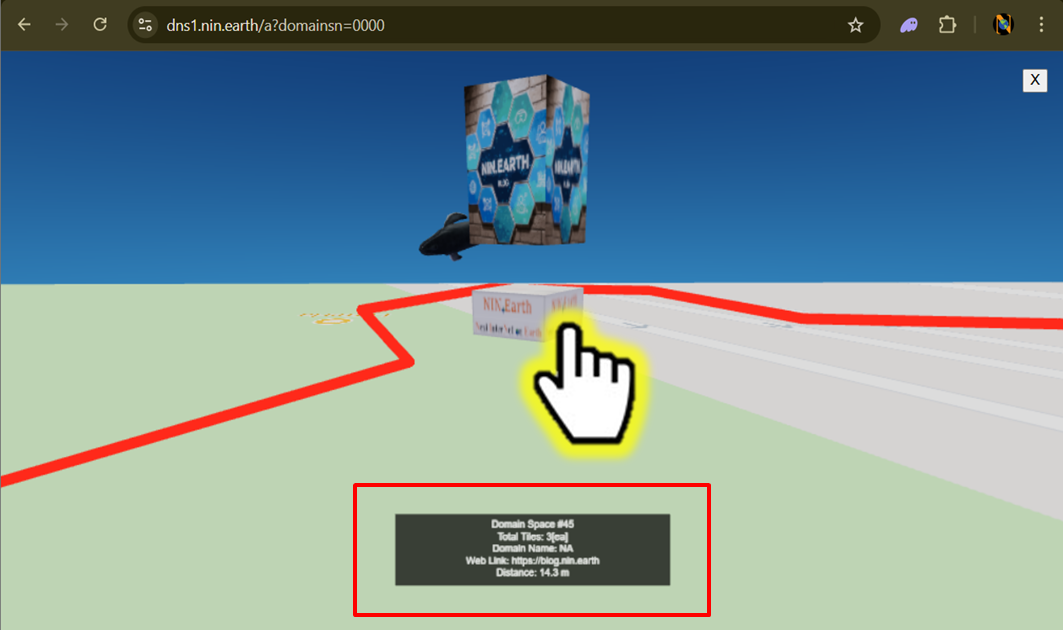
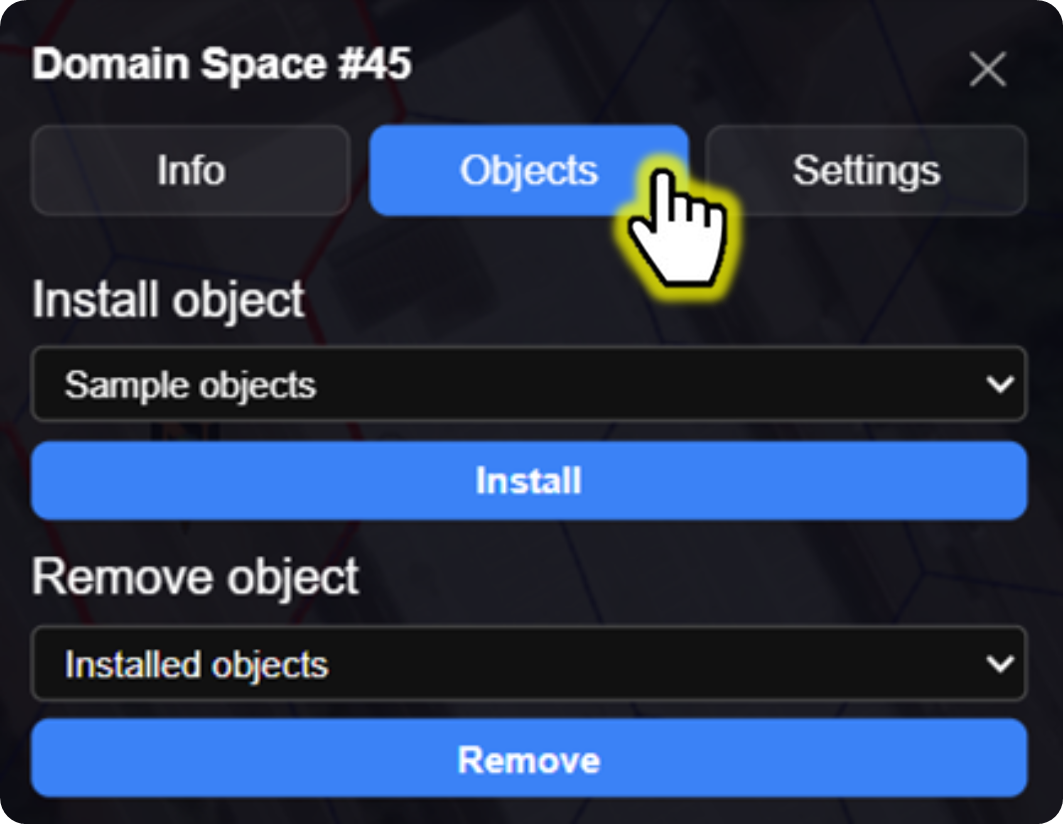
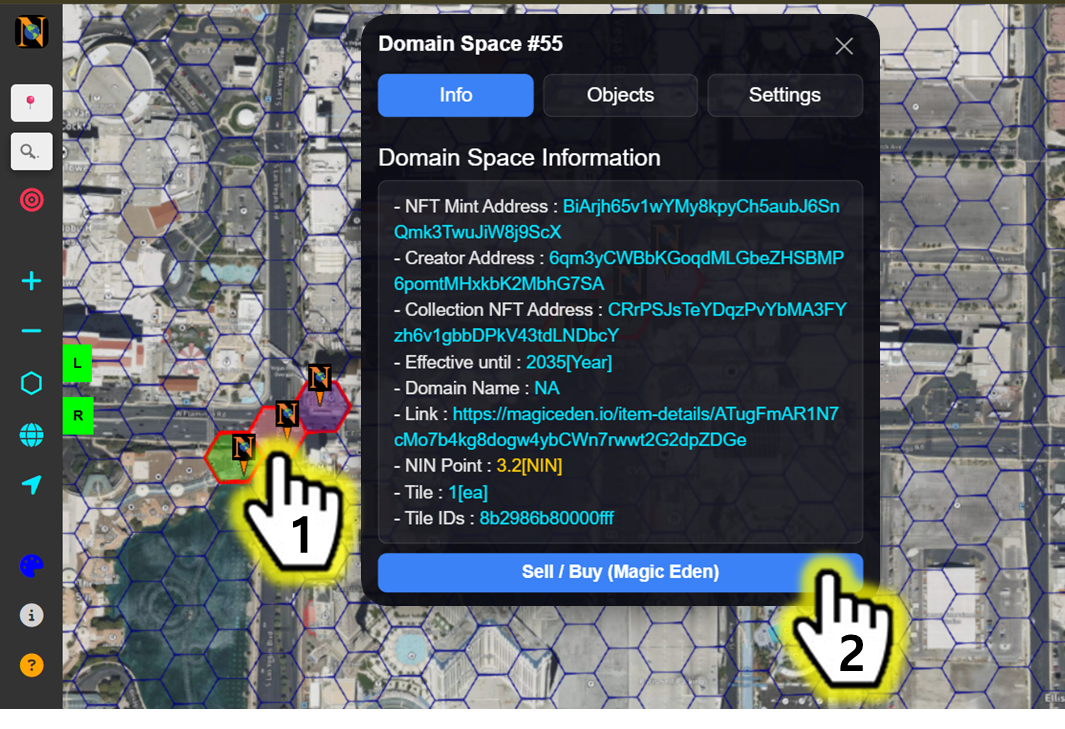
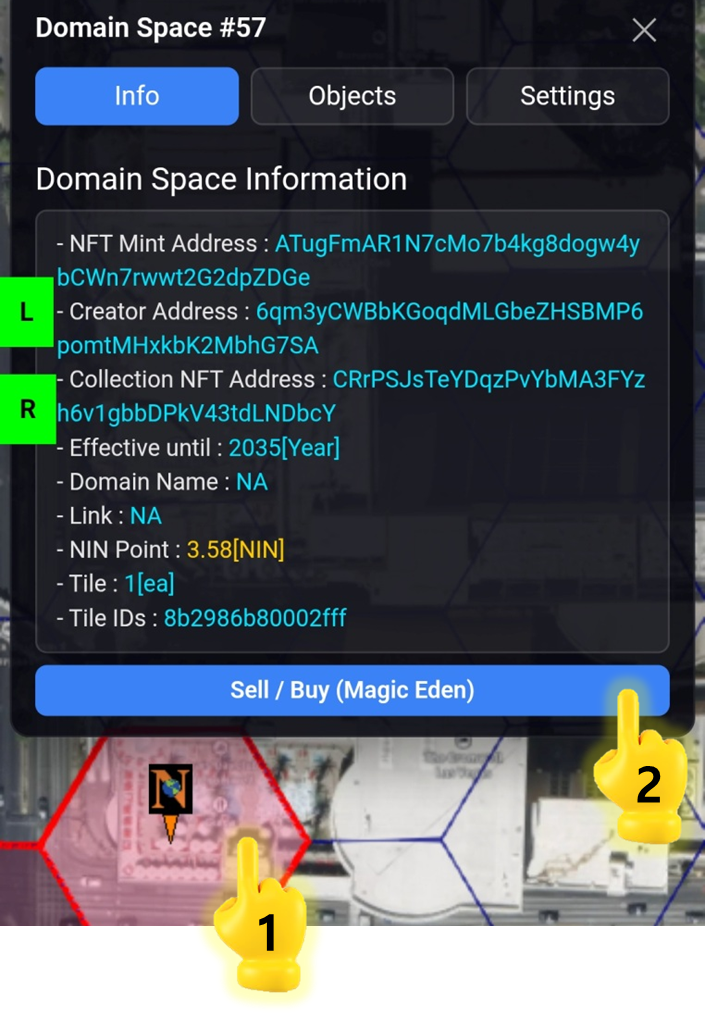
Double-click Domain Space to view details.

1

Click [Connect Phantom Wallet]

Click R panel.

Click [Connect Phantom Wallet] button.

2

Click Tiles you want

3

Click [Purchase Domain Space]

4

Click Payment Type you want

5

Click [Approve]


How do I Trade my NFT?

Your Domain Space NFT is minted on the Solana Blockchain and this provides true ownership that lets you Trade it freely on any supported marketplace.

Please NOTE..

Magic Eden is the most active marketplace for Solana NFTs, but you are free to trade on any platform that supports the Solana network.

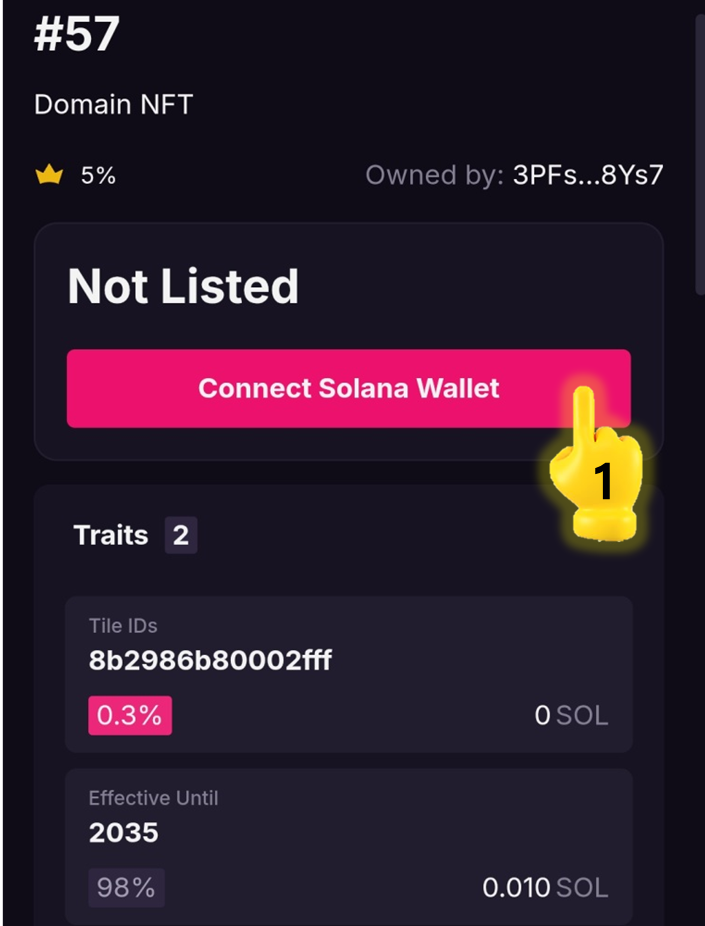
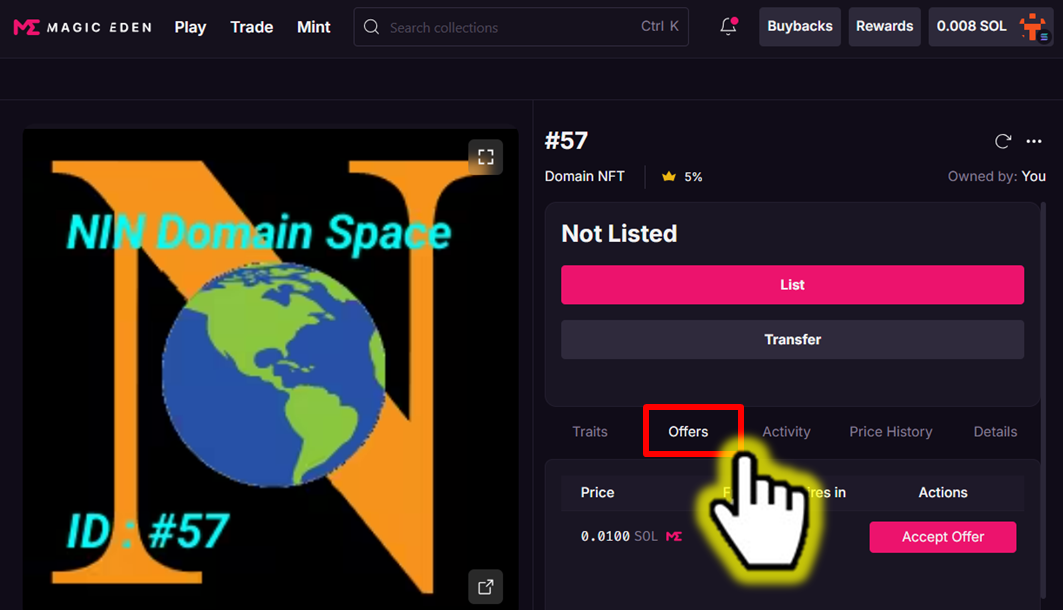
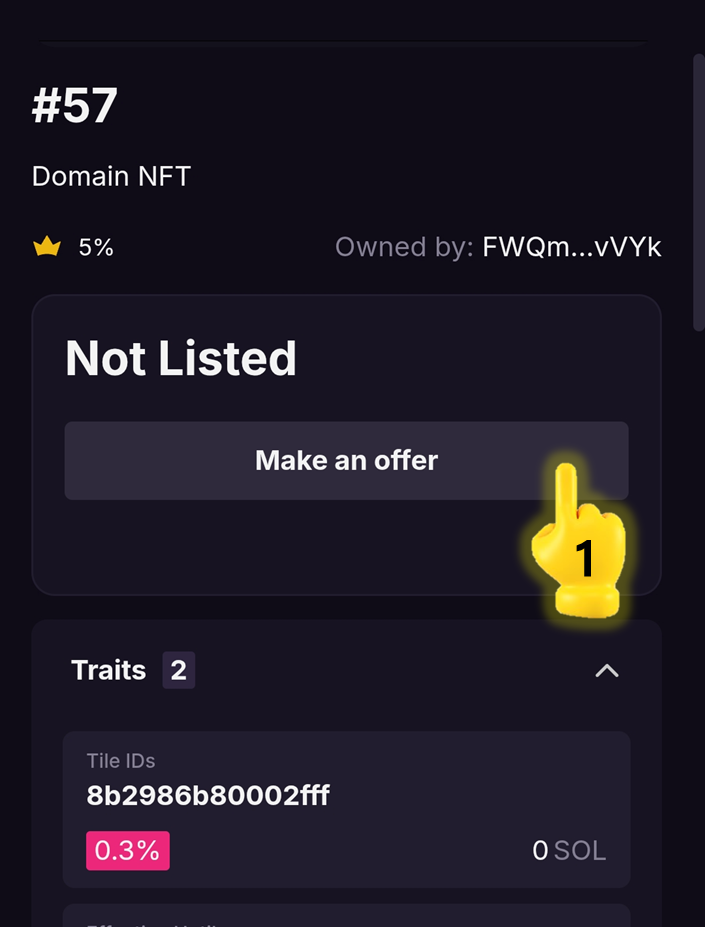
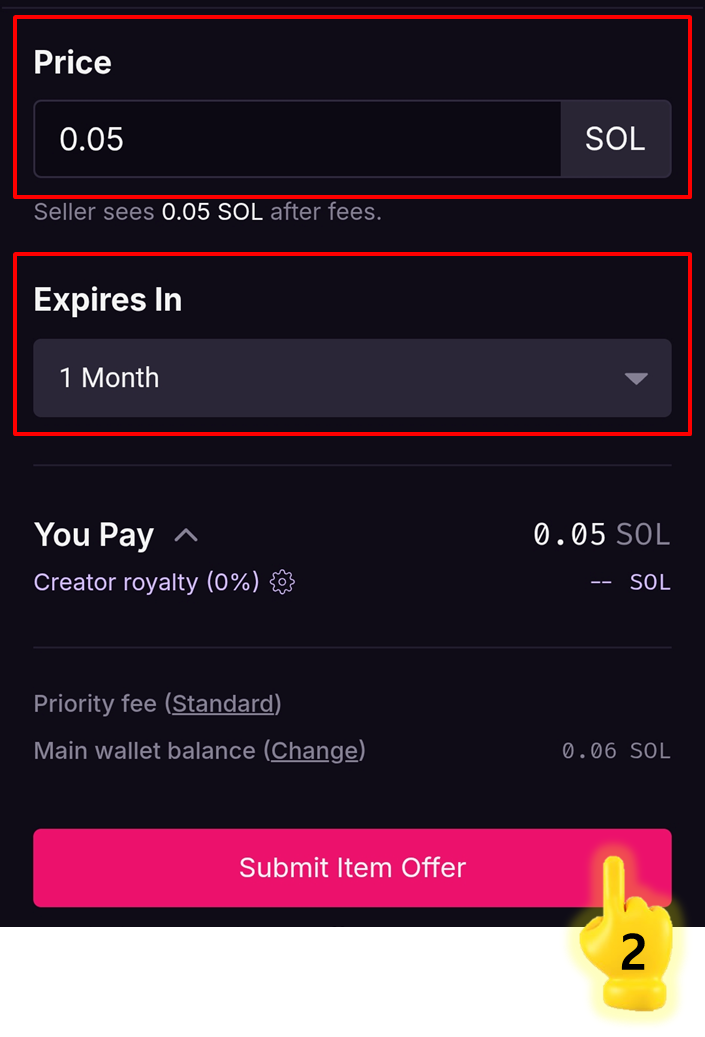
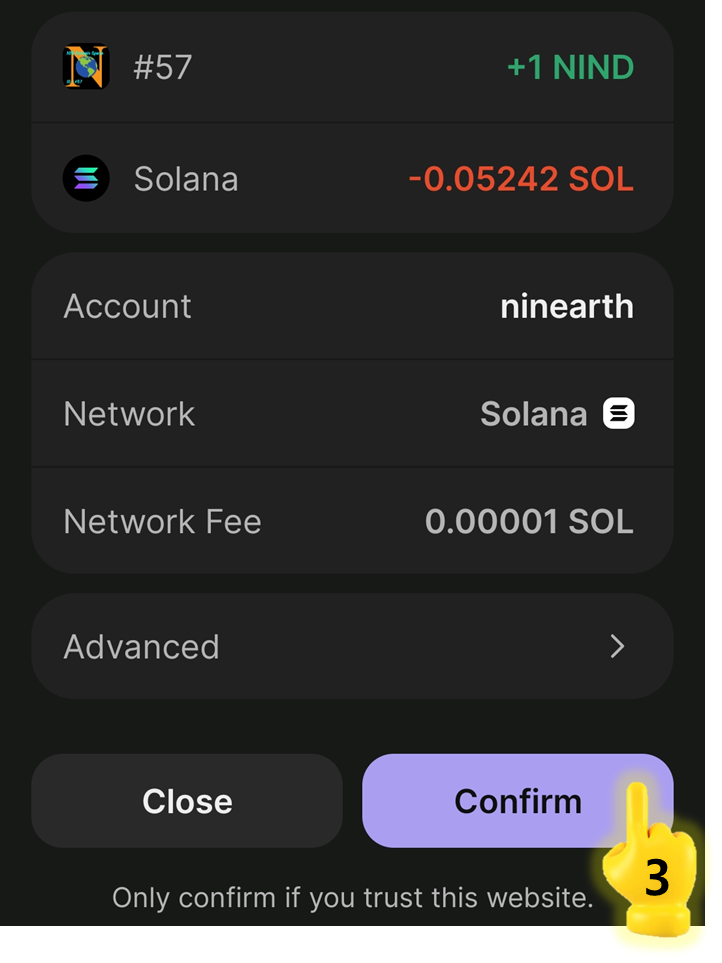
This guide explains the trading process (Buy & Sell, Promote) using Magic Eden as an example among various NFT marketplaces.

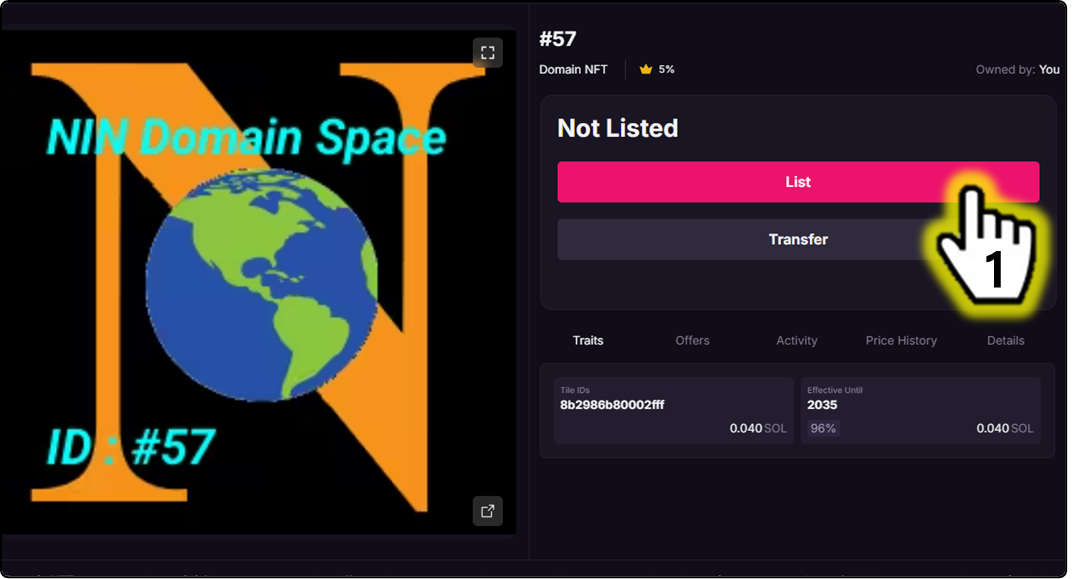
How to List(Sell) NFTs

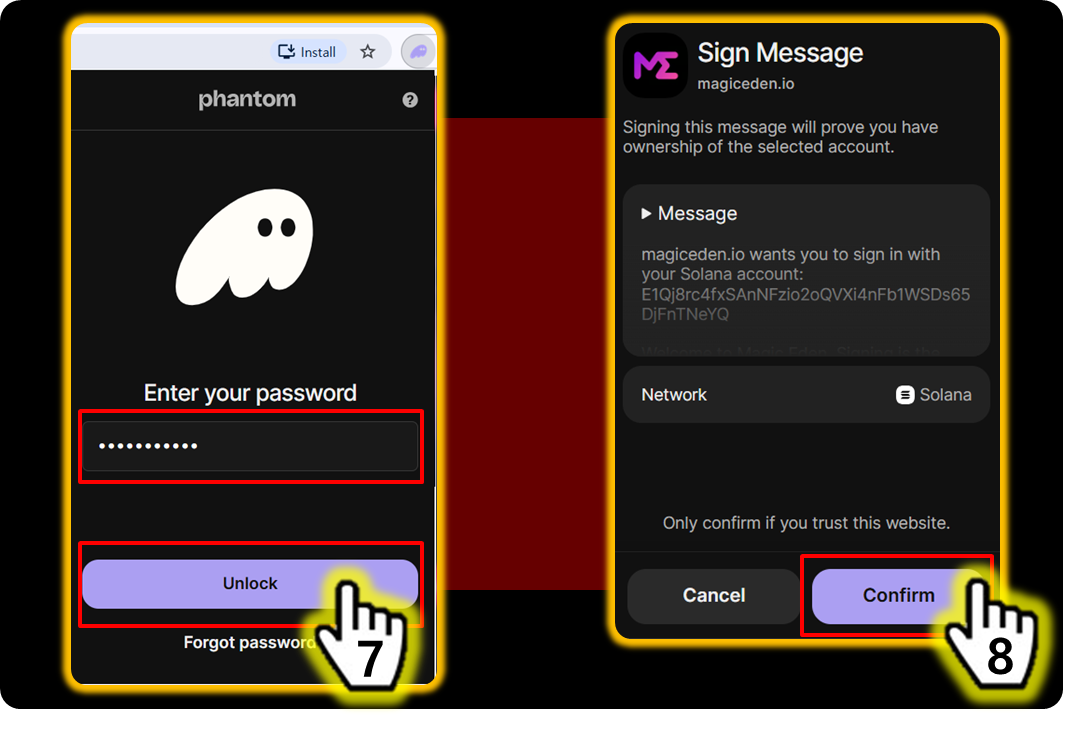
2

Unlock [Phantom Wallet]

  1. Enter your password

  2. Click [Unlock]

NOTE

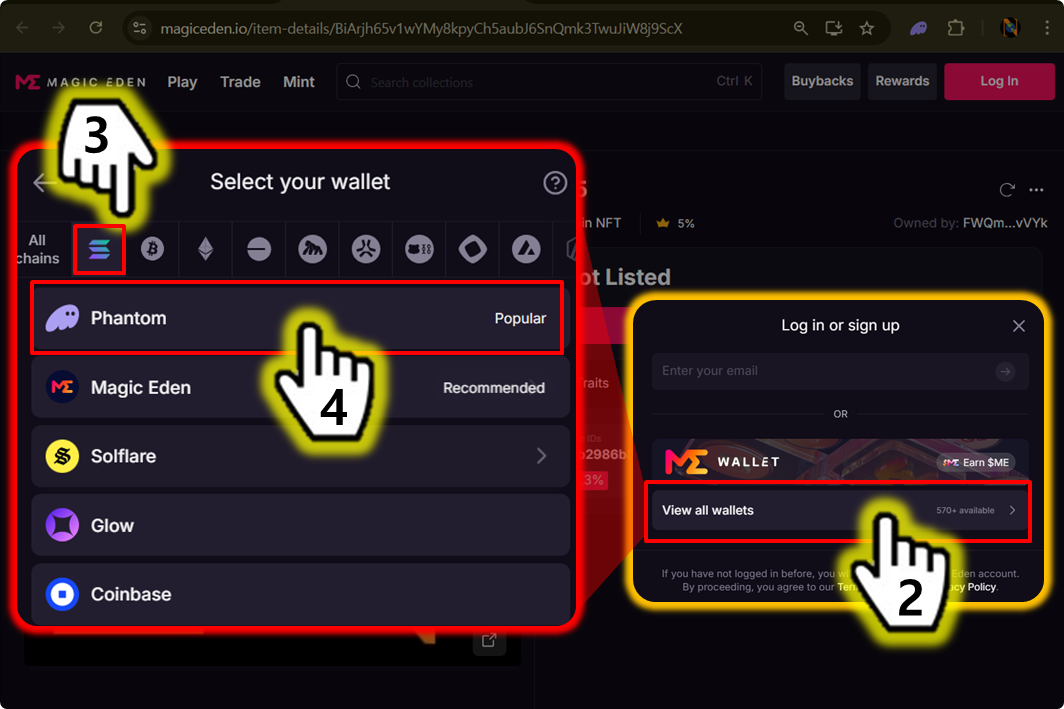
3

Click [Log in] = [connect Wallet]

  1. Click [Log in]

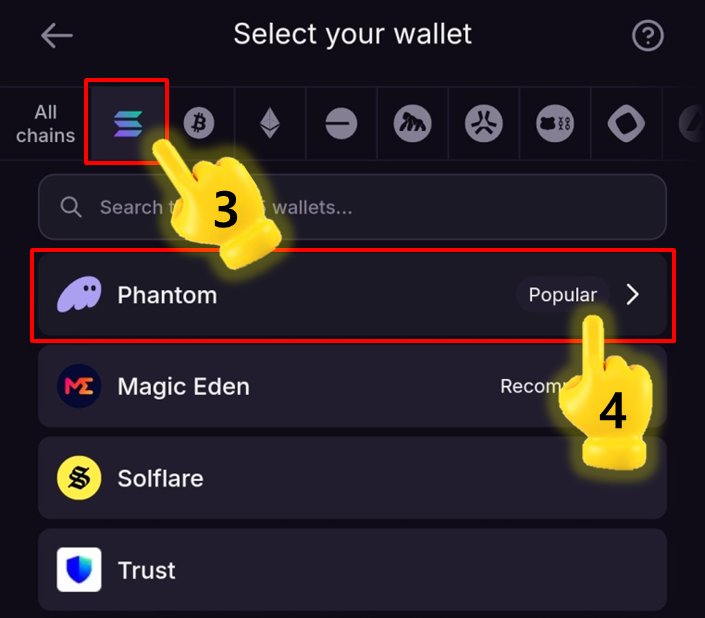
  2. Click [View all wallets]

  3. Click [Tab (Solona)] → Select Solana Network

  4. Click [Phantom] → Select Wallet

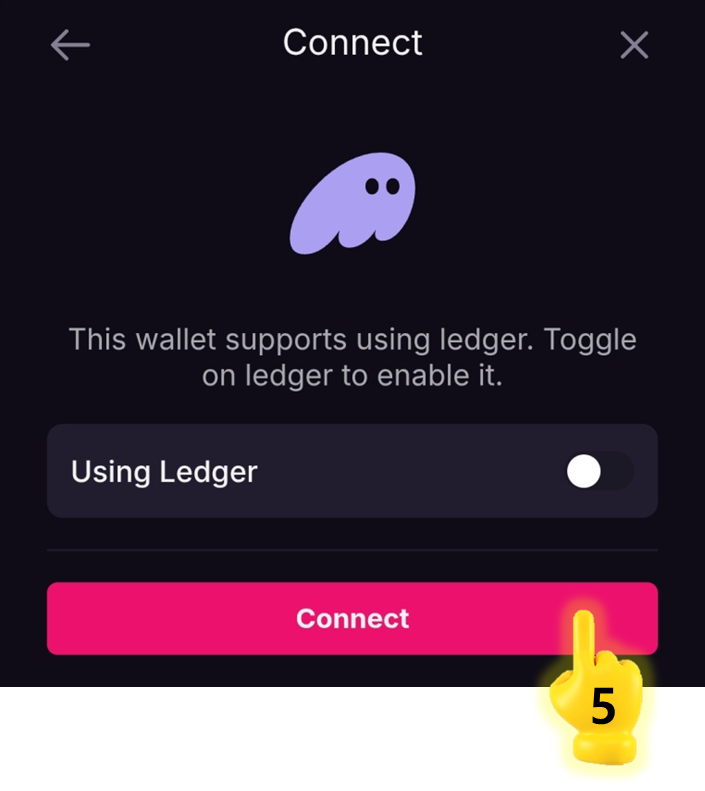
  1. Click [Solana]

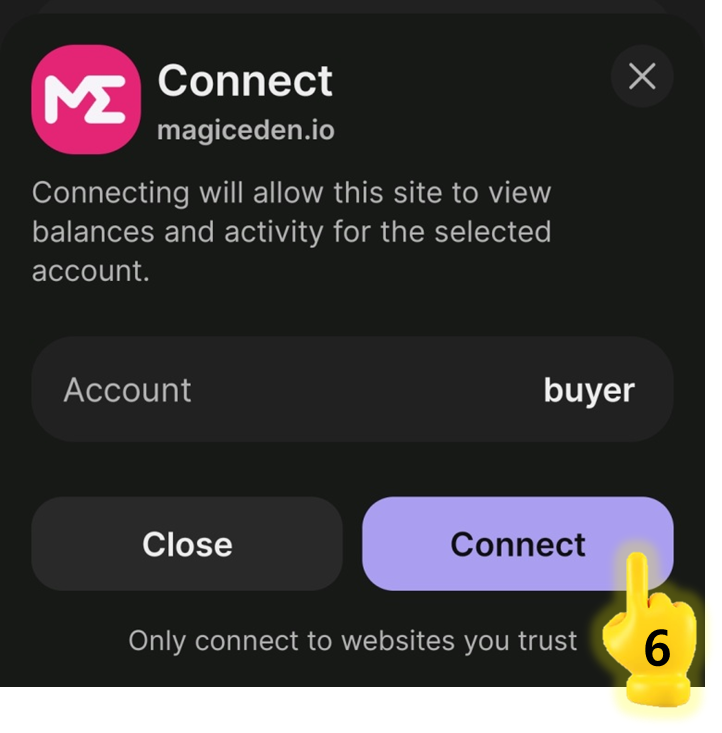
  2. Click [Connect]

NOTE

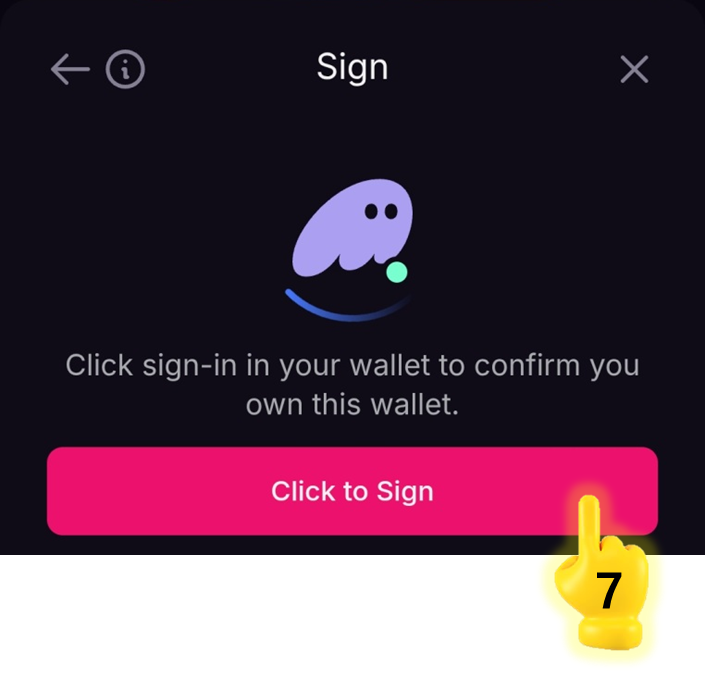
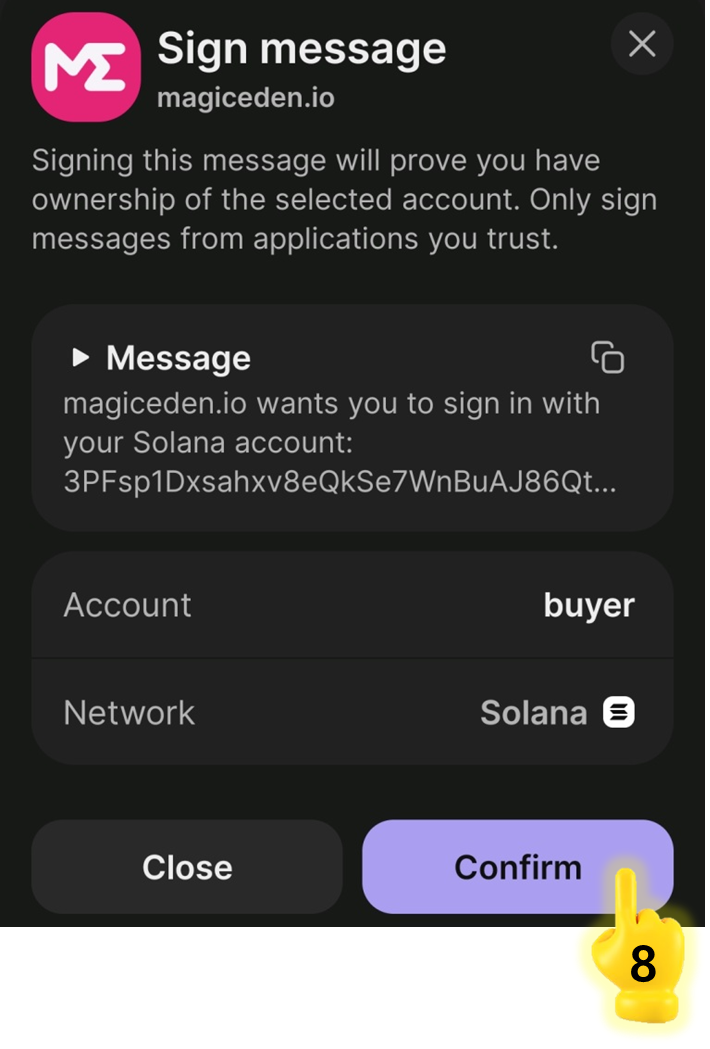
Once your Phantom wallet is connected, you will be logged in.

4

View Your Profile

  1. Click [Account] icon

  2. Click [Item] tab

Then, you can view your items and account details.

5

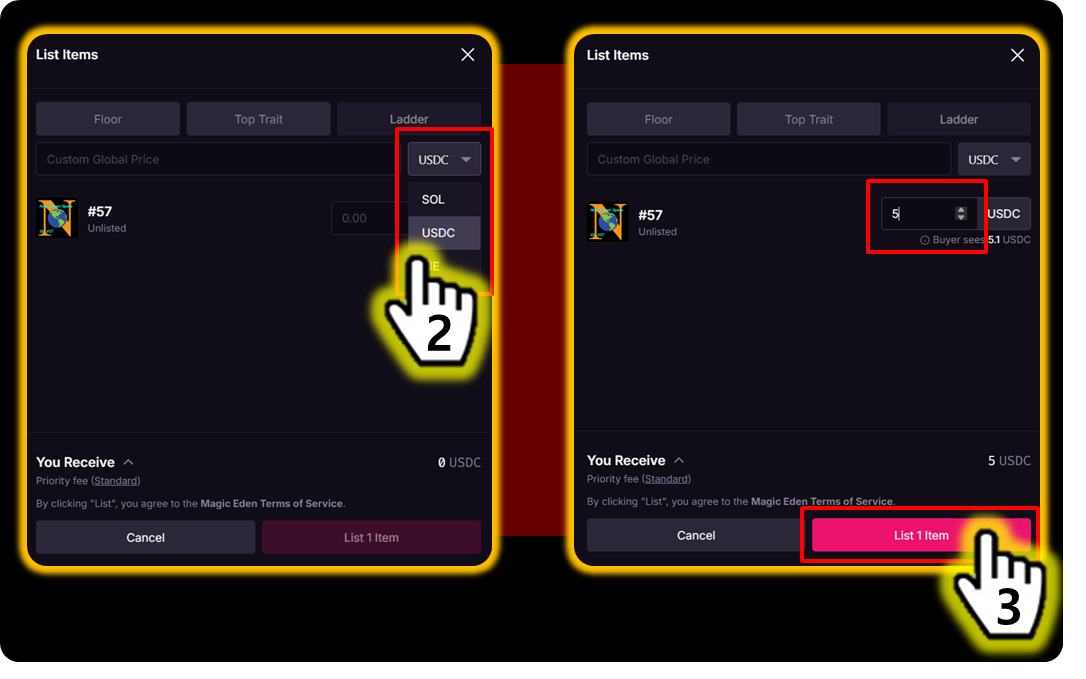
List NFT

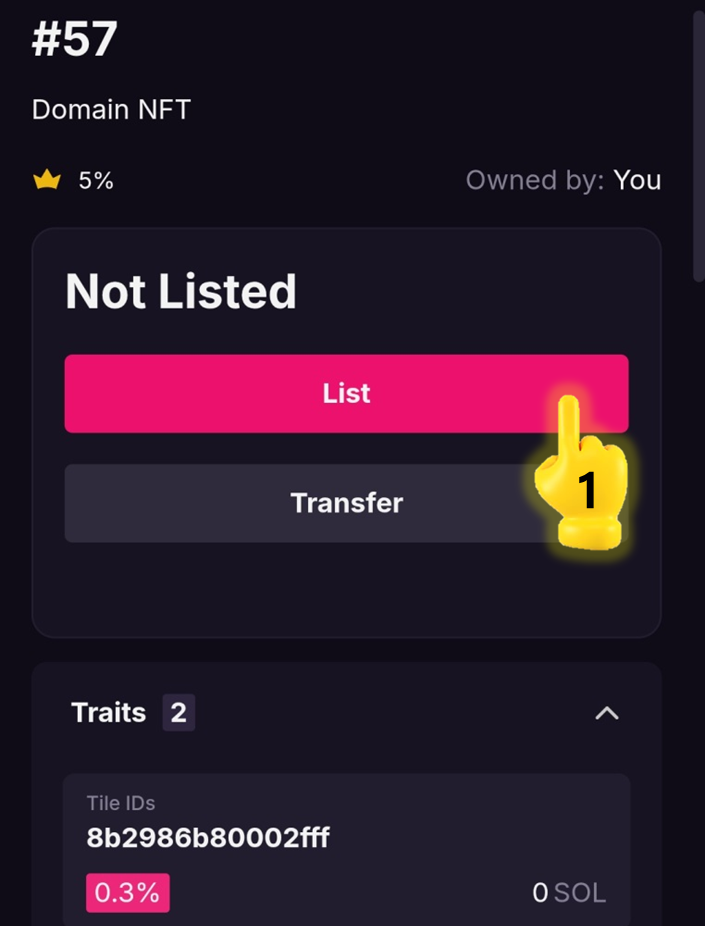
Select the NFT you want from your items, then Click [List Now]

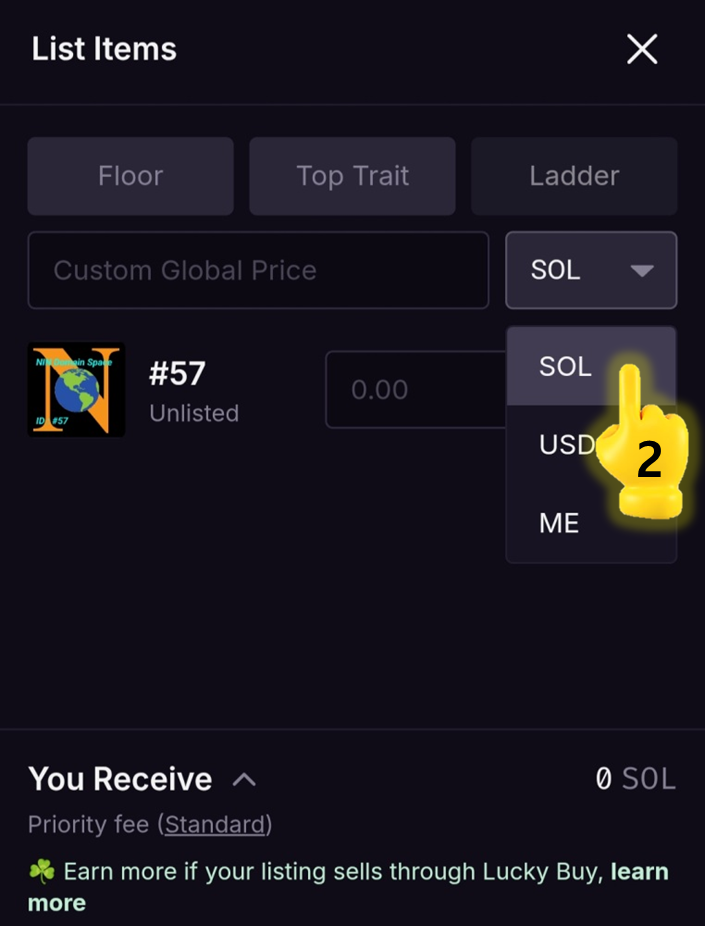
  1. Choose the one you prefer: SOL, USDC, or ME

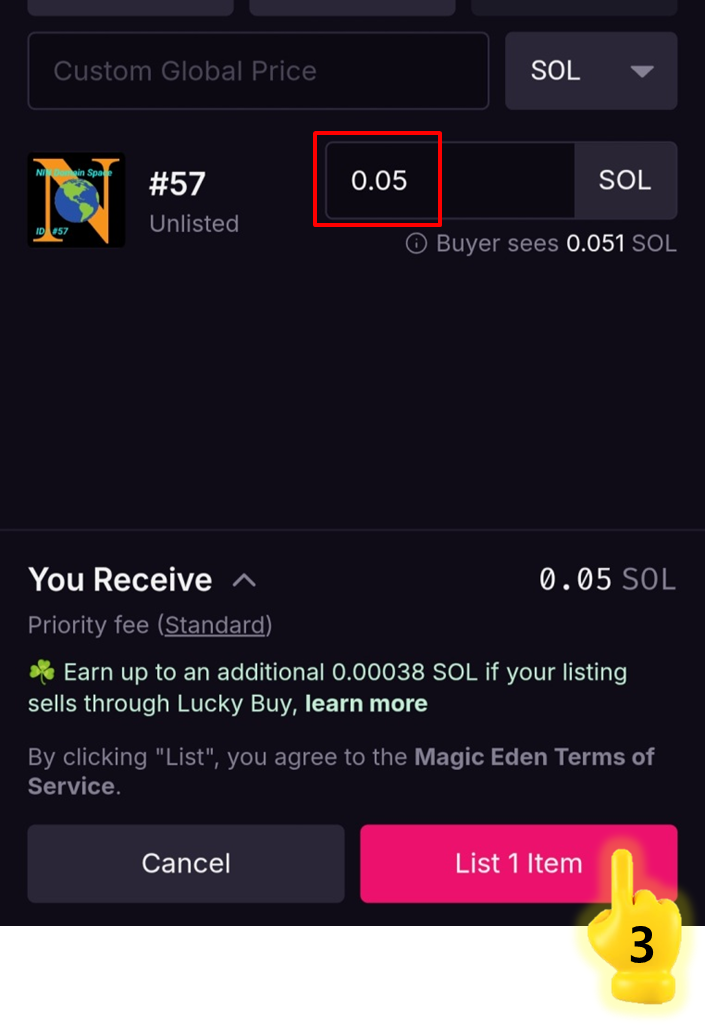
  2. Enter the price, then Click [List Item]

NOTE

6

Complete the Listing

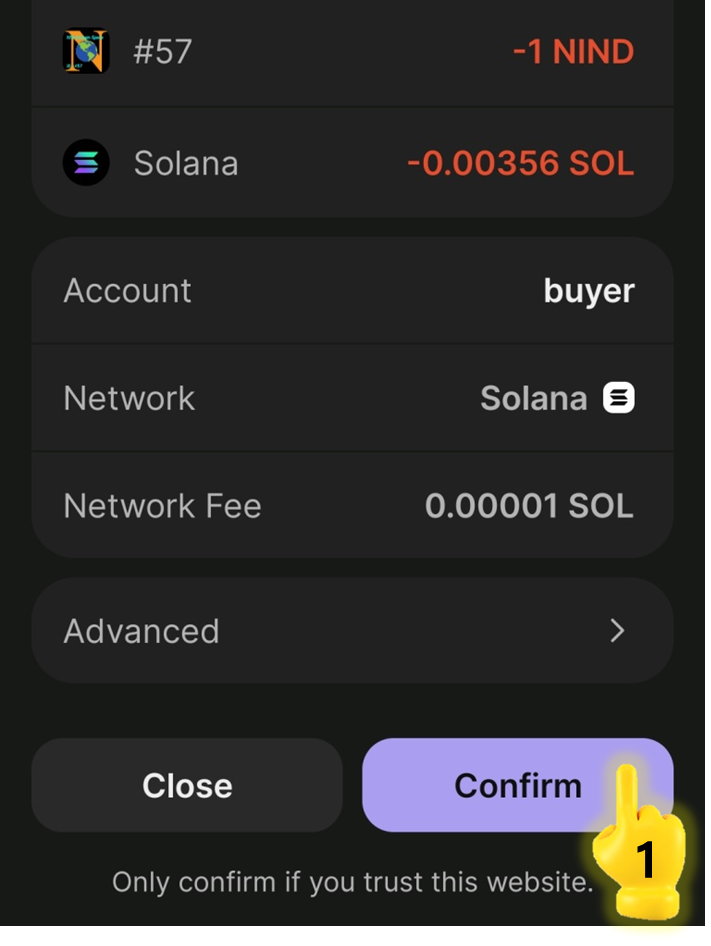
  1. Click [Confirm] → Pay the listing fee

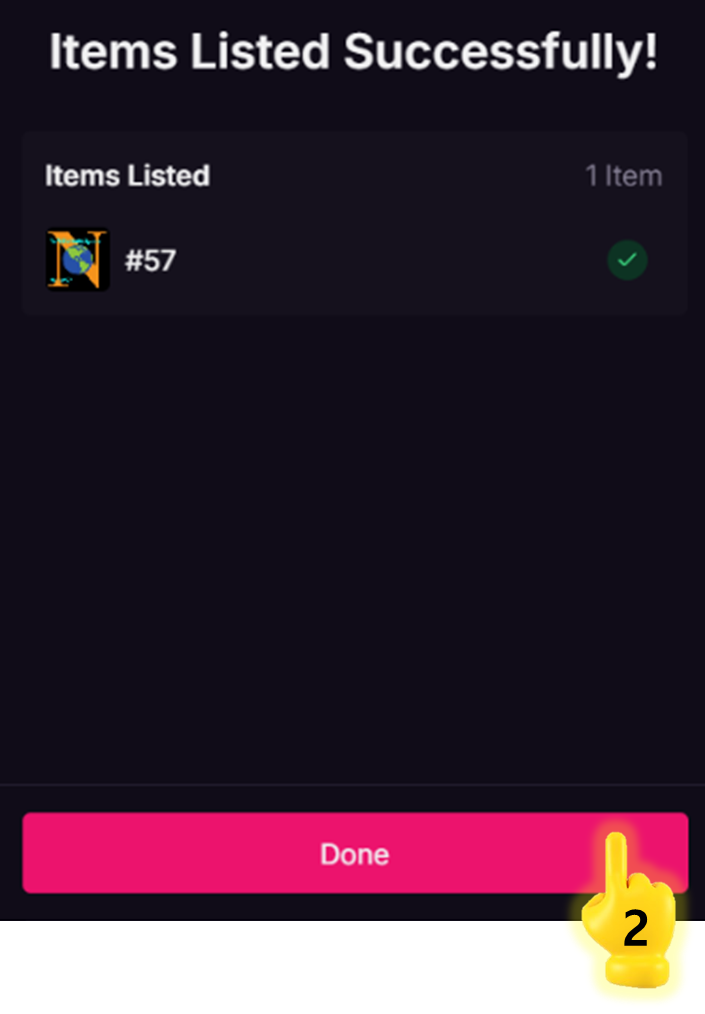
  2. Once the payment is confirmed, the listing is completed → Click [Done]

7

Check your Listing

Check your listing to confirm that it has been listed successfully.

8

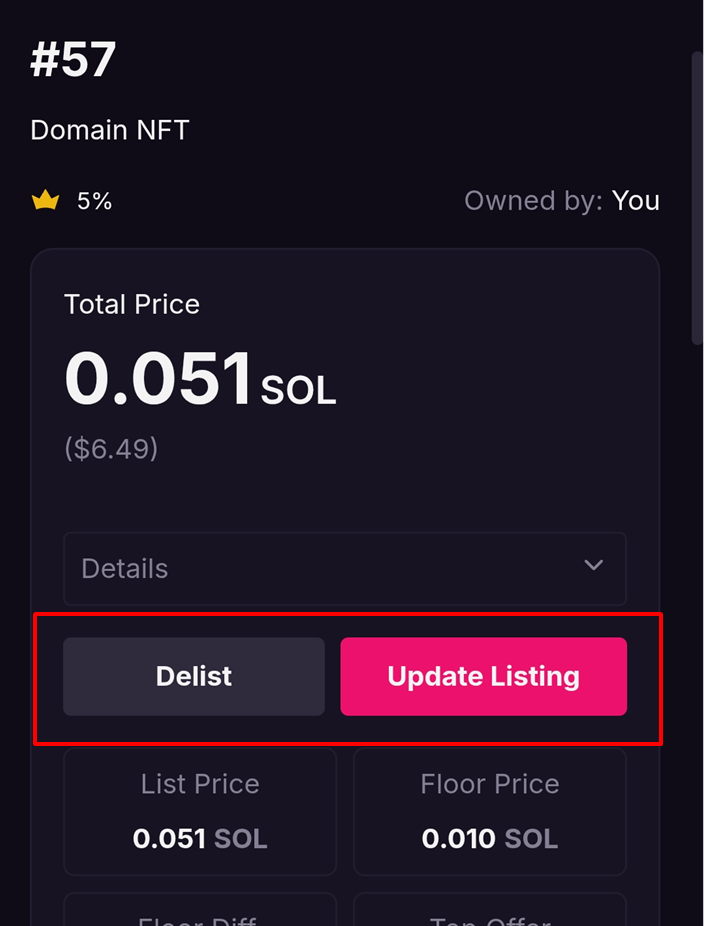
Delist or Update Listing

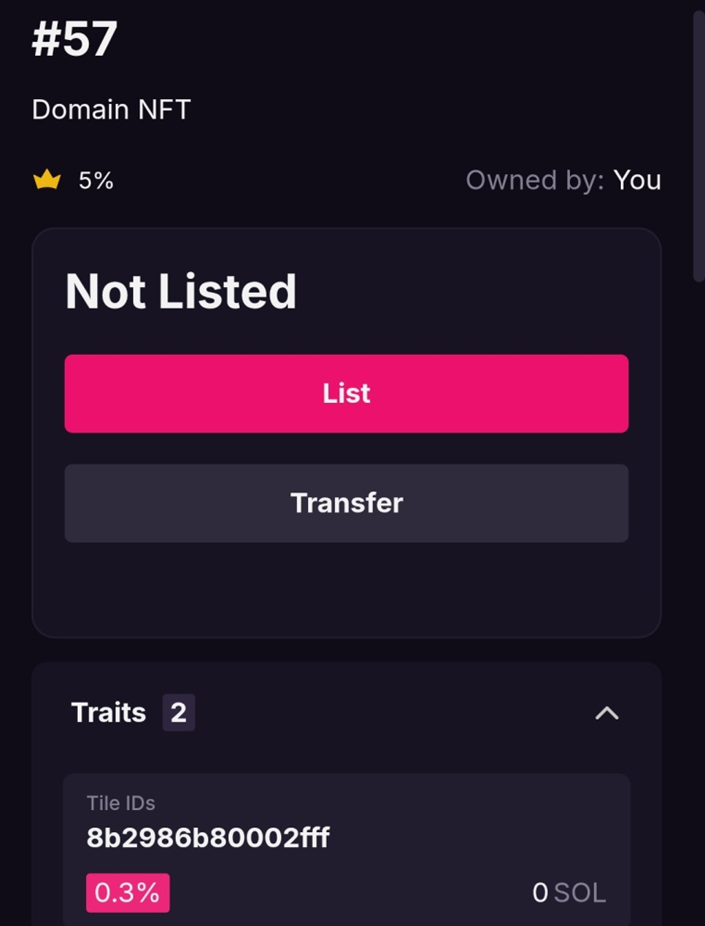
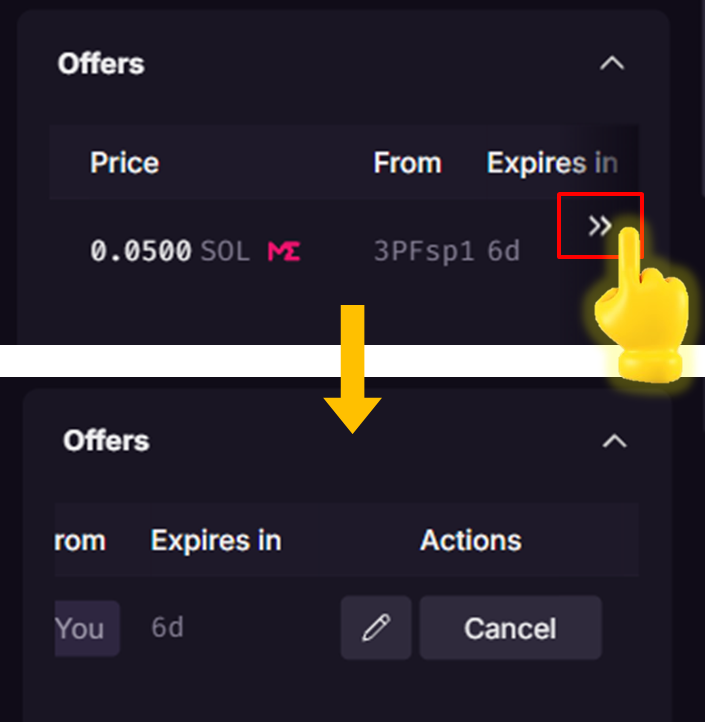
In the 'Activity' tab, Click the NFT icon.

  • To cancel the listing, Click [Delist].

  • To change the listing price, Click [Update Listing] and make your edits.

NOTE

How to Promote my NFTs

After listing your Domain Space NFT, share its Magic Eden link (or collection page).

You can also promote the Magic Eden URL through NIN.Earth or on SNS such as X (Twitter), Facebook, and Telegram.

  1. Promote via SNS

1

Click a

2

Click a

3

Click a

4

Click a

  1. Promote via NIN.Earth

1

Click a

2

Click a

3

Click a

4

Click a

How to Buy NFTs

1

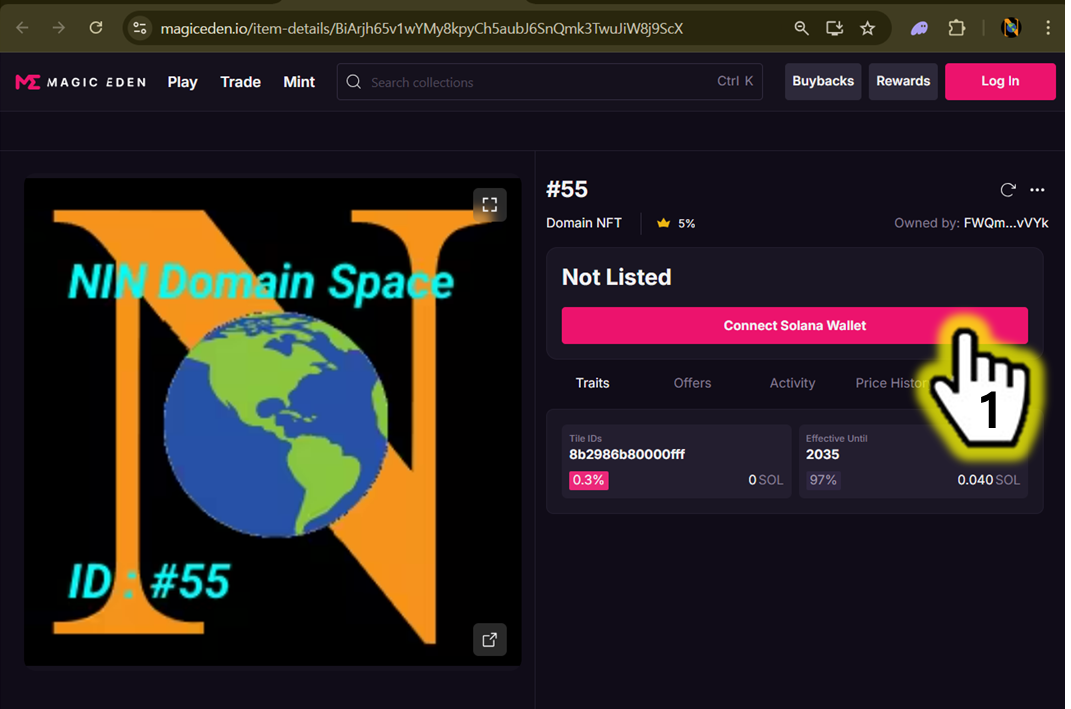
Access & Log in Magic Eden

NOTE

2

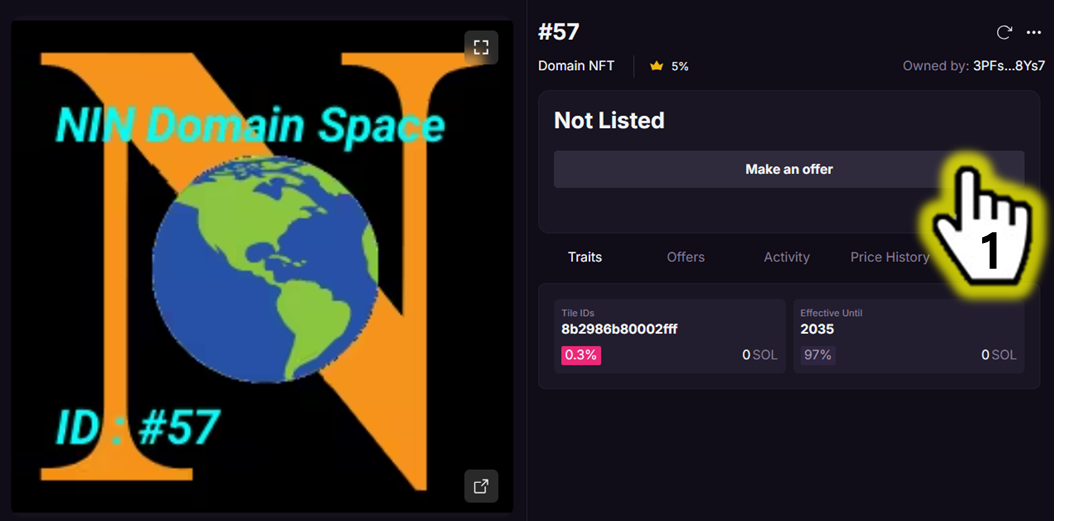
Open the Magic Eden item page using the provided NFT URL.

3

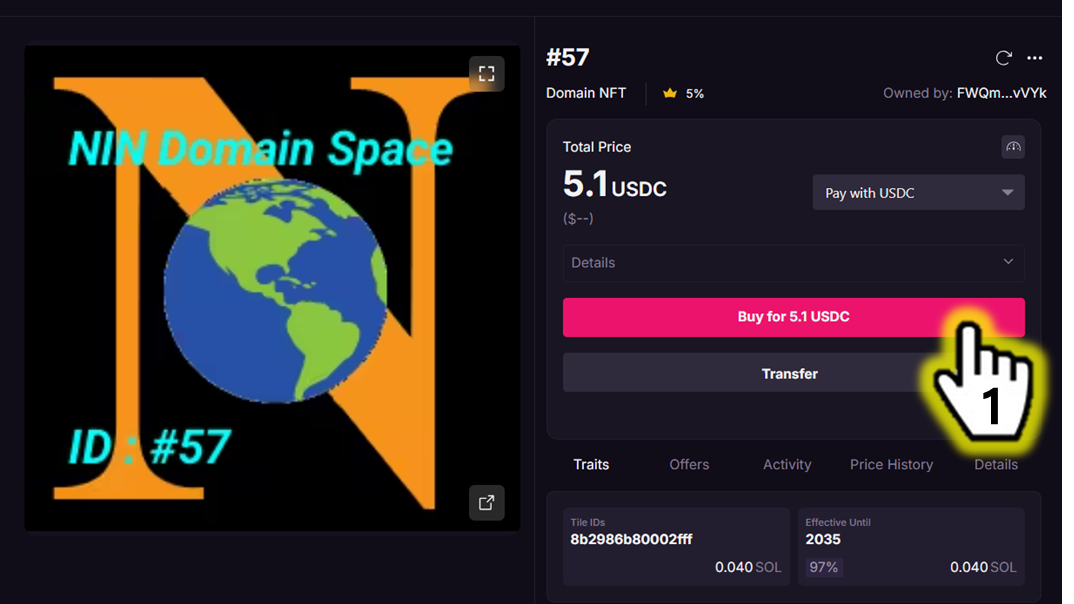
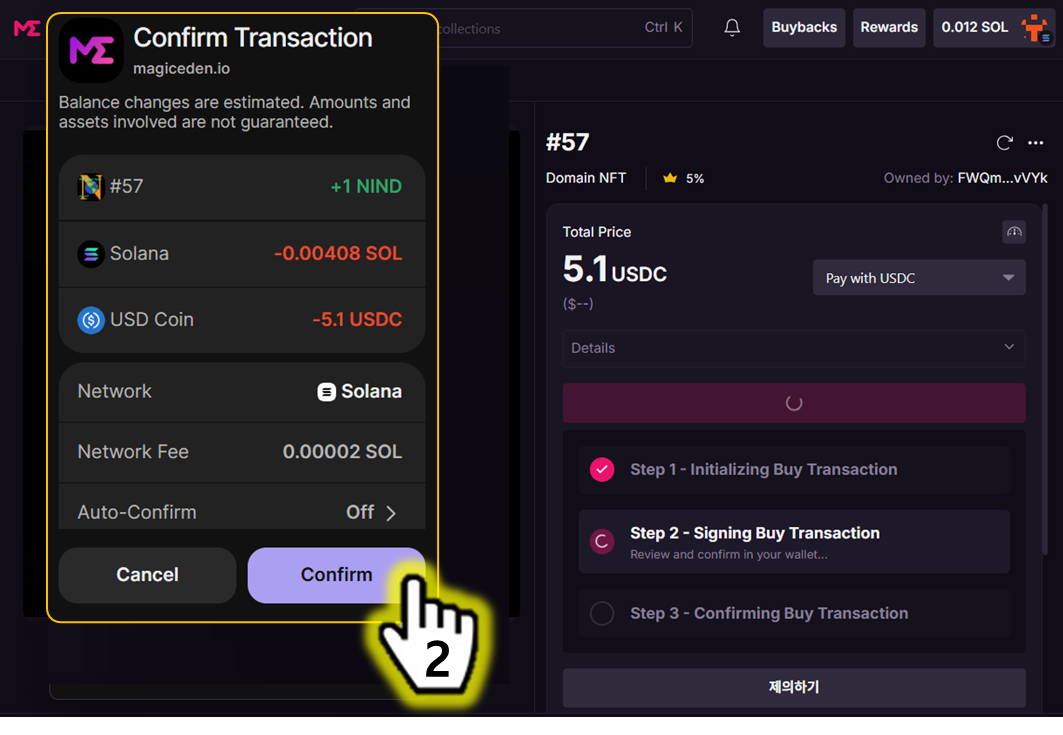
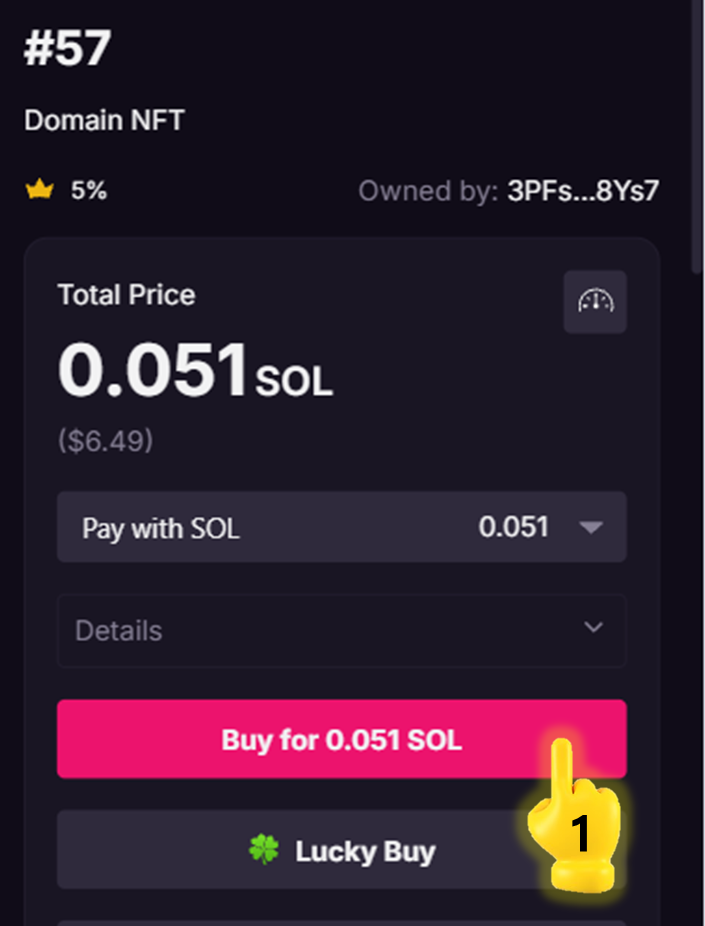
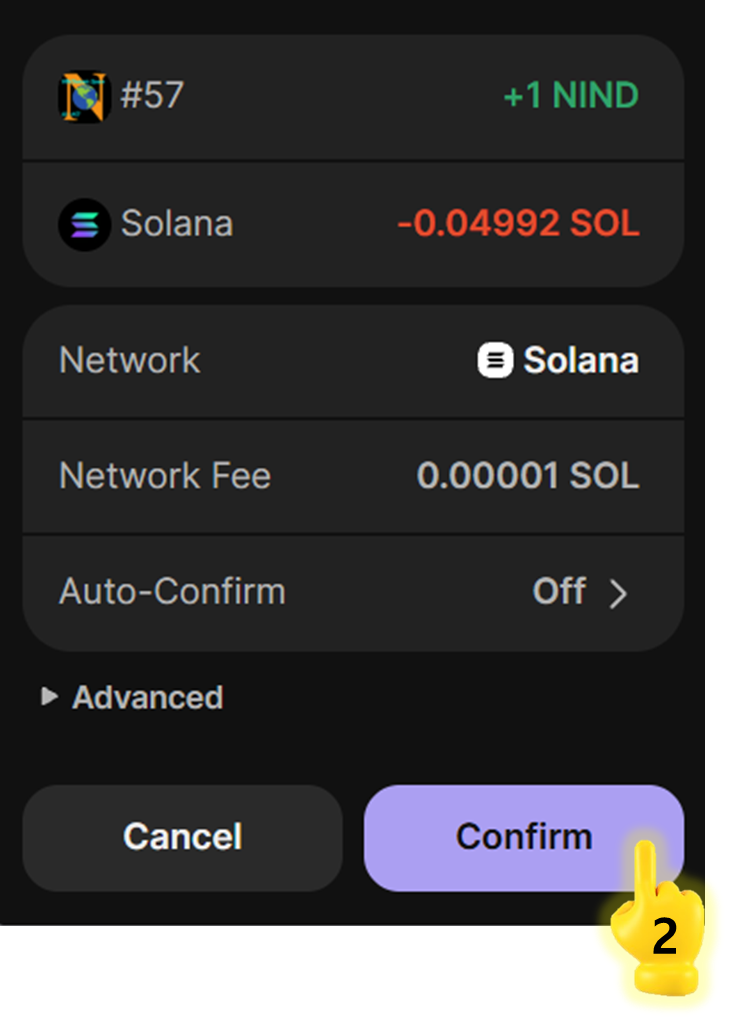
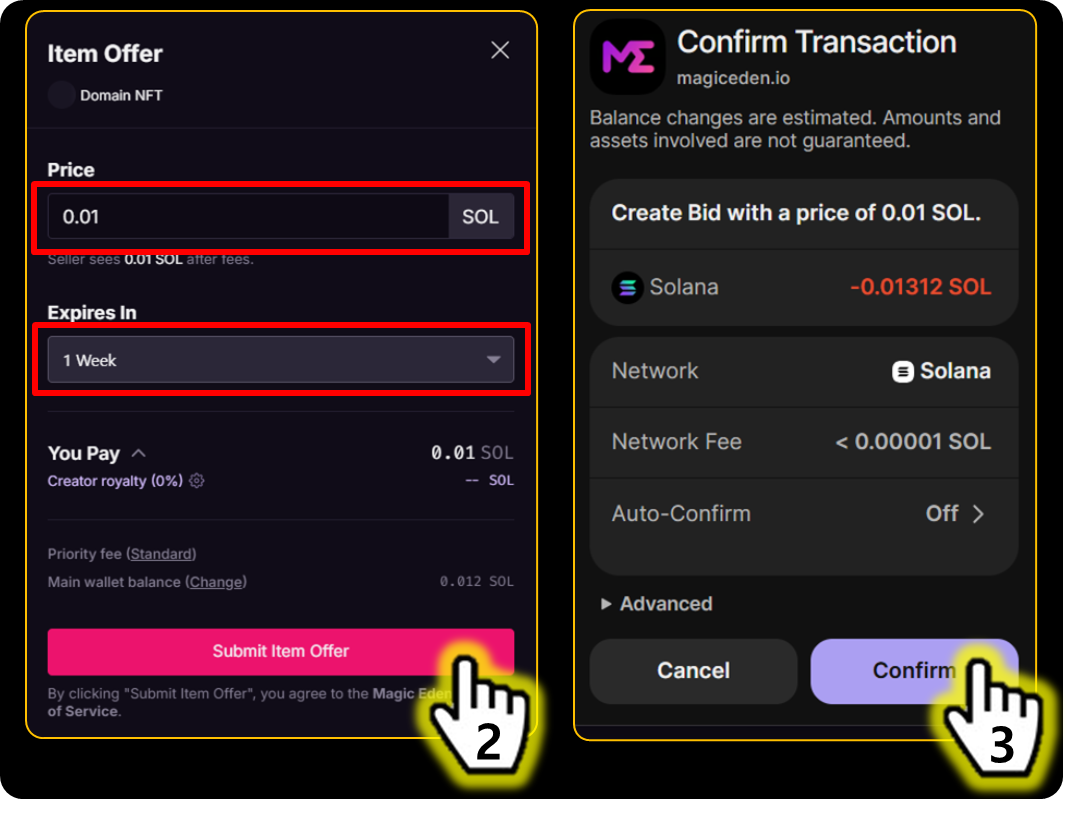
Purchase NFTs

Click the Buy button and complete the purchase.

4

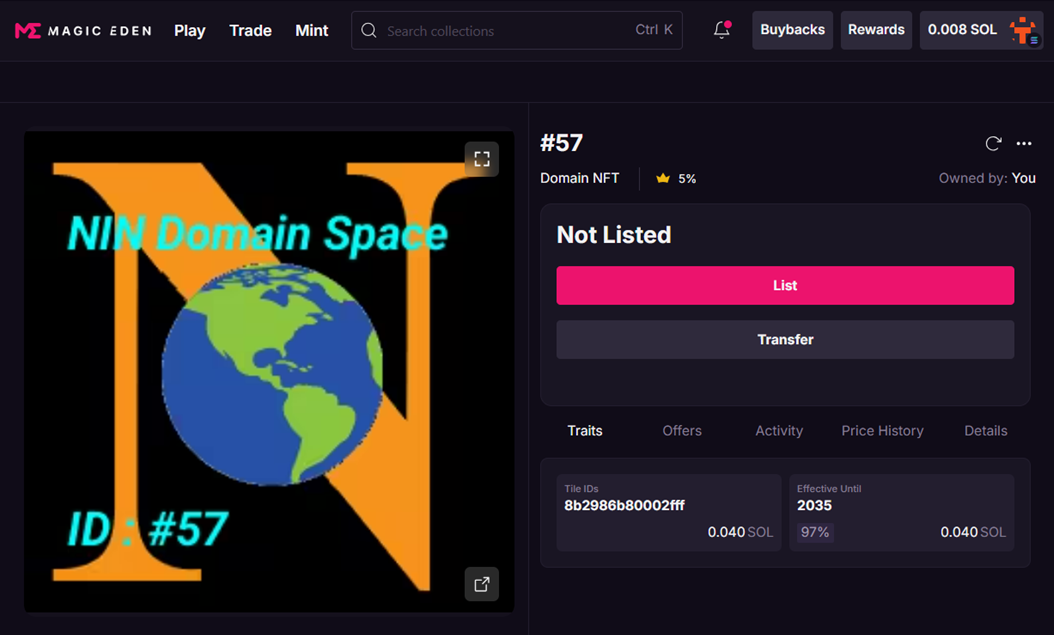
Check NFTs in Phantom Wallet

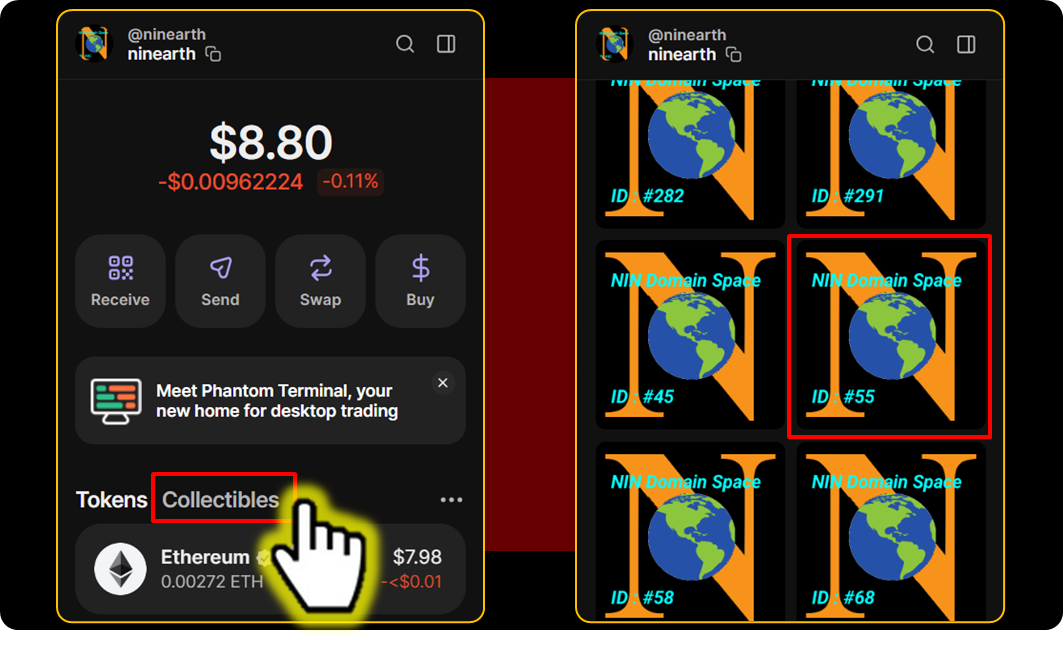
Open Phantom Wallet → Collectibles to confirm the purchased NFT.

5

Check NFTs in NIN.Earth

Connect your Phantom wallet on NIN.Earth and confirm ownership of the Domain Space NFT.


How do I use AR mode?

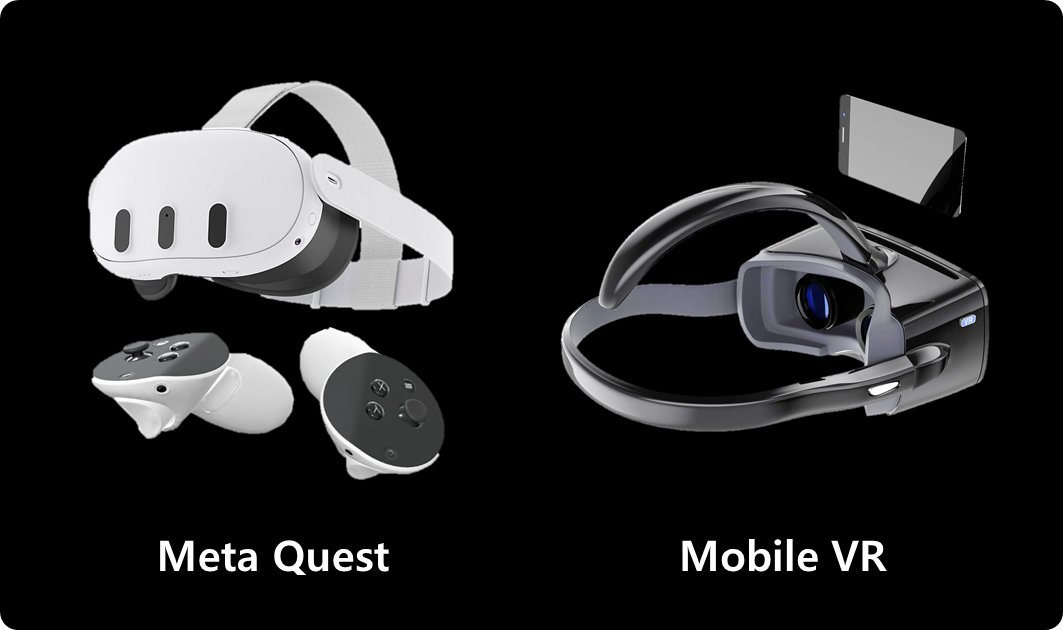
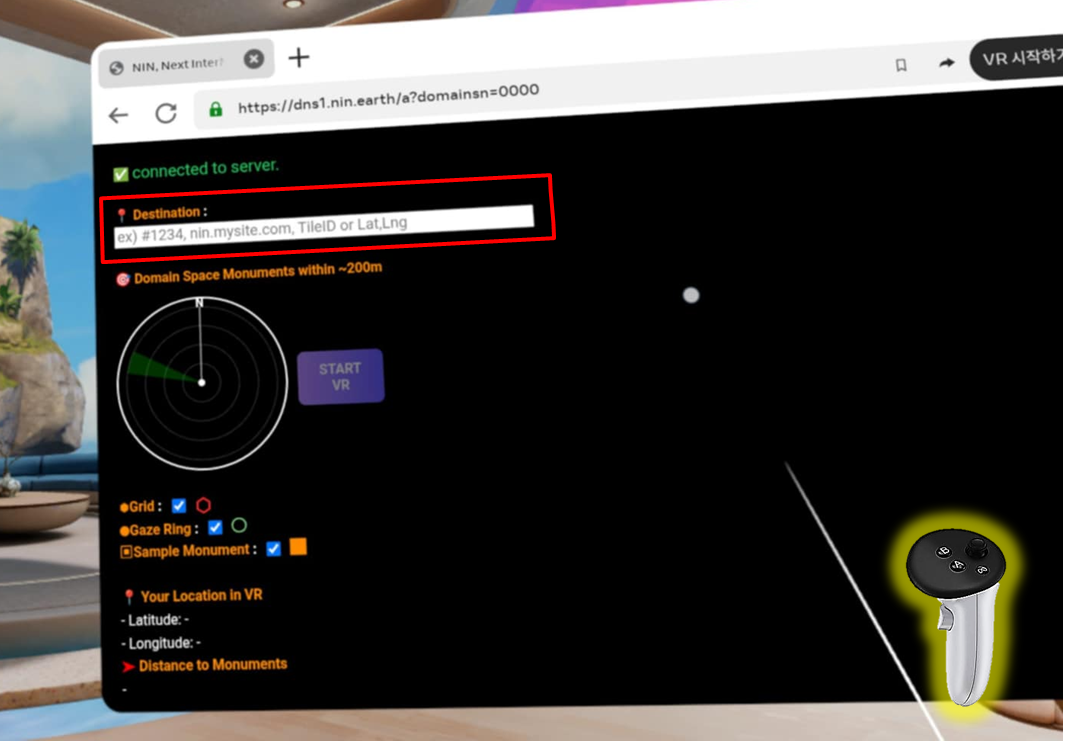
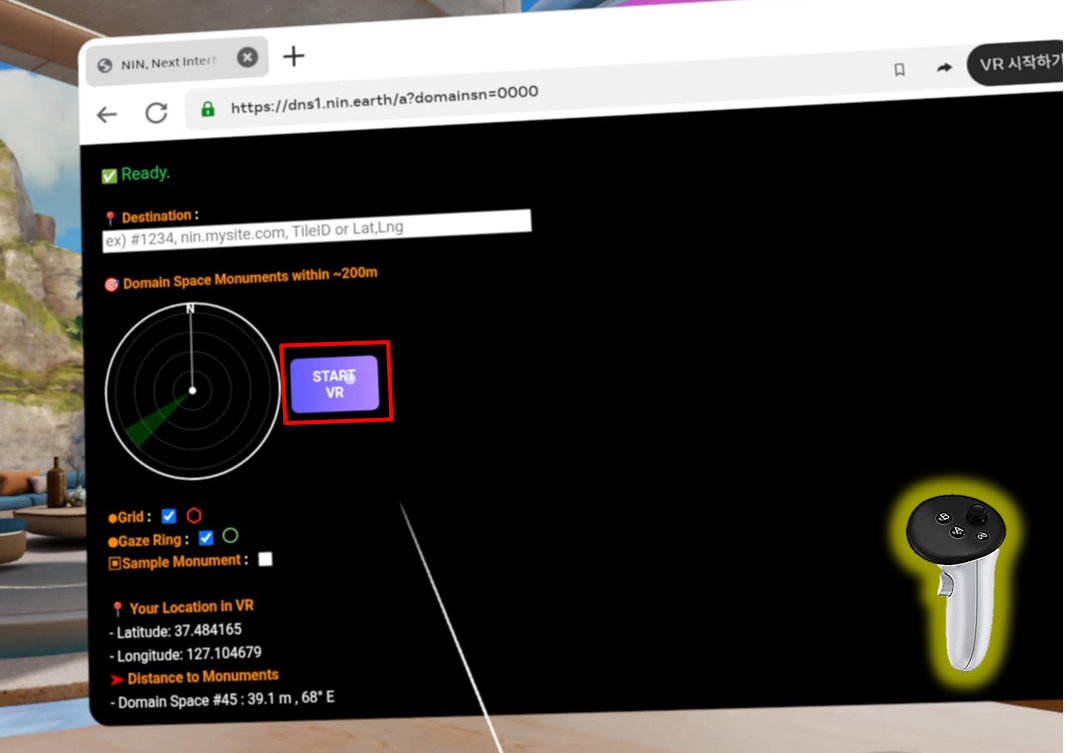
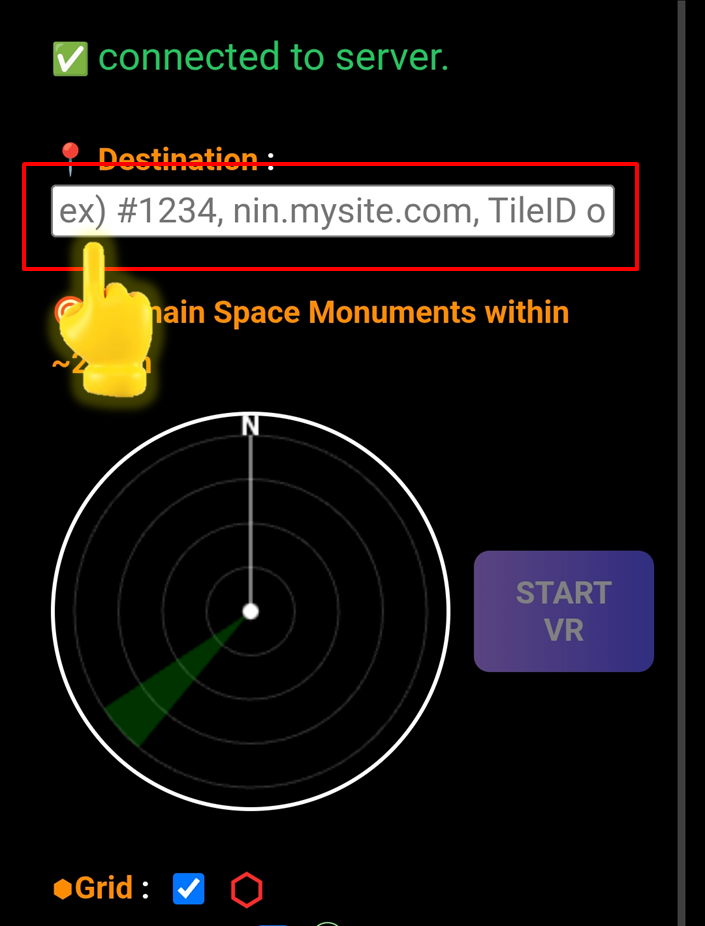
You can enter AR Mode and view your Monument (3D Objects) in the real world using your device’s camera.

Important Note..

Access AR Mode

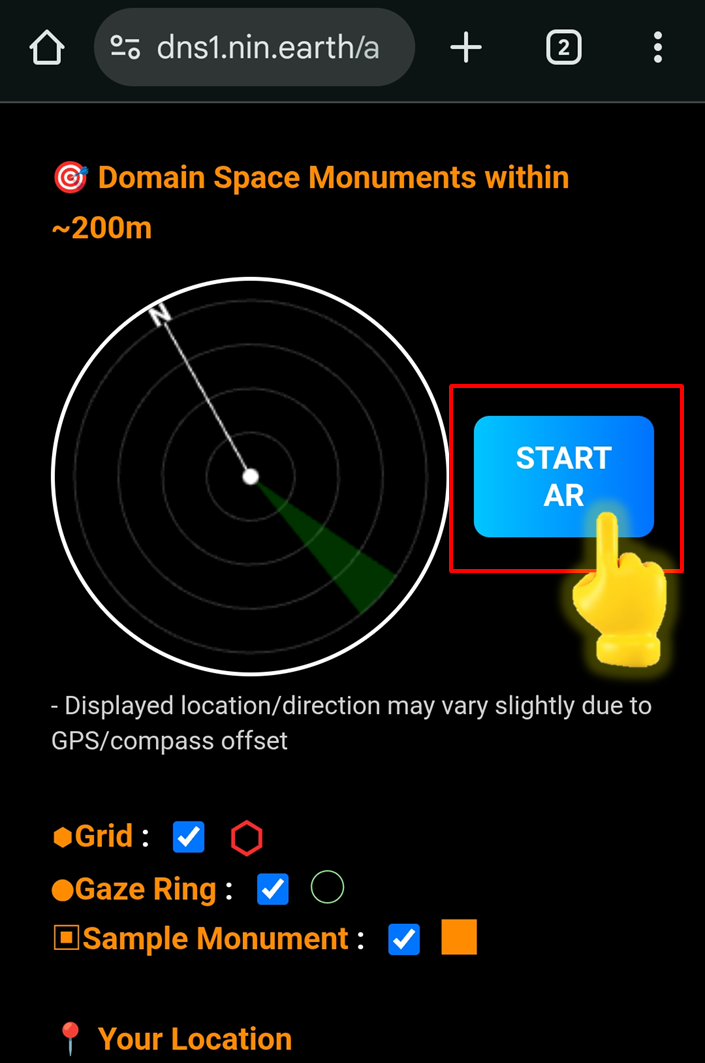
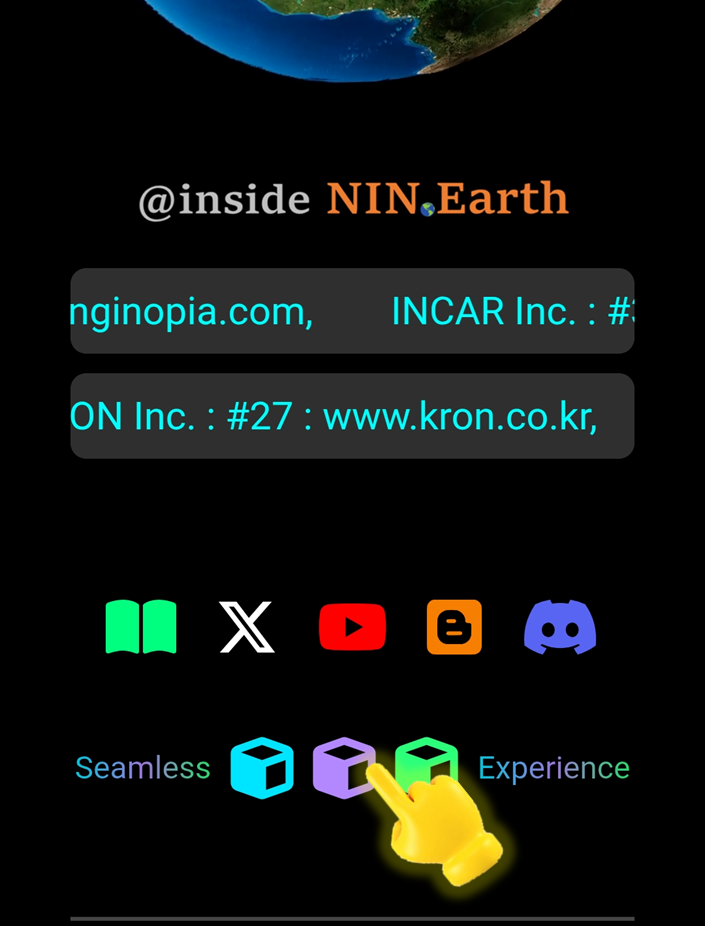
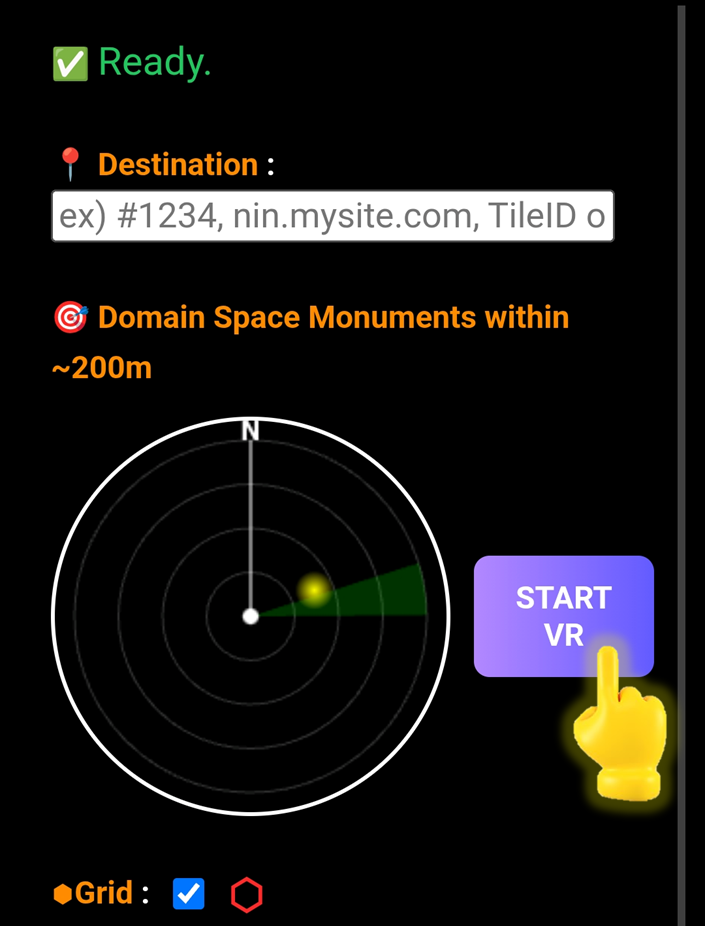
You can tap [AR Mode] from the gate page, and the system will align your Marker and Monument (3D Objects) with the real-world environment through your device’s camera.

1

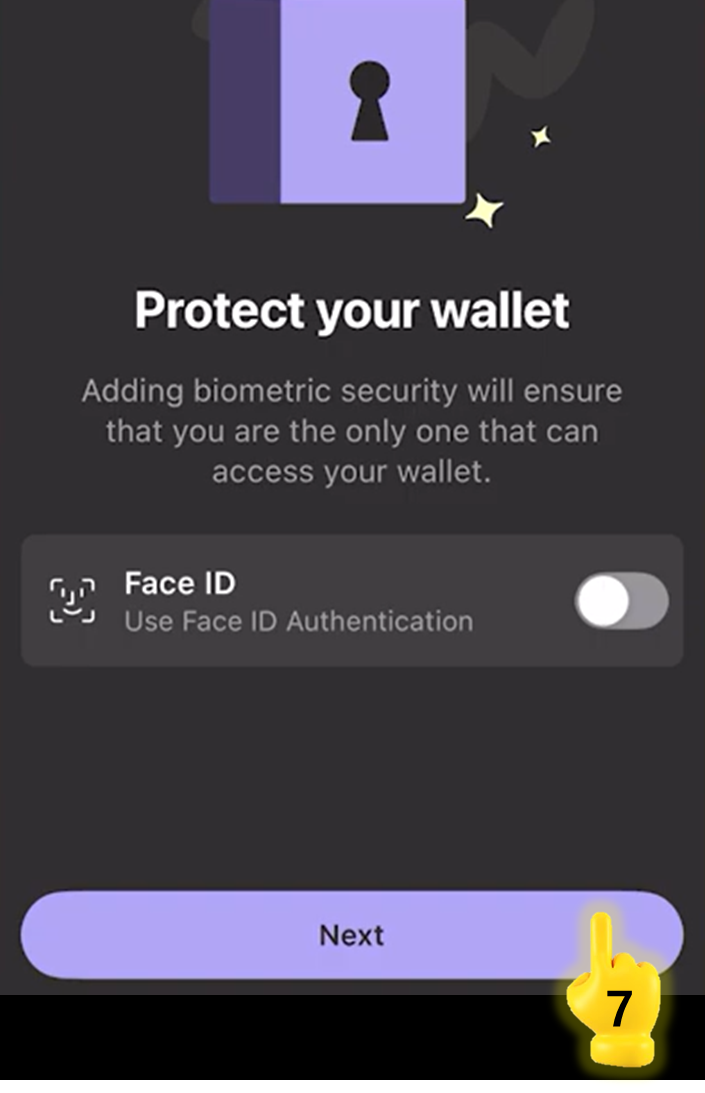
Install Phantom App

2

Add Phantom to Chrome

3

Click [Connect Phantom Wallet]

4

AR Mode Settings

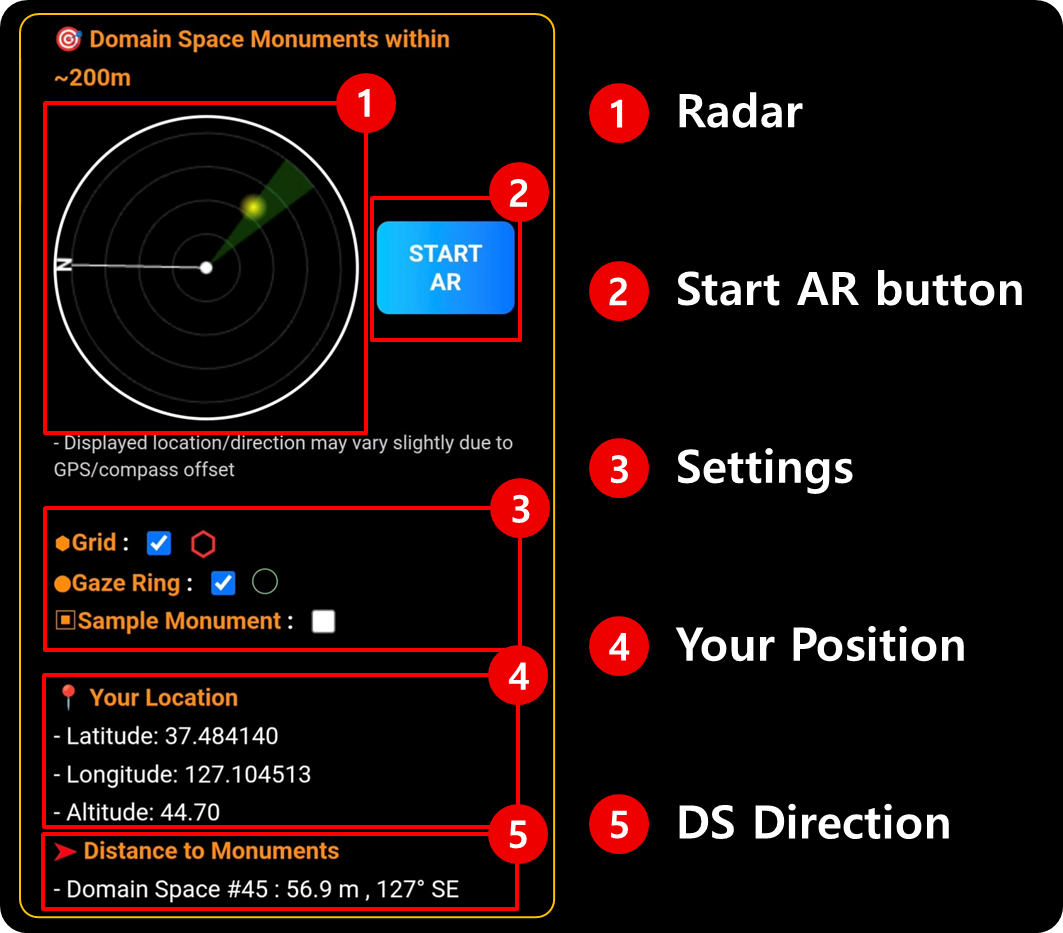
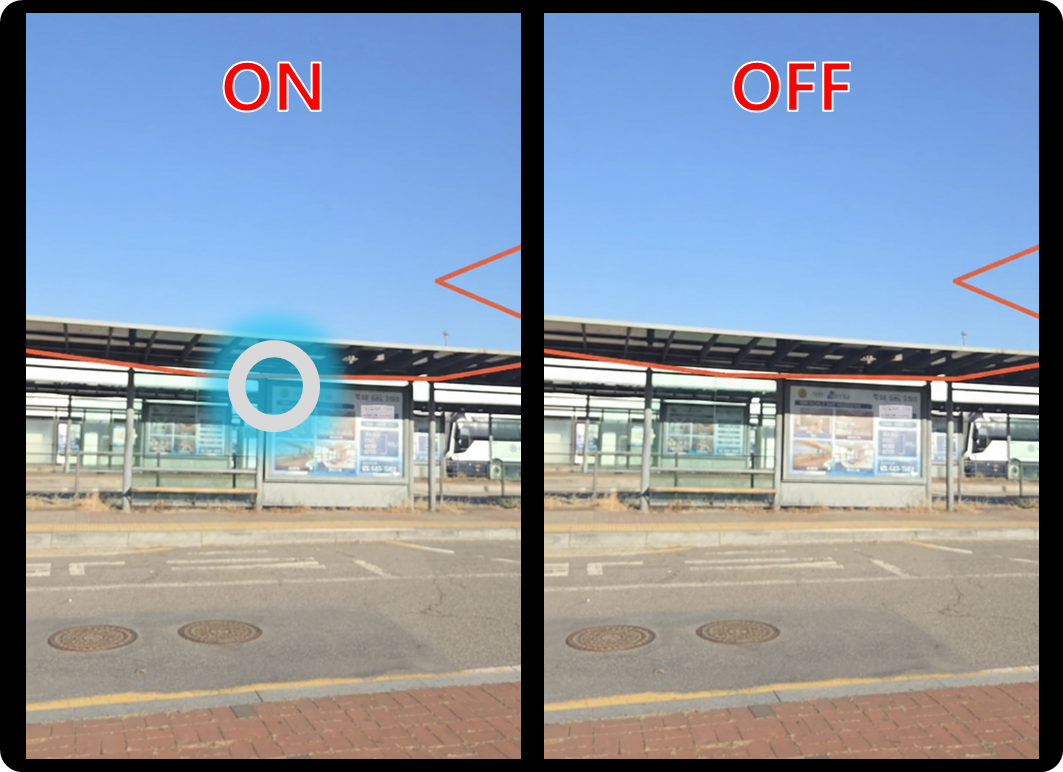
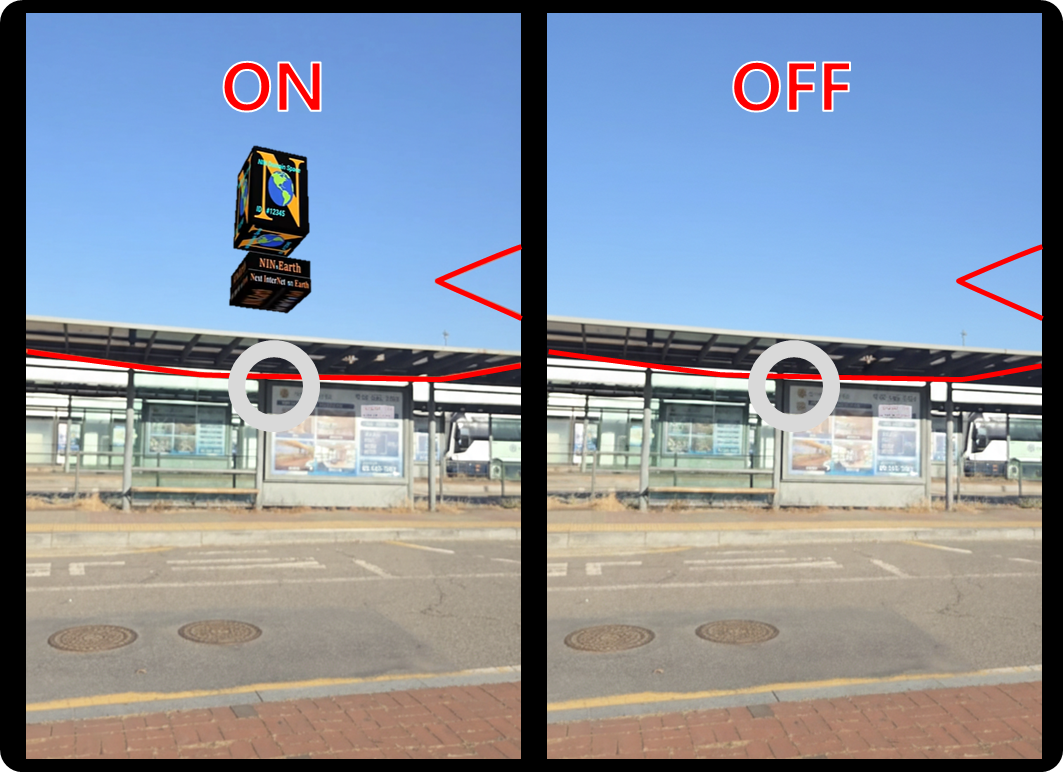
You can toggle the grid display, the gaze ring, and the sample Monument to adjust how AR elements appear in your surroundings.

1

Install Phantom App

2

Add Phantom to Chrome

3

Click [Connect Phantom Wallet]

4

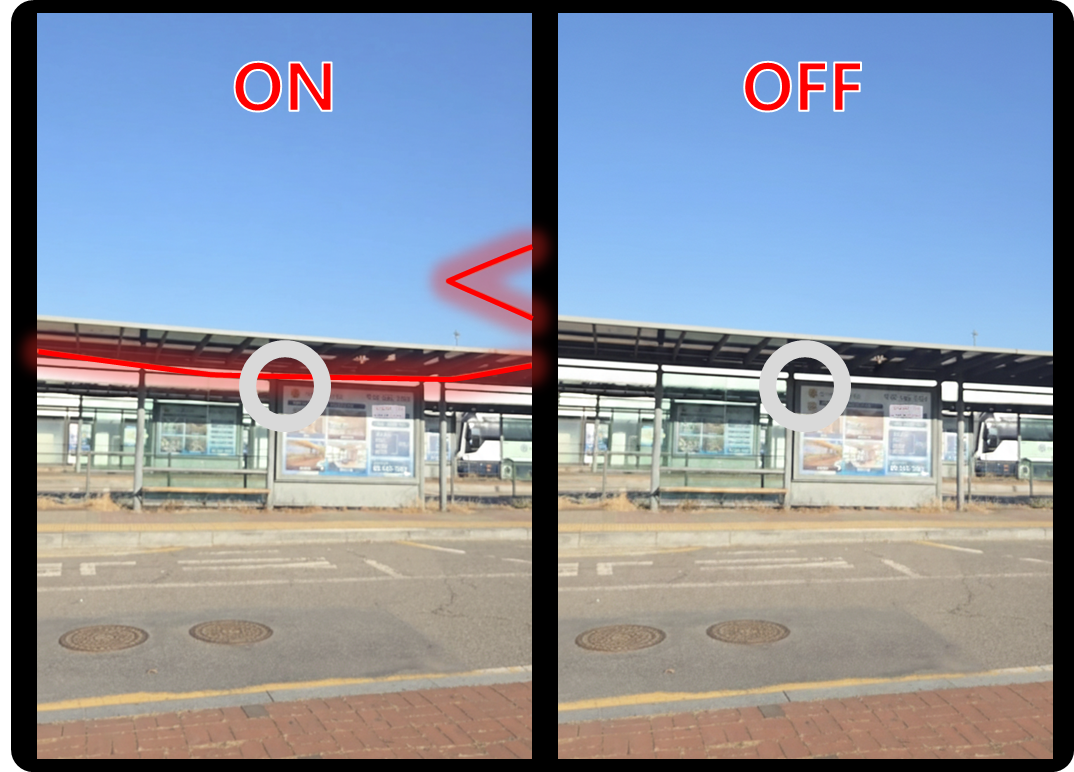
1) Grid Display — ON / OFF

Toggle the grid to show or hide the tile boundaries over the real-world environment. This helps visualize how your Domain Space aligns with physical space.

2) Gaze Ring — ON / OFF

Enable or disable the gaze interaction ring. When ON, you can open linked URLs or interact with objects simply by matching your gaze with the target.

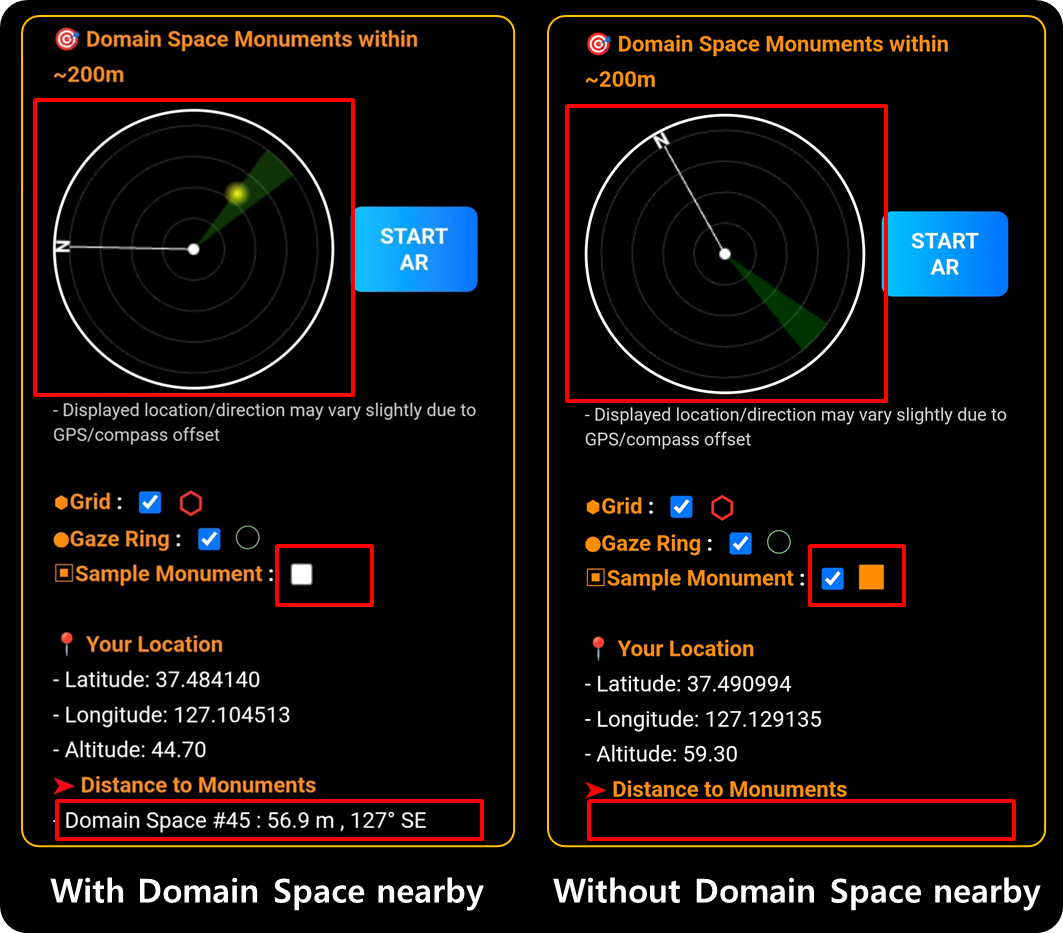
3) Sample Monument — ON / OFF

Turn on a sample Monument to preview how your assets will appear in AR, even if your Domain Space does not yet contain a Monument image.

Last updated